
NTLM Signing Is Now On by Default (KB5135557): Audit Your Servers Before May 2027

The November 2026 Windows update changed how NTLM behaves, and most people I talk to have not noticed yet. From this month, Windows clients offer NTLM message signing on every non-anonymous connection by default. Nothing breaks today. The part that matters is the next phase: in May 2027 Windows servers start requiring signing, and any client that does not offer it gets rejected.
So you have about six months to find the clients that do not sign. I went through it on my lab domain controller: what Microsoft changed, how to read the NTLM events, how to check the signing bit yourself, and what happened when I turned on enforcement early. I also tell you the part I could not reproduce.
What Microsoft changed
The details are in NTLM signing security improvements in Windows (KB5135557), published November 10, 2026, and the fix is tracked as CVE-2026-118737, which MSRC lists as a Remote Procedure Call Runtime remote code execution vulnerability with a CVSS score of 8.1. For Windows Server 2025 the change ships in KB5131080, whose notes say NTLM message signing is now offered by default for non-anonymous connections, with auditing to find the ones that are not signed.
The short version of the KB:
- Phase 1, November 10, 2026: clients offer real signing (
NTLMSSP_NEGOTIATE_SIGN, flag0x10) on all connections. Servers still accept both signed and unsigned clients. - Phase 2, May 2027: servers require signing by default. A client that does not offer it is rejected with
SEC_E_UNSUPPORTED_FUNCTION (0x80090302). - Before this change, an app that did not ask for integrity got the old
ALWAYS_SIGNflag (0x8000). That is a 16 byte placeholder of zeros, not a real signature, and it is what made relay attacks easy. - Anonymous (null session) and Guest connections are exempt. Kerberos is not affected at all.
- It applies to Windows Server 2016, 2019, 2022 and 2025, Windows 11 23H2 and later, and Windows 10 Enterprise LTSC 2021.
Two registry values control it, both REG_DWORD under HKLM\SYSTEM\CurrentControlSet\Control\Lsa\MSV1_0. ClientAllowUnsignedNtlm = 1 stops a client offering signing, and Microsoft says to use it only for temporary compatibility. ServerRequireNtlmSign = 1 makes a server reject unsigned clients now, before May 2027, and the KB says it needs no restart. Microsoft also says it might remove these keys later, so do not build anything permanent on them.
If you want the background on the flags themselves, the NEGOTIATE flags page of the MS-NLMP spec lists every bit, and the NTLM overview on Microsoft Learn covers where NTLM is still used.
Prerequisites
- The November 2026 cumulative update or later on the servers you audit. On Windows Server 2025 that is KB5131080 (build 26100.33822).
- Local admin on the server, to read the NTLM Operational log and the registry.
- Windows PowerShell 5.1 is enough. Everything below is plain PowerShell, nothing to install.
- A list of the servers that still take NTLM. File servers, domain controllers, web servers with Windows authentication and anything with a service account that talks to old apps are the usual ones.
Step 1: Check the update, the registry and the log
First make sure the update is there and that nobody has already set the compatibility values. Then check that the NTLM Operational log is turned on, because that is where the audit events go.
PS C:\Users\Administrator> Get-HotFix -Id KB5131080 | Select-Object HotFixID,Description,InstalledOn
PS C:\Users\Administrator> $key = 'HKLM:\SYSTEM\CurrentControlSet\Control\Lsa\MSV1_0'
PS C:\Users\Administrator> Get-ItemProperty -Path $key |
>>   Select-Object ClientAllowUnsignedNtlm,ServerRequireNtlmSign | Format-List
PS C:\Users\Administrator> Get-WinEvent -ListLog Microsoft-Windows-NTLM/Operational |
>>   Format-List LogName,IsEnabled,RecordCount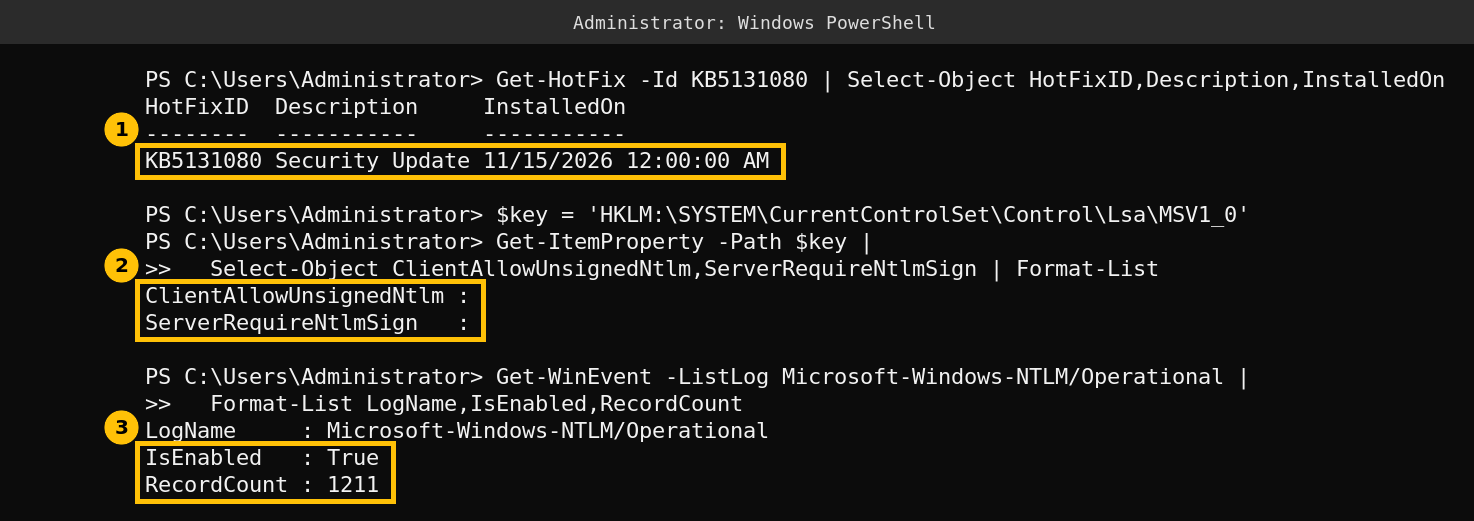
Expected result: the update is listed, both registry values are empty, and the log says IsEnabled : True. Empty values are what you want. It means the client offers signing (the new default) and the server accepts both. If you find ClientAllowUnsignedNtlm set to 1 on a machine, someone has switched the protection off for that client and you should find out why.
If IsEnabled is False, the KB says enhanced NTLM auditing has to be on for these events. On my server the log was already enabled and filling up. The Restrict NTLM audit policies described on Network security: Restrict NTLM: Audit incoming NTLM traffic are the usual way to get the NTLM events in the first place.
Step 2: Read the events and check the SIGN bit
This is where I wasted some time, so learn from it. The KB says event 4022 is the client side and 4023 the server side, and both are Warning level. On my Windows Server 2025 build it did not look like that. The event descriptions in the provider say 4020 and 4021 are “This machine attempted to authenticate to a remote resource via NTLM” (outgoing), and 4022 and 4023 are “A remote client is using NTLM to authenticate to this workstation” (incoming). The recent events were Information level, and the 4023 Warning events on this server are older, from September and October.
So do not filter on one event ID, and do not filter on the level. The KB itself says the level tells you nothing, because signed and unsigned events look the same. Read all four IDs and check bit 0x10 in the Negotiated Flags yourself. That is what this does. I store the result in $ntlm so I can slice it twice without reading the log again:
PS C:\Users\Administrator> $ntlm = Get-WinEvent -LogName Microsoft-Windows-NTLM/Operational |
>>   Where-Object Id -in 4020,4021,4022,4023 | ForEach-Object {
>>     $x = [xml]$_.ToXml()
>>     $f = ($x.Event.EventData.Data | Where-Object Name -eq 'NegotiatedFlags').'#text'
>>     $k = ($x.Event.EventData.Data | Where-Object Name -eq 'SessionKeyStatus').'#text'
>>     $p = ($x.Event.EventData.Data | Where-Object Name -eq 'ProcessName').'#text'
>>     [pscustomobject]@{
>>       Id = $_.Id
>>       Level = $_.LevelDisplayName
>>       Process = $p
>>       Flags = $f
>>       Signed = ([Convert]::ToInt64($f,16) -band 0x10) -ne 0
>>       SessionKey = $k
>>     }
>>   }
PS C:\Users\Administrator> $ntlm | Group-Object Id,Level,Process,Flags,Signed,SessionKey -NoElement |
>>   Sort-Object Count -Descending | Format-Table Count,Name -AutoSize
PS C:\Users\Administrator> ($ntlm | Where-Object Signed -eq $false).Count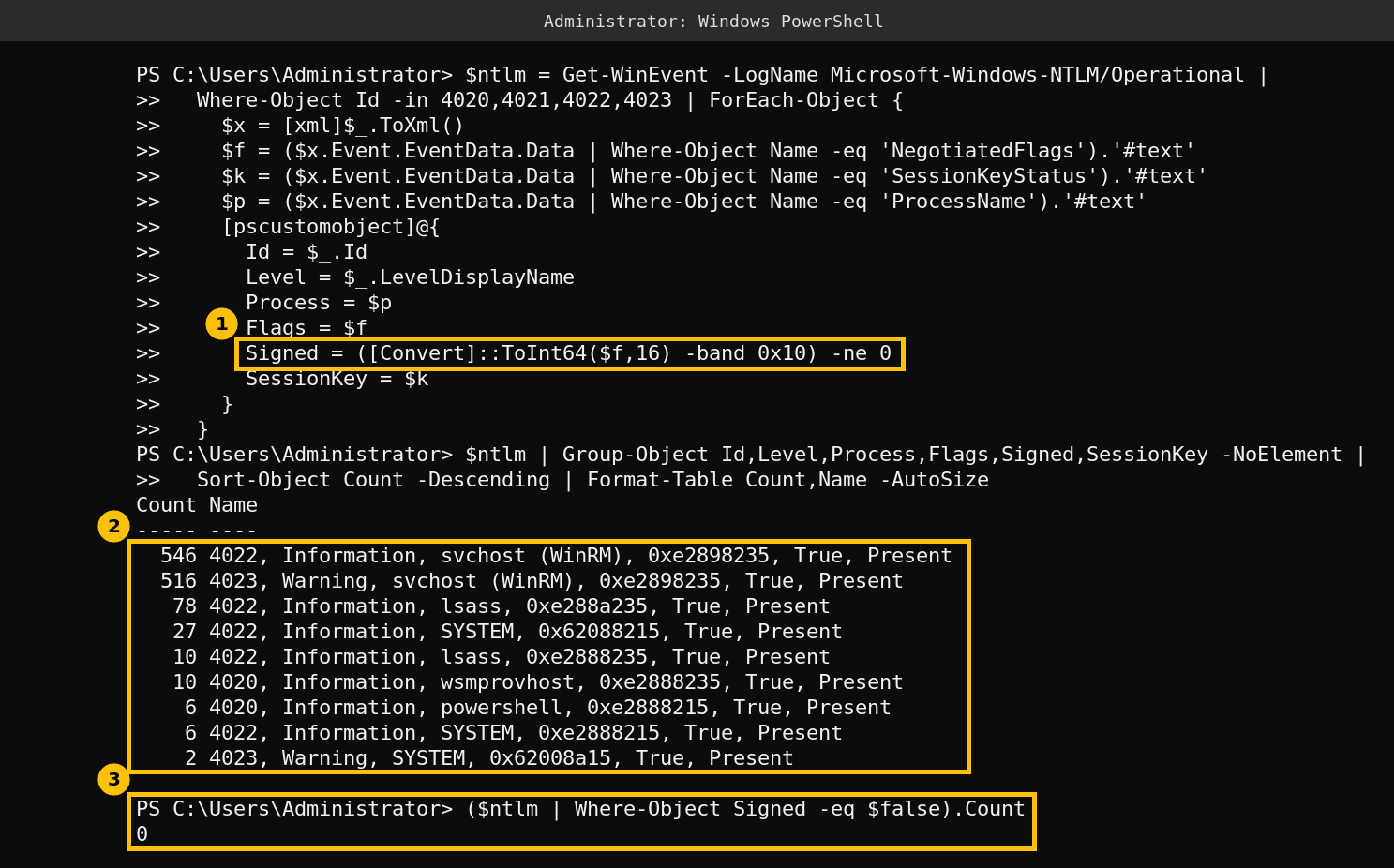
Expected result: a short list of process and flag combinations, and a count. On my DC every group shows True and Present, and the unsigned count is 0. That covers remote PowerShell from my Linux automation box (the svchost (WinRM) rows), lsass, and a couple of anonymous NTLMv1 connections from October that still offered signing.
A few things to read from the flags, using the KB’s own examples. A ready client looks like 0xE0888215: bit 0x10 is there and the session key is Present. A client that needs work looks like 0xA0888205: the last digit is 5, so 0x10 is missing, and the session key is Missing. If your count is not zero, swap the last command for $ntlm | Where-Object Signed -eq $false, add the ClientIP and Username fields from the same event data, and you have your list of machines to fix. I left those two fields out of my screenshot because they are my lab’s addresses and accounts.
Run this on every server that takes NTLM, not just one. A domain controller sees the logons it validates, but a file server or a web server sees its own clients, and the old printer or the Java app usually lives there. The log on my DC is only about 1 MB, so it rolls over quickly. On a busy server, run the check often or forward the events, otherwise the evidence is gone before you look.
Step 3: Test enforcement early, with a way back
Warning: turning on ServerRequireNtlmSign rejects every client that does not sign, straight away. Do it on one server at a time, outside business hours, and only after Step 2 has shown zero unsigned connections for a good while. I was connected to the lab DC remotely, and that connection uses NTLM, so before I flipped it I created a one-off scheduled task running as SYSTEM that would delete the value again a few minutes later. If enforcement had locked me out, the server would have undone it by itself.
PS C:\Users\Administrator> $key = 'HKLM:\SYSTEM\CurrentControlSet\Control\Lsa\MSV1_0'
PS C:\Users\Administrator> New-ItemProperty -Path $key -Name ServerRequireNtlmSign -Value 1 -PropertyType DWord -Force |
>>   Select-Object ServerRequireNtlmSign
PS C:\Users\Administrator> Get-WinEvent -LogName Microsoft-Windows-NTLM/Operational -MaxEvents 3 | ForEach-Object {
>>   $d = ([xml]$_.ToXml()).Event.EventData.Data
>>   [pscustomobject]@{
>>     TimeCreated = $_.TimeCreated
>>     Id = $_.Id
>>     Process = ($d | Where-Object Name -eq 'ProcessName').'#text'
>>     Flags = ($d | Where-Object Name -eq 'NegotiatedFlags').'#text'
>>     Status = ($d | Where-Object Name -eq 'Status').'#text'
>>   }
>> } | Format-Table -AutoSize
PS C:\Users\Administrator> Remove-ItemProperty -Path $key -Name ServerRequireNtlmSign
PS C:\Users\Administrator> Get-ItemProperty -Path $key |
>>   Select-Object ClientAllowUnsignedNtlm,ServerRequireNtlmSign | Format-List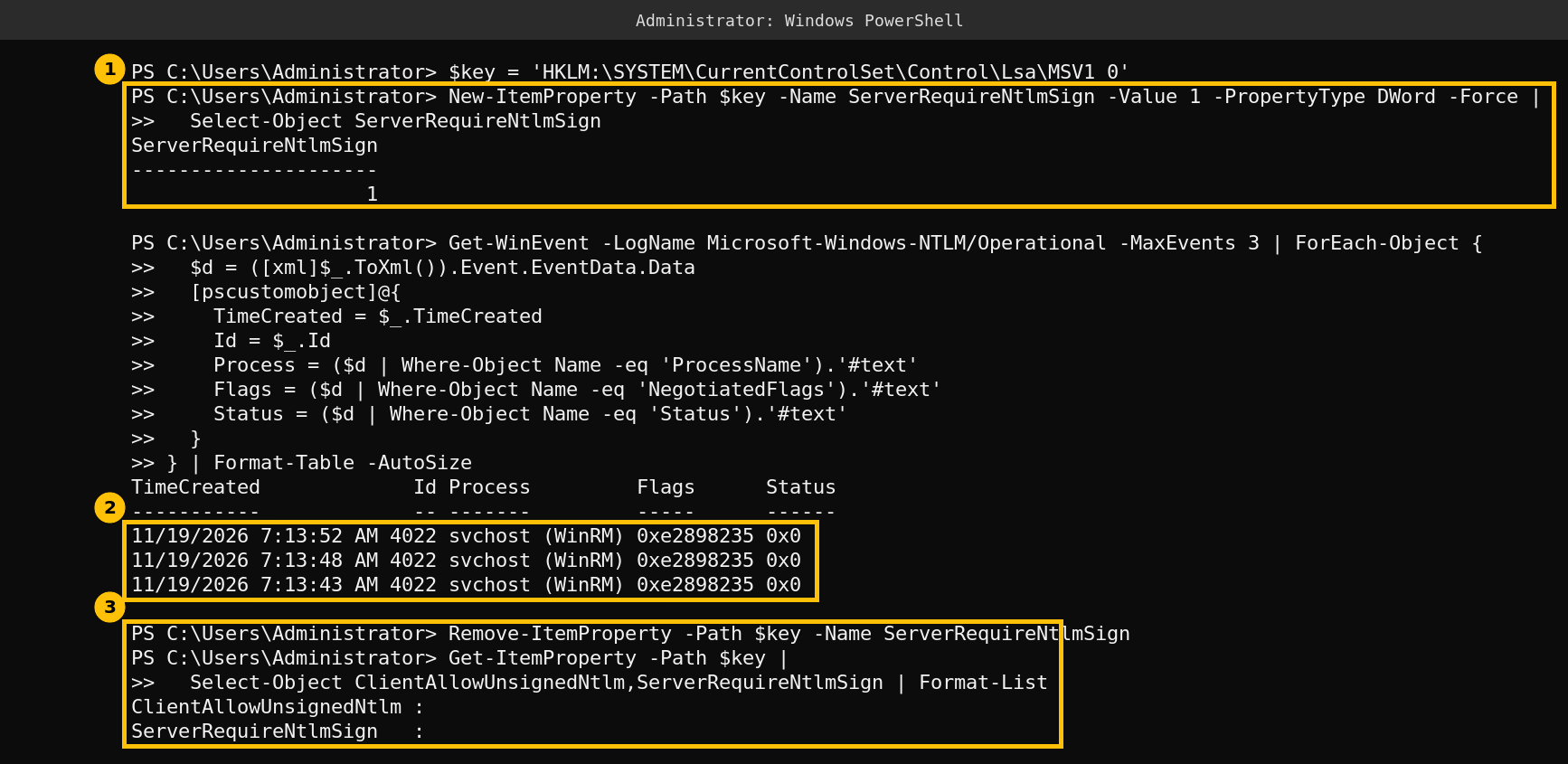
Expected result: the value reads 1, new NTLM logons from signing clients keep working with status 0x0, and after the rollback both values are empty again. The newest event in my screenshot is the remote session that ran that very command, opened after enforcement was on. I also ran a normal Windows client against a test IIS site on the same server with enforcement on, using a throwaway domain account, and it got a 200 and logged signed flags. A rejected client would instead show status 0x80090302 in a 4023 Warning event, per the KB.
What I could not reproduce: a client that does not sign. I tried to make one by setting ClientAllowUnsignedNtlm = 1 on the server and testing against IIS on the same machine, with and without a restart. The Windows HTTP client kept negotiating flag 0x10 anyway, I think because it asks for integrity itself, so the switch had nothing to remove. I also tried a Linux curl --ntlm client, but my network does not let it reach the test site. So I have seen enforcement leave good clients alone, but I have not seen it reject a bad one with my own eyes. The rejection details above are Microsoft’s.
Problems you might hit
| Symptom | Likely cause | What to do |
|---|---|---|
| No events at all in the NTLM Operational log | The log or NTLM auditing is not enabled, or the server really sees no NTLM | Check IsEnabled in Step 1, turn on the Restrict NTLM audit policies, and test with a known NTLM connection such as a share opened by IP address. |
| Events exist but you filtered on 4023 and found nothing | On some builds the incoming events are 4022 Information | Query 4020 to 4023 and decide on the 0x10 bit, as in Step 2. |
| A client shows Signed False and Session Key Missing | An old app, an appliance or a third party NTLM library that never asks for signing | Update or reconfigure it, move it to Kerberos, or plan an exception before May 2027. |
| After setting ServerRequireNtlmSign some clients fail with 0x80090302 | Those clients do not sign | Remove the value (no restart needed per the KB), fix the clients, try again. |
| ClientAllowUnsignedNtlm is set to 1 on a machine | Someone used the compatibility switch | Find out why and remove it. Microsoft says it is temporary only. |
What I would do now
- Patch to the November update or later, then run the Step 2 check on every server that takes NTLM, once a week, until May 2027.
- For every unsigned client you find, decide: update it, move it to Kerberos, or retire it. If you are already working on NTLM, the NTLMv1 single sign-on change from October and the 60 second SMBv1 and NTLMv1 check are part of the same cleanup.
- When a server shows zero unsigned connections for a few weeks, turn on ServerRequireNtlmSign there yourself, with a way back. It is better to find the broken client on a day you choose than on the day Microsoft chooses.
- If you manage servers over PowerShell Remoting with NTLM like I do, check your automation client shows up as signed. Mine did. Hardening PowerShell Remoting covers the rest of that setup.
Summary
| Item | Detail |
|---|---|
| Change | Clients offer NTLM signing (flag 0x10) on non-anonymous connections by default, from the November 10, 2026 updates |
| Next phase | May 2027: servers require signing, unsigned clients rejected with 0x80090302 |
| Where to look | Microsoft-Windows-NTLM/Operational, events 4020 to 4023, Negotiated Flags and Session Key Status |
| Registry | ClientAllowUnsignedNtlm (temporary opt out), ServerRequireNtlmSign (enforce early, no restart) |
| My result | Every NTLM connection on my DC was signed. Early enforcement did not break signing clients |
What I tested and what I did not
I tested on one Windows Server 2025 domain controller, build 26100.33822 with KB5131080, in Windows PowerShell 5.1 over a remote session. I read and decoded the existing NTLM events, turned enforcement on and off with a scheduled task as a safety net, and checked that signing clients kept working. I did not see an unsigned client rejected, because I could not produce one, and I did not test Windows Server 2016, 2019 or 2022, Windows 11 clients, Samba, Java or appliance clients. The phase dates, the event meanings in the KB and the rejection code come from Microsoft’s KB5135557. Everything I changed on the server is back to the default: the registry values, the scheduled tasks and the test account are gone.
Sources
- Microsoft Support: NTLM signing security improvements in Windows (KB5135557)
- Microsoft Security Response Center: CVE-2026-118737
- Microsoft Support: KB5131080, November 10, 2026, Windows Server 2025
- Microsoft Learn: MS-NLMP NEGOTIATE flags
- Microsoft Learn: NTLM overview
- Microsoft Learn: Network security: Restrict NTLM: Audit incoming NTLM traffic
- Microsoft Learn: Get-WinEvent
- Microsoft Learn: New-ItemProperty
Related: the October 2026 DC updates also added an LDAP SPN check that breaks NetApp SMB. If you have ONTAP or Azure NetApp Files with LDAP session security set to none, read that one before your next DC patch cycle.