
OSConfig Security Baseline on a Domain Controller: What It Changes, and What Removing It Broke

Microsoft’s answer to “how do I harden Windows Server 2025” is OSConfig. You install a PowerShell module, run one command, and the server gets a role-aware security baseline of more than 300 settings. There is a separate baseline for domain controllers. I applied it to my lab domain controller to see what it really does, and then I removed it again.
Most of it went the way the Microsoft Learn page says. Three things did not, and none of them is spelled out for domain controllers. The account lockout setting changed for the whole domain and was written into the Default Domain Policy. The built-in Administrator became lockable from the network. And after I removed the baseline and restarted, Netlogon would not start, so nobody could sign in to the domain. This post walks through every step with the real output and shows how I got the DC back.
Quick guide
- Test it on a lab or spare DC first. Take a snapshot or a system state backup before you start.
- Decide your domain lockout policy before you apply it, because the baseline sets 3 attempts and 15 minutes for every account in the domain.
- Check your inbound firewall rules. The baseline turns Windows Firewall on with inbound Block, so anything without an allow rule stops working.
- Apply with
Set-OSConfigDesiredConfiguration -Scenario SecurityBaseline/WindowsServer/2025/DomainController -Default, then restart. - Check compliance, and look at the firewall with
-PolicyStore ActiveStore, not the plain cmdlet. - If you ever remove it, check
sc.exe qc LanmanWorkstationbefore you restart. On my DC its dependency list was empty and Netlogon failed after the restart.
Prerequisites
- Windows Server 2025. OSConfig does not support older versions, per the Learn page.
- An elevated PowerShell session and internet access to the PowerShell Gallery (or the offline nupkg).
- A way into the server that does not depend on the domain, such as a hypervisor console. I needed one.
- My lab: one Windows Server 2025 Datacenter Evaluation DC, build 26100.33828, single DC domain, managed over WinRM. The names in the screenshots are changed to contoso.com and DC01.
Step 1: Install the OSConfig module
The module comes from the PowerShell Gallery. This is the exact command from the Learn page:

Expected result: one Microsoft.OSConfig entry. Write the version down. The Learn page says the baseline is versioned inside the module, so a newer module brings a newer baseline. Two servers with different module versions are not running the same baseline.
Step 2: Record what you have before you apply it
You can’t judge a change you didn’t measure. These are the four things I wanted to compare later: firewall, domain lockout policy, LSA protection and how many audit subcategories are off.
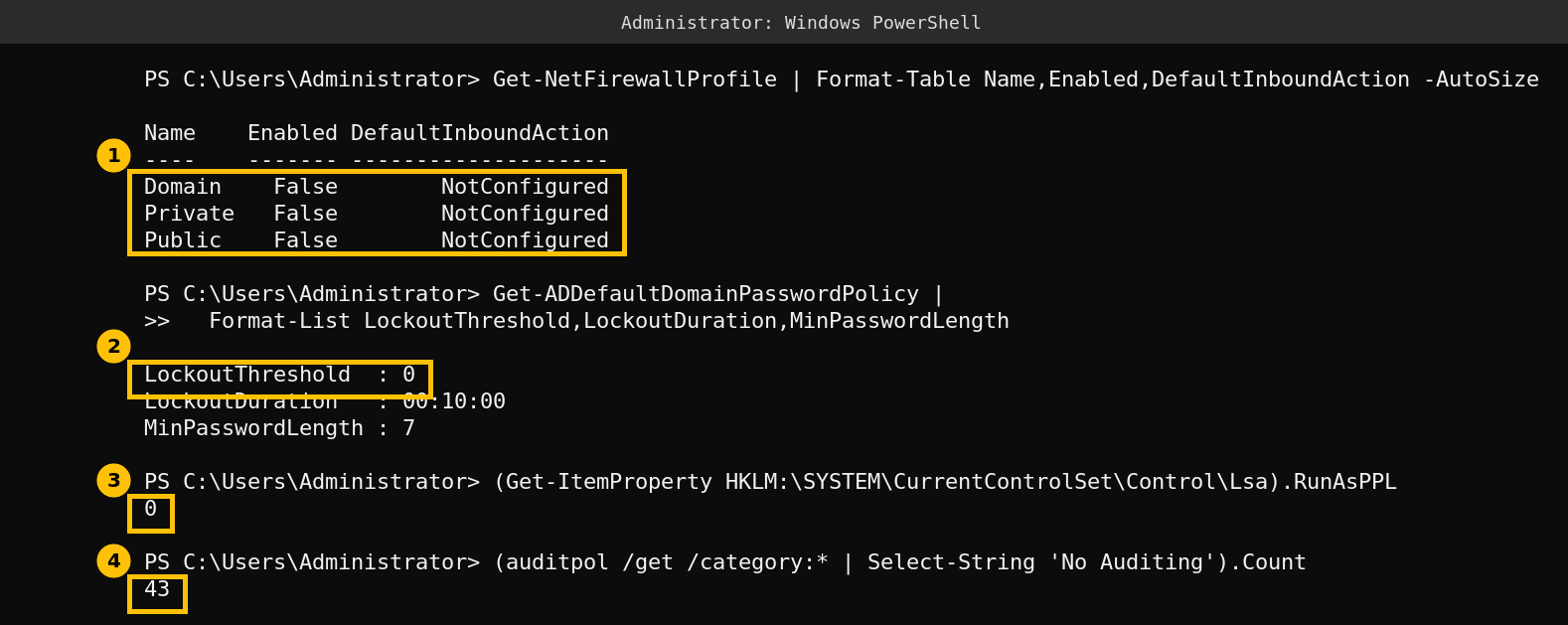
A firewall that is off on a DC is not what you have in production, I hope. It is how this lab was built, and it made the firewall change easy to see. A lockout threshold of 0 is the Windows default for a new domain.
Step 3: Apply the domain controller baseline
Warning: this changes security settings for the whole domain, not just this server (step 5 shows why). Do it on a test DC first.
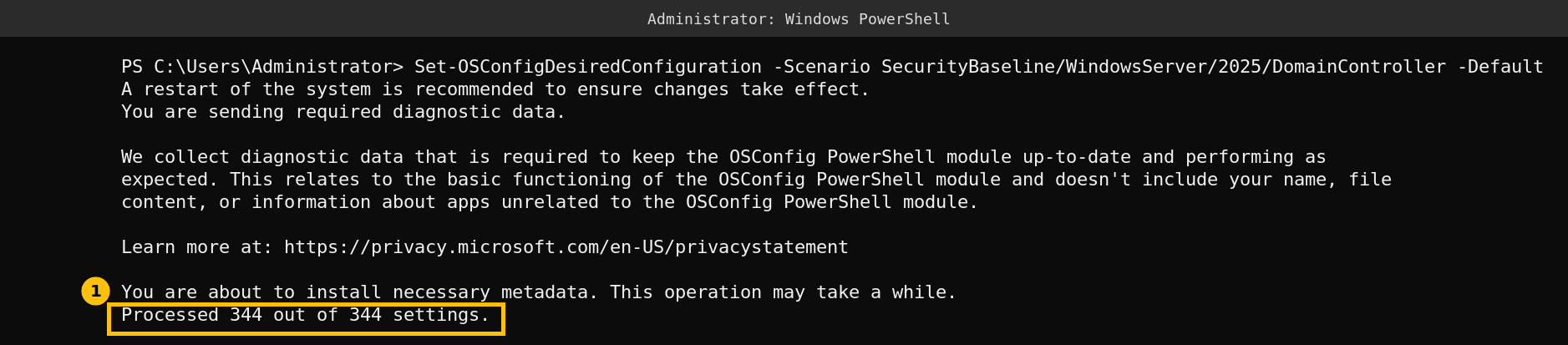
Expected result: “Processed 344 out of 344 settings” and a note that a restart is recommended. It took a couple of minutes on my small VM. The module also tells you it sends required diagnostic data to Microsoft. The changelog on the Learn page says the current DC baseline has 347 settings. My run processed 344, and the compliance check in the next step lists 346 items. I don’t know why the three numbers differ, and I wouldn’t read much into it, but don’t expect them to match.
Then restart the DC. The Learn page says a restart is needed for the changes to take effect, and some of them, like LSA protection, only start at boot.
Step 4: Check compliance
After the restart, read the result back. I keep the output in a variable so I can count and filter it:
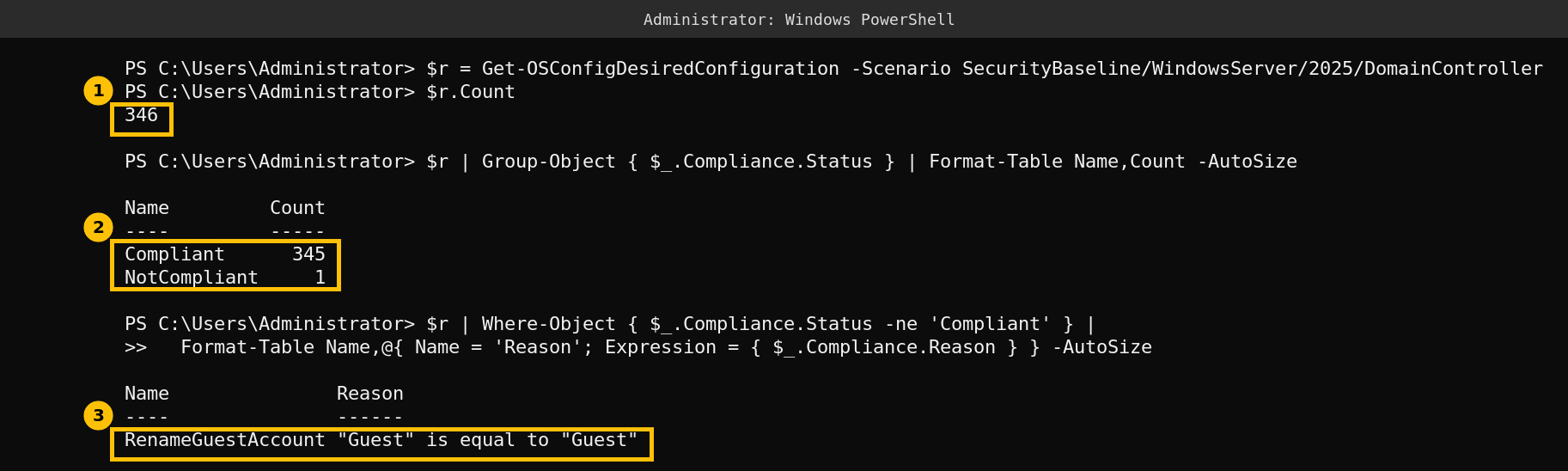
The one failure is expected. The Learn page lists RenameGuestAccount among the settings that need your input, so the default run leaves the Guest account name alone and reports it. If you want it compliant, set it with Set-OSConfigDesiredConfiguration -Scenario SecurityBaseline/WindowsServer/2025/DomainController -Setting RenameGuestAccount and type a name when asked.
Step 5: Look at what changed
Same checks as step 2, plus one more:
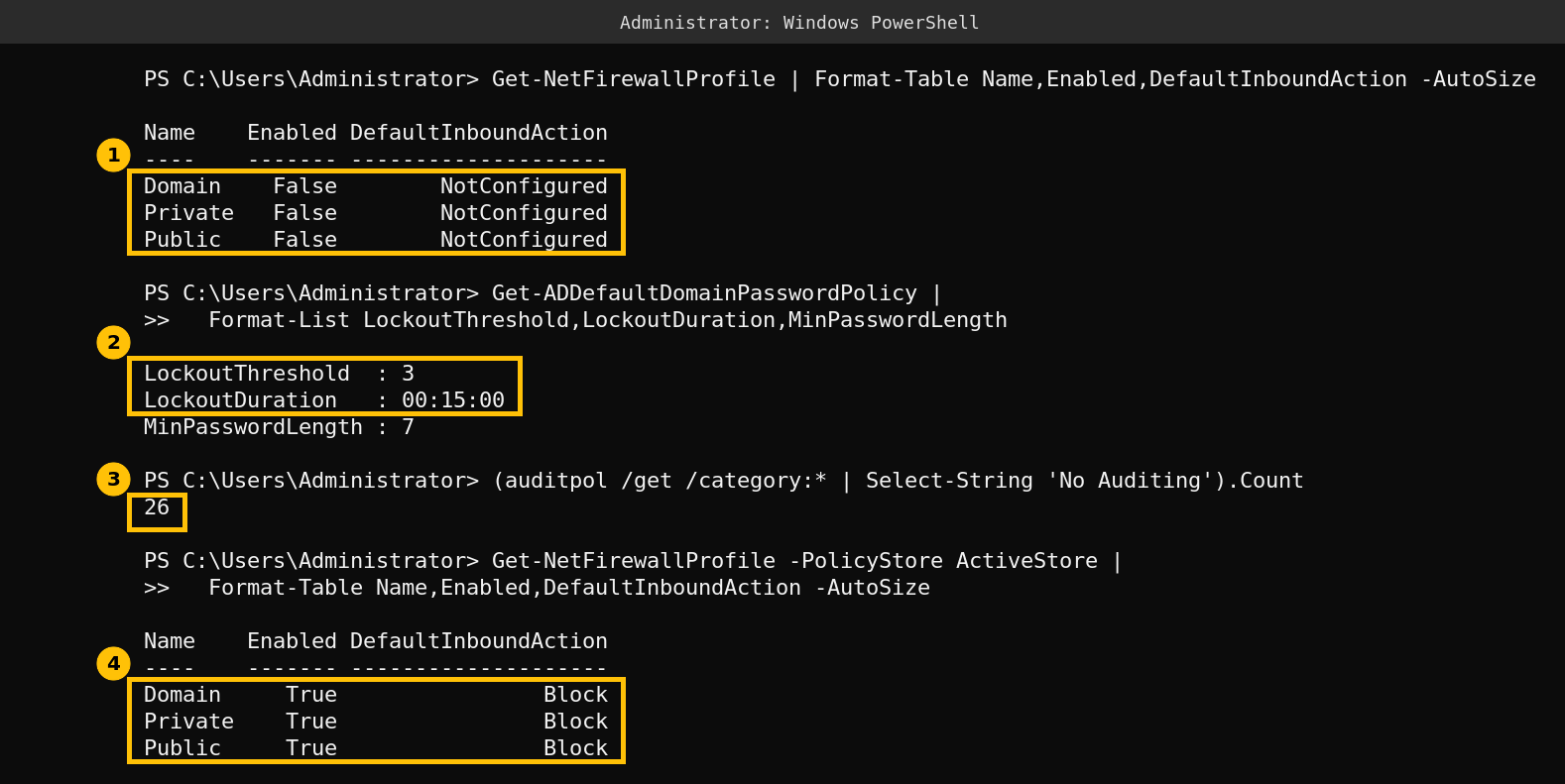
Callouts 1 and 4 are the trap. Get-NetFirewallProfile without a store shows the local settings, and those did not change. The baseline sets the firewall through policy, so you only see the effective state with -PolicyStore ActiveStore. When I later cleaned up, the profile settings were under HKLM\SOFTWARE\Policies\Microsoft\WindowsFirewall. If your monitoring checks the firewall with the plain cmdlet, it will tell you the firewall is off when it is on.
My WinRM session kept working because the port it listens on already had an inbound allow rule. Check yours before you apply the baseline: monitoring agents, backup agents, custom management ports, anything you opened while the firewall was off.
Auditing went from 43 subcategories with No Auditing to 26. That matches the Learn page, which says the baseline audits nearly all subcategories. Plan for a bigger Security log. The Learn page says it sets the Security log to at least 192 MB.
Step 6: The lockout policy now applies to the whole domain
This is the part I didn’t expect. The Learn page says the baseline “locks accounts after three failed attempts for 15 minutes”. On a member server that means local accounts. On a domain controller, the account policy is the domain’s policy, so it now covers every user in the domain. The Security log shows the DC changing it:
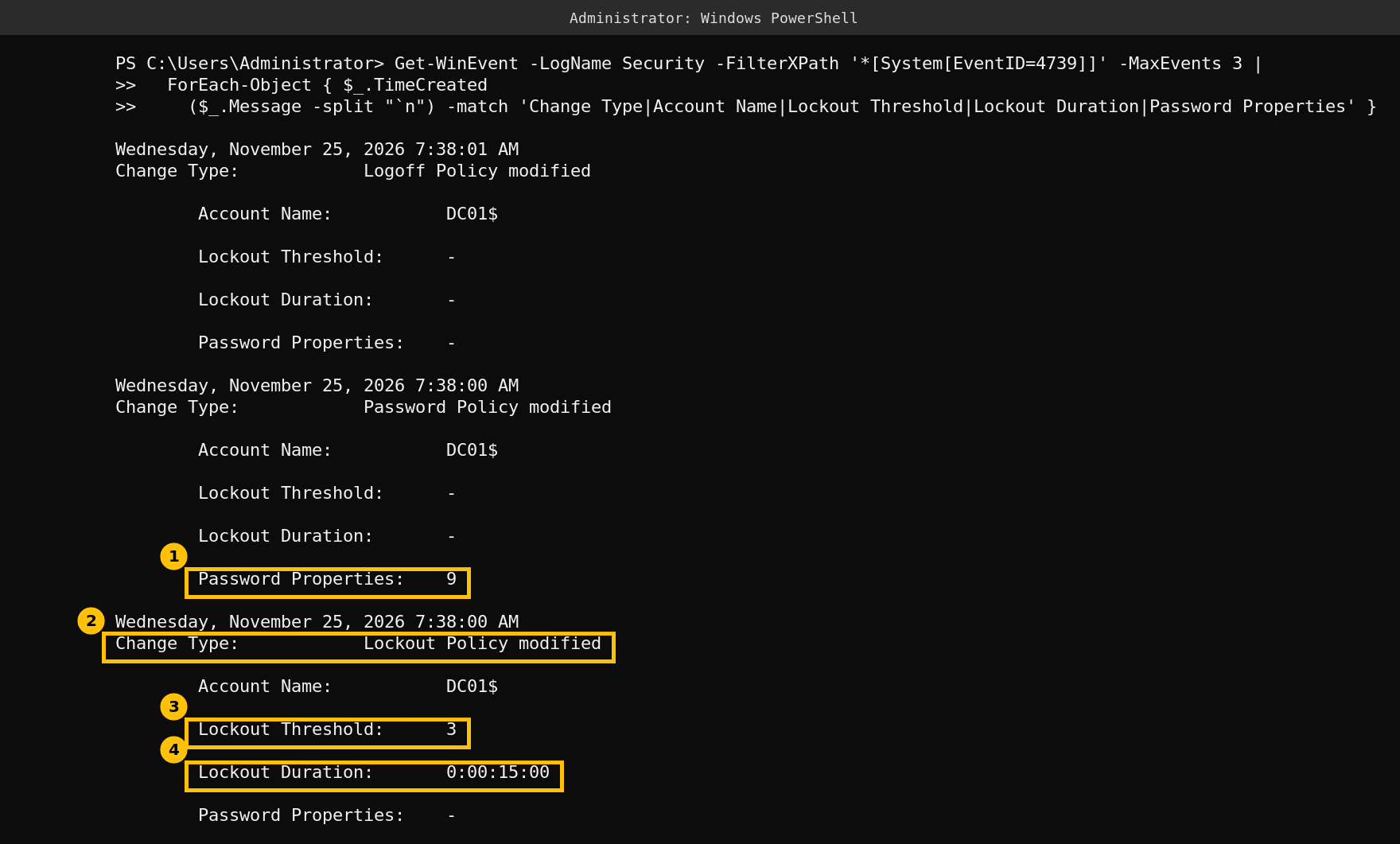
Event 4739 means “Domain Policy was changed”, and the subject is the DC’s own computer account, at the minute I applied the baseline. Two details matter here.
Password Properties 9. This is a bit mask from the DOMAIN_PASSWORD_INFORMATION structure. 1 is DOMAIN_PASSWORD_COMPLEX, which was already on. 8 is DOMAIN_LOCKOUT_ADMINS, which Microsoft describes as “Allows the built-in administrator account to be locked out from network logons”. It matches the baseline setting DeviceLockAllowAdminLockout = 1. So after the baseline, three bad passwords against the built-in Administrator from the network lock it out for 15 minutes. If that account is your break-glass account, or a script uses it, think about that before you apply.
The Default Domain Policy changed too. I expected Group Policy to put the old value back at the next refresh. It didn’t, because the GPO itself had been updated in the same second:
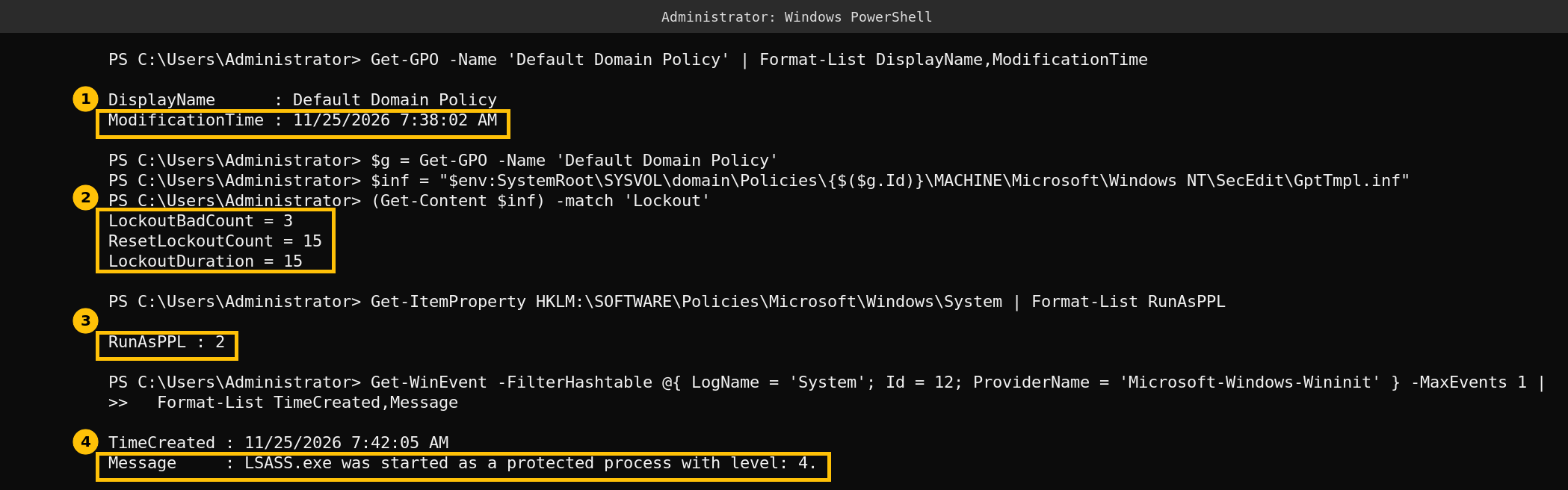
So a gpupdate /force keeps the new value, and every DC in the domain picks it up from SYSVOL. I don’t know whether OSConfig writes the GPO on purpose or whether Windows does it when the DC’s account policy changes. Either way, what you see is a changed Default Domain Policy that nobody edited in GPMC. If you track GPO changes, this one will show up with no change ticket behind it.
Callouts 3 and 4 are LSA protection. Microsoft’s page says RunAsPPL = 2 means enabled without a UEFI lock, and event 12 from WinInit confirms it at boot. Note where the value is. The baseline sets it under HKLM\SOFTWARE\Policies\Microsoft\Windows\System. The usual HKLM\SYSTEM\CurrentControlSet\Control\Lsa value still said 0 on my DC, so a check that only reads the Lsa key will say LSA protection is off when it is on. Use event 12 instead.
Step 7: Test the lockout with a throwaway account
I created a test user and sent four LDAP binds with a wrong password. LDAP is a quick way to make real failed logons from PowerShell without touching a real account:
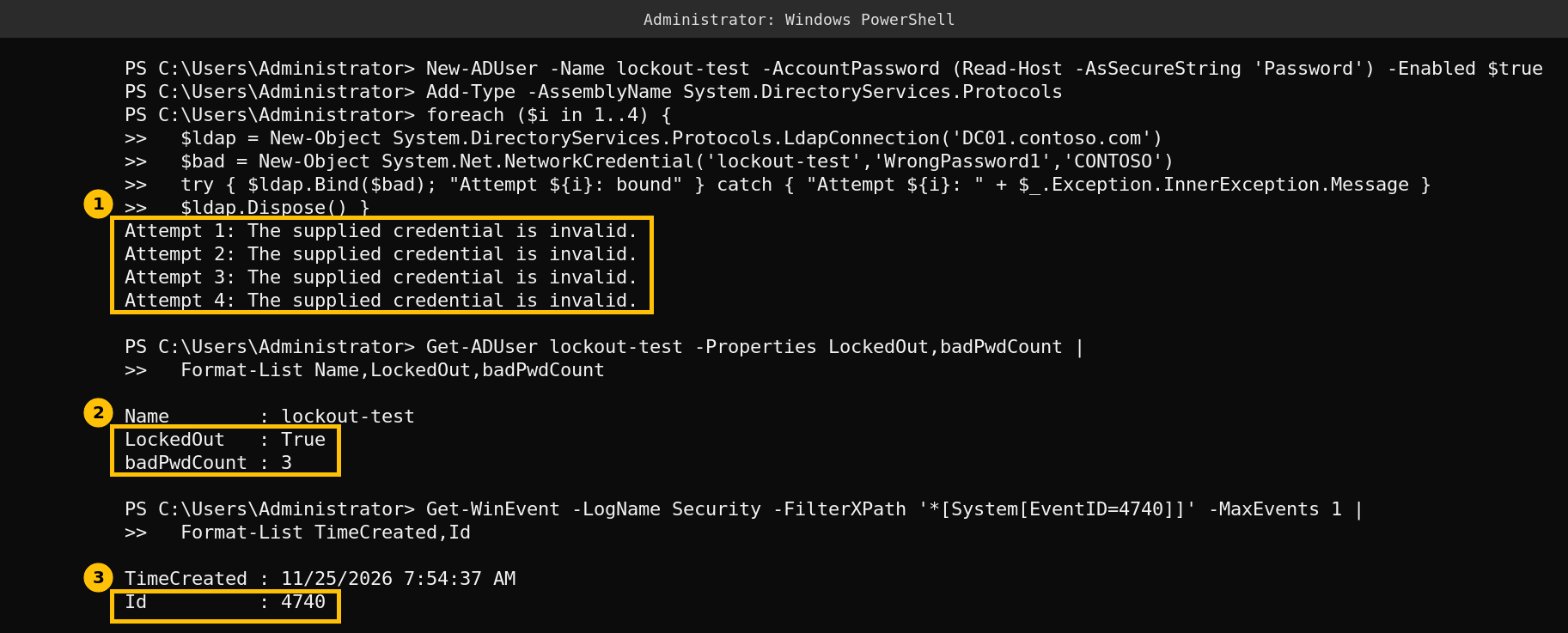
Look at attempt 4. The account is already locked, but the error is the same “supplied credential is invalid”. Your users and your service accounts won’t see “account locked”. They see a wrong password error even when they type the right password. With a threshold of 3, one service with an old saved password can lock its account within seconds of a password change. If you need different limits for admins or service accounts, a fine-grained password policy is the better tool than changing the baseline for the whole domain.
Step 8: Drift control puts your changes back
OSConfig doesn’t just set values once. The OSConfig overview calls this drift control. I wanted to see how it works, so I changed one baseline setting by hand. LmCompatibilityLevel is the NTLM level, which the baseline sets to 5:
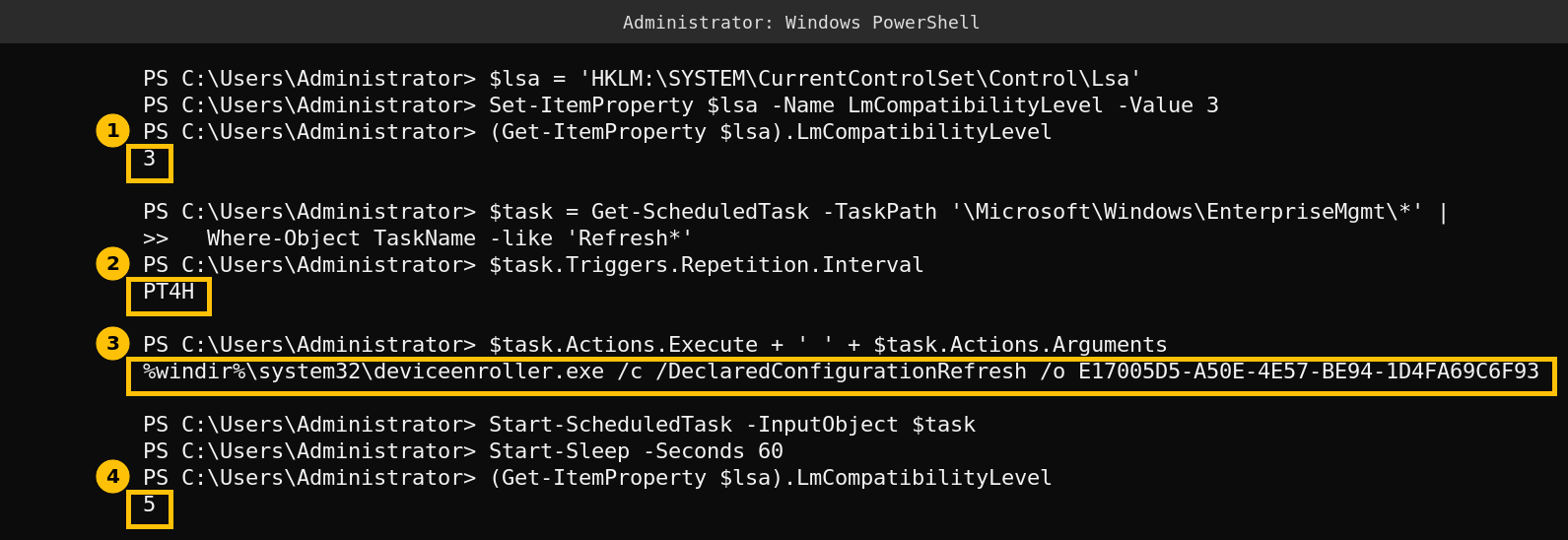
The drift check is a scheduled task under \Microsoft\Windows\EnterpriseMgmt\, named “Refresh schedule created by Declared Configuration”. It repeats every 4 hours (PT4H). I started it by hand, and 60 seconds later my change was gone. So if you change a baselined setting with Group Policy, the registry or a script, expect it to flip back within 4 hours. Change it with Set-OSConfigDesiredConfiguration -Setting instead, which is how the Learn page says to customize.
Step 9: Removing the baseline does not undo it
The Learn page warns that removal “can’t guarantee” the settings go back to how they were. Here is what that looked like:
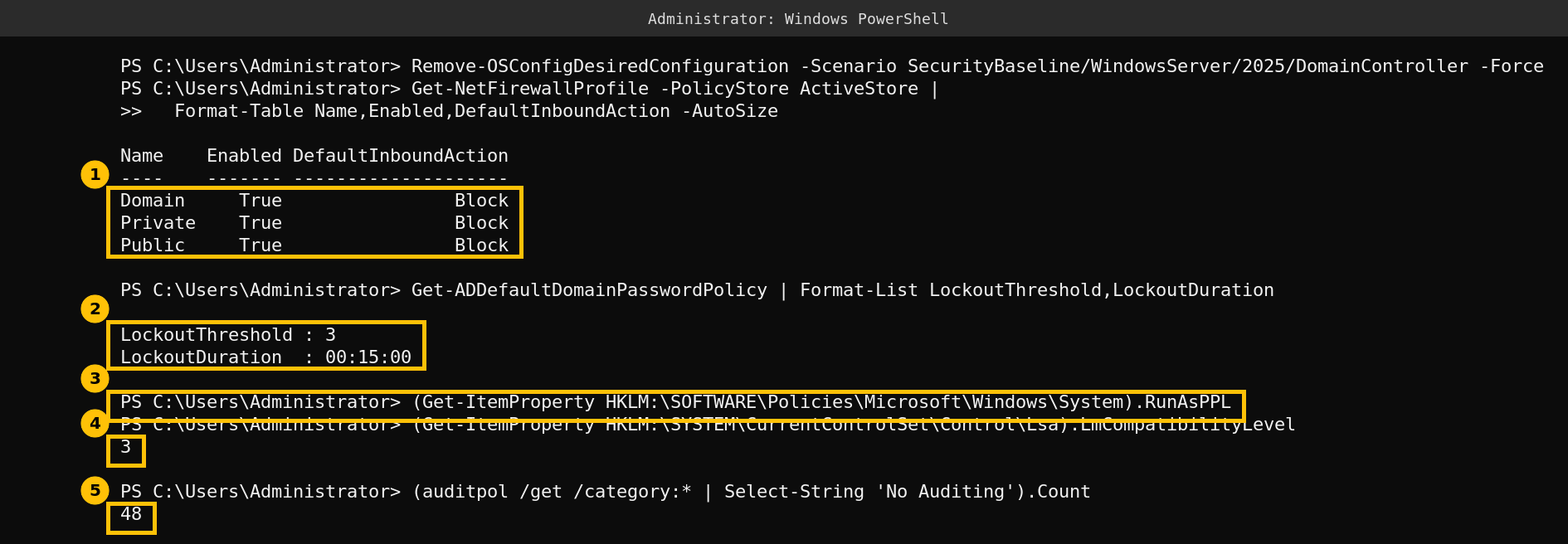
My first try without -Force sat for more than 20 minutes in my remote session until I stopped it. With -Force it finished in about 24 seconds and printed nothing. My guess is that it was waiting at a confirmation prompt that a non-interactive session can’t answer, but I didn’t see the prompt. If you script the removal, add -Force.
What stayed: the firewall policy and the domain lockout policy, including the Default Domain Policy change. What went back: LSA protection’s policy value. And audit ended up worse than where I started. The baseline turned auditing on, and removal turned off five more subcategories than were off before I began. If you rely on the default audit settings for anything, check them after removal.
Step 10: After the restart, Netlogon would not start
Then I restarted the DC, and my WinRM session failed with “the specified credentials were rejected by the server”. My first thought was the new admin lockout. It wasn’t. I had a hypervisor console, and from there the System log showed the real problem:
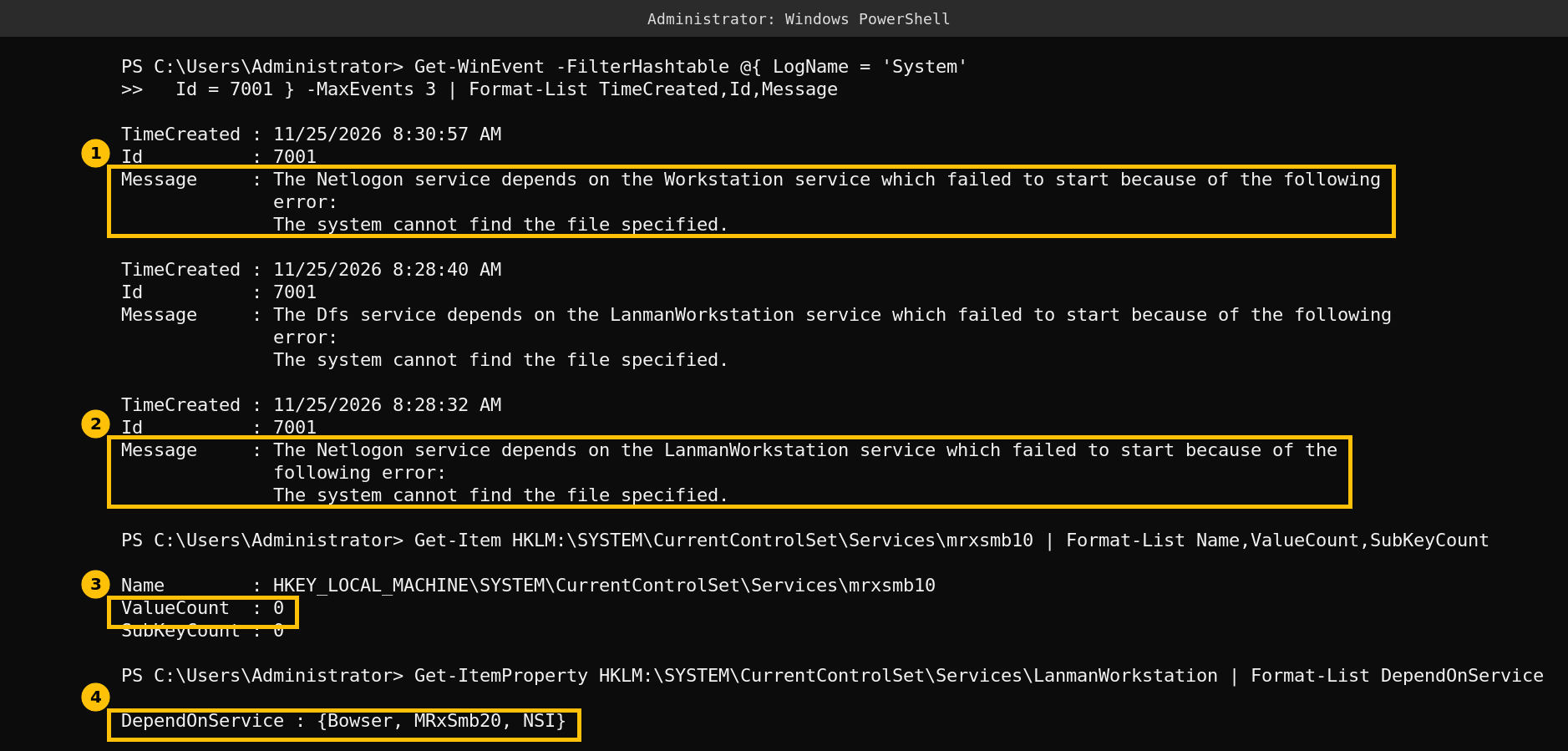
The Workstation service (LanmanWorkstation) had an empty dependency list. Normally it waits for the SMB redirector drivers. With nothing to wait for it started too early, failed with “The system cannot find the file specified”, and took Netlogon, Dfs and Remote Desktop Configuration down with it. No Netlogon on a DC means no domain logons, which is why my credentials were “rejected”. There was also an empty mrxsmb10 service key, the SMBv1 client driver’s key, with no ImagePath and no Start value.
My reading is that the baseline’s SMBv1 client setting, and then its rollback, rewrote this dependency list and left it empty. That is my interpretation of what I saw, not something Microsoft documents. The service started fine after the first restart with the baseline applied. It failed only after the removal and the next restart.
The fix is the dependency list that Microsoft’s SMBv1 page gives for a client with SMBv1 disabled. Run it from an elevated prompt on the DC, from the console if remote logons are failing:
PS C:\Users\Administrator> sc.exe config LanmanWorkstation depend= Bowser/MRxSmb20/NSI
PS C:\Users\Administrator> Start-Service LanmanWorkstation,Netlogon
The command was run inside the VM through the hypervisor guest agent, so I don’t have a console screenshot of it. The result is callout 4 above, and the services came up straight away without another restart. I restarted once more anyway to make sure it held, and after that dcdiag passed with no errors.
Check this before you restart after a removal:
PS C:\Users\Administrator> sc.exe qc LanmanWorkstation
PS C:\Users\Administrator> (Get-ItemProperty HKLM:\SYSTEM\CurrentControlSet\Services\LanmanWorkstation).DependOnService
If DEPENDENCIES is empty, fix it before the restart, while you can still sign in.
How I put the rest back
My lab DC had to go back to how it was in the morning. These are the changes I made after the removal, in case you need to do the same:
- Domain lockout: set the Account Lockout Policy in the Default Domain Policy back to your own values in GPMC (Computer Configuration, Policies, Windows Settings, Security Settings, Account Policies). I also set the domain object with
Set-ADDefaultDomainPasswordPolicy -LockoutThreshold 0. Changing only the domain object is not enough, because the GPO still says 3 and wins at the next refresh. - Admin lockout: set the domain’s
pwdPropertiesback from 9 to 1 withSet-ADObject, so the built-in Administrator is exempt from lockout again. Check the value first. Yours may have other bits set on purpose. - Firewall: I exported
HKLM\SOFTWARE\Policies\Microsoft\WindowsFirewalland deleted it, then rangpupdate /force. Only do this if no real GPO manages your firewall. Better still, keep the firewall on and add the rules you need. - Checks: another restart,
dcdiag, and a manual run of the leftover refresh task. It re-applied nothing, so removal really does stop drift control.
Troubleshooting
Remote logons fail with “credentials rejected” after a restart
Likely cause: Netlogon is stopped because LanmanWorkstation could not start (event 7001 in the System log). Fix: from the console, restore the dependencies with sc.exe config LanmanWorkstation depend= Bowser/MRxSmb20/NSI and start both services.
Users get “wrong password” with the right password
Likely cause: the account is locked out after 3 failed attempts, and LDAP and many apps return the same error for a locked account. Fix: check Get-ADUser name -Properties LockedOut,badPwdCount and event 4740 on the PDC emulator for the source.
Monitoring says the firewall is off but connections are blocked
Likely cause: the check reads the local store. Fix: use Get-NetFirewallProfile -PolicyStore ActiveStore.
A setting I changed keeps coming back
Likely cause: OSConfig drift control, every 4 hours. Fix: customize it with Set-OSConfigDesiredConfiguration -Setting, or remove the scenario.
What I would do
I like the idea. One command gets you a documented, versioned baseline with drift control, and the settings list is public on GitHub. But on a domain controller I would not run it with -Default and walk away. Before applying it, I would set the domain lockout policy myself so the baseline doesn’t decide it for every user. I would decide whether the built-in Administrator should be lockable, open the firewall rules first, and roll it out to all DCs so they match. I would also treat removal as a change of its own, with a console ready and the LanmanWorkstation check done before the restart.
If your goal is to cut NTLM and protect admin accounts, the baseline overlaps with things I tested earlier: NTLM signing defaults, the Protected Users group and Windows LAPS.
Summary
| Item | What I saw on the lab DC |
|---|---|
| Module | Microsoft.OSConfig 1.4.16 |
| Apply | 344 of 344 settings processed, restart needed |
| Compliance | 346 items, 345 compliant, RenameGuestAccount needs input |
| Firewall | On, inbound Block, via policy. The plain cmdlet still shows off |
| Lockout | 3 attempts, 15 minutes, domain wide, written into the Default Domain Policy |
| Admin lockout | pwdProperties 9, built-in Administrator lockable from the network |
| LSA protection | RunAsPPL 2 under the policy key, event 12 level 4 |
| Drift control | Refresh task every 4 hours, reverted my change in under a minute |
| Removal | Firewall and lockout stay, audit ends worse than before, needs -Force in a script |
| After removal and restart | LanmanWorkstation dependencies empty, Netlogon down, fixed with sc.exe config |
What I tested and what I did not
I tested on one Windows Server 2025 Datacenter Evaluation domain controller, build 26100.33828, with OSConfig 1.4.16, in a single DC lab domain, on November 25, 2026. I applied the DomainController scenario with -Default, restarted, checked compliance, tested lockout with a throwaway account, tested drift control on one setting, removed the scenario and restarted. I did not test the MemberServer or WorkgroupMember scenarios, a domain with more than one DC, Azure Arc or Azure Policy deployment, the SecuredCore scenario, or real client compatibility with the new LDAP and SMB settings. The cause of the empty dependency list is my reading of the evidence. I saw it once and did not repeat the removal to prove it. All changes were undone afterwards, and the lab DC passed dcdiag at the end.
Sources
- Microsoft Learn: Configure security baselines for Windows Server 2025
- Microsoft Learn: OSConfig overview
- GitHub microsoft/osconfig: security baseline definitions
- PowerShell Gallery: Microsoft.OSConfig
- Microsoft Learn: DOMAIN_PASSWORD_INFORMATION structure (DOMAIN_LOCKOUT_ADMINS)
- Microsoft Learn: Configure added LSA protection
- Microsoft Learn: Event 4739, Domain Policy was changed
- Microsoft Learn: Account lockout threshold
- Microsoft Learn: Detect, enable and disable SMBv1, SMBv2 and SMBv3