
Deploying Windows LAPS with Group Policy: Setup, Permissions and the DC Catch

Every domain has the same weak spot. The local Administrator account on the servers and workstations has the same password everywhere, because it was set once in an image and never touched again. One stolen hash and an attacker walks across the whole network. Windows LAPS fixes that by giving every machine its own random password and rotating it on a schedule, and it stores the password in Active Directory where only the people you choose can read it.
This is how I set it up with Group Policy. I ran the read-only checks on my Windows Server 2025 lab domain, and I show what they returned. The parts that change the lab I took from Microsoft Learn and I say so where it matters. There is also one catch with domain controllers that I ran into earlier, and I explain what I know about it and what I do not.
What you need first
- Windows Server 2019 or later domain controller, or a machine with the Windows LAPS PowerShell module. The schema update runs on either, per Learn.
- Schema Admins rights for the one-time schema update.
- Domain functional level 2016 or later if you want encrypted passwords. With an older level you can only store passwords in clear text protected by ACLs, and you cannot manage the DSRM account on domain controllers (Learn, same page).
- If you use a Group Policy Central Store, copy
LAPS.admxinto it by hand. Windows Update does not do that for you, per the policy settings page. - You do not need the old downloadable Microsoft LAPS tool. Windows LAPS is built into current Windows. Do not run both on the same machine.
Step 1: Check the domain level and extend the schema
The schema update is one-time for the whole forest. Learn gives the command as Update-LapsADSchema, and suggests adding -Verbose if you want to see what it does. I did not run it for this post because my lab schema already has the attributes. This is how I checked that and the domain level:
PS C:\Users\Administrator> (Get-ADDomain).DomainMode
PS C:\Users\Administrator> Get-ADObject -SearchBase (Get-ADRootDSE).schemaNamingContext -Filter "Name -like 'ms-LAPS*'" |
>>     Select-Object -ExpandProperty Name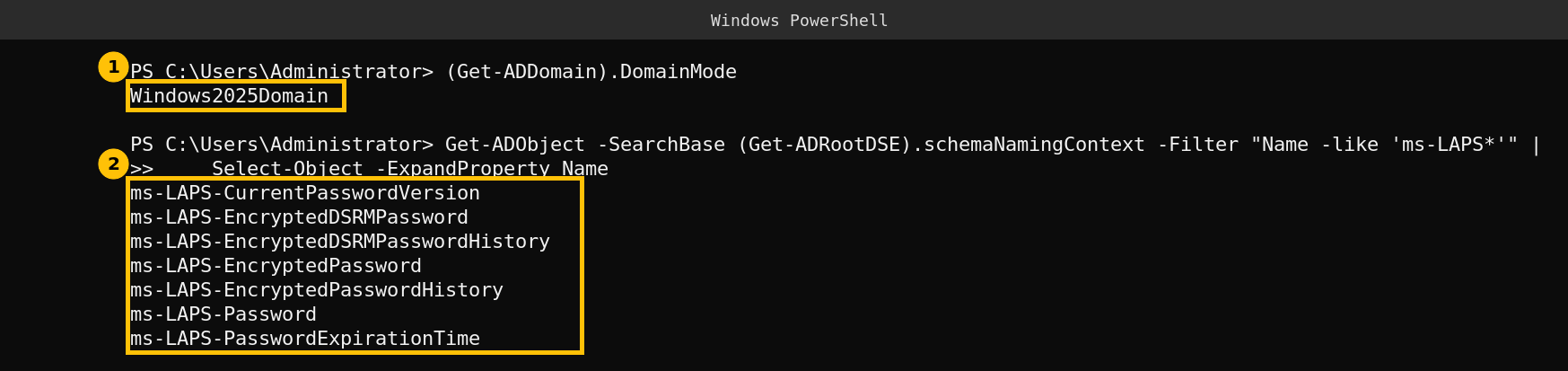
If the second command returns nothing, the schema has not been extended and nothing else in this post will work. Seven attributes came back on my lab, including the two DSRM ones, ms-LAPS-EncryptedDSRMPassword and its history. Remember that name, it matters in the domain controller section.
Warning: a schema change cannot be undone. Do it once, in a maintenance window, with a good backup of your domain controllers.
Step 2: Give computers and admins the right permissions
Three delegations are needed on the OU that holds the computers. These are the cmdlets and examples from the Learn page, with the OU name changed to Servers:
PS C:\Users\Administrator> Set-LapsADComputerSelfPermission -Identity Servers
PS C:\Users\Administrator> Set-LapsADReadPasswordPermission -Identity Servers -AllowedPrincipals @("contoso\LapsPasswordReadersGroup")
PS C:\Users\Administrator> Set-LapsADResetPasswordPermission -Identity Servers -AllowedPrincipals @("contoso\LapsPasswordExpirersGroup")
The first lets machines write their own password. The second lets a group read passwords. The third lets a group mark a password as expired so the machine rotates it. Domain Admins already have read and expire rights by default, per Learn.
Reading a password is not the same as decrypting it. With encryption on, the group allowed to decrypt is set by ADPasswordEncryptionPrincipal, and if you leave it unset only Domain Admins can decrypt.
Then check who else can read these attributes. Some people hold extended rights on the OU without anyone remembering, and all LAPS password attributes are confidential, so extended rights expose them. Learn gives this check:
PS C:\Users\Administrator> Find-LapsADExtendedRights -Identity ServersYou want to see only SYSTEM and Domain Admins in the output. Anyone else listed can read your local admin passwords.
Step 3: Create the Group Policy
Create a GPO and open it. The settings are under Computer Configuration, Policies, Administrative Templates, System, LAPS. These are the settings I would configure for a normal member server OU, with the values and defaults from the Learn policy settings page:
| Setting | What I set | Default if not set |
|---|---|---|
| Configure password backup directory (BackupDirectory) | Active Directory (2) | Disabled (0), so nothing is backed up until you set this |
| Password Settings, length (PasswordLength) | 16 | 14, allowed 8 to 64 |
| Password Settings, complexity (PasswordComplexity) | 4, all four character types | 4. Microsoft recommends 4 or higher |
| Password Settings, age (PasswordAgeDays) | 30 | 30, allowed 1 to 365 |
| Enable password encryption (ADPasswordEncryptionEnabled) | Enabled | True, needs domain level 2016 or later |
| Post-authentication actions (PostAuthenticationActions) | Leave at default | 3, reset the password and sign out the session |
Only BackupDirectory is required. Learn says that at a minimum you must set it to 2 for Active Directory. Anything you leave unconfigured takes the default, so read that column before you assume.
If you do not set AdministratorAccountName, Windows LAPS manages the built-in Administrator account, found by its well-known RID and not by name. That matters on servers where someone renamed the account. Set a name only if you want to manage a different account, and then you have to create that account yourself, because LAPS does not.
One more detail that has bitten me. Changing PasswordAgeDays later does not change the expiry of the password that already exists. The new age applies from the next rotation, per Learn. If you need it to take effect now, expire the password by hand.
Step 4: Link the GPO and check that it applies
A GPO does nothing until it is linked to the OU with the machines. After linking, check that the link and the GPO are both enabled. A GPO can sit in the list and still be disabled.
Windows LAPS processes policy every hour and also reacts to Group Policy change notifications. To skip the wait, run Invoke-LapsPolicyProcessing on the machine. To confirm the password reached AD, look in the Microsoft-Windows-LAPS/Operational log for event ID 10018, per Learn. On my lab domain controller, which has the policy applied, this is what the policy and the log look like:
PS C:\Users\Administrator> Get-ItemProperty 'HKLM:\Software\Microsoft\Windows\CurrentVersion\Policies\LAPS' |
>>     Select-Object BackupDirectory,PasswordLength,PasswordAgeDays,PasswordComplexity,ADBackupDSRMPassword | Format-List
PS C:\Users\Administrator> Get-WinEvent -LogName 'Microsoft-Windows-LAPS/Operational' -MaxEvents 3 |
>>     Select-Object Id,TimeCreated | Format-Table -AutoSize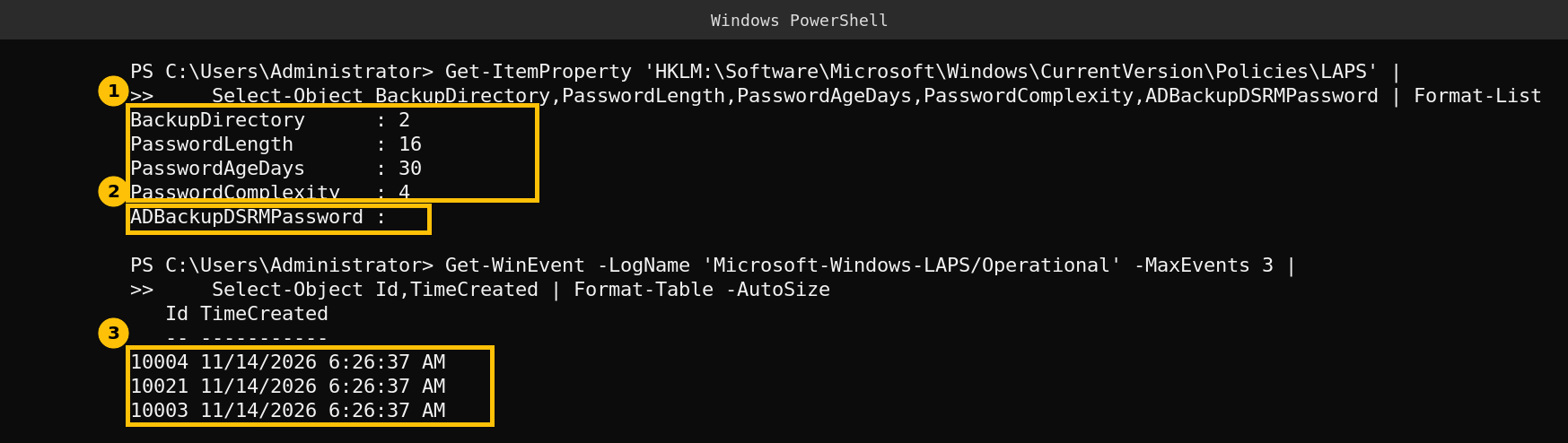
The registry key under Policies\LAPS is where Group Policy writes its values, according to the policy page. The values match what I configured: backup directory 2, length 16, age 30, complexity 4. The three events are one policy cycle: 10003 processing starts, 10021 shows the current policy, and 10004 says it succeeded. A healthy machine repeats that trio about every hour.
Retrieve and rotate a password
Anyone with the read permission can pull a password. This is the Learn example with the machine name changed, and the output is the format Learn shows:
PS C:\Users\Administrator> Get-LapsADPassword -Identity SERVER01 -AsPlainTextYou get the account name, the password, the update and expiry time, whether the source is an encrypted password, and who is authorized to decrypt it. Leave out -AsPlainText and the password is not shown in clear text.
To force a rotation, mark the password expired in AD and let the machine pick it up on its next cycle:
PS C:\Users\Administrator> Set-LapsADPasswordExpirationTime -Identity SERVER01
PS C:\Users\Administrator> Invoke-LapsPolicyProcessing
On the machine itself, Reset-LapsPassword rotates it immediately.
The domain controller catch
Domain controllers do not behave like member servers. On a domain controller the account Windows LAPS can manage is the Directory Services Restore Mode (DSRM) account. Windows LAPS can manage that password, but only if you turn on its own setting, ADBackupDSRMPassword. Per Learn it defaults to False, and it is ignored unless password encryption is enabled and the other prerequisites are met. Also from Learn, domain controllers are never managed through the Intune CSP, only through Group Policy.
Look at callout 2 in the second screenshot. My lab policy has BackupDirectory set to 2, and ADBackupDSRMPassword is empty. Earlier, on this same domain controller, I ran Reset-LapsPassword and it failed with the message that the machine is not configured to back up the managed account password to Active Directory or Azure Active Directory, error 0x80070549. The log showed the policy was applying.
That fits what Learn says, a DC needs the DSRM setting, not just the backup directory. But I want to be careful. I did not turn the DSRM setting on to see if the error goes away, because that DC is read-only for me and the change would alter it. So treat this as the most likely explanation from the documentation, not as something I proved.
If you do want DSRM passwords in AD, the Learn table says it needs a domain level of 2016 or later, and with older domain controllers in the domain only Windows Server 2019 and later DCs support it. Set the DSRM setting in a GPO linked to the Domain Controllers OU, not the member server one.
Troubleshooting
| Symptom | Likely cause | What to do |
|---|---|---|
| Nothing is backed up and no errors | BackupDirectory not set, so it is Disabled | Set it to 2 in the GPO and run Invoke-LapsPolicyProcessing. |
| Event 10027 in the LAPS log | Length or complexity does not fit the local password policy | Lower the length or complexity, or change the local policy. Learn names 10027 for this case. |
| Policy is invalid and no password is stored | ADPasswordEncryptionPrincipal names a user or group that does not exist | Fix the name. Learn says an invalid principal causes a processing failure. |
| Access denied when reading a password | Missing read permission on the OU, or no decrypt right | Check Set-LapsADReadPasswordPermission and ADPasswordEncryptionPrincipal. |
| Settings seem ignored | A policy from another root, such as the CSP or the legacy tool, is active | Windows LAPS uses the first root that has any setting. Use one mechanism. |
What I did and did not test
From my lab domain controller I ran only read-only commands: the domain level, the schema attributes, the policy registry values, the LAPS log, and the list of LAPS cmdlets. I did not run Update-LapsADSchema, change permissions, build a new GPO, or retrieve a password in this pass, so the commands in steps 2 to 4 and the retrieval examples are from Microsoft Learn, not from a run I did today. The DSRM explanation is the documentation matched to what I saw, and I did not confirm it by changing the setting.