

How to Restore a Deleted AD User With the Active Directory Recycle Bin

Someone deletes the wrong user. It happens on a Friday afternoon, the account belonged to a finance manager, and that account was in eleven groups that nobody wrote down. If the AD Recycle Bin is off, you are looking at an authoritative restore from backup, or you recreate the user by hand and get a new SID, so every file share permission that pointed to the old account is gone.
If the Recycle Bin is on, the same mistake is one PowerShell line and about two seconds. The catch is that it is off by default, and it only protects objects deleted after you turn it on. I enabled it on my Windows Server 2025 lab domain controller today, deleted a test user and then a whole OU, and restored both. Every screenshot below is from that run.
Before you start
- Forest functional level Windows Server 2008 R2 or higher. Anything built in the last ten years passes. Mine is Windows2025Forest.
- Domain Admins in the domain (Microsoft lists this in the Recycle Bin article on Learn). Changing the lifetimes needs Enterprise Admins.
- The Active Directory module for Windows PowerShell, or Active Directory Administrative Center (ADAC). Both are on every domain controller.
- A test OU and a test user. Do not try this for the first time on a real account.
Warning: enabling the Recycle Bin cannot be undone. Microsoft says so in bold on the Learn page and the feature itself reports IsDisableable : False. I have never seen a reason to want it off, but you should know that before you press Enter. On my lab I asked for a VM snapshot first. On a production domain with more than one DC, do not plan on snapshots for rollback, because reverting a DC snapshot causes USN rollback. Your real safety net there is a tested system state backup.
One more thing. In the text output below I replaced my lab domain with contoso.com and the DC name with DC01. The screenshots are the real console output with the same replacement.
Step 1: Check if the Recycle Bin is already on
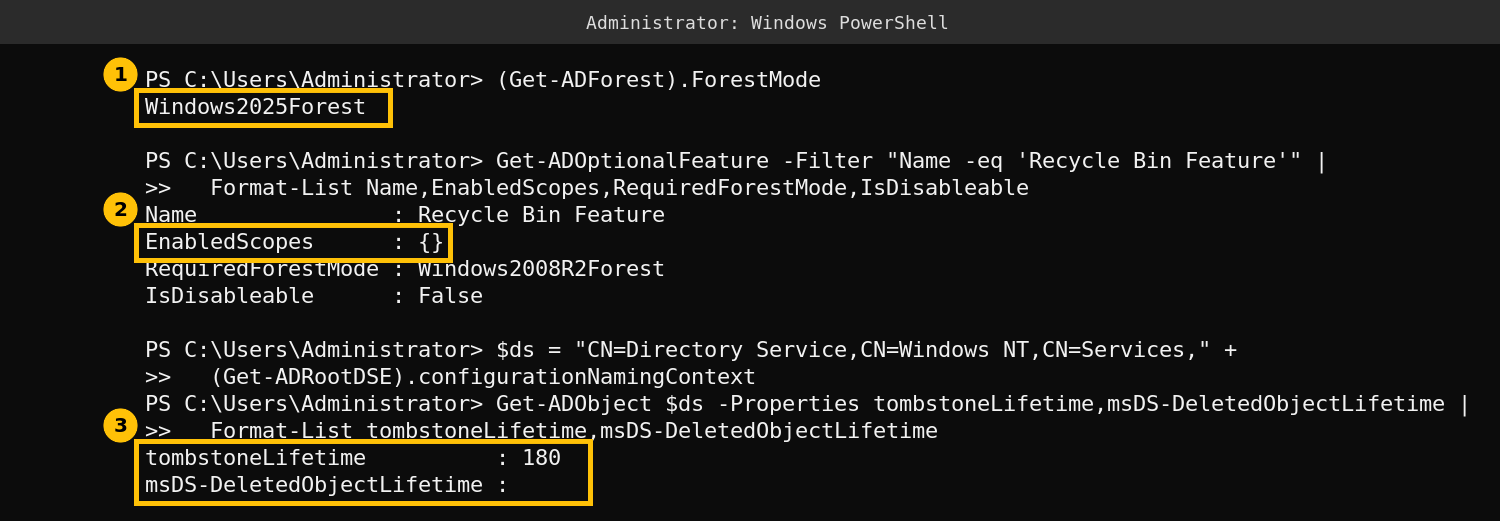
Run these on a domain controller in an elevated PowerShell window. The first line shows the forest functional level, the second shows the Recycle Bin feature, and the last two read the two lifetime values that decide how long a deleted object can be restored.
PS C:\Users\Administrator> (Get-ADForest).ForestMode
Windows2025Forest

PS C:\Users\Administrator> Get-ADOptionalFeature -Filter "Name -eq 'Recycle Bin Feature'" |
>>   Format-List Name,EnabledScopes,RequiredForestMode,IsDisableable
Name               : Recycle Bin Feature
EnabledScopes      : {}
RequiredForestMode : Windows2008R2Forest
IsDisableable      : False

PS C:\Users\Administrator> $ds = "CN=Directory Service,CN=Windows NT,CN=Services," +
>>   (Get-ADRootDSE).configurationNamingContext
PS C:\Users\Administrator> Get-ADObject $ds -Properties tombstoneLifetime,msDS-DeletedObjectLifetime |
>>   Format-List tombstoneLifetime,msDS-DeletedObjectLifetime
tombstoneLifetime          : 180
msDS-DeletedObjectLifetime :
Expected result: EnabledScopes : {} means the Recycle Bin is off. If you see a list of DNs inside the braces, it is already on and you can skip to step 3.
The lifetime values matter more than people think. msDS-DeletedObjectLifetime is empty on my forest. According to Microsoft’s Recycle Bin appendix on tombstone and deleted object lifetime, an empty deleted object lifetime means AD uses the tombstone lifetime, and mine is 180. So I have 180 days to restore a deleted object with everything intact. After that it becomes a recycled object and the Recycle Bin can no longer bring it back.
Step 2: Create a test user worth restoring
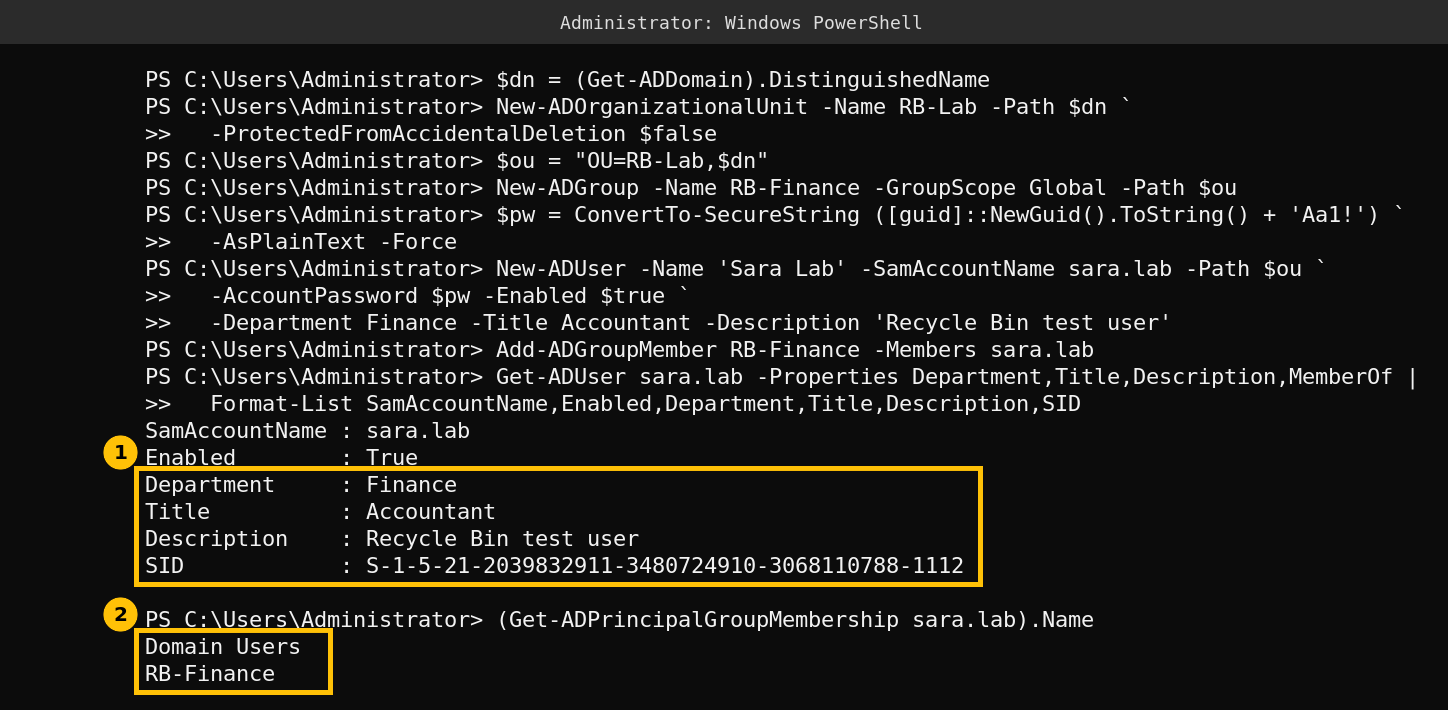
I wanted a user that has more than a name, so the restore proves something. This one gets a department, a title, a description and membership in a group. The password is a random GUID because I never need to sign in as this user. If you need help with the user basics, I covered them in creating Active Directory users and fixing logon failures.
PS C:\Users\Administrator> $dn = (Get-ADDomain).DistinguishedName
PS C:\Users\Administrator> New-ADOrganizationalUnit -Name RB-Lab -Path $dn `
>>   -ProtectedFromAccidentalDeletion $false
PS C:\Users\Administrator> $ou = "OU=RB-Lab,$dn"
PS C:\Users\Administrator> New-ADGroup -Name RB-Finance -GroupScope Global -Path $ou
PS C:\Users\Administrator> $pw = ConvertTo-SecureString ([guid]::NewGuid().ToString() + 'Aa1!') `
>>   -AsPlainText -Force
PS C:\Users\Administrator> New-ADUser -Name 'Sara Lab' -SamAccountName sara.lab -Path $ou `
>>   -AccountPassword $pw -Enabled $true `
>>   -Department Finance -Title Accountant -Description 'Recycle Bin test user'
PS C:\Users\Administrator> Add-ADGroupMember RB-Finance -Members sara.lab
PS C:\Users\Administrator> Get-ADUser sara.lab -Properties Department,Title,Description,MemberOf |
>>   Format-List SamAccountName,Enabled,Department,Title,Description,SID
SamAccountName : sara.lab
Enabled        : True
Department     : Finance
Title          : Accountant
Description    : Recycle Bin test user
SID            : S-1-5-21-2039832911-3480724910-3068110788-1112

PS C:\Users\Administrator> (Get-ADPrincipalGroupMembership sara.lab).Name
Domain Users
RB-Finance
Expected result: the user exists with its attributes, and it is a member of RB-Finance. Write down the SID. It is the thing that proves later that this is the same account and not a new one with the same name.
Step 3: Enable the Recycle Bin
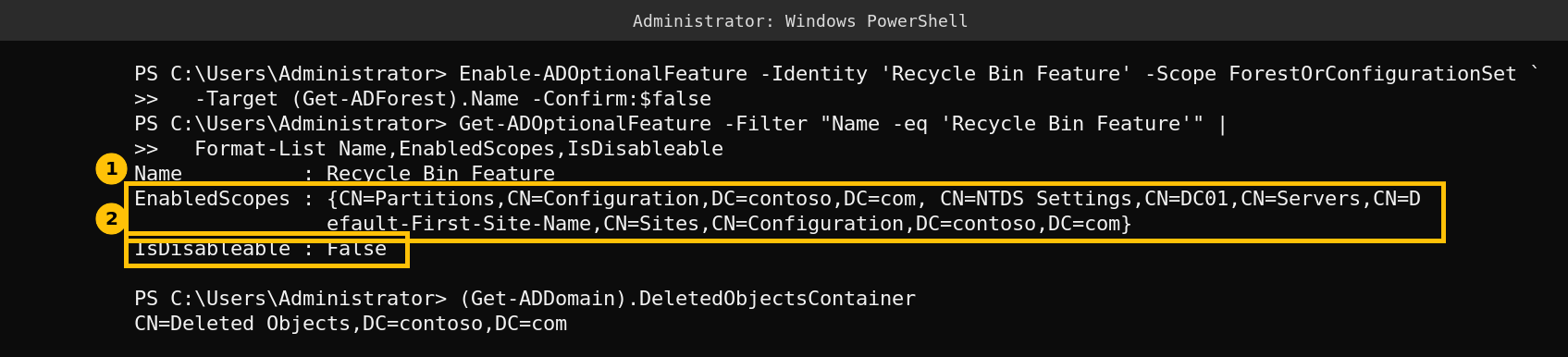
The command is Enable-ADOptionalFeature. Microsoft’s example uses the full DN of the feature, but the short name Recycle Bin Feature works too, and (Get-ADForest).Name saves you typing the forest name.
PS C:\Users\Administrator> Enable-ADOptionalFeature -Identity 'Recycle Bin Feature' -Scope ForestOrConfigurationSet `
>>   -Target (Get-ADForest).Name -Confirm:$false
PS C:\Users\Administrator> Get-ADOptionalFeature -Filter "Name -eq 'Recycle Bin Feature'" |
>>   Format-List Name,EnabledScopes,IsDisableable
Name          : Recycle Bin Feature
EnabledScopes : {CN=Partitions,CN=Configuration,DC=contoso,DC=com, CN=NTDS Settings,CN=DC01,CN=Servers,CN=D
                efault-First-Site-Name,CN=Sites,CN=Configuration,DC=contoso,DC=com}
IsDisableable : False

PS C:\Users\Administrator> (Get-ADDomain).DeletedObjectsContainer
CN=Deleted Objects,DC=contoso,DC=com
I added -Confirm:$false because I ran it remotely. In an interactive window leave it off and read the warning it gives you, it is the only warning you get. Expected result: EnabledScopes now lists the Partitions container and the NTDS Settings object of the DC, and IsDisableable is still False.
If you have more than one DC, the change has to replicate to every DC before restores behave the same everywhere. Check with repadmin /syncall /AdeP and the steps in my repadmin and dcdiag replication health post. If the cmdlet throws an error, Microsoft’s advice on Learn is to put the schema master and domain naming master on the same DC in the root domain and run it there.
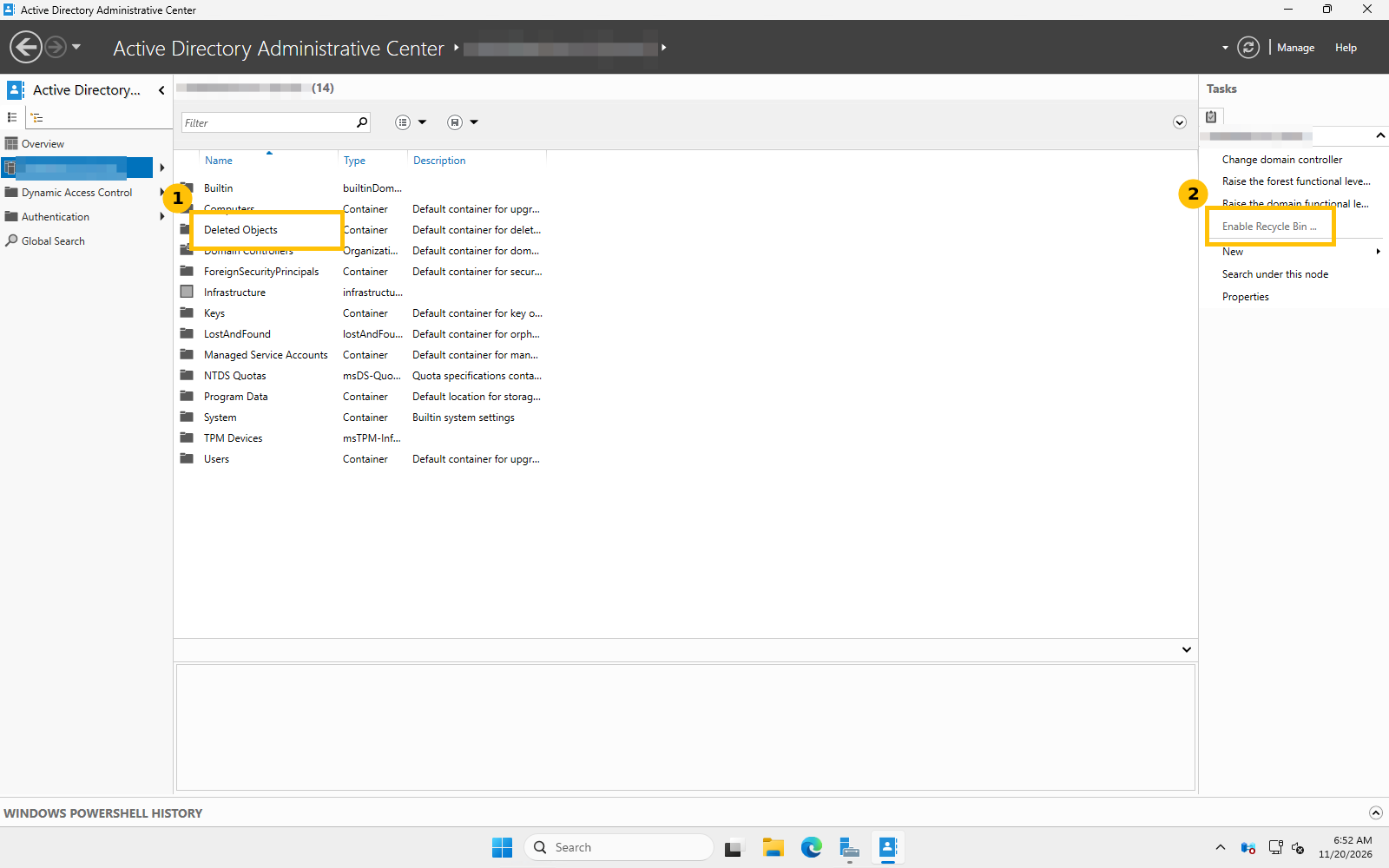
If you prefer the GUI, ADAC has the same switch. Open dsac.exe, click your domain, and the Tasks pane on the right has Enable Recycle Bin. After you enable it the option goes grey, and a Deleted Objects container shows up in the domain. Press F5 if it does not show right away.
Step 4: Delete the user and find it again
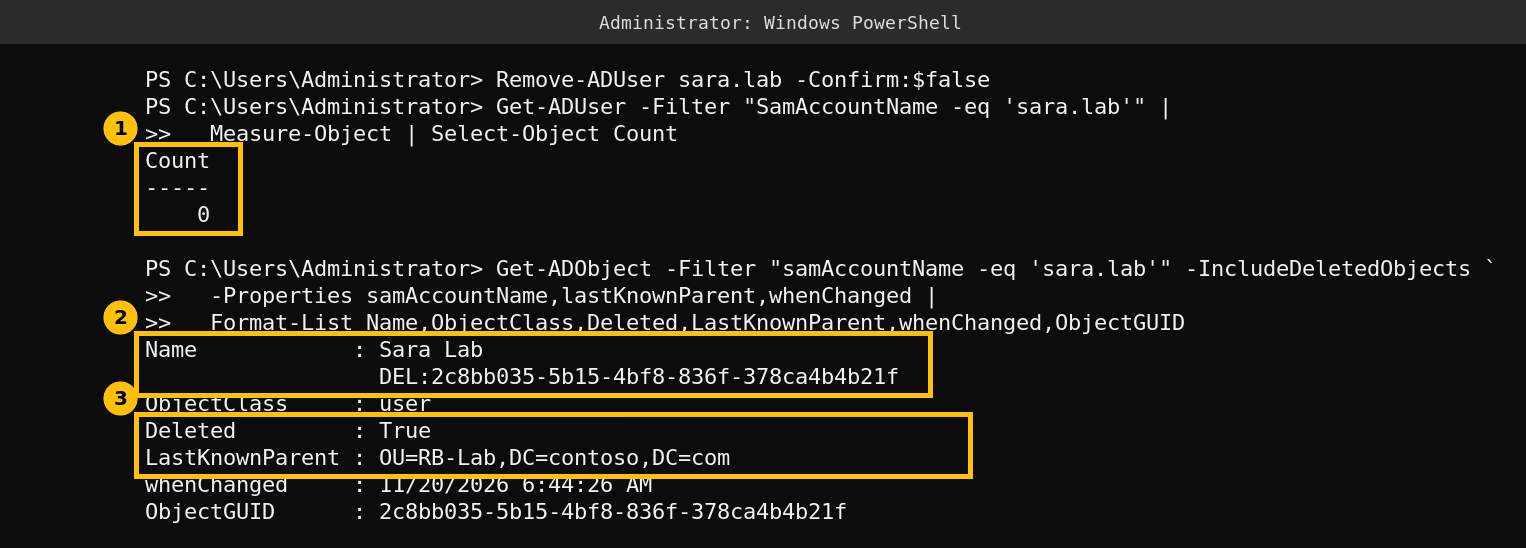
Now the accident. I deleted the user, checked that a normal search no longer finds it, and then searched again with -IncludeDeletedObjects, which is the switch that lets Get-ADObject look inside the Deleted Objects container.
PS C:\Users\Administrator> Remove-ADUser sara.lab -Confirm:$false
PS C:\Users\Administrator> Get-ADUser -Filter "SamAccountName -eq 'sara.lab'" |
>>   Measure-Object | Select-Object Count
Count
-----
    0

PS C:\Users\Administrator> Get-ADObject -Filter "samAccountName -eq 'sara.lab'" -IncludeDeletedObjects `
>>   -Properties samAccountName,lastKnownParent,whenChanged |
>>   Format-List Name,ObjectClass,Deleted,LastKnownParent,whenChanged,ObjectGUID
Name            : Sara Lab
                  DEL:2c8bb035-5b15-4bf8-836f-378ca4b4b21f
ObjectClass     : user
Deleted         : True
LastKnownParent : OU=RB-Lab,DC=contoso,DC=com
whenChanged     : 11/20/2026 6:44:26 AM
ObjectGUID      : 2c8bb035-5b15-4bf8-836f-378ca4b4b21f
Expected result: a normal search returns 0, and the deleted search returns the object with Deleted : True. Look at the name. AD renames a deleted object to its old name plus a line break and DEL: plus its GUID, so two deleted users with the same name never collide. That is also why a filter like Name -eq 'Sara Lab' finds nothing in the Deleted Objects container. Filter on samAccountName, objectGUID or msDS-LastKnownRDN instead.
LastKnownParent is the OU the object lived in, which is where a plain restore puts it back. Microsoft documents it in the Last-Known-Parent attribute reference.
Step 5: Restore the user
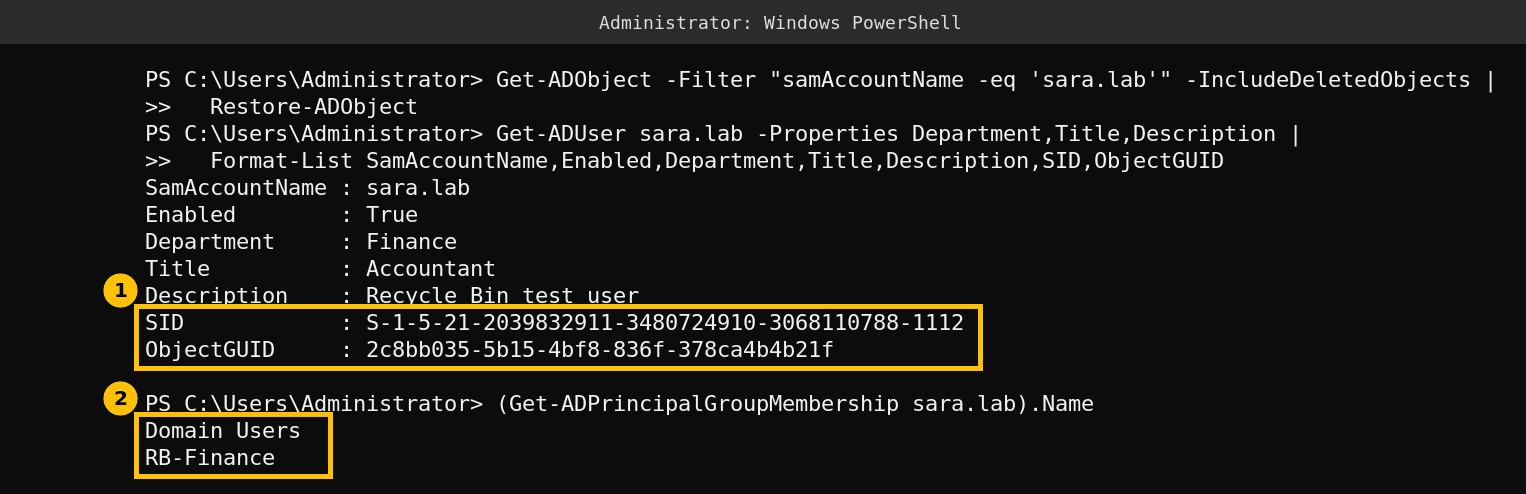
Pipe the same search into Restore-ADObject. It prints nothing when it works.
PS C:\Users\Administrator> Get-ADObject -Filter "samAccountName -eq 'sara.lab'" -IncludeDeletedObjects |
>>   Restore-ADObject
PS C:\Users\Administrator> Get-ADUser sara.lab -Properties Department,Title,Description |
>>   Format-List SamAccountName,Enabled,Department,Title,Description,SID,ObjectGUID
SamAccountName : sara.lab
Enabled        : True
Department     : Finance
Title          : Accountant
Description    : Recycle Bin test user
SID            : S-1-5-21-2039832911-3480724910-3068110788-1112
ObjectGUID     : 2c8bb035-5b15-4bf8-836f-378ca4b4b21f

PS C:\Users\Administrator> (Get-ADPrincipalGroupMembership sara.lab).Name
Domain Users
RB-Finance
Expected result: the SID ends in the same -1112 as before and the ObjectGUID is the GUID from the DEL: name. Department, title and description are back, and the user is in RB-Finance again without me adding it. This is the whole point of the Recycle Bin: Microsoft says all link valued and non link valued attributes are kept, so group memberships come back with the object. In my experience without the Recycle Bin, a reanimated tombstone keeps its SID but comes back stripped, and the group memberships have to be rebuilt by hand.
Want it somewhere else, for example a quarantine OU while you check why it was deleted? Add -TargetPath "OU=Quarantine,DC=contoso,DC=com" to Restore-ADObject. In ADAC the same choice is Restore To.
Step 6: Restore a deleted OU, parent first
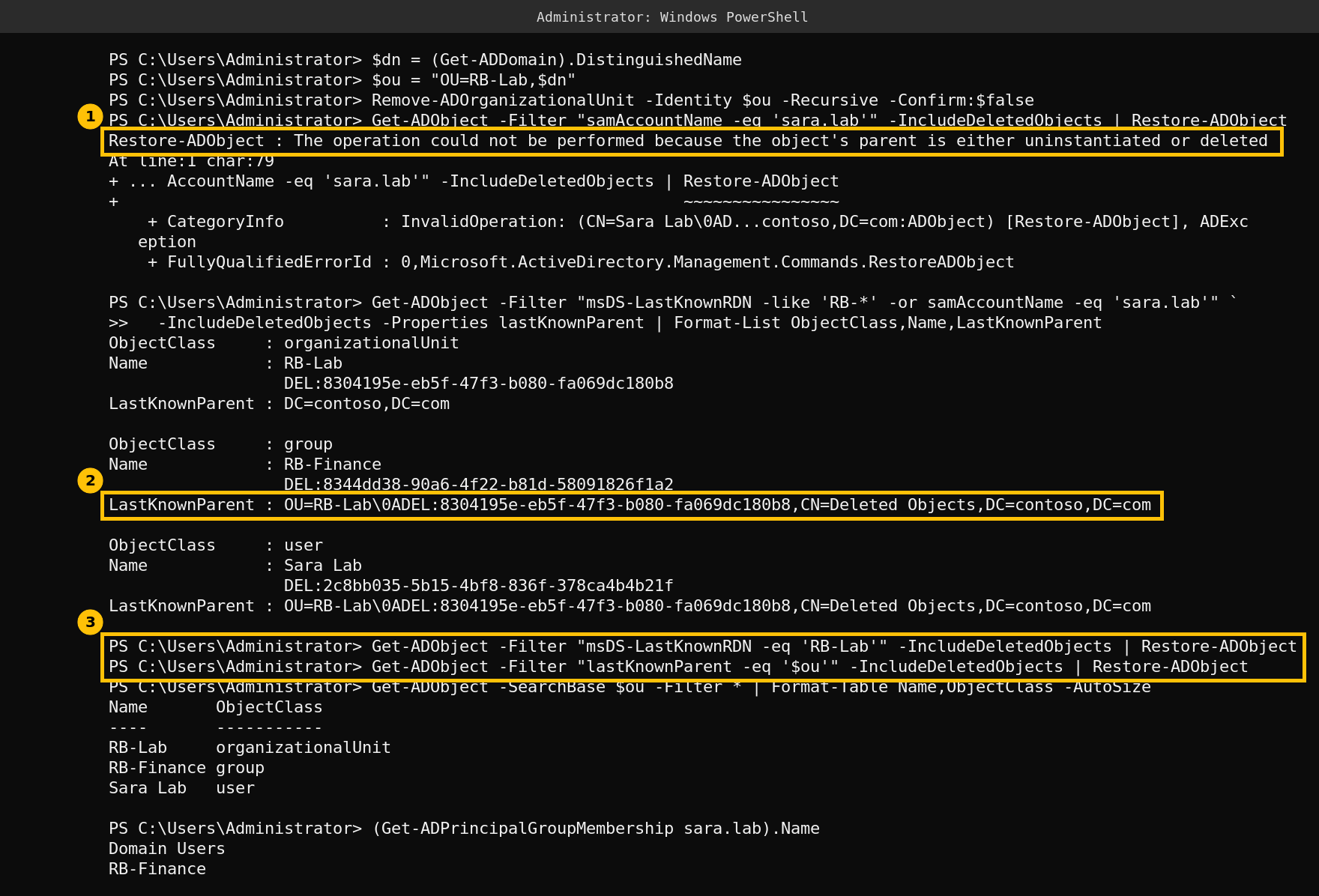
This is where people get stuck. Someone deletes a whole OU with everything in it. You find the user you care about and restore it, and AD refuses. I reproduced it:
PS C:\Users\Administrator> $dn = (Get-ADDomain).DistinguishedName
PS C:\Users\Administrator> $ou = "OU=RB-Lab,$dn"
PS C:\Users\Administrator> Remove-ADOrganizationalUnit -Identity $ou -Recursive -Confirm:$false
PS C:\Users\Administrator> Get-ADObject -Filter "samAccountName -eq 'sara.lab'" -IncludeDeletedObjects | Restore-ADObject
Restore-ADObject : The operation could not be performed because the object's parent is either uninstantiated or deleted
At line:1 char:79
+ ... AccountName -eq 'sara.lab'" -IncludeDeletedObjects | Restore-ADObject
+                                                          ~~~~~~~~~~~~~~~~
    + CategoryInfo          : InvalidOperation: (CN=Sara Lab\0AD...contoso,DC=com:ADObject) [Restore-ADObject], ADExc
   eption
    + FullyQualifiedErrorId : 0,Microsoft.ActiveDirectory.Management.Commands.RestoreADObject

PS C:\Users\Administrator> Get-ADObject -Filter "msDS-LastKnownRDN -like 'RB-*' -or samAccountName -eq 'sara.lab'" `
>>   -IncludeDeletedObjects -Properties lastKnownParent | Format-List ObjectClass,Name,LastKnownParent
ObjectClass     : organizationalUnit
Name            : RB-Lab
                  DEL:8304195e-eb5f-47f3-b080-fa069dc180b8
LastKnownParent : DC=contoso,DC=com

ObjectClass     : group
Name            : RB-Finance
                  DEL:8344dd38-90a6-4f22-b81d-58091826f1a2
LastKnownParent : OU=RB-Lab\0ADEL:8304195e-eb5f-47f3-b080-fa069dc180b8,CN=Deleted Objects,DC=contoso,DC=com

ObjectClass     : user
Name            : Sara Lab
                  DEL:2c8bb035-5b15-4bf8-836f-378ca4b4b21f
LastKnownParent : OU=RB-Lab\0ADEL:8304195e-eb5f-47f3-b080-fa069dc180b8,CN=Deleted Objects,DC=contoso,DC=com

PS C:\Users\Administrator> Get-ADObject -Filter "msDS-LastKnownRDN -eq 'RB-Lab'" -IncludeDeletedObjects | Restore-ADObject
PS C:\Users\Administrator> Get-ADObject -Filter "lastKnownParent -eq '$ou'" -IncludeDeletedObjects | Restore-ADObject
PS C:\Users\Administrator> Get-ADObject -SearchBase $ou -Filter * | Format-Table Name,ObjectClass -AutoSize
Name       ObjectClass
----       -----------
RB-Lab     organizationalUnit
RB-Finance group
Sara Lab   user

PS C:\Users\Administrator> (Get-ADPrincipalGroupMembership sara.lab).Name
Domain Users
RB-Finance
Here is what happened, in order:
Restore-ADObjecton the user fails with the object’s parent is either uninstantiated or deleted. The user’s parent OU is itself in the Deleted Objects container, so there is nowhere to put the user back.- The listing explains why. The OU’s
LastKnownParentis the domain root, but the group and the user point toOU=RB-Lab\0ADEL:...,CN=Deleted Objects, which is the deleted OU. - Restore the OU first (I matched it on
msDS-LastKnownRDN, which keeps the original name), then restore everything whoselastKnownParentis that OU. The second filter works because once the OU is live again, the children’s lastKnownParent resolves to its normal DN. - The search under the OU shows the OU, the group and the user, and the user is still a member of RB-Finance.
For deeper trees, repeat step 3 one level at a time, top down. If a sub OU was deleted too, restore it before its own children.
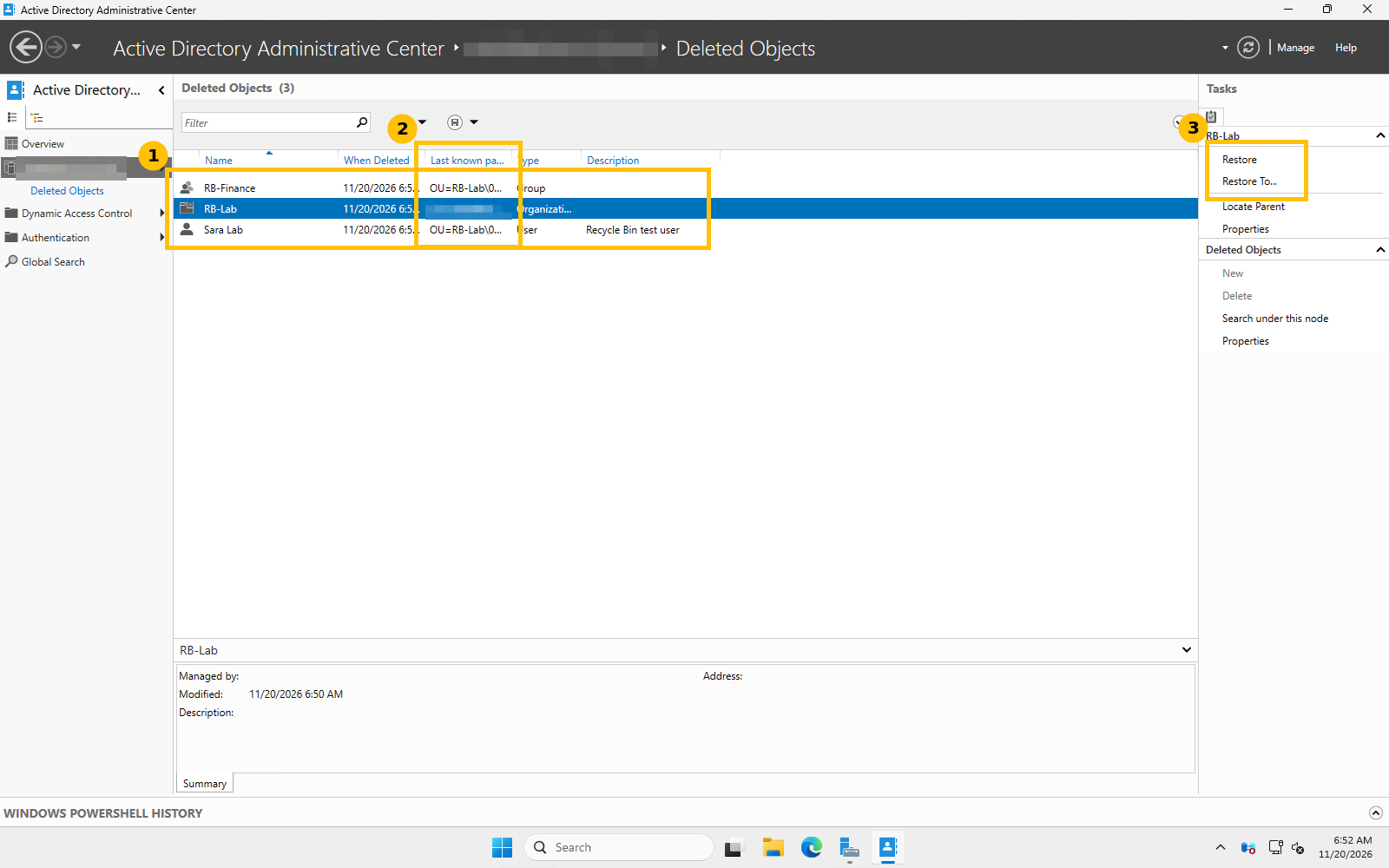
ADAC shows the same thing. Open Deleted Objects and you see the OU, the group and the user, with the Last known parent column telling you which one to restore first. Select the OU and use Restore in the Tasks pane, then the children.
Troubleshooting
| Symptom | Likely cause | Fix |
|---|---|---|
| Get-ADObject with -IncludeDeletedObjects finds nothing | The object was deleted before the Recycle Bin was enabled, or it is older than the deleted object lifetime | Not recoverable with the Recycle Bin. Use an authoritative restore from a system state backup |
| Filter on Name finds nothing in Deleted Objects | Deleted objects are renamed to name plus DEL: and the GUID | Filter on samAccountName, objectGUID or msDS-LastKnownRDN |
| The object’s parent is either uninstantiated or deleted | The parent OU is also deleted | Restore the parent OU first, then its children with a lastKnownParent filter |
| An attempt was made to add an object to the directory with a name that is already in use | Someone already created a new account with the same name or samAccountName | Rename or delete the new account first, or restore with -NewName and fix the samAccountName after |
| Enable-ADOptionalFeature fails | Forest level too low, or FSMO roles split across DCs | Raise the forest level to 2008 R2 or higher, or run it on the DC holding schema master and domain naming master |
| Restored user cannot sign in | The account was disabled before deletion, or the password expired | Check Enabled and pwdLastSet, then unlock or reset as usual. My lockout post with event 4740 helps if it locks right away |
What I actually hit today is row three, the parent error, and the DEL: renaming behind row two. The other rows I did not reproduce in this lab. They come from the Learn articles and from what I have seen on other domains.
Should you change the 180 days
Probably not. The deleted object lifetime decides how long a full restore is possible, and the tombstone lifetime decides how long a stripped tombstone stays after that. Raising them makes the database a little bigger and keeps deleted objects around longer, which can matter for privacy rules. If you want a longer window, Microsoft shows the Set-ADObject ... -Replace @{"msDS-DeletedObjectLifetime" = 365} command in the same appendix I linked in step 1. I left mine at the default.
Also remember what the Recycle Bin is not. It is not a backup. It does not undo attribute changes, it does not help if someone wipes the members of a group without deleting it, and it does nothing for a corrupted database. Keep system state backups and read the AD forest recovery guide once before you need it.
Summary
| Task | Command or place |
|---|---|
| Check if it is on | Get-ADOptionalFeature, look at EnabledScopes |
| Enable it (one time, forever) | Enable-ADOptionalFeature ‘Recycle Bin Feature’ -Scope ForestOrConfigurationSet -Target (Get-ADForest).Name |
| Find a deleted object | Get-ADObject -Filter … -IncludeDeletedObjects |
| Restore it | … | Restore-ADObject, add -TargetPath for another OU |
| Deleted OU | Restore the OU first, then lastKnownParent -eq the OU DN |
| GUI | ADAC, domain, Deleted Objects, Restore or Restore To |
| Window to restore | msDS-DeletedObjectLifetime, or tombstoneLifetime when empty (180 days here) |
What I tested: Windows Server 2025 domain controller, single DC forest, forest level Windows2025Forest, November 2026 updates. What I did not test: a multi DC or multi domain forest, and restores that cross domains.
Sources
- Enable Active Directory Recycle Bin in Windows Server (Microsoft Learn)
- Enable-ADOptionalFeature (Microsoft Learn)
- Get-ADObject (Microsoft Learn)
- Restore-ADObject (Microsoft Learn)
- Appendix A: Additional Active Directory Recycle Bin Tasks, tombstone and deleted object lifetime (Microsoft Learn archive)
- Last-Known-Parent attribute (Microsoft Learn)
- Introduction to Active Directory Administrative Center enhancements (Microsoft Learn)
- Active Directory forest recovery guide (Microsoft Learn)