
Windows Update Fails Over WinRM With 0x80070005: Run It as a SYSTEM Scheduled Task

I wanted to patch my lab domain controller from a script. Not from the console, not from RDP, from the same remote session I use for everything else. Searching for updates worked on the first try. Downloading them did not. The error was 0x80070005, “Access is denied”, and I was already an administrator, which is what made it annoying.
This post is what I found, what Microsoft says about it, and the fix that got November’s cumulative update onto that server. I ran everything on a Windows Server 2025 domain controller. If you use PSWindowsUpdate, Ansible, or your own WinRM script and the install step fails with the same code, this is probably your problem too.
What fails and what does not
The Windows Update Agent (WUA) is the COM API that PowerShell, PSWindowsUpdate and most tools call under the hood. Microsoft has a page called Using WUA From a Remote Computer. It says a remote user can use the API, but only with administrator privileges, and then it gives two lists. Searching, reading update details and reading history are on the list of things that work remotely. These are on the list of things that do not work remotely:
IUpdateSession::CreateUpdateDownloaderIUpdateSession::CreateUpdateInstallerIUpdate::AcceptEula
The reference page for CreateUpdateInstaller lists the same thing as a return code: E_ACCESSDENIED, “This method cannot be called from a remote computer”. That page is in Microsoft’s archive section, but the current remote-use page above says the same. That matches what I saw. Searching is allowed, downloading and installing are blocked, and being an admin does not change it.
Step 1: Reproduce it
Open a remote PowerShell session to the server (I used WinRM) and run these. The first creates the update session, the second searches, and the next two ask for the downloader and the installer:
PS C:\Users\Administrator> $s = New-Object -ComObject Microsoft.Update.Session
PS C:\Users\Administrator> $s.CreateUpdateSearcher().Search("IsInstalled=0 and Type='Software'").Updates.Count
PS C:\Users\Administrator> $s.CreateUpdateDownloader()
PS C:\Users\Administrator> $s.CreateUpdateInstaller()
PS C:\Users\Administrator> whoami /groups | Select-String 'NT AUTHORITY.NETWORK'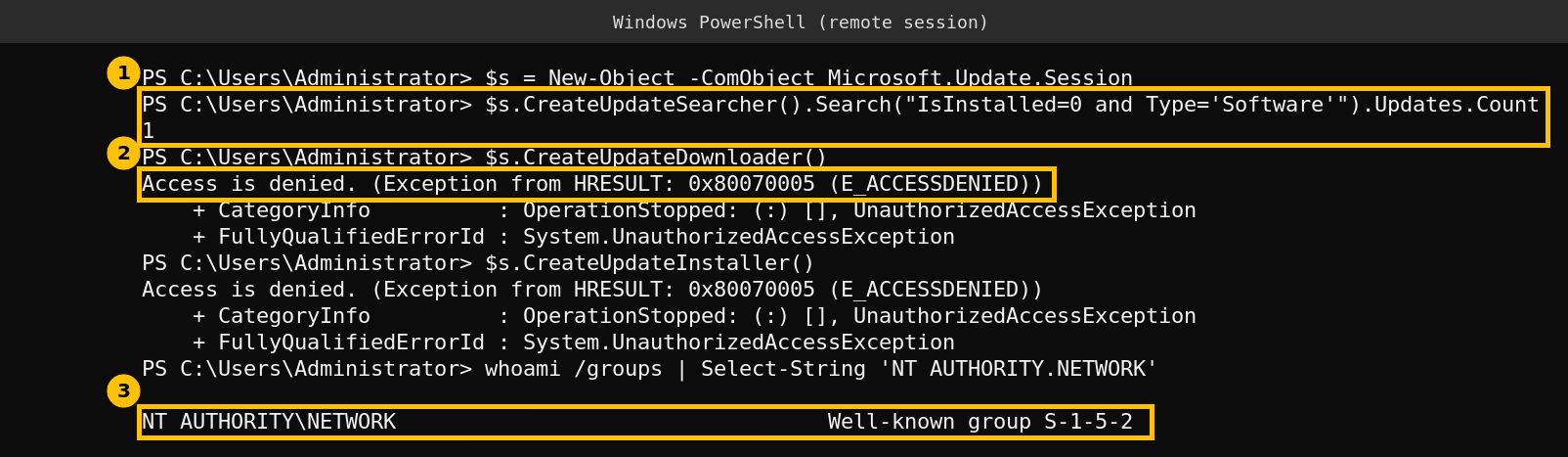
Two notes on that screenshot. I ran it over a remote session from another machine, so the real error also has a few lines of position information that I trimmed, and the lines I kept are exactly the message and the error ID PowerShell gave me. The last line shows why I think this happens: the session has the NT AUTHORITY\NETWORK group, which is what a network logon gets. Microsoft does not say that the group is the cause, so that part is my reading. What I know for sure is the behavior: search works, download and install do not, with an administrator account.
Step 2: Run the update code as SYSTEM in a scheduled task
The way around it is to start the update code from a local context instead of from your remote session. A scheduled task that runs as SYSTEM is the simplest way. Your remote session only creates the task and starts it, and the task does the real work on the server itself.
First, the script. This is a plain PowerShell file, I saved it as C:\ProgramData\wu-run.ps1. It searches, and with -Install it also downloads and installs, and writes every step to a log file so you can read the result from your session afterward:
param([switch]$Install)
$log = 'C:\ProgramData\wu-run.log'
"start $(Get-Date -Format s) install=$Install" | Out-File $log -Encoding ascii
try {
  $s = New-Object -ComObject Microsoft.Update.Session
  $r = $s.CreateUpdateSearcher().Search("IsInstalled=0 and IsHidden=0 and Type='Software'")
  "found $($r.Updates.Count)" | Add-Content $log
  $c = New-Object -ComObject Microsoft.Update.UpdateColl
  foreach ($u in $r.Updates) {
    if (-not $u.EulaAccepted) { $u.AcceptEula() }
    "upd $($u.Title) sizeMB=$([int]($u.MaxDownloadSize/1MB))" | Add-Content $log
    [void]$c.Add($u)
  }
  if ($Install -and $c.Count -gt 0) {
    $d = $s.CreateUpdateDownloader()
    $d.Updates = $c
    $dr = $d.Download()
    "download result $($dr.ResultCode) $(Get-Date -Format s)" | Add-Content $log
    $i = $s.CreateUpdateInstaller()
    $i.Updates = $c
    $ir = $i.Install()
    "install result $($ir.ResultCode) reboot=$($ir.RebootRequired) $(Get-Date -Format s)" | Add-Content $log
  }
} catch { "error $($_.Exception.Message)" | Add-Content $log }
"done $(Get-Date -Format s)" | Add-Content $log
Then register the task with the Register-ScheduledTask cmdlet. It runs as SYSTEM with the highest privileges, and it has no trigger because I start it by hand:
PS C:\Users\Administrator> $a = New-ScheduledTaskAction -Execute 'powershell.exe' -Argument '-NoProfile -ExecutionPolicy Bypass -File C:\ProgramData\wu-run.ps1 -Install'
PS C:\Users\Administrator> $p = New-ScheduledTaskPrincipal -UserId 'SYSTEM' -RunLevel Highest
PS C:\Users\Administrator> $t = New-ScheduledTaskSettingsSet -ExecutionTimeLimit (New-TimeSpan -Hours 6)
PS C:\Users\Administrator> Register-ScheduledTask -TaskName wu-install -Action $a -Principal $p -Settings $t
PS C:\Users\Administrator> Start-ScheduledTask -TaskName wu-install
I set a six hour time limit so a stuck install cannot run for days, and a big cumulative update takes a while. Mine downloaded in under two minutes and then needed about 45 minutes to install on a four-core VM.
Step 3: Read the result
Do not wait on the task. Check the log from your remote session every few minutes. This is the log from the real November 15 run on my lab, then a fresh search-only run, then a check that the update is installed:
PS C:\Users\Administrator> Get-Content C:\ProgramData\wu-run-2026-11-15.log
PS C:\Users\Administrator> Start-ScheduledTask -TaskName wu-search
PS C:\Users\Administrator> Get-Content C:\ProgramData\wu-run.log
PS C:\Users\Administrator> Get-HotFix -Id KB5131080 | Select-Object HotFixID,Description,InstalledOn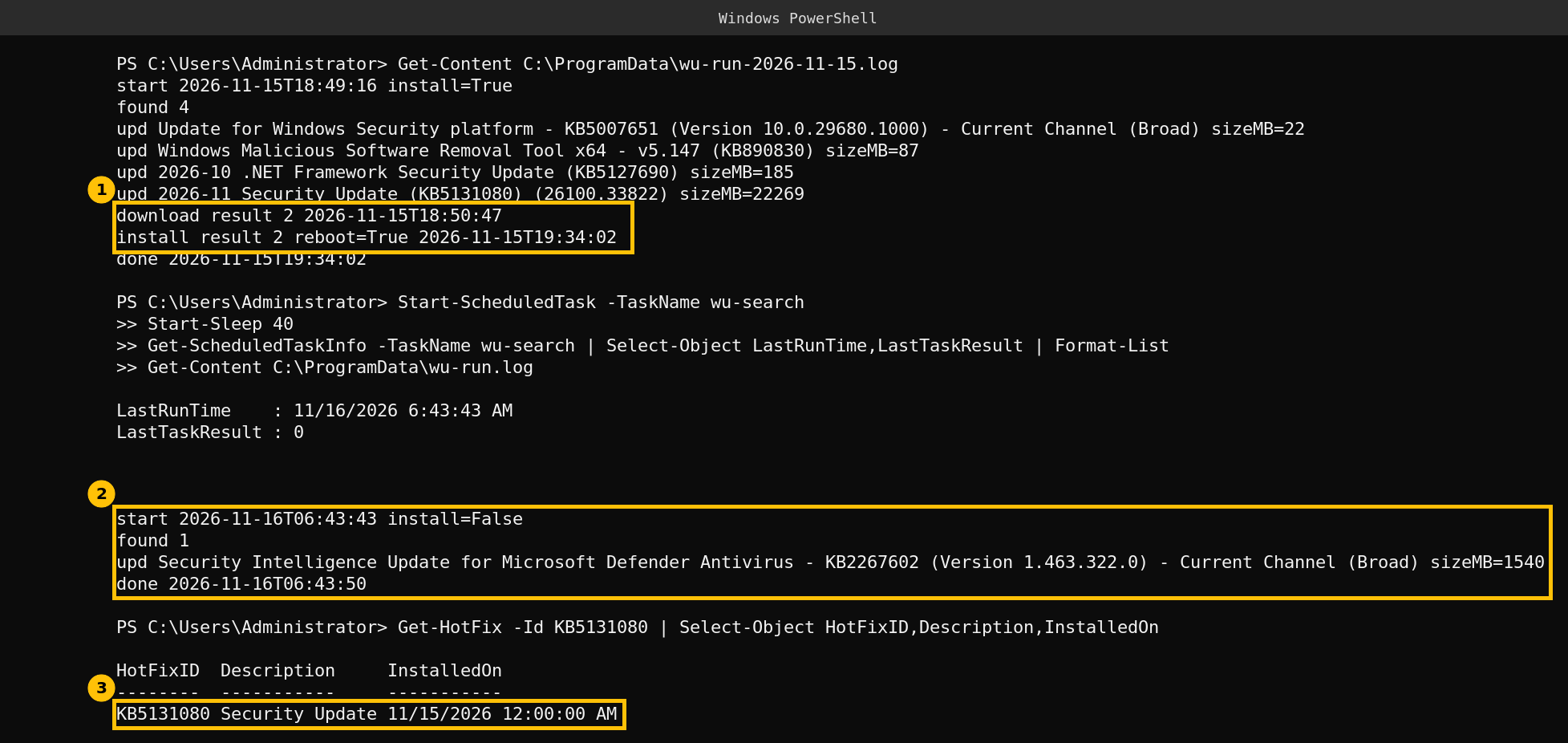
Result code 2 means success. Microsoft documents it as orcSucceeded in the OperationResultCode enumeration. The line reboot=True says the update is waiting for a restart, and it is not finished until you do that. I restarted the server, checked the build number, and confirmed the domain controller services were running before calling it done. After the reboot, Get-HotFix lists KB5131080 as installed on 11/15/2026. The second run in the screenshot was the search-only task I use to see what is pending. It found one Defender definition update that had appeared since.
One thing I would do differently next time: give the log a different file name for each run. My script overwrites wu-run.log at the start, which is why I copied the November 15 log to a separate file before the second run. Otherwise it would have been gone.
Problems you might hit
| Symptom | Likely cause | What to do |
|---|---|---|
| 0x80070005 on download or install | The call runs in a remote session | Run the same code in a scheduled task as SYSTEM, as above. |
| Task shows Running for a long time | A cumulative update installs slowly | Read the log. No “install result” line yet means it is still working. Give it up to an hour on a small VM. |
| Log says “install result 2 reboot=True” but the build did not change | The reboot has not happened yet | Restart the server, then check the build and the hotfix list. |
| Log says “error” and a message | The search or the Windows Update service failed | Read the message. Check the Windows Update service and the connection to your update source. |
| The task stays at “Ready” and never runs | You registered it but did not start it | Run Start-ScheduledTask -TaskName wu-install. |
If you already patch with PSWindowsUpdate, my earlier post on installing Windows updates with PowerShell covers that module, and the scheduled tasks post goes deeper on the task cmdlets. If you open WinRM to more people than you need, read hardening PowerShell Remoting first. For failed updates that come back with other error codes, troubleshooting Windows Update errors is the place to start.
What I tested and what I did not
I tested on one Windows Server 2025 domain controller (build 26100, lab domain), over WinRM. The search, the two failures and the scheduled task install all ran on that server, and the log and the hotfix check in the screenshots are the real output. I did not test other Windows versions, I did not test PSWindowsUpdate or Ansible against it, and I did not test a server joined to WSUS or Configuration Manager. The explanation of why it fails comes from Microsoft’s documentation. My comment about the network logon group is an inference.
Sources
- Microsoft Learn: Using WUA From a Remote Computer
- Microsoft Learn: IUpdateSession::CreateUpdateInstaller method (archived)
- Microsoft Learn: Windows Update Agent (WUA) API portal
- Microsoft Learn: OperationResultCode enumeration
- Microsoft Learn: Register-ScheduledTask
Related: the November updates also carry a known slmgr.vbs error, slmgr.vbs fails with 0x80041008 on Windows Server, with what I reproduced and a registry stopgap.