Install Windows Updates with PowerShell guide

If you’re updating one Windows machine, the Settings GUI is fine. If you manage multiple servers/workstations, PowerShell with the PSWindowsUpdate module gives you repeatable, auditable patching from one console.
Prerequisites
- Run PowerShell as Administrator on the machine you’re patching (and use an account that’s local admin on remote targets).
- Ensure the target machines can reach Windows Update or your WSUS/Microsoft Update source (depending on your org’s policy).
- For the “update computers in an OU” example, install the ActiveDirectory PowerShell module (RSAT) on the machine running the script.
- For remote patching, make sure PowerShell remoting (WinRM) is allowed between the admin machine and targets (recommended approach below).
Install PSWindowsUpdate (step-by-step)
1) Set PowerShell execution policy (Windows PowerShell 5.1)
Open Windows PowerShell as Administrator and run:
Set-ExecutionPolicy -ExecutionPolicy RemoteSigned -ForceClose and re-open the elevated PowerShell window to apply the change.
2) (Optional but recommended) Ensure TLS 1.2 for older systems
On older Windows builds, module downloads can fail without TLS 1.2:
[Net.ServicePointManager]::SecurityProtocol = [Net.SecurityProtocolType]::Tls123) Install NuGet + PowerShellGet (if needed)
Run:
Install-PackageProvider -Name NuGet -Force
Install-Module -Name PowerShellGet -Force
4) Install PSWindowsUpdate
Install the module from the PowerShell Gallery:
Install-Module -Name PSWindowsUpdate -Force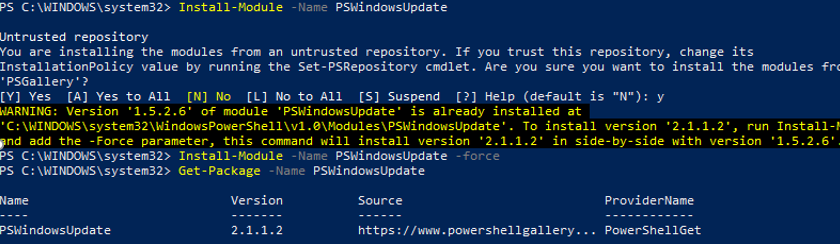
Note: You must install PSWindowsUpdate on every machine where you want to run its commands locally. If you patch remotely by executing commands on the target via remoting, install it on the targets (you can automate that too).
Discover available updates
List PSWindowsUpdate commands
Get-Command -Module PSWindowsUpdateFind available updates (local)
Get-WindowsUpdate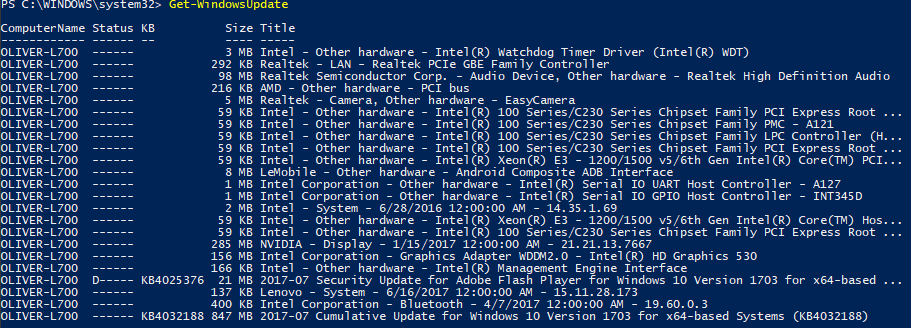
Include Microsoft Update (Office/other MS products), if required
Some environments only query Windows Update by default. To include Microsoft Update:
Add-WUServiceManager -MicrosoftUpdate
Get-WindowsUpdate -MicrosoftUpdate
Install updates on the local machine
Install updates (prompts/confirmation behavior depends on parameters)
Get-WindowsUpdate -InstallInstall everything and do not reboot automatically
Get-WindowsUpdate -AcceptAll -Install -IgnoreRebootInstall everything and reboot automatically if needed
Get-WindowsUpdate -AcceptAll -Install -AutoRebootTip: If you want fully non-interactive runs, add -Confirm:$false (and ensure your change control process is handled elsewhere).
Install updates on remote machines
Recommended approach: PowerShell remoting (WinRM)
- Enable remoting on each target (run once, on the target):
Enable-PSRemoting -Force- Patch a single remote computer:
$computer = "DC01"
Invoke-Command -ComputerName $computer -ScriptBlock {
    Import-Module PSWindowsUpdate
    Add-WUServiceManager -MicrosoftUpdate -ErrorAction SilentlyContinue
    Get-WindowsUpdate -MicrosoftUpdate -AcceptAll -Install -AutoReboot
}- Patch multiple remote computers:
$computers = @("DC01","DC02","DC03")
Invoke-Command -ComputerName $computers -ScriptBlock {
    Import-Module PSWindowsUpdate
    Add-WUServiceManager -MicrosoftUpdate -ErrorAction SilentlyContinue
    Get-WindowsUpdate -MicrosoftUpdate -AcceptAll -Install -AutoReboot
}
Alternative: Using -ComputerName (works in some environments)
PSWindowsUpdate also supports -ComputerName on several cmdlets, but it can be less predictable depending on firewall rules, remoting configuration, and admin shares.
Get-WindowsUpdate -ComputerName "DC02" -Install -AcceptAll -AutoRebootPatch computers from an Active Directory OU
# Requires the ActiveDirectory module (RSAT)
Import-Module ActiveDirectory
$ouDN = "OU=user,DC=test,DC=data"
$computers = Get-ADComputer -Filter * -SearchBase $ouDN | Select-Object -ExpandProperty Name
Invoke-Command -ComputerName $computers -ScriptBlock {
    Import-Module PSWindowsUpdate
    Add-WUServiceManager -MicrosoftUpdate -ErrorAction SilentlyContinue
    Get-WindowsUpdate -MicrosoftUpdate -AcceptAll -Install -AutoReboot
}
Verification and reporting
Check update history
Get-WUHistory | Select-Object -First 20Check last Windows Update results
Get-WULastResultsCheck if a reboot is pending
Get-WURebootStatusTroubleshooting tips
- Module install fails: Make sure you’re running as Administrator, have TLS 1.2 enabled (older OS), and can reach the PowerShell Gallery.
- Remote patch fails: Prefer
Invoke-Commandwith WinRM, confirm WinRM is enabled, firewall rules allow it, and your account is local admin on targets. - OU script fails: Install RSAT and import the ActiveDirectory module before running
Get-ADComputer.