
Getting Started with the Microsoft Graph PowerShell SDK: Install, Connect, and Migrate Off MSOnline/AzureAD

The Microsoft Graph PowerShell SDK is now the standard way to script against Microsoft 365 and Entra ID, replacing the older AzureAD and MSOnline modules that Microsoft has fully deprecated. If you’re setting this up for the first time (or re-establishing it after the older modules stopped working), here is the current, correct installation and first-connection process.
Why this replaced the older modules
The MSOnline and AzureAD PowerShell modules were built against an older Azure AD Graph API that Microsoft has retired. Microsoft Graph PowerShell is built against the current, actively maintained Microsoft Graph API, meaning it’s the only path that continues receiving new features and bug fixes going forward. Any script you find online still calling Connect-MsolService or Connect-AzureAD is working against a module that no longer receives updates and should be migrated.
The dates: Microsoft’s Entra blog said the AzureAD and AzureAD-Preview modules would be retired and stop working starting in mid-October 2025, and their MSOnline retirement post put that module’s retirement between early April and late May 2025. If an old script still calls Connect-MsolService or Connect-AzureAD, plan to rewrite it, not to fix the module.
Installing the module
Install-Module Microsoft.Graph -Scope CurrentUserThis installs the full meta-module, which pulls in every Microsoft Graph PowerShell submodule (Users, Groups, Mail, Identity.SignIns, and dozens more). For a server or automation account where you know exactly which capabilities you need, installing only the specific submodules is faster and reduces the footprint:
Install-Module Microsoft.Graph.Users -Scope CurrentUser
Install-Module Microsoft.Graph.Identity.SignIns -Scope CurrentUser
Microsoft recommends PowerShell 7 or later. Windows PowerShell 5.1 works too, but the installation article on Microsoft Learn lists extra prerequisites for it: .NET Framework 4.7.2 or later, an up to date PowerShellGet, and an execution policy of RemoteSigned or less restrictive. Also note that installing in one PowerShell version does not install it for the other.
What the install looks like on a real server
I ran the install on a Windows Server 2025 machine with Windows PowerShell 5.1 (November 2026 updates), installing only the Users submodule. That pulls in Microsoft.Graph.Authentication as a dependency, and that module is where Connect-MgGraph lives.
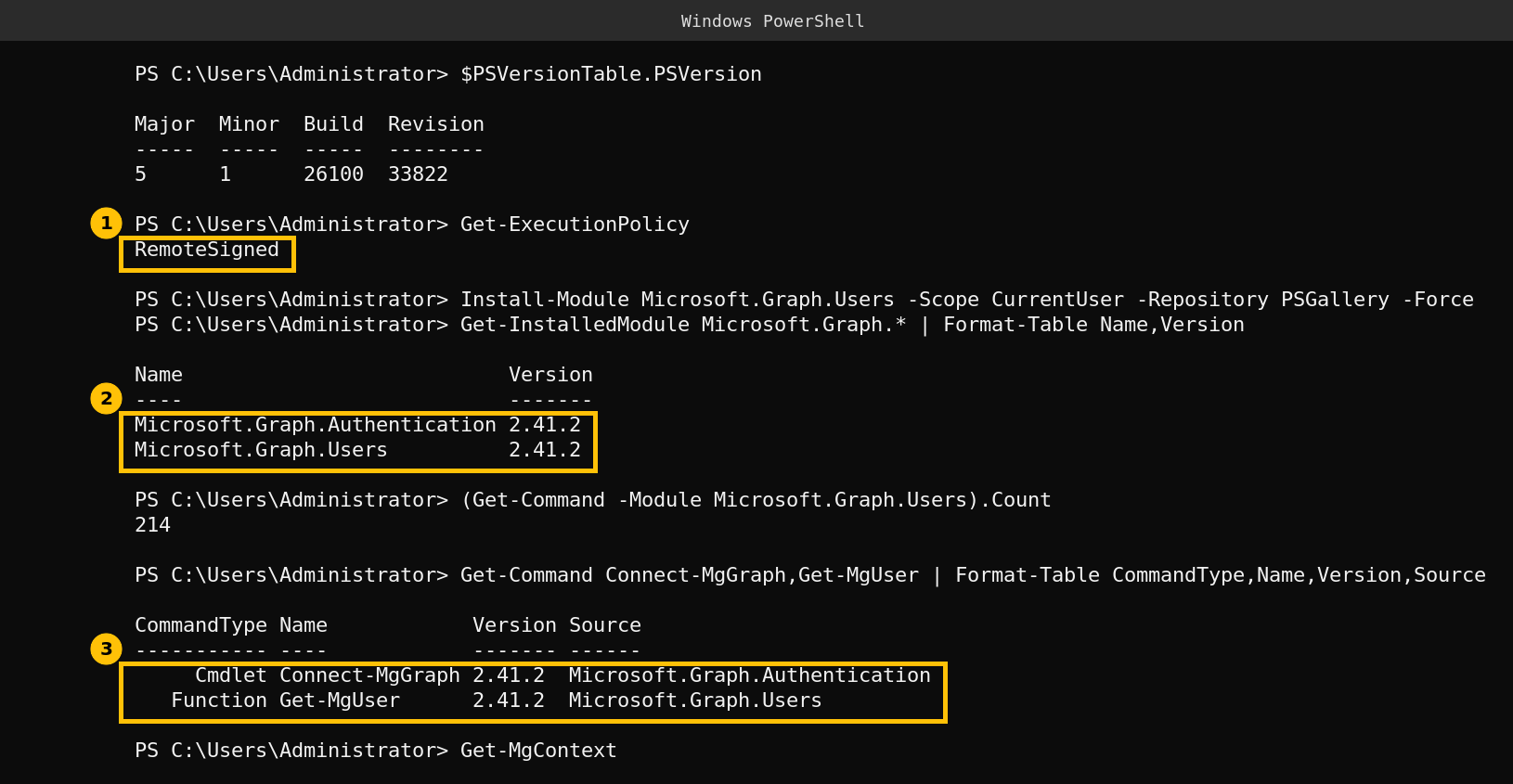
The Users submodule alone adds 214 commands. The full Microsoft.Graph module installs over 47 submodules according to Microsoft, which is why I only install what a script needs.
Connecting for the first time
Connect-MgGraph -Scopes "User.Read.All", "Group.Read.All"Unlike the older modules’ simple username/password prompt, Microsoft Graph PowerShell uses delegated permission scopes that you request explicitly at connection time, matching the specific Graph API permissions your script actually needs. The first connection with any new scope triggers an interactive consent prompt, after which it’s cached for that session.
If you skip the connection step, every Graph cmdlet fails with the same message. On the server above, before any Connect-MgGraph, Get-MgContext returned nothing and Get-MgUser said this:
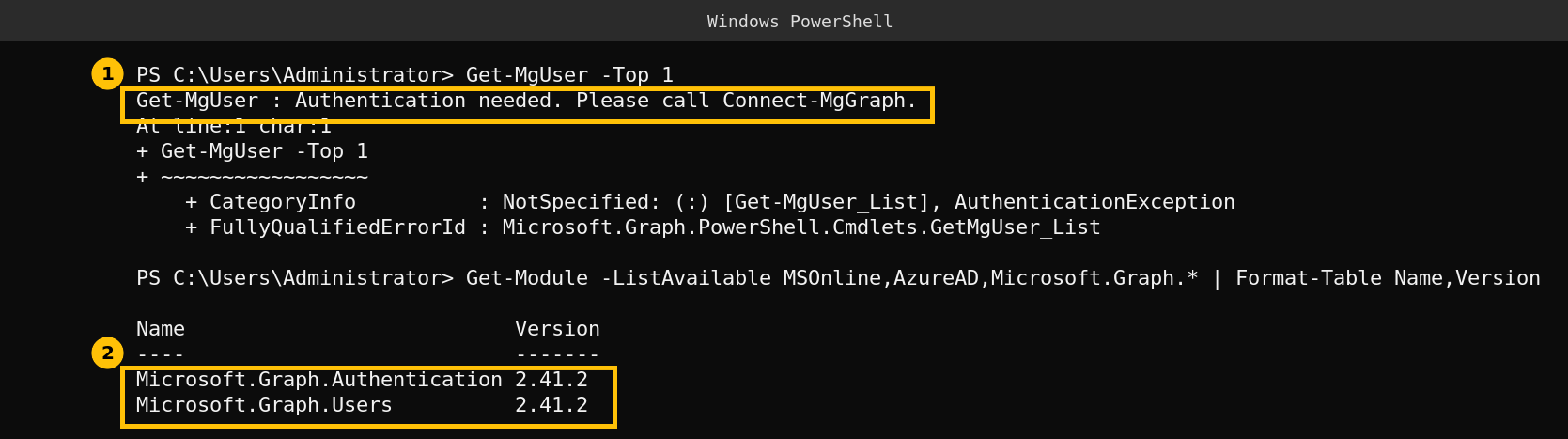
I did not sign in to a tenant for this test, so the consent prompt and the scopes below come from Microsoft’s Graph PowerShell authentication article and the Connect-MgGraph reference, not from a screenshot.
Checking what’s currently connected and authorized
Get-MgContextThis shows the current account, tenant, and the exact scopes the active session was granted, useful for confirming a script has the permissions it needs before it fails partway through.
App-only authentication for unattended scripts
For scheduled tasks or automation with no interactive user, use certificate-based app-only authentication instead of a delegated interactive login:
Connect-MgGraph -ClientId "your-app-id" -TenantId "your-tenant-id" -CertificateThumbprint "your-cert-thumbprint"This requires an app registration in Entra ID with the appropriate application (not delegated) permissions granted and admin-consented beforehand, a one-time setup step in the Entra admin center.
Related: when you need to remove the SDK or clean up a broken install, follow my tested Graph SDK uninstall order, which shows why Uninstall-Module -Force on the Authentication module breaks the rest. For a first real script, the MFA registration audit with Graph PowerShell uses the same Connect-MgGraph pattern.
Frequently asked questions
My old script uses Get-MsolUser, what’s the direct replacement?
Get-MgUser, though property names differ in several places (for example, Get-MsolUser‘s isLicensed property doesn’t map one-to-one, and license details are retrieved via Get-MgUserLicenseDetail instead). Treat migration as a rewrite of the specific commands, not a find-and-replace of cmdlet names alone.
Do I need the Beta module, or is the general availability (v1.0) module enough?
Use the GA module (installed by default) unless you specifically need a feature that’s only available in the Graph Beta API. Beta endpoints can change or be removed without the same stability guarantees as v1.0, so avoid depending on Microsoft.Graph.Beta for anything running in production unless there’s no GA equivalent yet.
Sources
- Install the Microsoft Graph PowerShell SDK (Microsoft Learn)
- Using Microsoft Graph PowerShell authentication commands (Microsoft Learn)
- Connect-MgGraph (Microsoft Learn)
- Action required: MSOnline and AzureAD PowerShell retirement, 2025 info (Microsoft Entra Blog)
- Important Update: AzureAD PowerShell retirement (Microsoft Entra Blog)