

How to Completely Uninstall the Microsoft Graph PowerShell SDK

The Microsoft Graph PowerShell SDK is not one module. Microsoft.Graph is a wrapper that pulls in more than 47 submodules, and every one of them depends on Microsoft.Graph.Authentication. After a few updates you end up with several versions of each side by side, slow imports, and the odd “assembly with same name is already loaded” error. At that point a clean removal and a fresh install is faster than chasing the conflict.
The problem is that the obvious command, Uninstall-Module Microsoft.Graph, removes only the wrapper and leaves all the submodules behind. I rebuilt this guide on a Windows Server 2025 machine with Windows PowerShell 5.1 and PowerShellGet 2.2.5. I installed a few Graph modules plus an older Authentication version, then removed them the wrong way and the right way. Every screenshot below is that run.
Before you start
- Close every other PowerShell window and VS Code terminal that has loaded a Graph module. A loaded module keeps its files open.
- Run PowerShell as Administrator if the modules were installed for AllUsers (the folder is under Program Files). CurrentUser installs live in your Documents folder and do not need elevation.
- Do it once in every PowerShell edition you use. Windows PowerShell 5.1 and PowerShell 7 keep separate module folders, and Microsoft says installing in one does not install in the other. Removing works the same way.
- Know which tool installed the modules.
Install-Modulemeans PowerShellGet andUninstall-Module.Install-PSResourcemeans PSResourceGet andUninstall-PSResource.
Quick guide
- List what is installed with
Get-InstalledModule Microsoft.Graph*. - Remove the wrapper:
Uninstall-Module Microsoft.Graph -AllVersions. - Remove every submodule except Authentication with
-AllVersions. - Remove
Microsoft.Graph.Authenticationlast. - Check that no Microsoft.Graph folder is left in the module paths.
- Install fresh if you still need it, preferably only the submodules you use.
Step 1. See what is installed
Get-InstalledModule lists modules installed through PowerShellGet. With a wildcard it shows only the newest version of each module, so check the version count for Authentication separately.
Get-InstalledModule Microsoft.Graph* | Format-Table Name,Version
Get-InstalledModule Microsoft.Graph.Authentication -AllVersions | Format-Table Name,Version
Get-InstalledModule Microsoft.Graph* -AllVersions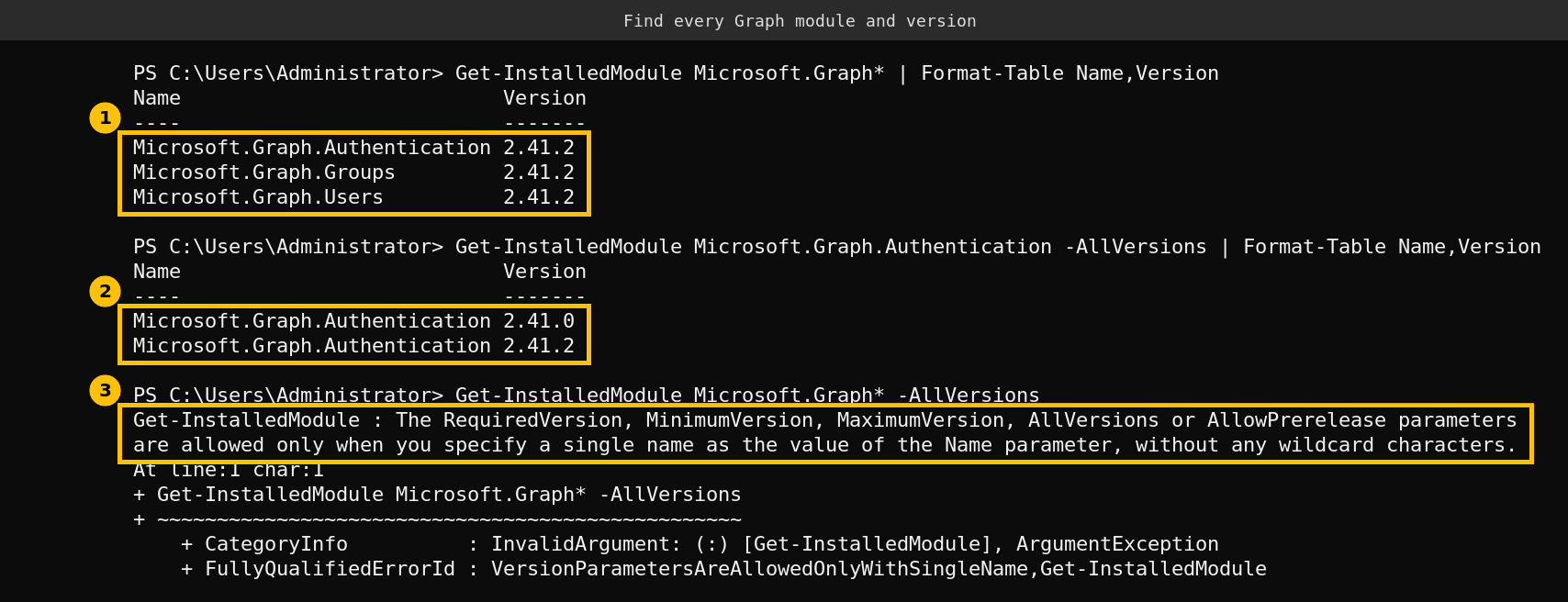
Notice the third command. -AllVersions together with a wildcard is refused with “allowed only when you specify a single name”. Many scripts online use exactly that line and stop right there. Pipe the wildcard result into Uninstall-Module -AllVersions instead, which works because each piped object carries a single name.
Step 2. Why Authentication has to go last
If you start with the module everybody depends on, PowerShellGet stops you, and the message names the modules that still need it.
Uninstall-Module Microsoft.Graph.Authentication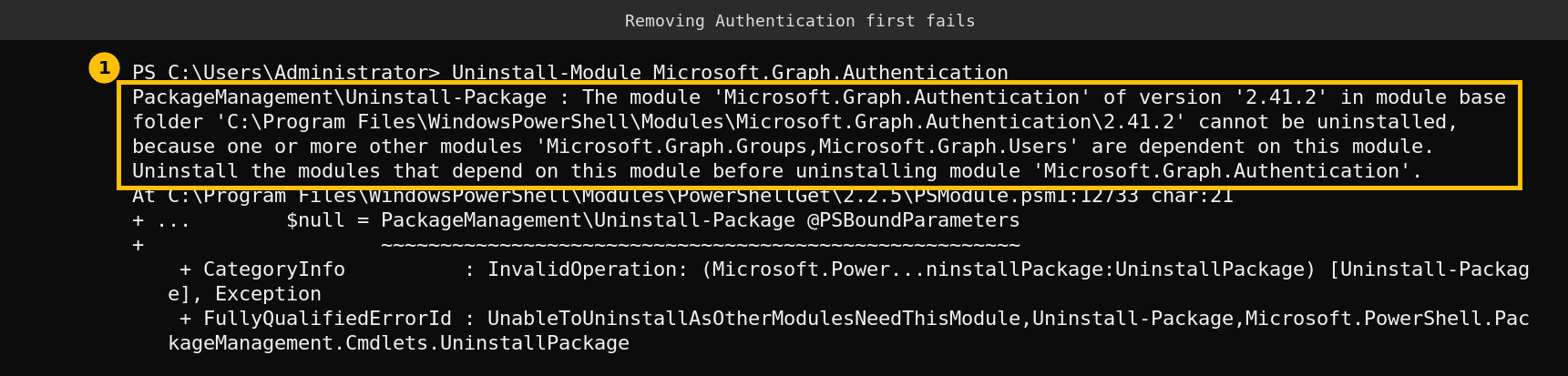
This error is good news. It tells you the order. It is also the moment people add -Force, and that is where things go wrong (see the troubleshooting section).
Step 3. Remove everything in Microsoft’s order
These are the three commands from the Microsoft Graph PowerShell install page on Learn, run as they are:
Uninstall-Module Microsoft.Graph -AllVersions
Get-InstalledModule Microsoft.Graph.* | ? Name -ne "Microsoft.Graph.Authentication" |
  Uninstall-Module -AllVersions
Uninstall-Module Microsoft.Graph.Authentication -AllVersions
Get-InstalledModule Microsoft.Graph*
Get-ChildItem "$env:ProgramFiles\WindowsPowerShell\Modules" -Directory -Filter Microsoft.Graph* |
  Measure-Object | Select-Object Count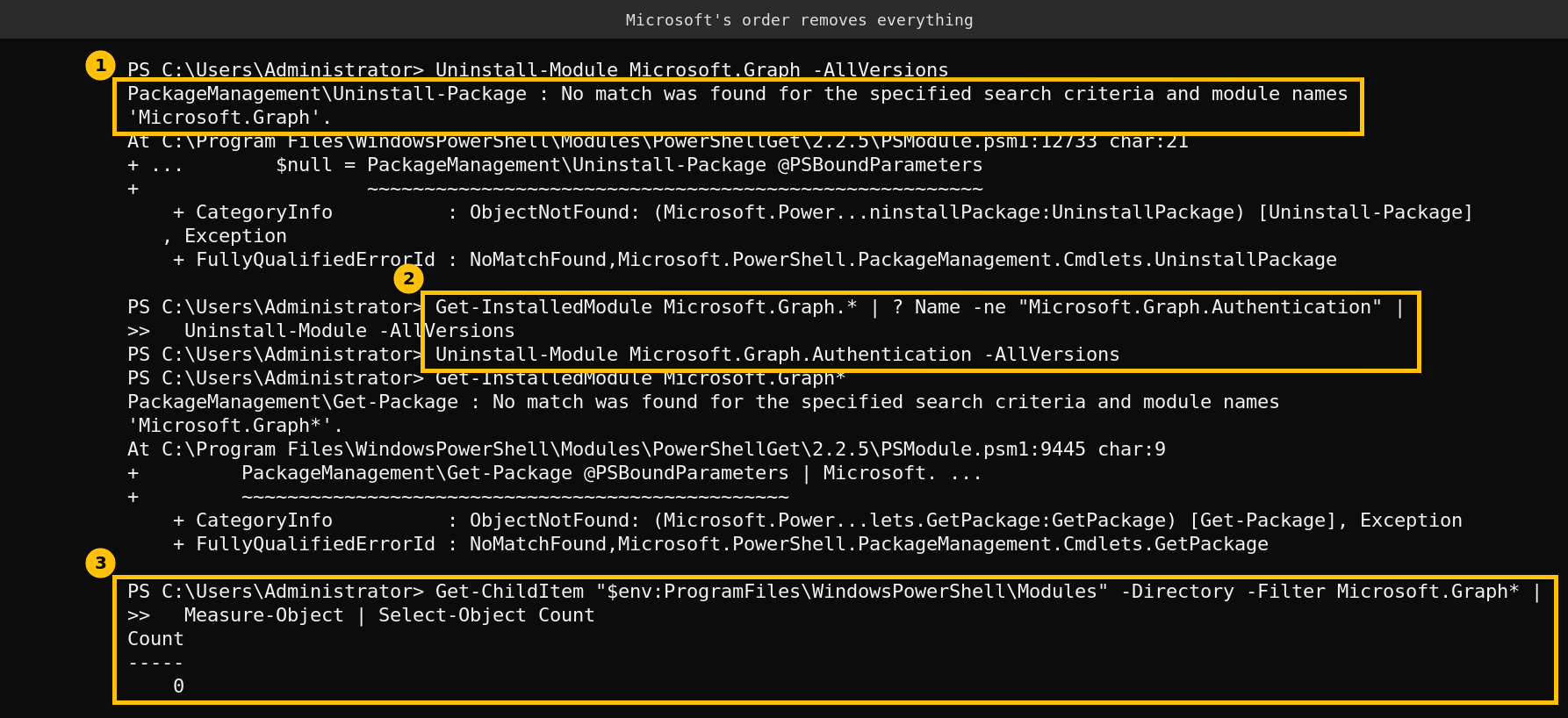
Expected result: no output from the two uninstall commands, a “No match was found” from Get-InstalledModule, and a folder count of 0.
The red text from the first command is harmless. I had installed only submodules, so there was no Microsoft.Graph wrapper to remove. If you installed the full SDK you will see no error there. Both old Authentication versions went away with the last command, because -AllVersions on a single name removes every version.
If you also installed the beta SDK, repeat step 3 with Microsoft.Graph.Beta and Microsoft.Graph.Beta.* before the Authentication line. Beta modules depend on the same Authentication module.
Step 4. Check the folders, not just the cmdlet
Get-InstalledModule only knows about modules PowerShellGet installed. A module copied by hand, or installed by another tool, will not show up there but will still load. The about_PSModulePath page lists where PowerShell looks. Check these four folders:
$paths = @(
    "$env:ProgramFiles\WindowsPowerShell\Modules"
    "$HOME\Documents\WindowsPowerShell\Modules"
    "$env:ProgramFiles\PowerShell\Modules"
    "$HOME\Documents\PowerShell\Modules"
)
Get-ChildItem $paths -Directory -Filter Microsoft.Graph* -ErrorAction SilentlyContinue |
  Select-Object FullName
If something is still there after step 3, close every PowerShell window first, then delete the folder by hand. With OneDrive folder backup on, the Documents path can be under your OneDrive folder, so run $env:PSModulePath -split [IO.Path]::PathSeparator to see the real path on your machine.
PowerShell 7 and PSResourceGet
In PowerShell 7 the same three commands work, because PowerShellGet is still there. If you installed with Install-PSResource, use Uninstall-PSResource with the same order: Graph and its submodules first, Authentication last. I did not test PowerShell 7 or PSResourceGet on this machine, so treat that part as Microsoft’s documentation rather than my output. If you are still on PowerShell 7.4 or 7.5, read my PowerShell 7.6 LTS checklist before you reinstall, since both went out of support on November 10, 2026.
Troubleshooting
Import-Module says Microsoft.Graph.Authentication is not loaded
This is what -Force does. On PowerShellGet 2.2.5 it skipped the dependency check from step 2, removed Authentication, and left Users and Groups installed but unusable. The fix is to put Authentication back, or finish the job and remove the rest.
Uninstall-Module Microsoft.Graph.Authentication -AllVersions -Force
Get-InstalledModule Microsoft.Graph* | Format-Table Name,Version
Import-Module Microsoft.Graph.Users
Install-Module Microsoft.Graph.Authentication -Scope AllUsers -Force
Import-Module Microsoft.Graph.Users
Get-Module Microsoft.Graph* | Format-Table Name,Version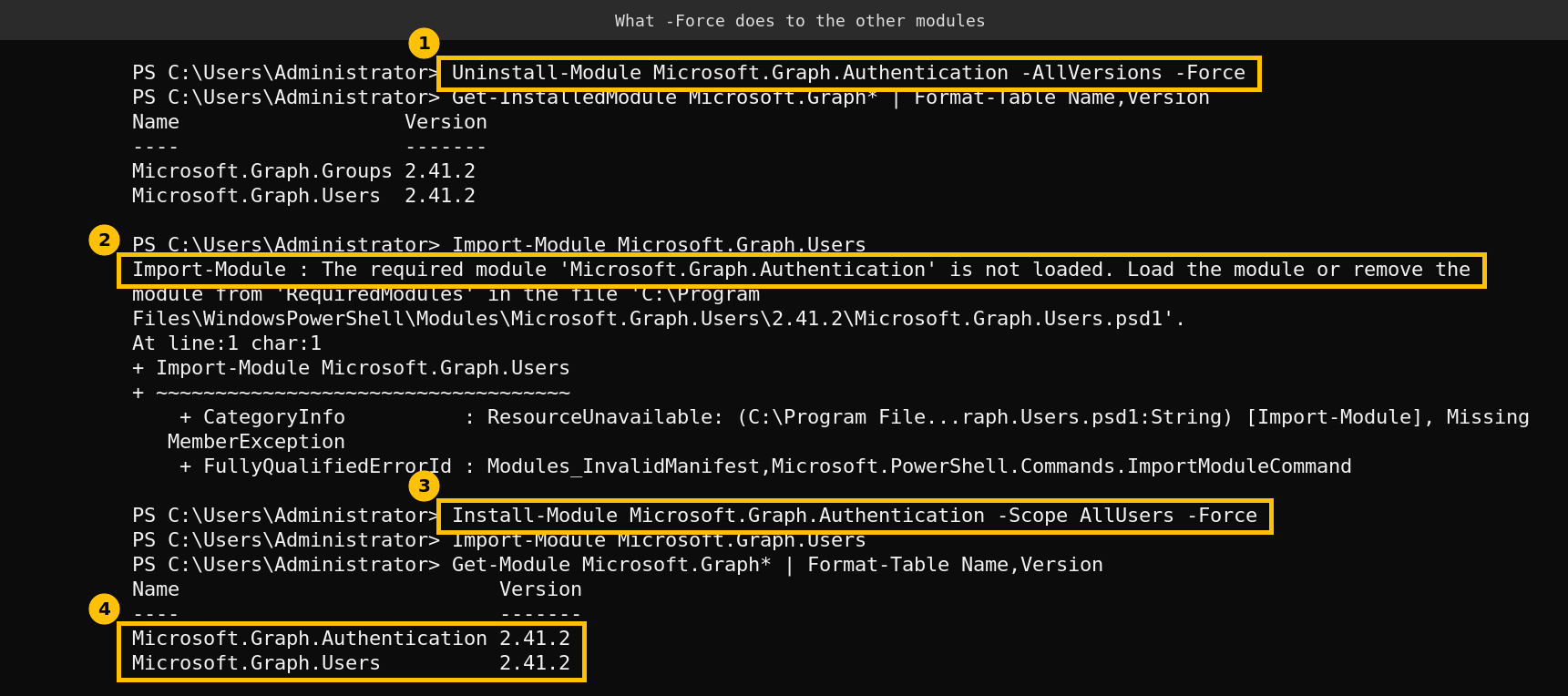
The Learn page for Uninstall-Module describes -Force as running without asking for confirmation. In my test it also ignored the dependency, so I keep it out of uninstall scripts.
| Symptom | Likely cause | Fix |
|---|---|---|
| “No match was found” for Microsoft.Graph | Only submodules were installed | Ignore it and continue with the next command |
| “allowed only when you specify a single name” | -AllVersions used with a wildcard | Pipe Get-InstalledModule into Uninstall-Module -AllVersions |
| “cannot be uninstalled, because one or more other modules … are dependent” | Authentication removed before the others | Remove the other Graph modules first |
| “The required module Microsoft.Graph.Authentication is not loaded” | Authentication removed with -Force | Reinstall Authentication or remove the rest |
| Module still loads after uninstall | Another PowerShell edition, a manual copy, or an open session | Check the four folders in step 4 and close all sessions |
| Access denied on Program Files | AllUsers install from a non elevated window | Run PowerShell as Administrator |
I reproduced the first four rows on this machine. The last two are the usual causes I see on admin workstations and are not in today’s screenshots.
Reinstall only what you need
You rarely need all 47 submodules. Install Microsoft.Graph.Authentication plus the ones your scripts call, for example Microsoft.Graph.Users and Microsoft.Graph.Groups. Imports are faster and updates are smaller. The current version is on the PowerShell Gallery page. My Graph PowerShell getting started post covers connecting with the right scopes, and the MFA registration audit is a good first real script to run with it.
Summary
| Task | Command |
|---|---|
| List modules | Get-InstalledModule Microsoft.Graph* |
| Remove the wrapper | Uninstall-Module Microsoft.Graph -AllVersions |
| Remove submodules | Get-InstalledModule Microsoft.Graph.* | ? Name -ne “Microsoft.Graph.Authentication” | Uninstall-Module -AllVersions |
| Remove Authentication last | Uninstall-Module Microsoft.Graph.Authentication -AllVersions |
| Check leftovers | Get-ChildItem on the four module folders |
| Avoid | -Force on Authentication, and -AllVersions with a wildcard |
What I tested: Windows Server 2025, Windows PowerShell 5.1, PowerShellGet 2.2.5, Graph modules 2.41.0 and 2.41.2 installed for AllUsers, November 2026. What I did not test: PowerShell 7, PSResourceGet, CurrentUser installs and the full 47 module SDK.