
Windows Server slmgr.vbs Fails With 0x80041008 After the November Updates

If you build servers and point them at a KMS host with slmgr.vbs, your build script may have started failing this week. Mine did, on a lab domain controller, right after the November cumulative update. The error is 0x80041008 Invalid parameter (SWbemObjectEx) and it comes back for commands that worked fine a month ago.
Microsoft lists it as a known issue for both Windows Server 2025 and Windows Server 2022 and says a fix is out. This post is what the notes say, what I reproduced, and one thing that does work until you can patch. I tested on Windows Server 2025 only.
What Microsoft says
The November 10 update for Windows Server 2025, KB5131080 (build 26100.33822), lists a known issue called “Windows activation and licensing commands might fail with error 0x80041008”. The examples it gives are slmgr.vbs /skms-domain <domain> and slmgr.vbs /ipk <key>. The Windows Server 2022 update, KB5131090 (build 20348.5870), lists the same issue.
A few details from those pages that matter if you are deciding how worried to be:
- Servers that are already activated stay activated. Microsoft says KMS-activated devices typically stay activated for up to 180 days, which matches the renewal rules on the KMS troubleshooting page.
- Machines that already have the KMS client key and the KMS configuration, and that do not need to run these commands, are not affected.
- The pages list no workaround.
- The fix is in updates released on or after November 13, 2026. For Server 2025 the example is KB5136489 (build 26100.33828), which says it fixes SLMGR operations failing with 0x80041008. For Server 2022 the KB5131090 page names KB5136487.
So the people who feel this are the ones building or re-keying servers: new VMs from an image, a golden image that gets its KMS host set during first boot, or a script that changes the product key. A server that has been running for a month will not notice anything.
Step 1: Reproduce it
I used the domain controller I patch for these posts. It is on build 26100.33822 with KB5131080 installed. One note on the commands. slmgr.vbs normally pops up a message box, so I ran it through cscript //nologo to get plain text in the console. Everything else is a normal elevated PowerShell prompt:
PS C:\Users\Administrator> (Get-ItemProperty 'HKLM:\SOFTWARE\Microsoft\Windows NT\CurrentVersion').UBR
PS C:\Users\Administrator> Get-HotFix -Id KB5131080 | Select-Object HotFixID,InstalledOn
PS C:\Users\Administrator> cscript //nologo C:\Windows\System32\slmgr.vbs /skms-domain kms.contoso.test
PS C:\Users\Administrator> cscript //nologo C:\Windows\System32\slmgr.vbs /ckms
PS C:\Users\Administrator> cscript //nologo C:\Windows\System32\slmgr.vbs /dlv | Select-String 'Name:|License Status'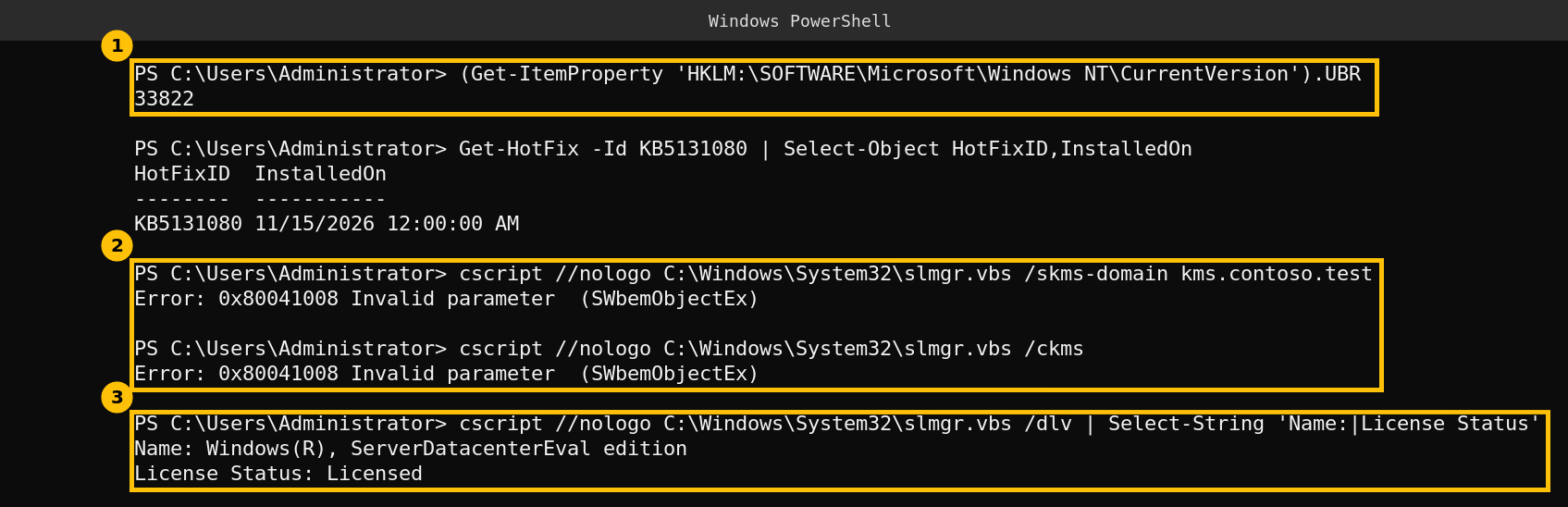
Callout 2 is the bug. Both the /skms-domain option and /ckms, which clears the KMS host setting, fail with the same error. Callout 3 is the useful part. The read-only /dlv still works, so the script itself runs fine and the server is licensed. Only the commands that change the KMS settings break. The host name kms.contoso.test is a made-up one for the test. Nothing in the lab changed, because the commands failed before they could write anything.
I did not run /ipk. It replaces the product key and my lab server is an evaluation edition, so a wrong move would cost me the one rearm I have left. Microsoft names it in the same known issue, so I am taking the notes at their word for that one.
Step 2: Find out where it breaks
Slmgr talks to the Software Licensing service through WMI, so I called the same WMI method myself with PowerShell. If the script were the problem, a direct call would work:
PS C:\Users\Administrator> try {
>>   $s = Get-CimInstance SoftwareLicensingService
>>   Invoke-CimMethod -InputObject $s -MethodName SetKeyManagementServiceMachine -Arguments @{MachineName='kms.contoso.test'} -ErrorAction Stop
>> } catch { $_.Exception.Message }
It fails with Invalid parameter, the same text. So the problem is in the licensing service or its WMI provider, not in the VBScript. That is my reading of the result. Microsoft does not say where the fault is, and I did not look at the update contents. I just know that a plain CIM call fails the same way, so rewriting your script in PowerShell will not get you around it.
Step 3: Set the KMS host in the registry instead
Microsoft lists no workaround, but the KMS host a client uses is stored in a registry value, and Microsoft documents it. On the Registry Settings for Volume Activation page, KeyManagementServiceName under HKLM\SOFTWARE\Microsoft\Windows NT\CurrentVersion\SoftwareProtectionPlatform is a string value that forces a KMS client to use a specific host. The page is from the older Server 2012 R2 documentation, so I tested it instead of assuming it still applies:
PS C:\Users\Administrator> $k = 'HKLM:\SOFTWARE\Microsoft\Windows NT\CurrentVersion\SoftwareProtectionPlatform'
PS C:\Users\Administrator> New-ItemProperty $k -Name KeyManagementServiceName -Value 'kms.contoso.test' -PropertyType String -Force | Out-Null
PS C:\Users\Administrator> Restart-Service sppsvc
PS C:\Users\Administrator> "KMS host: [" + (Get-CimInstance SoftwareLicensingService).KeyManagementServiceMachine + "]"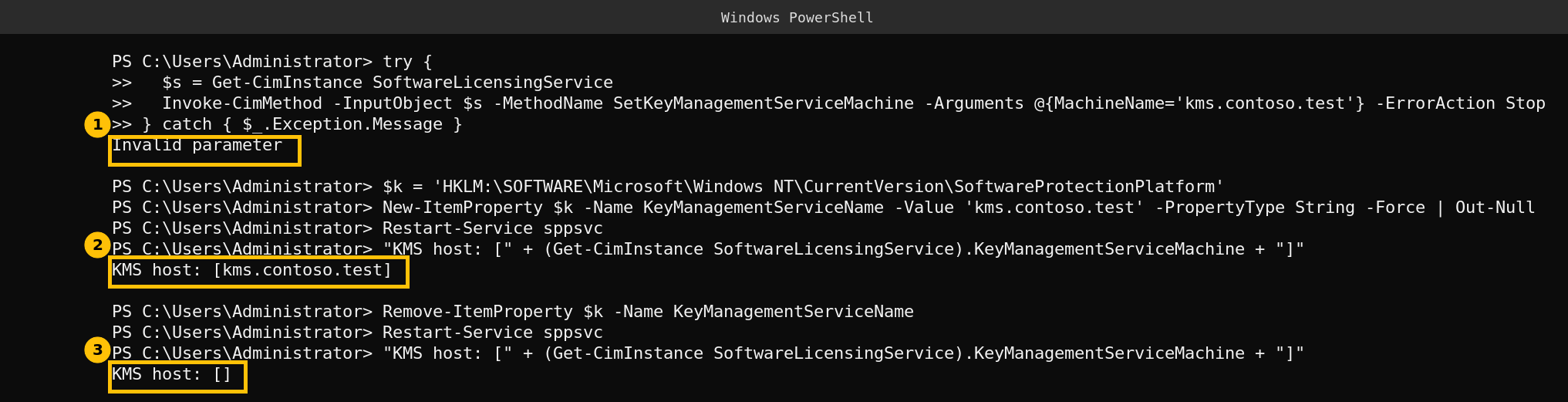
That worked on my server. After the service restart, the licensing service reports the host I wrote (callout 2), and after I removed the value and restarted the service it was empty again (callout 3), so the test left nothing behind.
Be careful with what this proves. It proves the licensing service accepts the KMS host name from the registry on build 26100.33822. It does not prove a real KMS activation, because my lab server is an evaluation edition with no KMS host to talk to and the name is a fake one. It also covers only the host name, which is what /skms sets. I did not test /skms-domain, which sets a DNS domain, and I did not test /ipk at all. Treat it as a stopgap for the host name, not a replacement for the fix.
Step 4: Install KB5136489 and run the same commands again
Added on November 25, 2026. When I wrote this post the fix was not offered to my server, so I could only quote Microsoft. A week later I installed it by hand and ran the same tests. The KB5136489 page says the update is only on the Microsoft Update Catalog, not on Windows Update or WSUS, and that it needs servicing stack 26100.33822 or later. The Catalog file for x64 was about 2 GB. I downloaded it to C:\Updates and checked two things before installing:
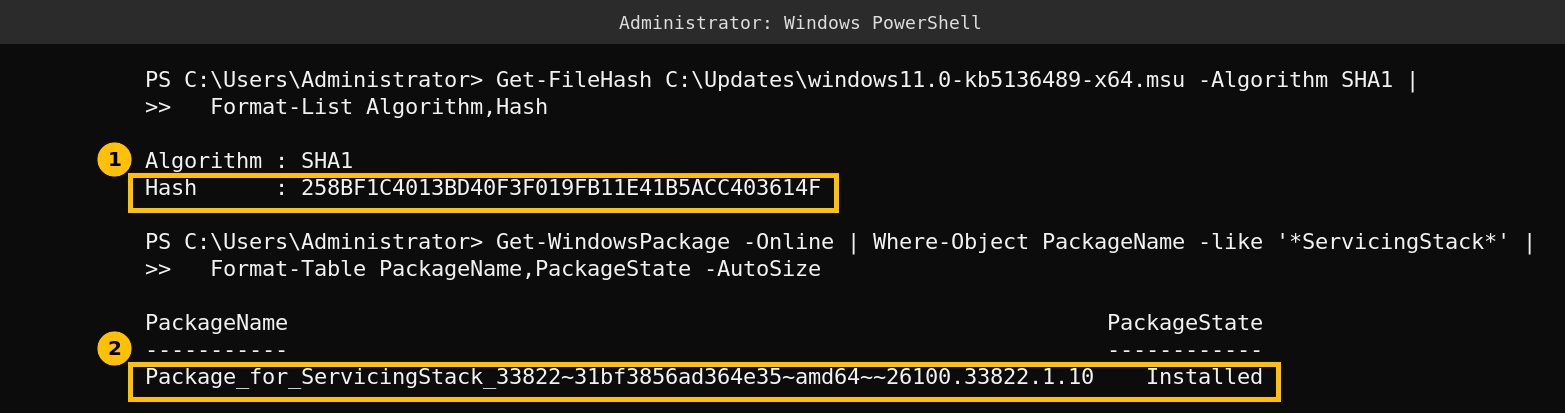
The Catalog puts the SHA1 hash in the file name (..._258bf1c4...msu), so Get-FileHash is a quick way to catch a broken download of a file this size. Then I installed it with DISM and restarted:
PS C:\Users\Administrator> DISM /Online /Add-Package /PackagePath:C:\Updates\windows11.0-kb5136489-x64.msu /NoRestart

Deployment Image Servicing and Management tool
Version: 10.0.26100.5074

Image Version: 10.0.26100.33822

Processing 1 of 1 -
The operation completed successfully.
PS C:\Users\Administrator> Restart-Computer
Be patient with it. On my small lab VM the install took about 40 minutes before the restart, and DISM sat at the same percentage for long stretches. It returned exit code 3010, which means a restart is needed. After the restart the build is 26100.33828:
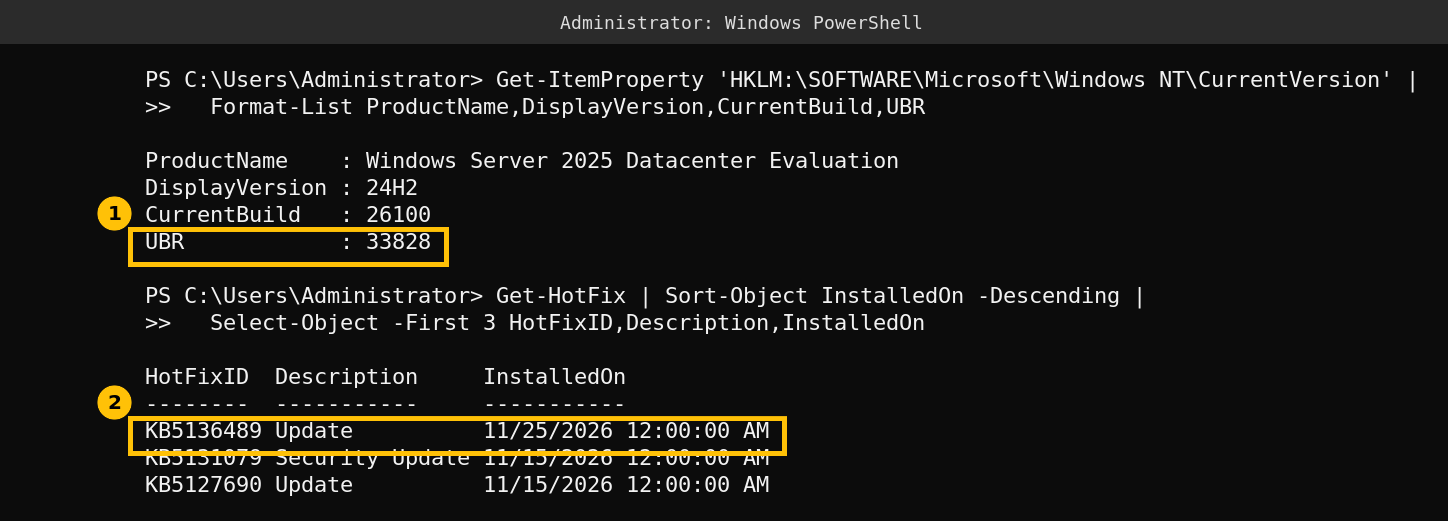
Now the same commands that failed in step 1:
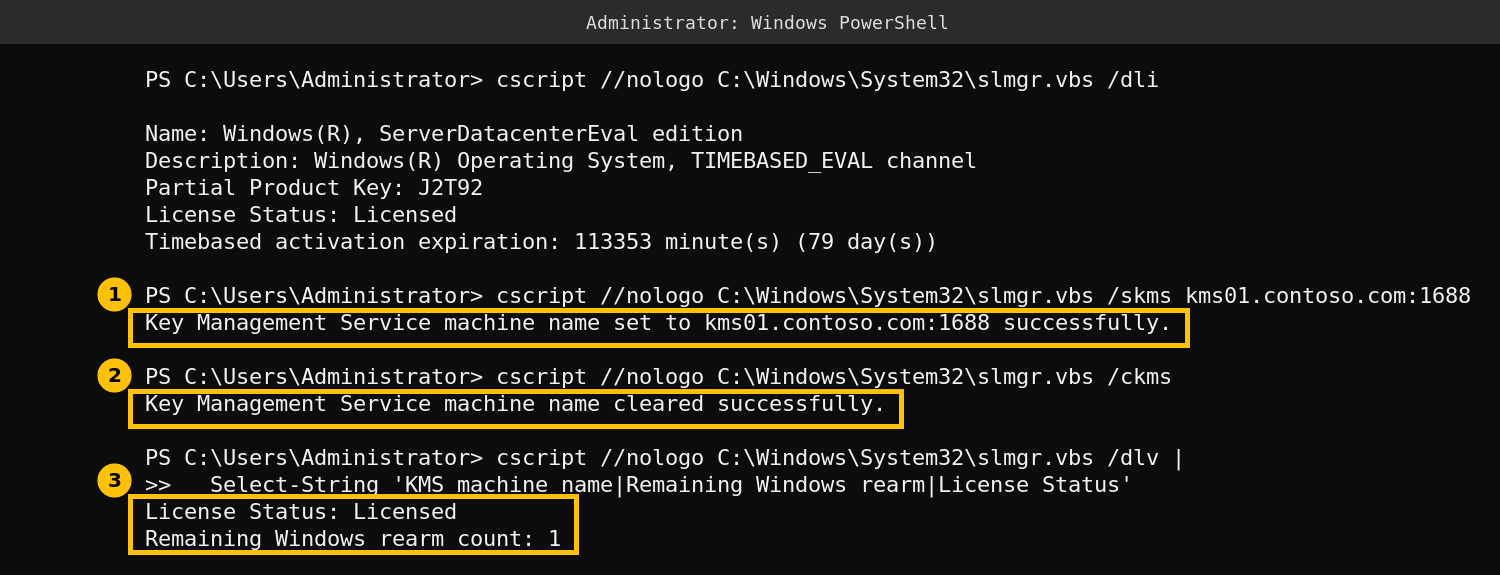
Both work. I set a made-up host, kms01.contoso.com:1688, and cleared it straight away, so nothing was left behind. The rearm count is still 1, which is the number I care about on an evaluation server. Then the lookup domain option and the direct CIM call from step 2:
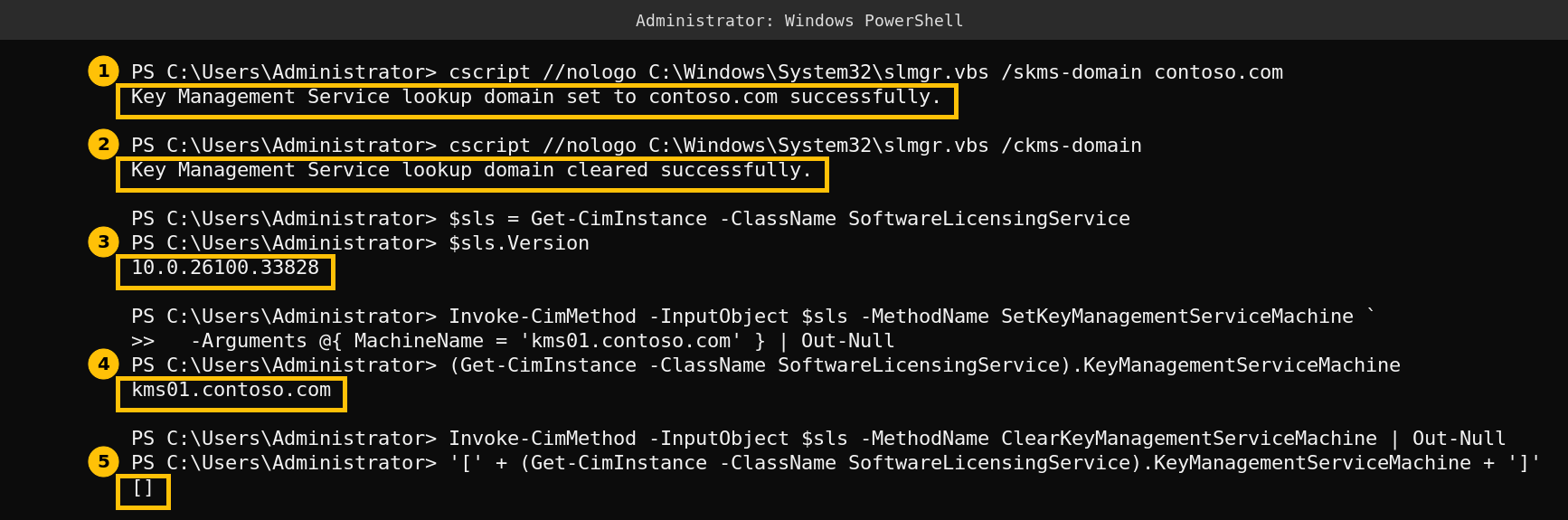
So the fix is in the licensing service itself. The service version moved from 10.0.26100.33822 to 10.0.26100.33828, and the WMI method that returned Invalid parameter before now works. That matches what I saw in step 2: the script was never the problem. If you used the registry stopgap from step 3, you can go back to slmgr.vbs in your build scripts once the image has KB5136489 or a later cumulative update, and remove the registry value if you no longer need a fixed host.
What I would do
- Check which of your servers run the November update:
Get-HotFix -Id KB5131080on 2025,KB5131090on 2022. Only the ones you re-key or rebuild are at risk. - If you build servers from an image and set the KMS host in a script, move that step to the registry value above or build with the fixed update. Do not depend on
slmgr.vbs /skmsuntil the fix is on the image. - Get the fix from the Microsoft Update Catalog. The KB5136489 page lists it as Catalog only for Server 2025, not Windows Update or WSUS, which matches what I saw: Windows Update never offered it to my server. Step 4 shows the install and the retest. The next monthly cumulative update should carry the fix as well, since the out-of-band update includes the November changes.
- Do not roll back the whole November update for this. It carries security fixes, and a rollback to dodge one script error that already has a fix is the worse trade. For how the other changes in these updates affect servers, see my posts on the Server 2022 hotpatch restart change and the October Patch Tuesday check script.
If you need to get the fix onto a server from a script, my post on running Windows Update as a SYSTEM scheduled task shows how to do it over WinRM. If you are building new servers, the Server 2025 in-place upgrade checklist covers what to check before you start.
Summary
| Item | What I found |
|---|---|
| Error | 0x80041008 Invalid parameter (SWbemObjectEx) |
| Fails | slmgr.vbs /skms-domain and /ckms on build 26100.33822 (tested), /ipk per Microsoft (not tested) |
| Still works | slmgr.vbs /dlv, activated servers stay activated |
| Cause | Not stated by Microsoft. A direct CIM call fails the same way, so it is not the script |
| Fix | KB5136489 for Server 2025 (build 26100.33828, Catalog only), tested: /skms, /ckms, /skms-domain and the CIM method all work after it. KB5136487 for Server 2022 (not tested) |
| Stopgap | Set KeyManagementServiceName in the registry, then restart sppsvc. Host name only, tested on 2025 without a real KMS host |
What I tested and what I did not
I tested on one Windows Server 2025 domain controller, evaluation edition, build 26100.33822, from a remote session. I reproduced the error with /skms-domain and /ckms, the same failure with a direct CIM call, and the registry route. On November 25 I installed KB5136489 from the Catalog and ran the same commands again, and all of them worked (step 4). I did not test Windows Server 2022 or any server that has a real KMS host, and I did not run /ipk. Everything about the fix and about Server 2022 comes from the Microsoft pages below.
Sources
- Microsoft Support: KB5131080, November 10, 2026, Windows Server 2025 (build 26100.33822)
- Microsoft Support: KB5131090, November 10, 2026, Windows Server 2022 (build 20348.5870)
- Message Center MC1551898: Out-of-band update released to address Windows licensing and activation errors (via mc.merill.net)
- Microsoft Update Catalog: KB5136489
- Microsoft Support: KB5136489, November 13, 2026, Windows Server 2025 (build 26100.33828)
- Microsoft Learn: Slmgr.vbs options for obtaining volume activation information
- Microsoft Learn: Registry settings for volume activation (archived, Server 2012 R2)
- Microsoft Learn: Guidelines for troubleshooting KMS