Windows Server 2025 In-Place Upgrade: The Real Preflight Checklist

Windows Server 2025 supports in-place upgrades directly from Server 2012 R2, 2016, 2019, and 2022, no clean install required. But an in-place upgrade on a production domain controller or file server is not something to start without checking the server’s actual state first. Here’s the real preflight checklist, with the PowerShell to run it, and real output from a live Windows Server 2025 box showing what a healthy result looks like.
Before you touch the installer
- Back up first, always. Take a VM snapshot or a full system state backup you can actually restore from. An in-place upgrade is reversible in theory, messy in practice if it fails partway through.
- Check Windows Server’s current build and edition so you know exactly what you’re upgrading from and confirm it’s a supported source version.
- Confirm free disk space. Microsoft recommends a healthy buffer beyond the base install size, an in-place upgrade needs room for the old OS image to be staged alongside the new one during the process.
- Clear any pending reboot before you start. A server with already-pending updates waiting on a restart is far more likely to hit a blocked or failed upgrade.
- Review installed roles and features against the compatibility list. Some older roles and third-party agents are flagged as removed or deprecated in Server 2025, know before you upgrade, not after.
Quick guide: run the actual checks
Confirm the current OS details and edition:
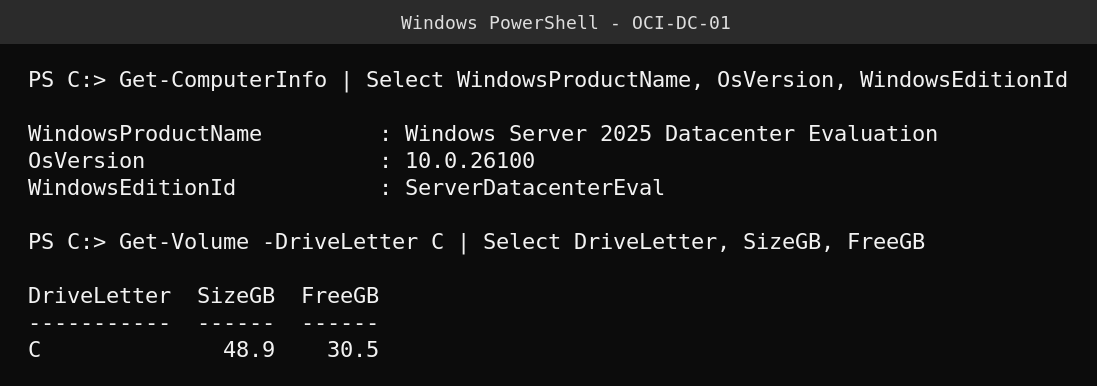
This server is already on Server 2025 (Datacenter Evaluation build 10.0.26100) with 30.5 GB free on a 48.9 GB system volume, exactly the kind of headroom check you want to run on your own server before upgrading toward this version. If you’re coming from 2022, your version numbers and product name will look different here, that’s expected, just confirm the free space line clears a comfortable margin.
Check for a pending reboot and list currently installed roles and features:
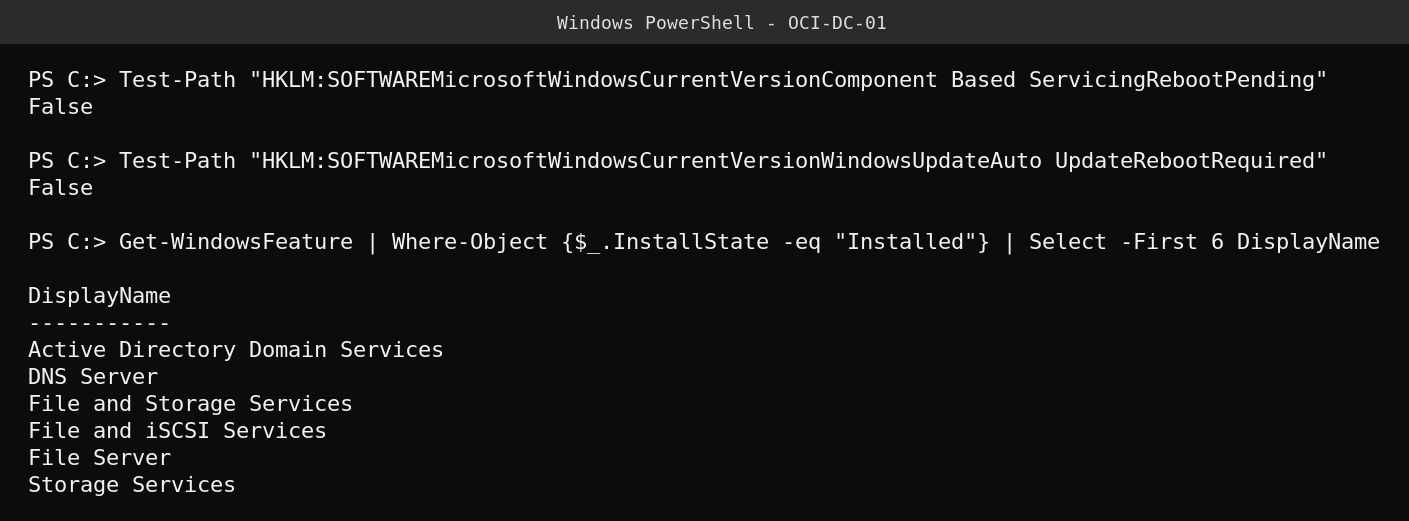
Both reboot-pending registry checks returning False means it’s safe to proceed without clearing an outstanding update first. The Get-WindowsFeature list is what you cross-reference against Microsoft’s Server 2025 compatibility notes, pay particular attention to any role here that’s called out as removed or replaced in the version you’re upgrading to.
During and after the upgrade
- Run the upgrade from mounted Server 2025 installation media (or, starting mid-April 2026, via the opt-in feature update through Windows Update directly from Server 2019/2022, no physical media needed).
- Expect at least one, often two, automatic reboots during the process. Don’t interrupt power or storage during this window.
- After it completes, re-run the same
Get-ComputerInfoandGet-WindowsFeaturecommands above and diff the output against your pre-upgrade baseline, confirm every role you expected survived the upgrade and the product name reflects the new version. - Check Windows Update immediately afterward for any post-upgrade cumulative updates, a freshly upgraded server is usually a few patches behind day one.
FAQ
Can I upgrade a domain controller in place? Yes, this is supported, but back it up and avoid upgrading all DCs in a domain simultaneously, stagger them so you always have a healthy DC available during the process.
What if a role shows as incompatible? Uninstall or migrate off it before upgrading, don’t attempt the upgrade with a known-incompatible role still installed and hope it survives.
Do I need the installation ISO if I’m already on Server 2022? Not necessarily starting mid-April 2026, Microsoft is enabling an opt-in feature update path through Windows Update directly from 2019/2022 to 2025, no media required.
Sources: Microsoft Learn Windows Server 2025 upgrade documentation; Google Cloud’s Windows Server in-place upgrade guide.