
Signed PowerShell Scripts Can Fail After the November 2026 Update: Fix the UTF-8 Encoding

If you sign your PowerShell scripts, the November Windows update added a check that can quietly break some of them. A script that was signed and ran fine last month can come back as NotSigned, and under an AllSigned policy it will not run at all. Microsoft published a separate article about it, KB5135999, so it is not a rumor.
I wanted to know which scripts it hits and what the fix looks like in practice, so I tested it on my lab domain controller. This post has what Microsoft says, the files that failed for me, the files that did not, a short check you can run on your own script folders, and the fix I used.
What changed
The Windows Server 2025 update KB5131080 lists it under Improvements. It says the update strengthens PowerShell script signing and signature verification with stricter encoding validation, and that scripts with invalid UTF-8 might fail signature validation even if they were accepted before. The fix it names is to save the script as valid UTF-8 with a byte order mark (BOM) and sign it again.
The longer explanation is in Encoding Guidance for Signed PowerShell Scripts (KB5135999), published November 10, 2026. It applies to Windows Server 2025, 2022, 2019 and 2016, and to Windows 11 and Windows 10 Enterprise LTSC 2021. Three points from it matter:
- Windows picks an encoding in a fixed order. A BOM wins. With no BOM it looks at the first 32 bytes for UTF-16 or UTF-8 patterns. If neither matches, it uses the system code page. Then it decodes the whole file with that choice.
- The update changes the decoding step, not the choice. Malformed UTF-8 that used to decode with replacement characters is now rejected. Microsoft is explicit that a BOM does not repair invalid bytes.
- The symptoms are
Status : NotSignedfromGet-AuthenticodeSignatureon a script that used to be signed, andStatus : UnknownErrorfromSet-AuthenticodeSignaturewith the message “No mapping for the Unicode character exists in the target multi-byte code page”. With App Control for Business (WDAC), Microsoft says affected scripts may run in ConstrainedLanguage mode. I did not test that part.
Microsoft also ships a repair script, Repair-SignedPowerShellUtf8.ps1, with Scan, Repair and ConvertToUtf8Bom modes. I did not run it. The article refers to it but the script itself was not on the page I read, so everything below uses plain PowerShell instead.
Step 1: Reproduce it
I built three small scripts on the domain controller (Windows Server 2025, build 26100.33822, which has KB5131080) by writing the raw bytes myself, so I could control exactly what is in each file. I also made a throwaway self-signed code-signing certificate, trusted it on that machine for the test, and removed it afterwards.
clean.ps1is UTF-8 with a BOM and valid text.legacy.ps1starts with plain ASCII, then has one stray byte0xE9, the Latin-1 letter é saved by an old editor.deploy.ps1has no BOM. It has a proper UTF-8 é near the top, then the same stray0xE9further down.
PS C:\Users\Administrator> (Get-ItemProperty 'HKLM:\SOFTWARE\Microsoft\Windows NT\CurrentVersion').UBR
PS C:\Users\Administrator> $cert = Get-ChildItem Cert:\CurrentUser\My | Where-Object Subject -eq 'CN=Lab Test Signing'
PS C:\Users\Administrator> (Set-AuthenticodeSignature -FilePath C:\Temp\demo\clean.ps1 -Certificate $cert).Status
PS C:\Users\Administrator> (Set-AuthenticodeSignature -FilePath C:\Temp\demo\legacy.ps1 -Certificate $cert).Status
PS C:\Users\Administrator> Set-AuthenticodeSignature -FilePath C:\Temp\demo\deploy.ps1 -Certificate $cert | Format-List Status,StatusMessage
PS C:\Users\Administrator> Get-AuthenticodeSignature C:\Temp\demo\deploy.ps1 | Format-List Status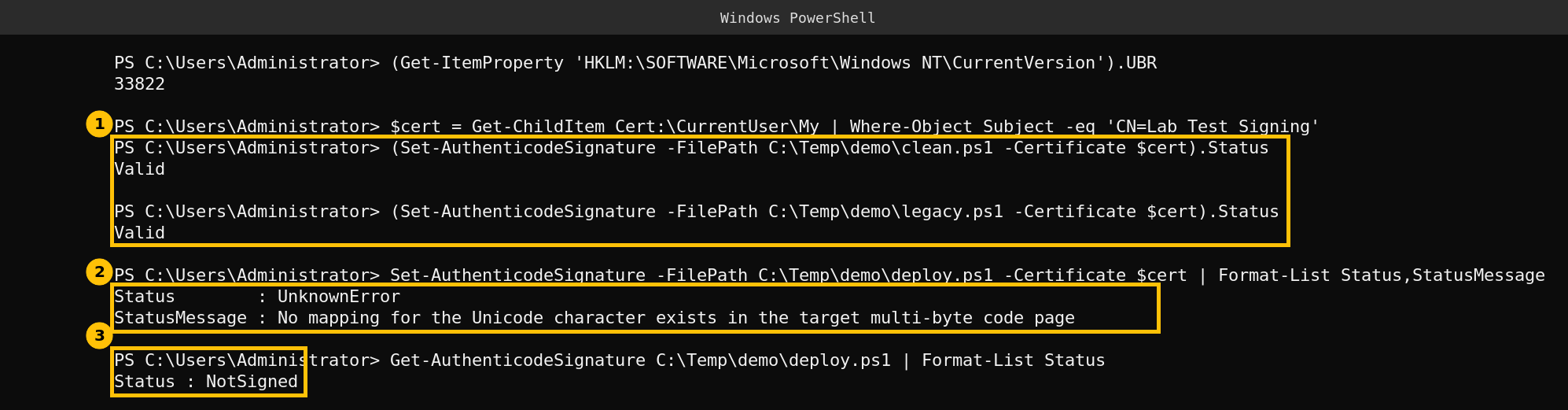
Callout 2 is Microsoft’s documented symptom, word for word. The surprise is callout 1. legacy.ps1 has the same stray byte and it signed without a problem. That looks like Microsoft’s detection order at work. In legacy.ps1 the first 32 bytes are plain ASCII, so Windows read the whole file with the system code page (1252 on this server), where 0xE9 is a valid letter. In deploy.ps1 the first 32 bytes contain a valid UTF-8 é, so Windows read the whole file as UTF-8, and then the stray byte was rejected.
I checked that explanation with a few more files before trusting it. A stray byte with a BOM at the top failed every time. A stray byte after a UTF-8 pattern in the first 32 bytes failed. A stray byte inside the first 32 bytes made the file fall back to the code page and signed fine. That fits what KB5135999 says about the first 32 bytes, but the byte counting is my own test and not a Microsoft statement. Do not treat my files as a complete map of what fails.
One limit on this test: I signed the files after the update, so I saw the failure when signing. I could not test a script that was signed before the update and is now being verified, because I have no such file and no unpatched machine. The same decoding applies, so the NotSigned on an old signed script that Microsoft describes should follow, but I did not see it myself.
Step 2: Find the scripts that have a problem
You do not need Microsoft’s tool just to see which files are not valid UTF-8. This loop reads each script as raw bytes and asks the .NET UTF-8 decoder to throw on anything invalid. Point it at your own script folder instead of mine:
PS C:\Users\Administrator> Get-ChildItem C:\Temp\demo -Filter *.ps1 | ForEach-Object {
>>   $strict = New-Object System.Text.UTF8Encoding($false, $true)
>>   $ok = 'valid'
>>   try { [void]$strict.GetString([IO.File]::ReadAllBytes($_.FullName)) } catch { $ok = 'INVALID' }
>>   [pscustomobject]@{ File = $_.Name
>>                      Utf8 = $ok }
>> }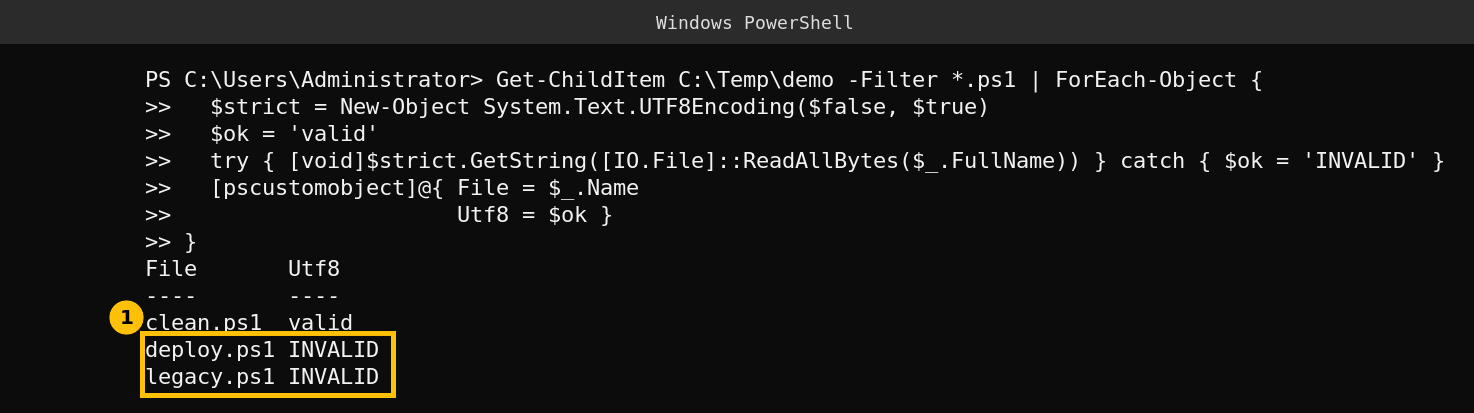
Both deploy.ps1 and legacy.ps1 are flagged. Only deploy.ps1 actually failed on this server. I would still fix both. legacy.ps1 signs fine here only because this server’s code page happens to accept the byte. KB5135999 describes cases where the system code page or a language specific encoding such as Shift-JIS decides the outcome, so the same file can behave differently on another server. I did not test another code page. Also remember the check only looks at bytes. It cannot tell you whether a script was signed before.
Step 3: Convert to UTF-8 with a BOM and sign again
This is the path Microsoft recommends: convert, review, sign again. The loose way is to decode the file with the lenient UTF-8 decoder, which replaces each bad byte with the character U+FFFD, count them, fix them by hand, then write the file back with a BOM and sign it:
PS C:\Users\Administrator> $text = [Text.Encoding]::UTF8.GetString([IO.File]::ReadAllBytes('C:\Temp\demo\deploy.ps1'))
PS C:\Users\Administrator> ($text.ToCharArray() | Where-Object { $_ -eq [char]0xFFFD }).Count
PS C:\Users\Administrator> $text = $text.Replace([string][char]0xFFFD, [string][char]0xE9)
PS C:\Users\Administrator> [IO.File]::WriteAllText('C:\Temp\demo\deploy.utf8bom.ps1', $text, (New-Object System.Text.UTF8Encoding($true)))
PS C:\Users\Administrator> Set-AuthenticodeSignature -FilePath C:\Temp\demo\deploy.utf8bom.ps1 -Certificate $cert | Format-List Status,StatusMessage
PS C:\Users\Administrator> powershell.exe -NoProfile -ExecutionPolicy AllSigned -File C:\Temp\demo\deploy.utf8bom.ps1
A warning about the replace line. I replaced the bad character with é only because I wrote that file and I know the byte was é. In a real script you have to look at each hit and decide what it was meant to be. If you guess wrong you have changed the text of a signed script. Microsoft says the same thing: review the text, then sign. The last command ran the new file under the AllSigned execution policy and printed name length: 4, which means the é survived as one character.
I kept the original deploy.ps1 next to the new one and never overwrote it. Do the same. The signing itself is the normal Set-AuthenticodeSignature call, and about_Signing covers the certificate side.
Problems you might hit
| Symptom | Likely cause | What to do |
|---|---|---|
| Set-AuthenticodeSignature returns UnknownError with “No mapping for the Unicode character” | The file has bytes that are invalid in the encoding Windows chose | Run the scan above, convert to UTF-8 with BOM, review the text, sign again. |
| A script signed before the update now shows NotSigned | Same decoding check on an old signature (per KB5135999, not reproduced by me) | Ask whoever owns the script for a corrected signed copy, or convert and sign it with your own approved certificate. |
| The scan says INVALID but signing works | The file is read through the system code page on this machine | Still convert it. The result may differ on a server with another code page. |
| The file is valid UTF-8 but still shows NotSigned | Encoding is not the only cause | Check the certificate, its trust and the file hash before changing the file. Microsoft notes other causes exist. |
| Under App Control for Business a script runs in ConstrainedLanguage mode | Reported by Microsoft for affected signed scripts | Fix the signature first. I did not test this. |
What I would do
- Run the scan on every folder that holds signed scripts, and on the source repository where they are built. Fix the ones that come back INVALID before the November update reaches the servers that run them.
- Save scripts as UTF-8 with BOM from now on, and make the signing step of your pipeline refuse a file that is not valid UTF-8.
- Do not patch around it by lowering the execution policy. That removes the protection the signature is there for.
- Remember it is one of several changes in this update. The same release also makes NTLM clients offer message signing by default, which I covered in the NTLM signing audit post, and it carries a known slmgr.vbs error I reproduced yesterday. If you remote into servers to run signed scripts, hardening PowerShell Remoting is worth a read too.
Summary
| Item | What I found |
|---|---|
| What changed | Stricter UTF-8 validation for PowerShell script signing and verification, in the November 2026 update (KB5131080 and the matching updates for other versions) |
| Symptoms | Set-AuthenticodeSignature returns UnknownError, the file stays NotSigned (reproduced). Old signed scripts turning NotSigned (Microsoft, not reproduced) |
| What failed here | Files with no BOM or a BOM, valid UTF-8 near the top and a stray invalid byte further down |
| What did not fail here | A file with plain ASCII in its first 32 bytes and one Latin-1 byte, read through code page 1252 |
| Fix | Convert to UTF-8 with BOM, review the text, sign again |
What I tested and what I did not
I tested on one Windows Server 2025 domain controller, build 26100.33822, in Windows PowerShell 5.1 over a remote session, with test files I built from raw bytes and a temporary self-signed certificate. I reproduced the signing failure, the NotSigned result and the fix, and I ran the fixed script under AllSigned. I did not test scripts signed before the update, other code pages, PowerShell 7, Windows Server 2022, 2019 or 2016, Windows 11, App Control for Business, or Microsoft’s repair script. The details about versions and the repair script come from Microsoft’s KB5135999. I removed the test certificate and files from the server when I was done.