
Windows Server 2016 Support Ends in January 2027: Find Every Server and Plan the Upgrade

Every few years the same thing happens. A support date that felt far away is suddenly two months out, and somebody asks in a meeting “how many 2016 servers do we still have?” and nobody can answer with a number. Windows Server 2016 reaches that moment now. Per Microsoft’s lifecycle page, regular support for it ends in January 2027.
I wrote this as the post I would want in front of me before that meeting. How to get an honest count of your 2016 servers, how to sort them into the ones you upgrade and the ones you move, what Microsoft says about the paths, and what to check on a domain controller before you touch it. I ran the read-only inventory and domain checks on my Windows Server 2025 lab. My lab has no 2016 server, so I can show you what a clean result looks like but not a finding, and I will say that again where it matters.
The dates, from Microsoft
This is what the Microsoft Lifecycle page for Windows Server 2016 shows, which Microsoft updated on November 11, 2026:
| Item | Date on the Lifecycle page |
|---|---|
| Start of support | October 15, 2016 |
| Mainstream support ended | 1/12/2022 6:59:59 AM |
| Extended support ends | 1/13/2027 6:59:59 AM (other coverage reports it as January 12, 2027) |
| Extended Security Update, year 1 | 1/13/2027 to 1/11/2028 |
| Extended Security Update, year 2 | 1/12/2028 to 1/9/2029 |
| Extended Security Update, year 3 | 1/10/2029 to 1/8/2030 |
The page states its times in its own time zone, so I am quoting them as listed. The practical reading is simple: plan as if January 12, 2027 is the last day. That date is also a Patch Tuesday, so I would expect the January 2027 update to be the last regular one, but that part is my inference, not Microsoft’s statement. The ESU rows are a program Microsoft lists for three more years, but the lifecycle page gives dates only. I could not confirm from a Microsoft page how ESU is sold or what it costs for 2016, and third-party articles disagree with each other on price, so I am leaving that out. Ask your Microsoft licensing contact for the current terms before you plan around it.
For comparison, the ESU overview says the program is a last resort, and that for the older 2012 and 2012 R2 it is free for servers hosted in Azure and paid for servers anywhere else. That page covers 2012 and 2012 R2 only, so do not assume the same rules apply to 2016.
Step 1: Count what you really have
Start in Active Directory, because it is the fastest place to get a first list. Windows Server 2016 reports itself as version 10.0 with build 14393. My lab domain controller, as a reference, reports a Server 2025 build. This is the lab output for the operating system, the forest level and the SYSVOL replication state, which I will come back to in the domain controller section:
PS C:\Users\Administrator> Get-CimInstance Win32_OperatingSystem | Select-Object Caption,Version | Format-List
PS C:\Users\Administrator> (Get-ADForest).ForestMode
PS C:\Users\Administrator> dfsrmig /getglobalstate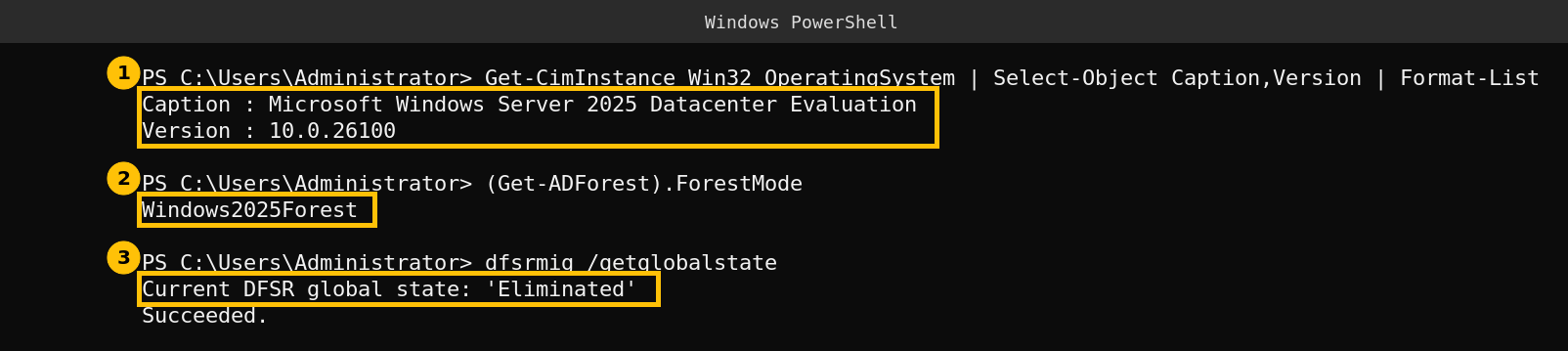
Now the inventory itself. This groups every computer object by operating system, so you see the whole picture and not only the 2016 line:
PS C:\Users\Administrator> Get-ADComputer -Filter * -Properties OperatingSystem | Group-Object OperatingSystem |
>>     Select-Object Count,Name | Format-Table -AutoSize
Then list the details, including whether the account is enabled and when it last signed in:
PS C:\Users\Administrator> Get-ADComputer -Filter * -Properties OperatingSystem,OperatingSystemVersion,LastLogonDate |
>>     Select-Object OperatingSystem,OperatingSystemVersion,Enabled,LastLogonDate | Format-Table -AutoSize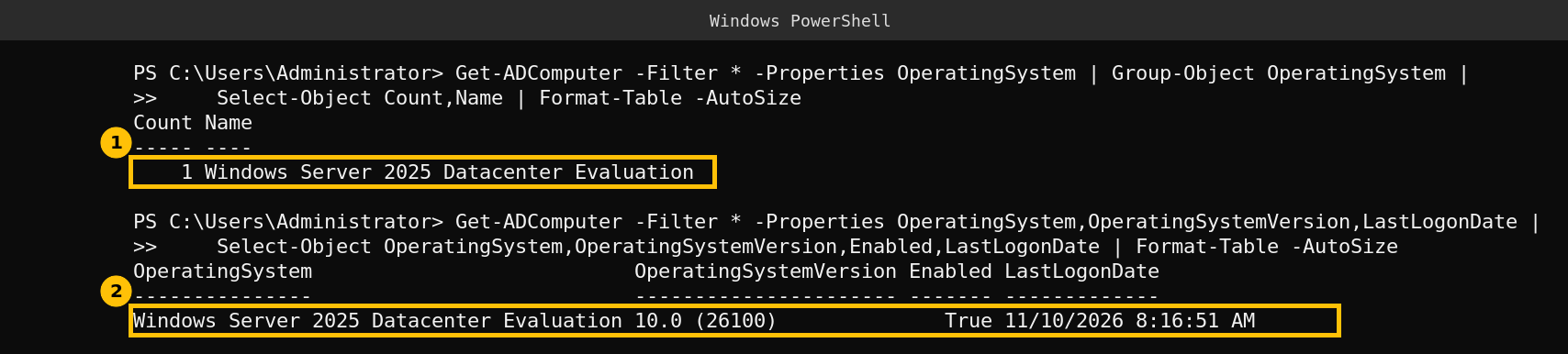
My lab has one computer account, the domain controller itself, so both outputs are one line. In your domain you will get a long list. Read it for three things.
- Server 2016 lines. The text is “Windows Server 2016 Standard” or “Datacenter”, with version 10.0 (14393).
- Server 2012 and older. They are already out of regular support, and they belong at the top of the plan, not in the 2016 pile.
- Disabled and stale accounts. An account with
Enabledfalse, or a last logon from last year, is probably a server somebody already retired. Clean those up so they stop inflating the count.
Be careful with the last logon date. The AD module builds LastLogonDate from lastLogonTimestamp, and per Microsoft’s attribute page that value is only updated when it is older than the sync interval, whose first value after a functional level change is about 14 days minus a random part of 5 days. So a date a week old does not prove the server is dead and does not prove it is alive. Use it to find the clearly stale ones, then confirm with the owner or a ping.
To export just the 2016 machines to a file you can hand around, filter by the operating system text. I did not run this one on my lab because there is nothing to find, but it is the same cmdlet and property as the ones above:
PS C:\Users\Administrator> Get-ADComputer -Filter 'OperatingSystem -like "Windows Server 2016*"' -Properties OperatingSystem,LastLogonDate,Description |
>>     Select-Object Name,Enabled,LastLogonDate,Description |
>>     Export-Csv .\server2016.csv -NoTypeInformation
Warning: Active Directory only knows about domain-joined machines. Servers in a workgroup, a DMZ or a separate forest do not show up. Check your management tool, your hypervisor inventory and your backup software too. The server that nobody remembers is the one that ends up unpatched.
Step 2: Sort them by what they do
Add two columns to the CSV by hand: what the server does and who owns it. Then put each server in one of four groups. This is where the plan is made, and it is mostly a conversation and not a command.
| Group | Examples | Usual direction |
|---|---|---|
| Domain controllers | AD DS, DNS, DHCP on a DC | Promote new Server 2025 DCs and retire the old ones. See below. |
| Infrastructure on the same hardware | File server, print server, a small internal tool | In-place upgrade if the roles support it. |
| Applications with a vendor | SQL, ERP, line-of-business apps | Ask the vendor which Windows Server version they support. This decides everything. |
| Things you can switch off | Old test boxes, replaced servers | Shut down, wait a month, delete. This is the cheapest upgrade. |
In my experience the vendor question is what delays these projects, not the Windows part. Ask it early.
Step 3: Choose upgrade or migrate
Microsoft lists five methods on its upgrade planning page: in-place upgrade, clean install, migration, cluster rolling upgrade and license conversion. For a 2016 server the decision is usually between the first three.
- In-place upgrade. Keeps settings, roles, features and data on the same hardware. Needs a reboot and only works if the roles support it. Microsoft says to check the role and feature migration matrix first.
- Clean install. A fresh server or a wiped one. You install the roles again and move the data.
- Migration. Move roles to a different server on newer Windows Server. Best when the hardware is old.
Per Microsoft, starting with Windows Server 2025 a nonclustered server can upgrade up to four versions at a time. For 2022 and earlier it is up to two. The table below is the installation media path from the Learn page, for the versions you are likely to meet:
| From | To 2019 | To 2022 | To 2025 |
|---|---|---|---|
| Windows Server 2012 R2 | Yes | No | Yes |
| Windows Server 2016 | Yes | Yes | Yes |
| Windows Server 2019 | n/a | Yes | Yes |
| Windows Server 2022 | n/a | n/a | Yes |
So Server 2016 goes straight to 2025 with the media. Via Windows Update, per the same page, only 2019 and 2022 can go to 2025, so a 2016 server needs the installation media. Some restrictions from the same page that catch people:
- No upgrade from a language to another language.
- No switching between Server Core and Desktop Experience during the upgrade.
- No in-place upgrade on a server booted from a VHD.
- Turn off NIC Teaming before you start and turn it on again after.
- Each Windows Server upgrade needs its own license. Check that before the change window, not during.
- You can go from Standard to Datacenter during the upgrade, but not the other way around.
Take a backup and have a way back. For a virtual machine that means a checkpoint or a snapshot plus a real backup, and for physical a full image. An in-place upgrade is not something you can uninstall.
Domain controllers need their own plan
Microsoft’s guidance for upgrading domain controllers says the recommended way is a clean install of the new version, promote it to a domain controller, and demote the old one. It states this is preferable to an in-place upgrade, because a clean install gets you the full Active Directory improvements of the new version.
Before you promote the first Server 2025 DC, check these things:
- FSMO roles. Learn gives these two commands to see who holds them. Run them in an elevated PowerShell as a Domain Admin.
PS C:\Users\Administrator> Get-ADDomain | FL InfrastructureMaster, RIDMaster, PDCEmulator
PS C:\Users\Administrator> Get-ADForest | FL DomainNamingMaster, SchemaMaster- Connectivity to the role holders. The first DC of a new version needs the schema master for
adprep /forestprepand the infrastructure master foradprep /domainprep. When you promote with Server Manager or PowerShell, adprep is run for you. If you do an in-place upgrade of an existing DC instead, you must run both by hand, once per forest and once per domain. - Functional levels. Windows Server 2019 and later need at least a Windows Server 2008 forest functional level. If the forest still has DCs from before that, the installation is blocked until they are gone. One odd thing: the Learn page says no new functional levels were added after Windows Server 2016, but my Server 2025 lab reports Windows2025Forest in the first screenshot. So that note looks out of date. Check the current functional levels page before you plan a level raise.
- SYSVOL replication. Current Windows Server uses DFS Replication for SYSVOL on domains at the 2008 functional level or higher, and FRS belongs to older levels, per the Learn migration page. If you are still on FRS, the migration is one-way and has to be done first. Check it with the command in the first screenshot. My lab says Eliminated, which is the final DFSR state.
The order that Learn shows for the swap is: join the new server to the domain, install AD DS and promote it, move the FSMO roles with Move-ADDirectoryServerOperationMasterRole, confirm with the FSMO commands above, demote and remove the old DC, and only then raise the functional levels. Do not raise the levels before the old DCs are gone, because you cannot roll them back except in a few listed cases.
One more thing I would do and Microsoft does not require: point DNS clients and DHCP scopes at the new DCs before you demote the old ones. Do not leave that for after the demotion.
Problems you will probably meet
| Symptom | Likely cause | What to do |
|---|---|---|
| The list from AD is shorter than reality | Servers outside the domain or in another forest | Add your hypervisor and backup inventory to the list. |
| Setup refuses the upgrade | Unsupported role, language change, VHD boot or Core to Desktop switch | Read the restrictions above. Use a clean install or migration instead. |
| DC promotion is blocked | Old domain controllers hold a functional level that is too low | Remove them and raise the forest functional level first, per Learn. |
| Replication problems after adding the new DC | SYSVOL still on FRS | Migrate SYSVOL to DFSR before you add the new DC. |
| A vendor app will not run on Server 2025 | The vendor has not certified it | Move to the newest version the vendor supports, 2019 or 2022, and plan the next step later. |
A timeline that fits the time you have
If you are reading this in mid-November, you have about eight weeks. This is how I would split them. It is my suggestion, not a Microsoft schedule.
- Week 1: run the inventory, clean up stale accounts, get a number.
- Week 2: classify every server and ask every vendor the support question.
- Weeks 3 and 4: build the Server 2025 domain controllers and move the FSMO roles.
- Weeks 5 and 6: upgrade or migrate the simple file and infrastructure servers.
- Week 7: the applications that depend on a vendor.
- Week 8: demote the old DCs, raise the functional levels if you want, and write down what is left.
Whatever is left on January 13 needs a decision: pay for ESU if it is available to you, isolate it on the network, or accept the risk with a signature next to it.
What I did and did not test
From my lab domain controller I ran only read-only commands: the OS version, the forest functional level, the SYSVOL migration state, and the two computer inventory queries. My lab domain has one computer, so I have no Server 2016 machine and nothing to upgrade, and I did not run an in-place upgrade, a promotion, or the export command. The dates and upgrade paths come from the Microsoft pages below, which I read on November 15, 2026. The timeline and the DNS advice are my own opinion.
Sources
- Microsoft Lifecycle: Windows Server 2016
- Microsoft Learn: Plan your Windows Server upgrade path
- Microsoft Learn: Upgrade domain controllers to a newer version of Windows Server
- Microsoft Learn: Migrate SYSVOL replication from FRS to DFS Replication
- Microsoft Learn: Last-Logon-Timestamp attribute
- Microsoft Learn: Overview of Extended Security Updates for Windows Server 2012 and 2012 R2