
Group Managed Service Accounts (gMSA): Set Up, Install and Fix Test-ADServiceAccount False

Most domains I look at still have a handful of service accounts like svc-backup or svc-reports with a password someone set in 2019, marked never expires, and written down in a spreadsheet. Nobody wants to change it because nobody knows which servers will break.
A group Managed Service Account (gMSA) fixes that. The domain controller generates the password, changes it every 30 days by default, and only the computers you list can fetch it. No human ever types it. I set one up on my Windows Server 2025 lab domain controller today, ran a scheduled task under it, and hit the error everybody hits on the first try: Test-ADServiceAccount returns False right after you add the server to the group. The fix does not need a reboot, and it is in Step 4.
Before you start
- Domain and forest functional level Windows Server 2012 or higher. gMSAs do not work on hosts older than Windows Server 2012, per the gMSA overview on Microsoft Learn.
- Domain Admins membership, or delegated rights to create
msDS-GroupManagedServiceAccountobjects. Account Operators cannot create them by default, the Manage gMSA article says so. - The Active Directory PowerShell module on the server that will use the account. On a member server install RSAT, which adds the module.
- A KDS root key in the forest. Step 1 checks for it.
About the output below: I replaced my lab domain with contoso.com, the NetBIOS name with CONTOSO and the DC with DC01. Everything else is the real console output from the run.
Quick guide
- Check for a KDS root key with
Get-KdsRootKey. Create one only if none exists. - Create a global security group for the servers that will use the account and add their computer accounts.
- Create the gMSA with
New-ADServiceAccountand point-PrincipalsAllowedToRetrieveManagedPasswordat that group. - On each server, refresh its Kerberos tickets with
klist -li 0x3e7 purge(or reboot), then runInstall-ADServiceAccountandTest-ADServiceAccount. - Configure the scheduled task, service or IIS app pool with the account name ending in
$and no password.
Step 1. Check for a KDS root key
The Key Distribution Service root key is what the domain controllers use to compute gMSA passwords. There is one per forest, and you only create it once. Lots of guides tell you to run Add-KdsRootKey straight away, but in an existing forest someone may have done it years ago, so look first.
Get-KdsRootKey | Format-List KeyId,EffectiveTime,CreationTime,IsFormatValid
Test-KdsRootKey -KeyId (Get-KdsRootKey).KeyId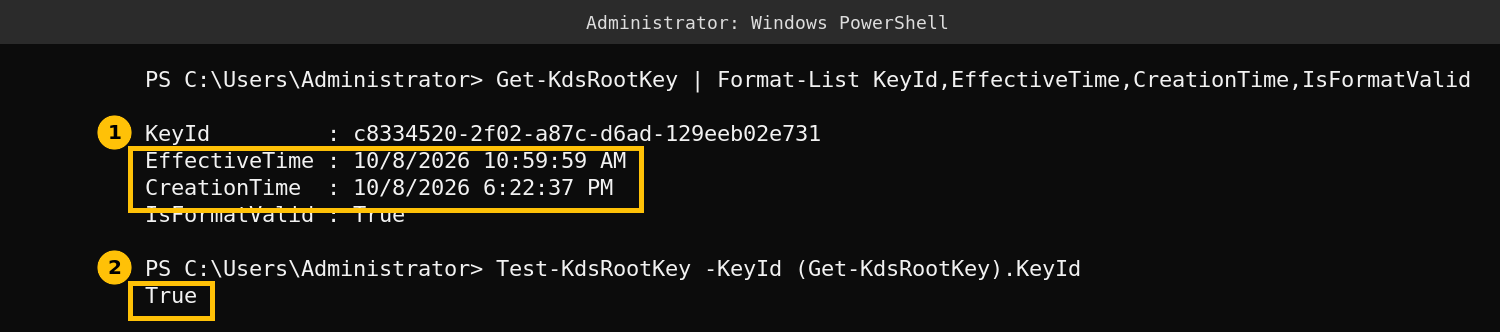
Expected result: a KeyId and True from Test-KdsRootKey. My lab already had a key from an earlier project. Don’t run Get-KdsRootKey | Format-List * in a ticket or a screenshot, because the full object includes the key value itself.
If nothing comes back, create the key. In production use Add-KdsRootKey -EffectiveImmediately and wait. Microsoft explains in the KDS root key article that domain controllers wait up to 10 hours before they use a new key, so it has time to replicate to every DC. Only in a lab with a single DC should you backdate it with Add-KdsRootKey -EffectiveTime ((Get-Date).AddHours(-10)). The same article warns that deleting and recreating the key can leave the old one cached, so the KDC service then needs a restart on every DC. Create it once and leave it alone.
Step 2. Create the host group and the gMSA
You can list computer accounts directly in -PrincipalsAllowedToRetrieveManagedPassword, but a group is easier to manage. When a new web server joins the farm, you add it to the group and never touch the gMSA. Use a global security group.
New-ADGroup -Name 'SG-gMSA-Report-Hosts' -GroupScope Global -GroupCategory Security
Add-ADGroupMember -Identity 'SG-gMSA-Report-Hosts' -Members 'DC01$'
New-ADServiceAccount -Name 'gmsa-report' -DNSHostName 'gmsa-report.contoso.com' `
  -PrincipalsAllowedToRetrieveManagedPassword 'SG-gMSA-Report-Hosts' `
  -KerberosEncryptionType AES128,AES256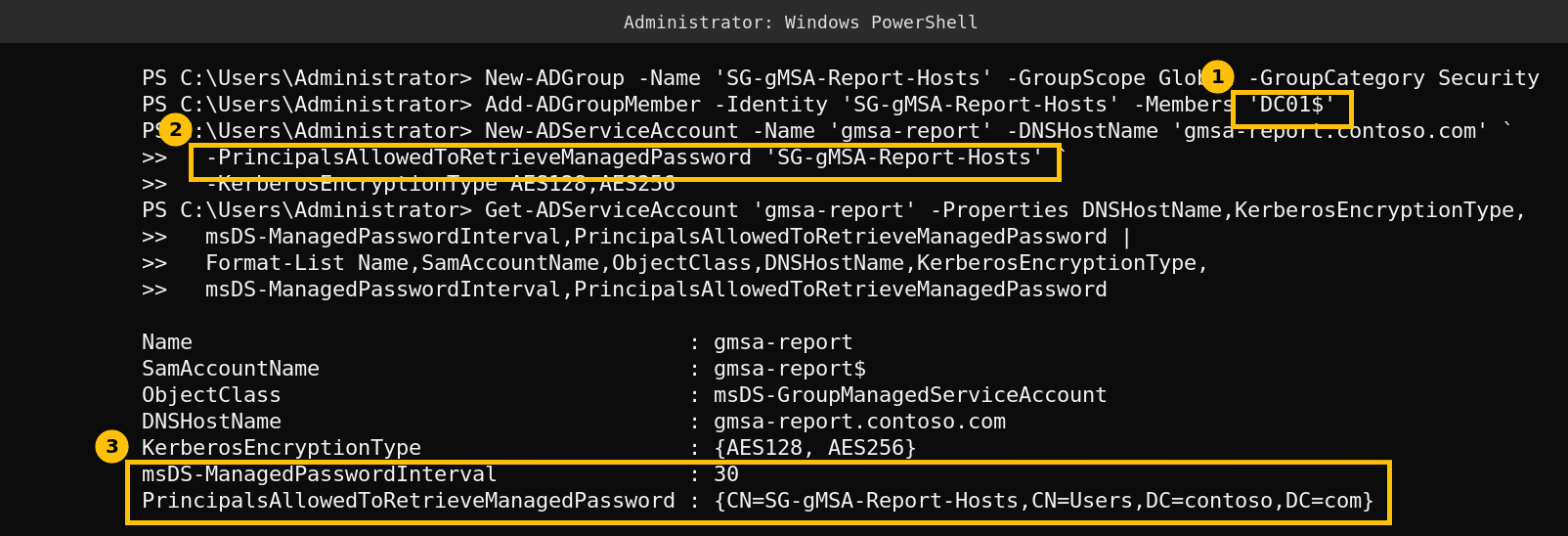
Expected result: no output from the three create commands, then the properties above. Some details matter here:
- The name. The SamAccountName gets a
$on the end, just like a computer account, and gMSA names must be unique across the whole forest according to the Manage gMSA article. - Encryption types. I set AES128 and AES256 explicitly. The overview says to always configure AES for managed service accounts, and if you have been following my Kerberos RC4 audit, you know RC4-only service accounts are the ones that break first.
- The password interval.
msDS-ManagedPasswordIntervalis 30 days because I did not pass-ManagedPasswordIntervalInDays. Decide now, because Step 6 shows you cannot change it later.
My test server is the domain controller itself, which is why DC01$ is in the group. On a real farm you would add WEB01$, WEB02$ and so on. I would not run application services under a gMSA on a DC in production. I did it here because it is the only server in my lab.
Step 3. The first test fails, and that is normal
This is where most people go to a forum. The server is in the group and the gMSA says the group is allowed, but the test fails:
Test-ADServiceAccount -Identity 'gmsa-report'
Install-ADServiceAccount -Identity 'gmsa-report'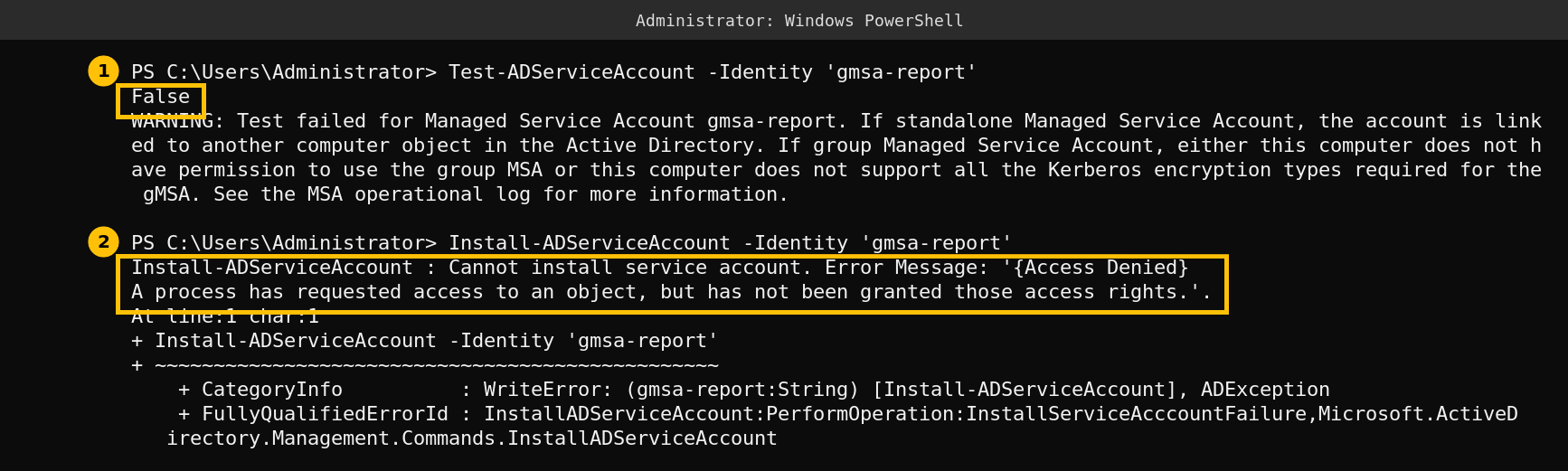
Nothing is wrong with the gMSA. The computer’s own Kerberos ticket was issued before I added it to SG-gMSA-Report-Hosts, so the ticket does not carry the new group. When the server asks a DC for the password, the DC sees a computer that is not in the group and refuses. Microsoft’s gMSA troubleshooting article for containers describes the same cause and says you may need to restart the computer to get a ticket with the new membership.
Step 4. Refresh the computer’s tickets instead of rebooting
A reboot works, but you do not need one. The computer account’s tickets live in the logon session of the local system, LUID 0x3e7, and klist can purge exactly that session. The next request then gets a fresh ticket with the current groups. Run it in an elevated PowerShell window on the server that will use the gMSA, not on the DC (unless, like me, they are the same machine).
klist -li 0x3e7 purge
Test-ADServiceAccount -Identity 'gmsa-report'
Install-ADServiceAccount -Identity 'gmsa-report'
Get-ADServiceAccount 'gmsa-report' -Properties HostComputers,PasswordLastSet |
  Format-List Name,PasswordLastSet,HostComputers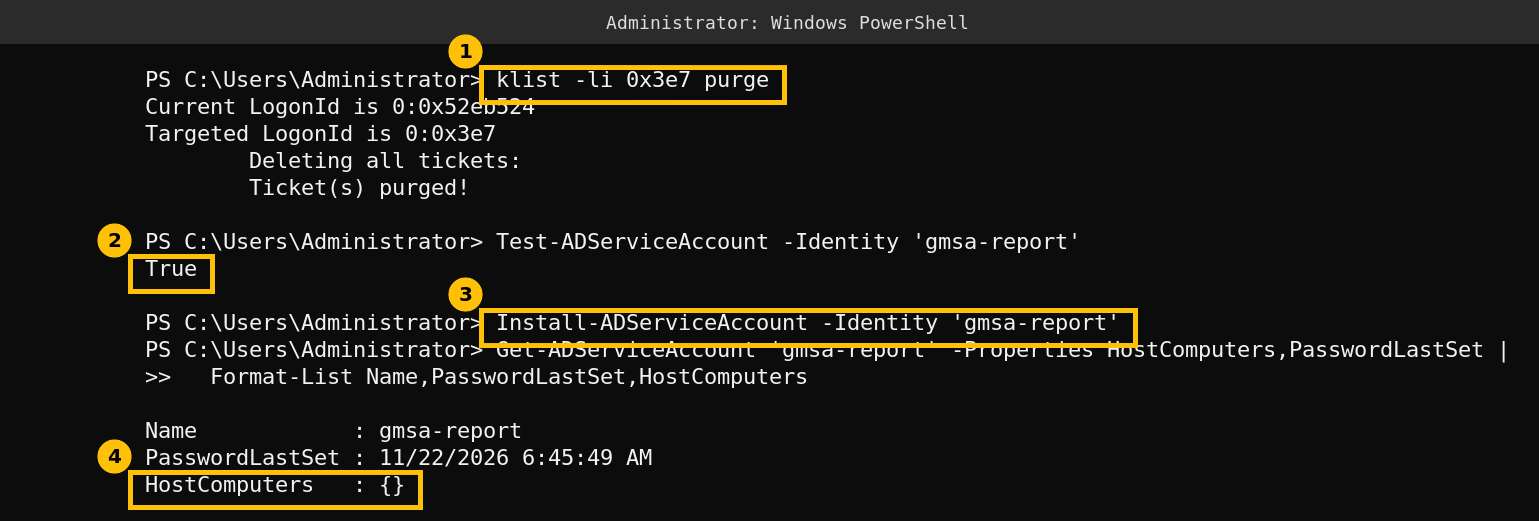
Expected result: True, and no output from Install-ADServiceAccount. Don’t worry about the empty HostComputers on a gMSA. That attribute links a standalone MSA to its one computer. A gMSA uses the allowed principals list instead.
One warning: purging the local system tickets affects everything running as SYSTEM on that server. They get new tickets on their next request, which is what I saw, with no errors. Still, I would do it outside the busiest hour on a production server. If the purge does not help, reboot. A reboot covers anything a purge misses.
Step 5. Run a scheduled task as the gMSA
Scheduled tasks are the easiest place to use a gMSA, and the one I use most. The principal is the account name with the $, and the logon type is Password even though you never give one. Windows fetches the password from AD by itself. The parameters are on the New-ScheduledTaskPrincipal page.
New-Item -ItemType Directory -Path 'C:\Reports' -Force | Out-Null
$action = New-ScheduledTaskAction -Execute 'cmd.exe' -Argument '/c whoami > C:\Reports\whoami.txt'
$principal = New-ScheduledTaskPrincipal -UserId 'CONTOSO\gmsa-report$' -LogonType Password
Register-ScheduledTask -TaskName 'Nightly report' -Action $action -Principal $principal
Start-ScheduledTask -TaskName 'Nightly report'
Get-ScheduledTaskInfo -TaskName 'Nightly report' | Format-List TaskName,LastRunTime,LastTaskResult
Get-Content 'C:\Reports\whoami.txt'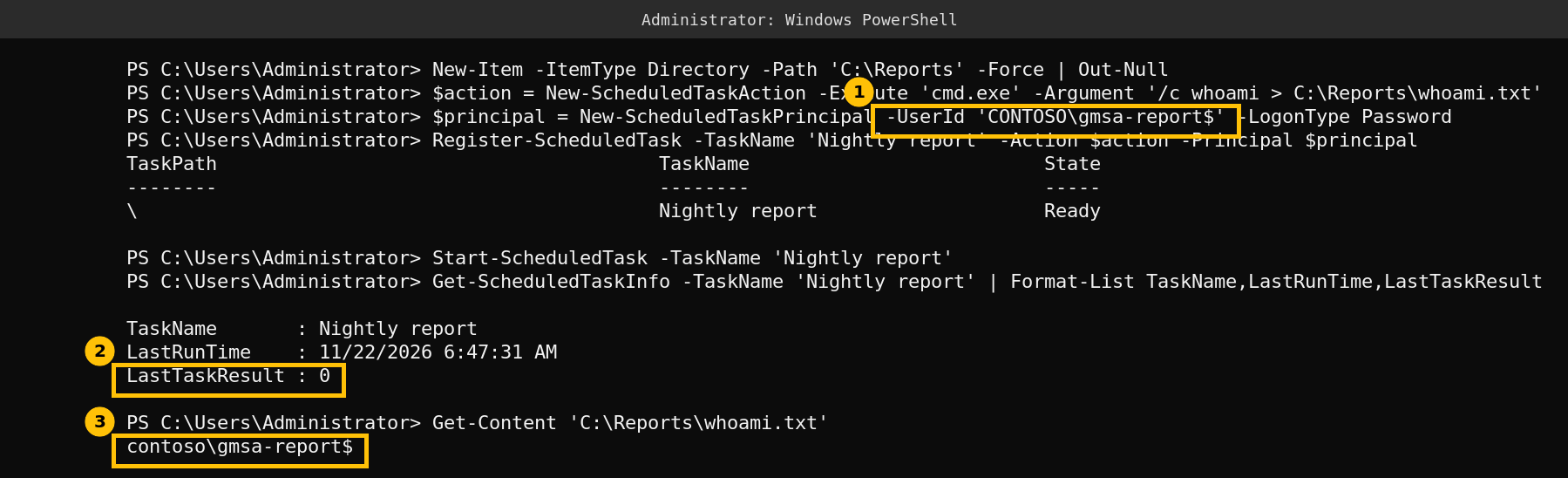
Expected result: LastTaskResult : 0, and the file contains the gMSA name. Here is the same task in Task Scheduler:
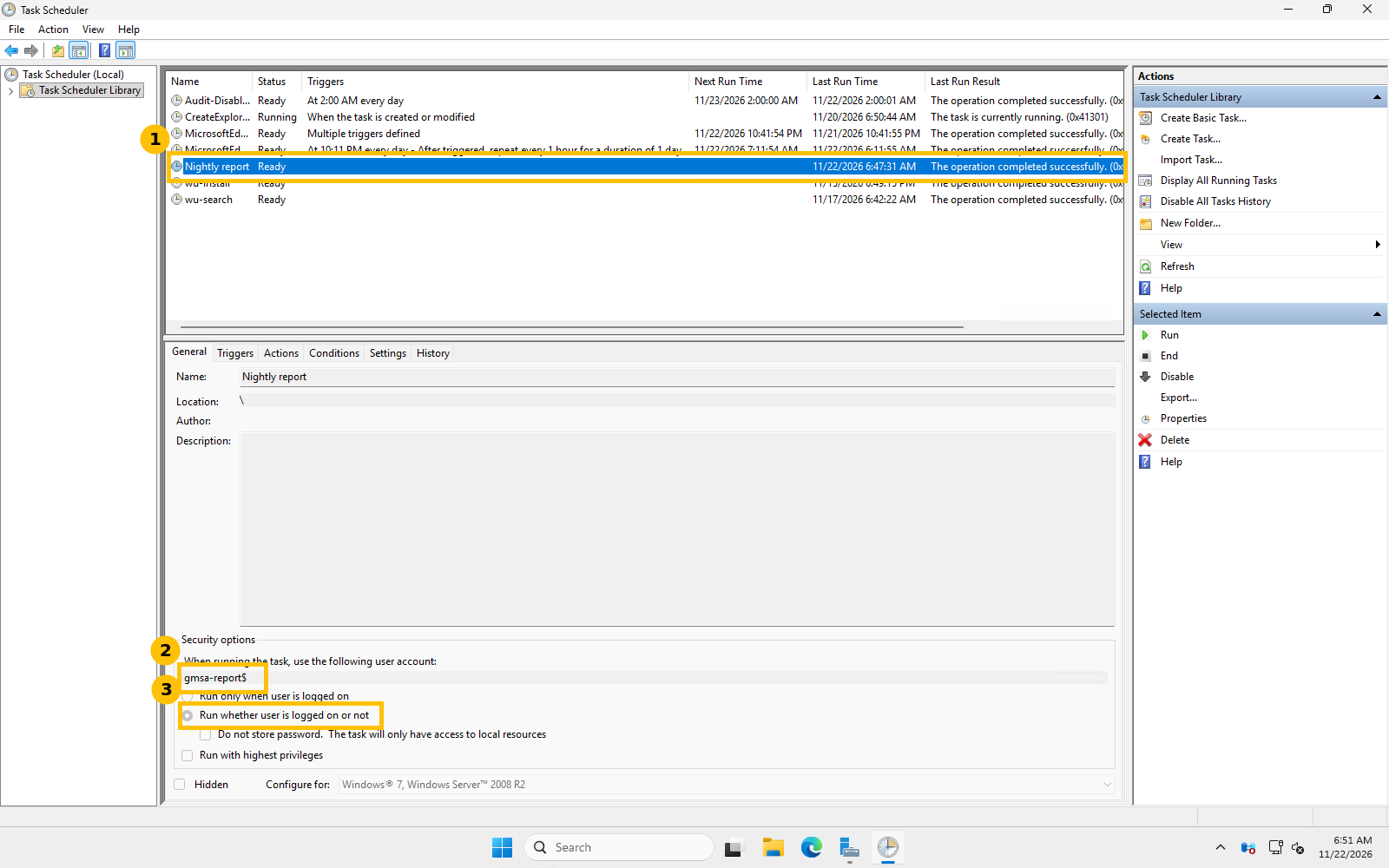
I only created the task with PowerShell today, not through the Task Scheduler wizard. I also did not test a Windows service or an IIS app pool. Microsoft lists both as supported in the Manage gMSA article, so give the account whatever rights the service needs on the server, such as file share or SQL permissions. On my DC the task ran without granting any extra user right. On a member server, if a task fails with a logon failure, look at the “Log on as a batch job” user right first.
This is also the clean answer to the problem in my Windows Update over WinRM post. When a job needs a domain identity rather than SYSTEM, give it a gMSA instead of a user account with a stored password.
Step 6. Two things you cannot do
People are surprised by these two, so I tested both:
(Get-ADServiceAccount 'gmsa-report' -Properties msDS-ManagedPassword).'msDS-ManagedPassword' -eq $null
Set-ADServiceAccount 'gmsa-report' -ManagedPasswordIntervalInDays 7
- Domain Admins cannot read the password. My admin account is not in
SG-gMSA-Report-Hosts, somsDS-ManagedPasswordcame back empty. Only the principals you list can read it. This is a good thing, and it is also why you should treat membership of the host group like admin rights. Anything in that group can act as the gMSA. - The interval is fixed.
Set-ADServiceAccounthas no-ManagedPasswordIntervalInDaysparameter. The Manage gMSA article says the interval can only be set at creation, so changing it means a new gMSA.
Troubleshooting
Test-ADServiceAccount returns False
Cause: the computer’s ticket is older than its group membership (Step 3), the computer is not in the allowed group at all, or the gMSA needs an encryption type the host does not support, which the warning text mentions too. Fix: check with Get-ADServiceAccount gmsa-report -Properties PrincipalsAllowedToRetrieveManagedPassword, then run klist -li 0x3e7 purge or reboot, and test again.
Install-ADServiceAccount says Access Denied
Cause: the same thing as above, seen from the install side. Netlogon logs it. Fix: read the Netlogon operational log on the server:
Get-WinEvent -FilterHashtable @{
    LogName = 'Microsoft-Windows-Security-Netlogon/Operational'
    Id      = 9002
  } -MaxEvents 1 | Format-List TimeCreated,Id,Message
I also saw event 9000 (“failed to retrieve the password … Object Name not found”) in the same log during the run that worked, so I wouldn’t treat 9000 on its own as the cause. Event 9002 next to a False test is the one to go on.
The account name is not accepted
Cause: the $ is missing. Fix: services and tasks need DOMAIN\name$. The AD cmdlets accept the name with or without it.
It worked on one server and not the next
Cause: the new server was added to the group but its tickets are still old, or Install-ADServiceAccount was never run on it. Fix: repeat Step 4 on that server. Each host needs its own install and test.
Where this fits
A gMSA removes the human from the password, and that is most of the battle with service accounts. For the human admin accounts that remain, give them a stricter policy with a fine-grained password policy. For the local Administrator password on every server, use Windows LAPS. Between the three, there should be very few passwords left that a person has to remember or rotate.
Summary
| Task | Command |
|---|---|
| Check the KDS root key | Get-KdsRootKey, Test-KdsRootKey |
| Create the key (once per forest) | Add-KdsRootKey -EffectiveImmediately, then wait up to 10 hours |
| Create the gMSA | New-ADServiceAccount with -PrincipalsAllowedToRetrieveManagedPassword and AES |
| Refresh a host after a group change | klist -li 0x3e7 purge, or reboot |
| Install and test on each host | Install-ADServiceAccount, Test-ADServiceAccount |
| Use it in a task | New-ScheduledTaskPrincipal -UserId DOMAIN\name$ -LogonType Password |
| Change the password interval | Not possible, create a new gMSA |
What I tested: Windows Server 2025 at the Windows2025Domain and Windows2025Forest levels, November 2026 updates, a single DC acting as the gMSA host, PowerShell 5.1 and Task Scheduler. What I did not test: a separate member server, a Windows service, an IIS app pool, and SQL Server. The test objects were removed afterwards with Unregister-ScheduledTask, Uninstall-ADServiceAccount, Remove-ADServiceAccount and Remove-ADGroup.
Sources
- Manage Group Managed Service Accounts (Microsoft Learn)
- Group Managed Service Accounts overview (Microsoft Learn)
- Create a Key Distribution Service (KDS) Root Key (Microsoft Learn)
- New-ADServiceAccount (Microsoft Learn)
- Test-ADServiceAccount (Microsoft Learn)
- Install-ADServiceAccount (Microsoft Learn)
- klist (Microsoft Learn)
- New-ScheduledTaskPrincipal (Microsoft Learn)
- Troubleshoot gMSAs for Windows containers (Microsoft Learn)