
Back Up the DSRM Password With Windows LAPS on a Domain Controller

The DSRM password is the one nobody remembers. You set it when you promote a domain controller, and you need it only on a bad day: when AD won’t start and you have to boot into Directory Services Restore Mode to fix it. On most DCs I’ve seen, it is the same old password on every DC, written down somewhere, or lost.
Windows LAPS can manage it for you. It gives each DC a random DSRM password, rotates it, and stores it encrypted in AD. In my Windows LAPS deployment post I described a domain controller where Reset-LapsPassword failed, and I said the missing DSRM setting was the likely reason but that I hadn’t proved it. Now I have. This is the whole thing on a Windows Server 2025 DC, with the real events, and the one catch that matters most: you have to be able to read the password back when AD itself is the problem.
Quick guide
- Check that the domain functional level is 2016 or higher. DSRM backup needs password encryption, and encryption needs that level.
- In the LAPS GPO linked to the Domain Controllers OU, keep BackupDirectory at 2 (Active Directory) and enable Enable password backup for DSRM accounts (ADBackupDSRMPassword = 1).
- Wait for Group Policy or run
gpupdate. LAPS rotates the DSRM password at once and logs events 10018 and 10039. - Check it with
Get-LapsADPassword -Identity DC01. The source should say EncryptedDSRMPassword. - Plan how you will read the password when AD is down. In a domain with one DC, that means an offline copy.
Prerequisites
- Windows LAPS schema extended (
Update-LapsADSchema, a one-time forest change). My earlier post shows how to check. - Domain functional level 2016 or higher. The LAPS concepts page says DSRM passwords can be backed up only to Windows Server AD and only if password encryption is enabled. Backup to Entra ID is not supported for DSRM.
- Domain controllers on Windows Server 2019 or later. Mine is Windows Server 2025, build 26100.33828, domain and forest level Windows2025.
- A GPO linked to the Domain Controllers OU. The policy settings page says DCs are never managed through the Intune CSP, so this is Group Policy only.
- Domain Admin rights. By default only Domain Admins can decrypt the password.
Step 1: See the problem on a DC without the DSRM setting
My lab DC already had a LAPS GPO, “LAPS Policy – Domain Controllers”, with the backup directory set to Active Directory. That looks like it should be enough. It isn’t:
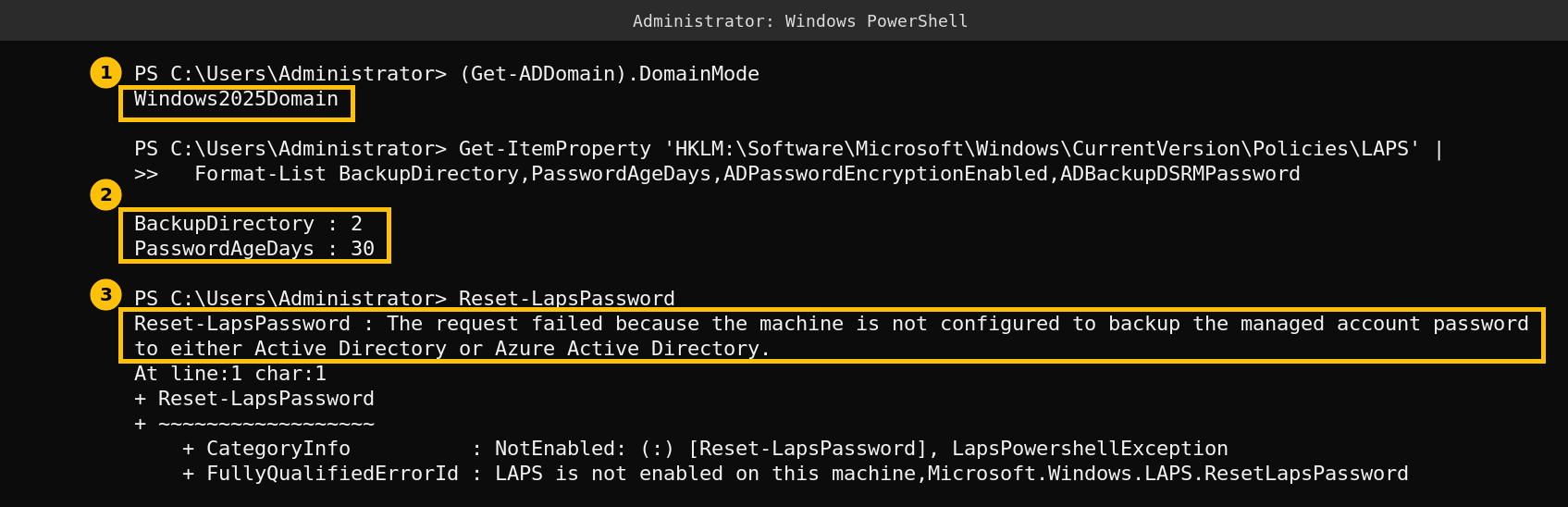
Callout 2 is the clue. Format-List asked for four values and shows only two, because ADBackupDSRMPassword and ADPasswordEncryptionEnabled are not set in the policy. Encryption defaults to on, so that one is fine. DSRM backup defaults to off, per the policy settings page. On a member server, BackupDirectory 2 is all you need. On a DC there is no local Administrator account to manage, only DSRM, so with the DSRM setting off LAPS has nothing to do. The error message doesn’t say that, which is why this one confuses people.
The LAPS event log says it more clearly. Event 10021 lists the policy LAPS is running with:
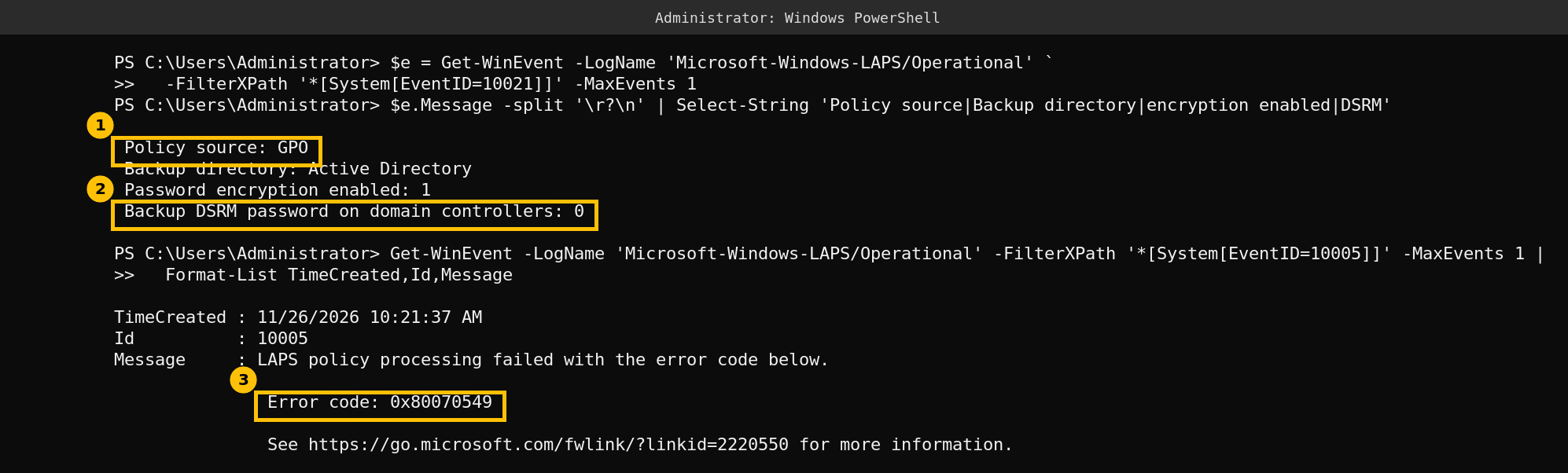
Error 0x80070549 is the code behind the Reset-LapsPassword failure, logged as event 10005. When you see it on a DC, look at the DSRM line in event 10021 first.
Step 2: Turn on DSRM backup in the DC GPO
In the Group Policy editor the setting is under Computer Configuration, Policies, Administrative Templates, System, LAPS, Enable password backup for DSRM accounts. I set it from PowerShell so you can see the exact value. Set-GPRegistryValue writes to the same policy key the LAPS template uses:
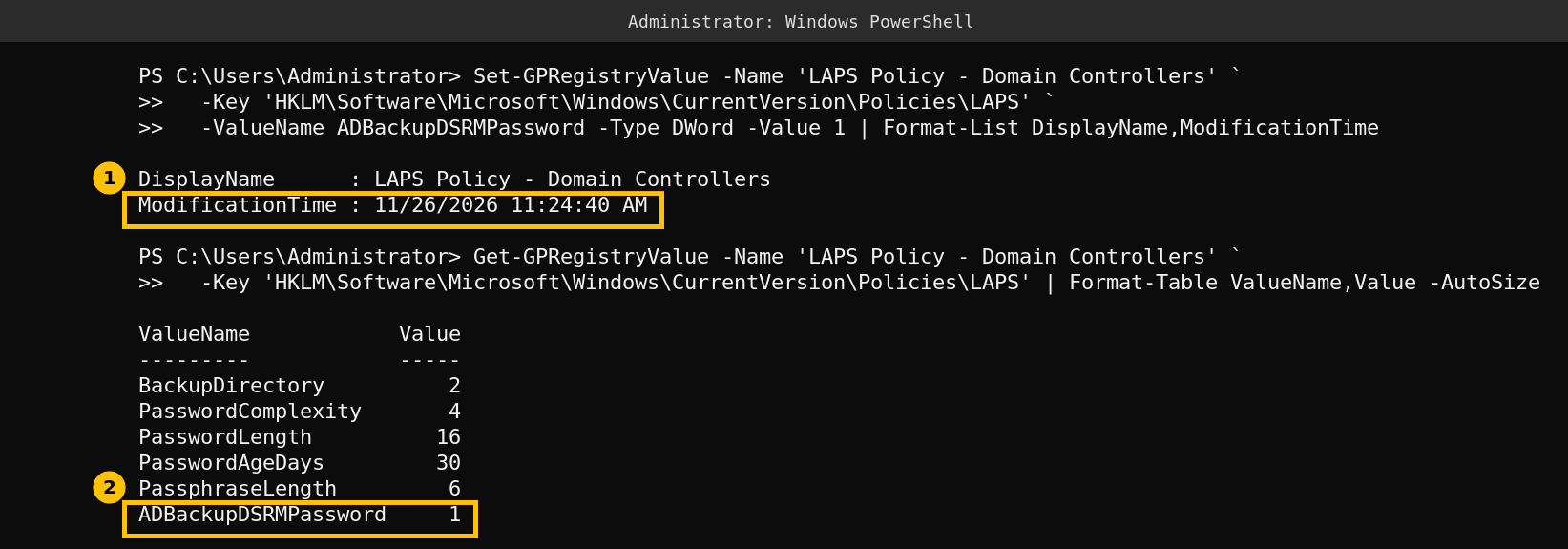
Warning: the moment this applies, LAPS changes the DSRM password on every DC the GPO reaches. If someone keeps the old DSRM password in a safe or a runbook, that copy is no longer valid. Tell them before you link it.
Step 3: Watch LAPS take over the DSRM account
I didn’t need to wait for the hourly cycle. Windows LAPS reacts to Group Policy change notifications, and 14 seconds after the GPO change it had already rotated the password:

Look at the order in the log. 10018 (written to AD) is listed before 10039 (set on the account), both in the same second. That is what you want: if the AD write had failed, the account would still have the old password that AD knows. That reading is mine, from the event order. I didn’t find it spelled out for DSRM in the docs.
Event 10015 also gives a reason code, 0x6426, followed by the reasons in plain text. “DSRM mode is now enabled” and “the DSRM encrypted password attribute was not found” are the two you expect on the first run.
Step 4: Read the DSRM password from AD
Get-LapsADPassword works the same way for a DC as for any other computer. Leave out -AsPlainText unless you really need to see the password on screen:
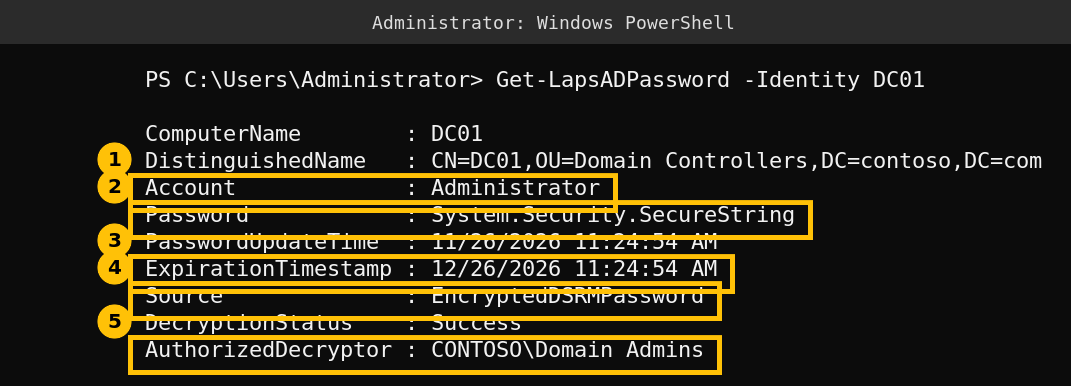
Two things to check here. Source must say EncryptedDSRMPassword. That tells you this is the DSRM password and not a local account password. And AuthorizedDecryptor is Domain Admins, because I didn’t set ADPasswordEncryptionPrincipal. That is the default, and for DSRM I would keep it.
The expiry is 30 days, from PasswordAgeDays in the same GPO. The DSRM password follows the same age setting as everything else in that policy.
Step 5: Rotate it on demand
Now the command from step 1 works. Run Reset-LapsPassword on the DC itself:
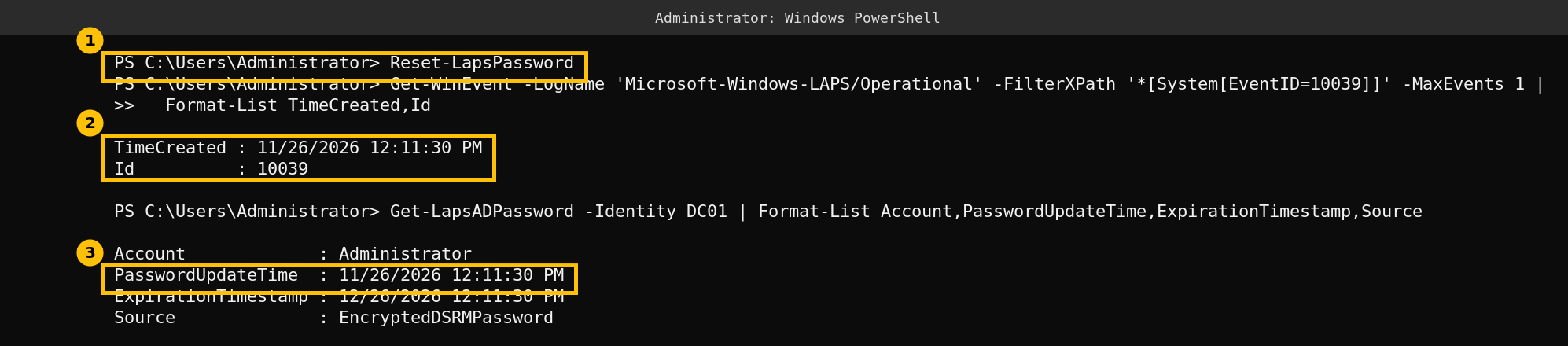
This is the proof I didn’t have in the earlier post. Same DC, same command. It failed with 0x80070549 before and works with ADBackupDSRMPassword set to 1. I would rotate right after anyone has used the DSRM password, since LAPS can’t do that for you: the concepts page says the post-authentication reset is not supported for the DSRM account.
The catch: you need AD to read the password
Think about when you need DSRM. AD is broken, or you’re doing an authoritative restore, and the DC is booted into restore mode. LAPS doesn’t run in DSRM or safe mode, per the concepts page. And the password lives in AD. Microsoft says it plainly: the DSRM password for any DC is retrievable “if at least one domain controller in that domain is accessible”.
- More than one DC: you’re fine as long as another DC is up. Read the broken DC’s password from the healthy one with
Get-LapsADPassword. - One DC, like my lab: if that DC is down, the password is locked inside it. Keep an offline copy somewhere safe, and update it after every rotation. With a 30 day age, that is every month. What I did on my lab: I read the password once with
-AsPlainText, stored it encrypted in a vault outside the domain, and then turned DSRM backup off again in the GPO so the stored copy stays valid. A real environment would more likely keep rotation on and sync the vault. - Everything down: the Windows Server AD scenario page has a section on retrieving passwords during AD disaster recovery, which means restoring an AD backup to get at the attribute. That only works if you have AD backups, which you should anyway.
One more thing I checked. When I removed ADBackupDSRMPassword from the GPO again, LAPS did not rotate or clear anything. The last password stayed on the DC and stayed readable in AD. So turning the setting off is safe. It just stops future rotations.
Troubleshooting
| Symptom | Likely cause | What to do |
|---|---|---|
| Reset-LapsPassword on a DC: not configured to back up the managed account password | ADBackupDSRMPassword is not set, so a DC has nothing to manage | Enable the DSRM setting in the DC GPO. Event 10021 shows “Backup DSRM password on domain controllers: 0” |
| Event 10005 with 0x80070549 every hour on a DC | Same cause | Same fix. It stops on the next cycle after the policy applies |
| DSRM setting on, but no 10039 event | Encryption off, domain level below 2016, or the GPO isn’t linked to the Domain Controllers OU | Check event 10021 for “Password encryption enabled: 1” and run gpresult on the DC |
| Get-LapsADPassword shows DecryptionStatus Unauthorized | You aren’t in the decryptor group | Use a Domain Admin account, or check ADPasswordEncryptionPrincipal |
| Old DSRM password from the safe no longer works | LAPS rotated it when the policy applied | Read the current one with Get-LapsADPassword from a working DC |
Summary
| Item | Result on my DC |
|---|---|
| Without ADBackupDSRMPassword | Reset-LapsPassword fails, event 10005 0x80070549 |
| Turning it on | Password rotated 14 seconds after the GPO change, events 10015, 10018, 10039 |
| Stored as | EncryptedDSRMPassword in AD, Domain Admins can decrypt |
| Age | Follows PasswordAgeDays, 30 days here |
| Manual rotation | Reset-LapsPassword works on the DC |
| Turning it off | No rotation, last password kept in AD and on the DC |
| Reading it in a disaster | Needs a reachable DC, or an offline copy, or an AD backup |
What I tested and what I did not
I tested on one Windows Server 2025 domain controller, build 26100.33828, domain and forest level Windows2025, in a single DC lab domain, on November 26, 2026. I reproduced the failure without the DSRM setting, enabled it in the existing DC GPO, read the events, read the password record from AD without showing it, rotated it with Reset-LapsPassword, and turned the setting off again. I did not boot the DC into Directory Services Restore Mode to sign in with the new password, so the “it works in DSRM” part rests on event 10039 and Microsoft’s docs. I also did not test a domain with several DCs, a domain level below 2016, or the AD backup recovery procedure. The DC name in the screenshots is changed to DC01 and the domain to contoso.com.
If you are hardening DCs anyway, my test of the OSConfig baseline on a domain controller shows what that changes. If you are planning for recovery, turn on the AD Recycle Bin too, so a deleted user never needs DSRM at all.
Sources
- Microsoft Learn: Key concepts in Windows LAPS (DSRM password support)
- Microsoft Learn: Get started with Windows LAPS and Windows Server Active Directory
- Microsoft Learn: Configure policy settings for Windows LAPS (ADBackupDSRMPassword)
- Microsoft Learn: Windows LAPS technical reference
- Microsoft Learn: Get-LapsADPassword
- Microsoft Learn: Reset-LapsPassword
- Microsoft Learn: Set-GPRegistryValue