

How to Troubleshoot a Failed systemd Service on Linux

A service that won’t start is one of the most common things you’ll hit running Linux day to day, and it’s also one of the easiest to solve quickly once you know the right order of commands to run. This walks through a reliable sequence to follow, from “why won’t this start” to “here’s the actual root cause.”
Step 1: Check the current status
Start with the basics: this alone tells you the last few log lines and the exact failure state:
systemctl status nginx.serviceLook at three things in the output: the Active line (failed, or activating and stuck), the Main PID (was one ever assigned?), and the trailing log lines shown at the bottom. Often the actual error is right there and you don’t need to go further.
Step 2: Pull the full logs for that service
systemctl status only shows a handful of lines. When that’s not enough, go straight to the service’s full journal:
journalctl -u nginx.service --since "10 minutes ago"
journalctl -u nginx.service -b       # since the last boot
journalctl -u nginx.service -f       # follow live while you try starting it again
The -b flag is worth remembering specifically: if a service has been flapping (starting, failing, restarting) across multiple boots, filtering to the current boot cuts out a lot of noise.
Step 3: Try starting it manually and watch it fail
sudo systemctl start nginx.service
sudo systemctl status nginx.service
If it fails instantly, the problem is almost always one of: a bad config file, a port already in use, or a permissions/ownership issue on a file the service needs. If it starts and then dies a few seconds later, look for the service crashing on an unhandled condition (missing dependency, out of memory, a resource it expects isn’t there yet).
Step 4: Validate the config file directly, don’t guess
Most services that fail due to config problems ship their own syntax-check flag. Use it instead of trying to spot the typo by eye:
sudo nginx -t                        # nginx
sudo apachectl configtest            # Apache
sudo sshd -t                         # OpenSSH
sudo php-fpm8.3 -t                   # PHP-FPM
This one step catches the majority of “service won’t start after I edited a config file” cases immediately, with a line number.
Step 5: Check for a port conflict
sudo ss -tulpn | grep :443If another process already owns the port your service wants, systemctl start will fail (or the service will start and then immediately exit). This is easy to miss if you’re only reading the service’s own logs and not thinking about what else might be listening.
Step 6: Check permissions and SELinux/AppArmor
A service running as a dedicated non-root user (very common, think www-data, nginx, mysql) failing to read a file it needs is one of the most common “invisible” causes:
ls -la /path/to/the/file/it/needs
sudo -u www-data cat /path/to/the/file   # does the service's own user have access?
If you’re on a distribution with SELinux enforcing (RHEL/CentOS/Alma/Rocky) or AppArmor (Ubuntu/Debian), also check whether it’s silently blocking access even though the Unix permissions look fine:
sudo ausearch -m avc -ts recent      # SELinux denials
sudo aa-status                        # AppArmor profile status
Step 7: Confirm dependencies actually started first
If a service depends on something else (a database, a socket, a network interface being up) and that dependency wasn’t ready in time, you’ll see the service fail even though its own config is perfectly fine:
systemctl list-dependencies nginx.servicePutting it together: a real example
A concrete case that covers most of the steps above: nginx fails to start after a config change, systemctl status shows “failed” with no useful detail, and journalctl -u nginx -b shows bind() to 0.0.0.0:443 failed (98: Address already in use). Running sudo ss -tulpn | grep :443 shows a leftover apache2 process still bound to the port from before it was disabled. Stopping that process (or properly disabling it with systemctl disable --now apache2) resolves it immediately, since the nginx config itself was never the problem.
A real failure from my own server
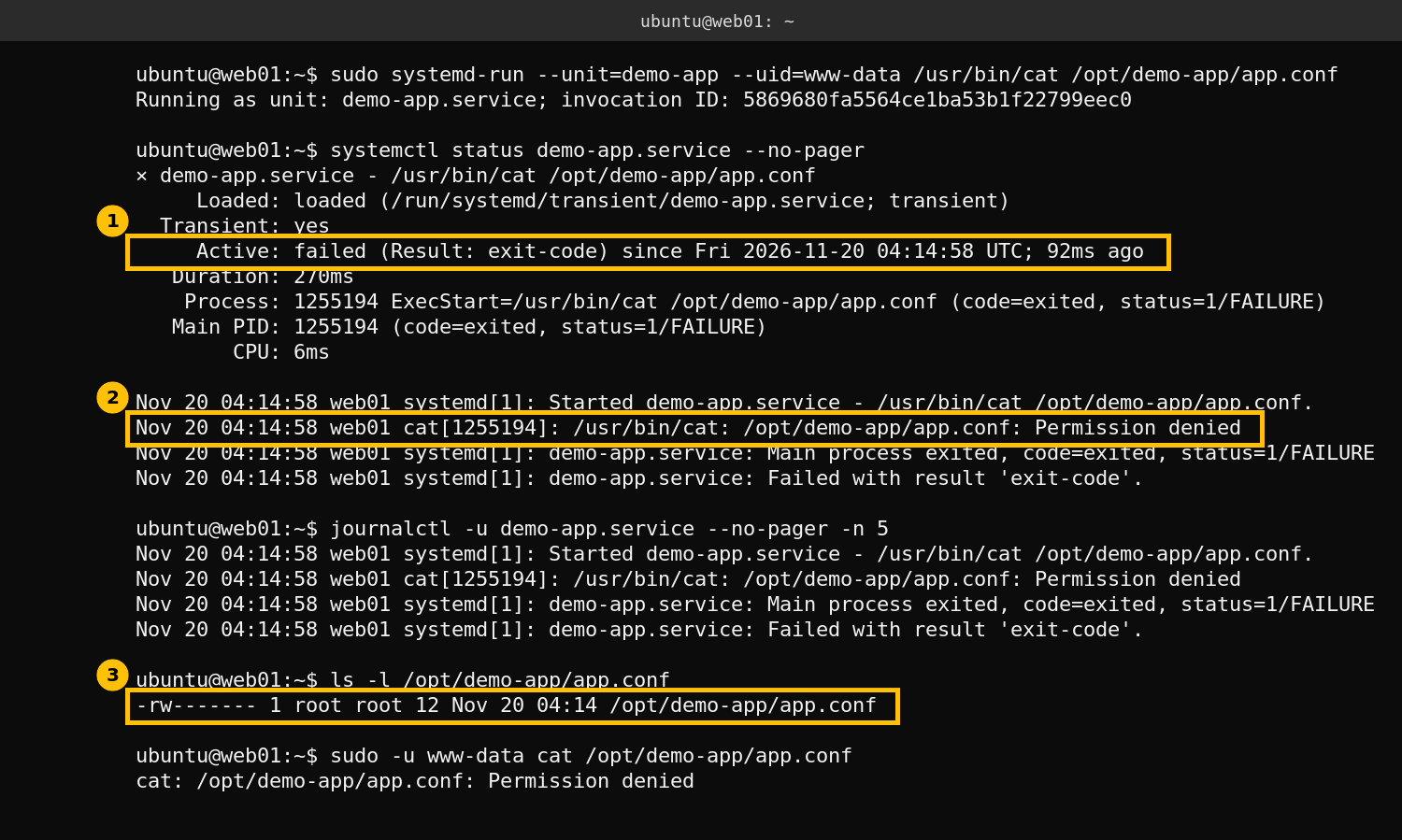
Here is the permissions case from step 6, reproduced on my Ubuntu 24.04 web server on November 20, 2026. I made a tiny service that runs as www-data and reads a config file that only root can read. That is the exact mistake people make after copying a config in with sudo cp. I used systemd-run so the test unit is transient and disappears afterwards.
ubuntu@web01:~$ sudo systemd-run --unit=demo-app --uid=www-data /usr/bin/cat /opt/demo-app/app.conf
Running as unit: demo-app.service; invocation ID: 5869680fa5564ce1ba53b1f22799eec0

ubuntu@web01:~$ systemctl status demo-app.service --no-pager
× demo-app.service - /usr/bin/cat /opt/demo-app/app.conf
     Loaded: loaded (/run/systemd/transient/demo-app.service; transient)
  Transient: yes
     Active: failed (Result: exit-code) since Fri 2026-11-20 04:14:58 UTC; 92ms ago
   Duration: 270ms
    Process: 1255194 ExecStart=/usr/bin/cat /opt/demo-app/app.conf (code=exited, status=1/FAILURE)
   Main PID: 1255194 (code=exited, status=1/FAILURE)
        CPU: 6ms

Nov 20 04:14:58 web01 systemd[1]: Started demo-app.service - /usr/bin/cat /opt/demo-app/app.conf.
Nov 20 04:14:58 web01 cat[1255194]: /usr/bin/cat: /opt/demo-app/app.conf: Permission denied
Nov 20 04:14:58 web01 systemd[1]: demo-app.service: Main process exited, code=exited, status=1/FAILURE
Nov 20 04:14:58 web01 systemd[1]: demo-app.service: Failed with result 'exit-code'.

ubuntu@web01:~$ journalctl -u demo-app.service --no-pager -n 5
Nov 20 04:14:58 web01 systemd[1]: Started demo-app.service - /usr/bin/cat /opt/demo-app/app.conf.
Nov 20 04:14:58 web01 cat[1255194]: /usr/bin/cat: /opt/demo-app/app.conf: Permission denied
Nov 20 04:14:58 web01 systemd[1]: demo-app.service: Main process exited, code=exited, status=1/FAILURE
Nov 20 04:14:58 web01 systemd[1]: demo-app.service: Failed with result 'exit-code'.

ubuntu@web01:~$ ls -l /opt/demo-app/app.conf
-rw------- 1 root root 12 Nov 20 04:14 /opt/demo-app/app.conf

ubuntu@web01:~$ sudo -u www-data cat /opt/demo-app/app.conf
cat: /opt/demo-app/app.conf: Permission denied
Read it in the order from the steps above. systemctl status says failed (Result: exit-code) and status 1, which only tells you the process gave up. The journal lines under it, the same ones journalctl -u shows, have the real reason: Permission denied on the config file. ls -l shows the file is root root with mode 600, and running the same command as the service user with sudo -u www-data fails the same way. That last check is the one that proves it, because it takes systemd out of the picture.
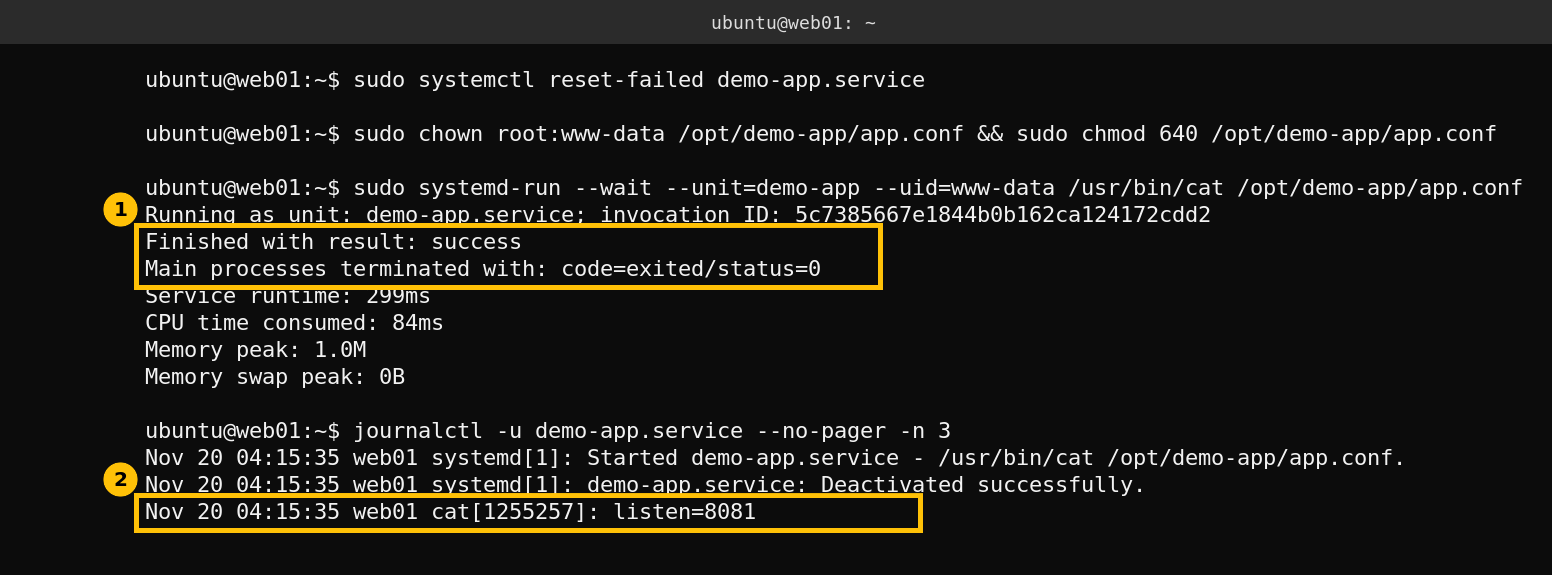
The fix is to give the service group read access, not to make the file world readable and not to run the service as root:
ubuntu@web01:~$ sudo systemctl reset-failed demo-app.service

ubuntu@web01:~$ sudo chown root:www-data /opt/demo-app/app.conf && sudo chmod 640 /opt/demo-app/app.conf

ubuntu@web01:~$ sudo systemd-run --wait --unit=demo-app --uid=www-data /usr/bin/cat /opt/demo-app/app.conf
Running as unit: demo-app.service; invocation ID: 5c7385667e1844b0b162ca124172cdd2
Finished with result: success
Main processes terminated with: code=exited/status=0
Service runtime: 299ms
CPU time consumed: 84ms
Memory peak: 1.0M
Memory swap peak: 0B

ubuntu@web01:~$ journalctl -u demo-app.service --no-pager -n 3
Nov 20 04:15:35 web01 systemd[1]: Started demo-app.service - /usr/bin/cat /opt/demo-app/app.conf.
Nov 20 04:15:35 web01 systemd[1]: demo-app.service: Deactivated successfully.
Nov 20 04:15:35 web01 cat[1255257]: listen=8081
reset-failed clears the failed state so the unit can start again with the same name. After chown root:www-data and chmod 640 the run finishes with status=0 and the journal shows the file contents. On a real service you would run sudo systemctl restart yourservice instead of systemd-run.
Related on this site: finding what fills a Linux disk with df, du and lsof, since a full disk is another very common reason a service refuses to start.
Frequently asked questions
Why does “systemctl status” say active (running) but the service still doesn’t actually work?
Systemd only reports that the process is alive, not that it’s functioning correctly. A web server can be “running” while still returning 502s because its upstream (PHP-FPM, a database) is down, so check the application’s own logs, not just systemd’s view of the process.
What’s the difference between “systemctl restart” and “systemctl reload”?
Restart fully stops and starts the process (brief downtime, all connections dropped). Reload asks the service to re-read its config without dropping its process or existing connections, if the service supports it. Prefer reload for config-only changes when it’s available (nginx and Apache both support it).