Monitoring Entra ID Sync Health: A Real Agent Install, a Real Failure, and How We Found It

This is part three of our Microsoft Entra hybrid identity series. Part one covered creating AD users and troubleshooting logon failures, part two covered choosing between Entra Connect Sync and Cloud Sync. This post is about what happens after you’ve picked an engine and turned it on: how do you actually know sync is healthy, and what do you do when it isn’t? Everything below is from a real Cloud Sync agent we installed and enabled in our lab tenant today, including a real failure we hit and diagnosed.
Step 1: confirm the agent is actually alive
Before trusting any sync status, check the agent itself. In the Entra admin center under Entra ID > Entra Connect > Cloud Sync > Agents, every registered on-premises agent should show as active with a real external IP.
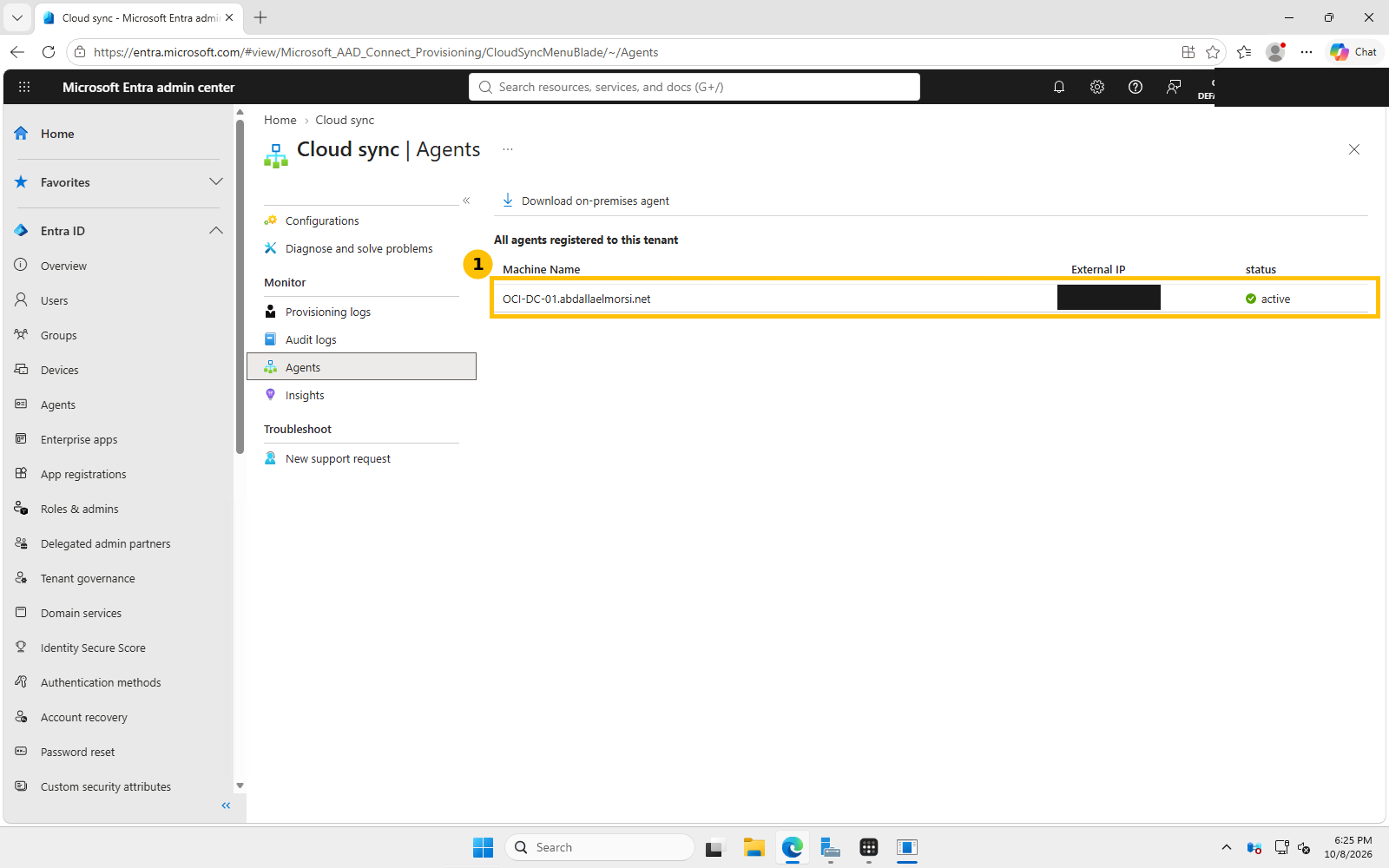
This is a real agent we installed on our lab domain controller moments earlier. If a machine you expect to see here is missing, the agent service isn’t running, was never registered, or lost connectivity, check Get-Service AADConnectProvisioningAgent on that box first.
Step 2: confirm the configuration is actually enabled
A sync configuration can exist and look configured while sitting completely inactive. Check the configuration’s status explicitly, don’t assume “it’s set up” means “it’s running.”
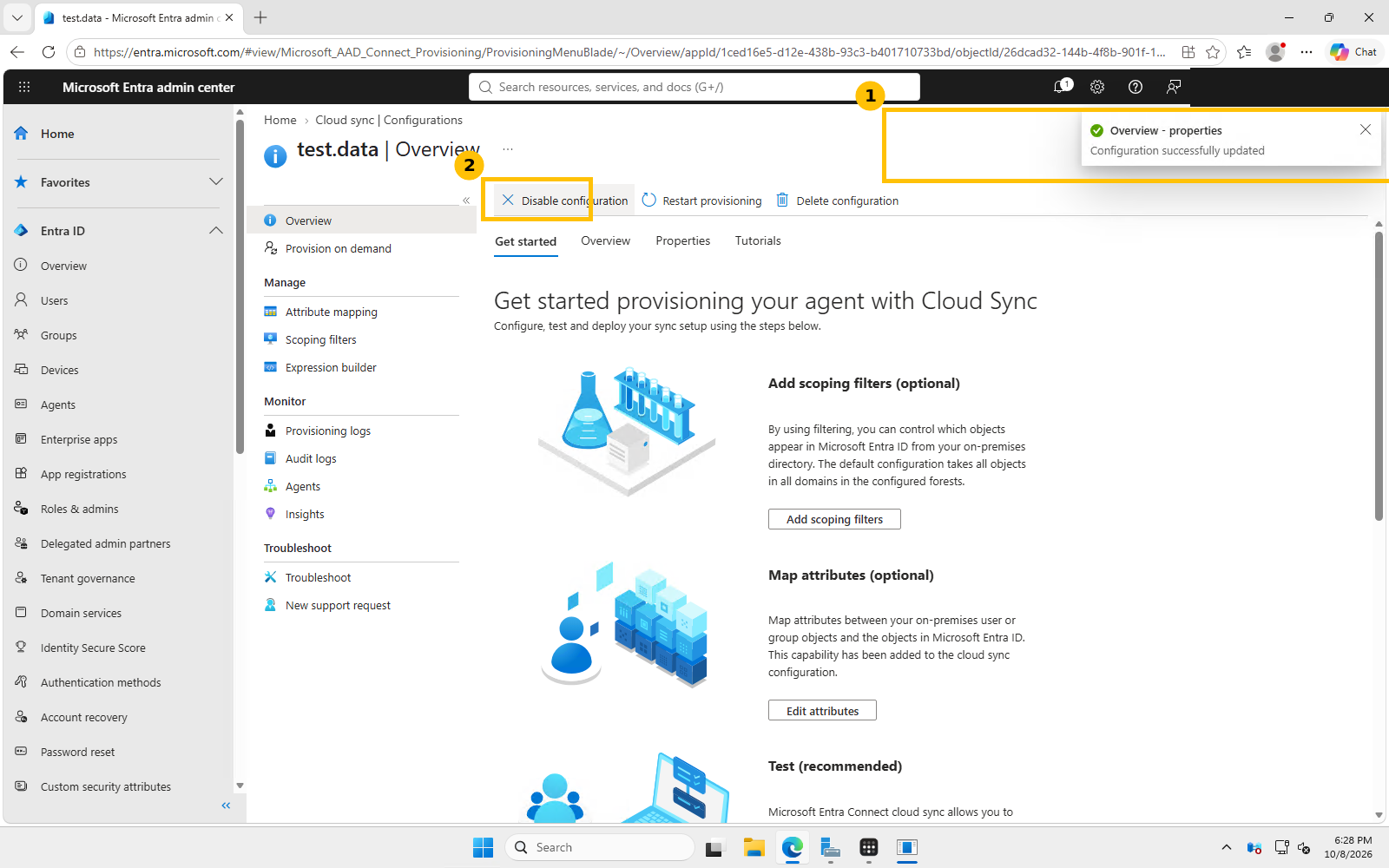
We found a leftover configuration in our tenant that had been sitting Disabled with no agent behind it at all, a legitimately common state when a sync setup is abandoned partway through or the agent that backed it gets decommissioned. The “Disable configuration” button only appears once something is actually enabled, that’s your at-a-glance confirmation.
Step 3: use Provision on demand to actually test it, don’t just trust the dashboard
Enabled does not mean working. The fastest real test is Provision on demand (Cloud Sync > your configuration > Provision on demand), which lets you push one specific object through the pipeline right now instead of waiting for the next scheduled cycle.
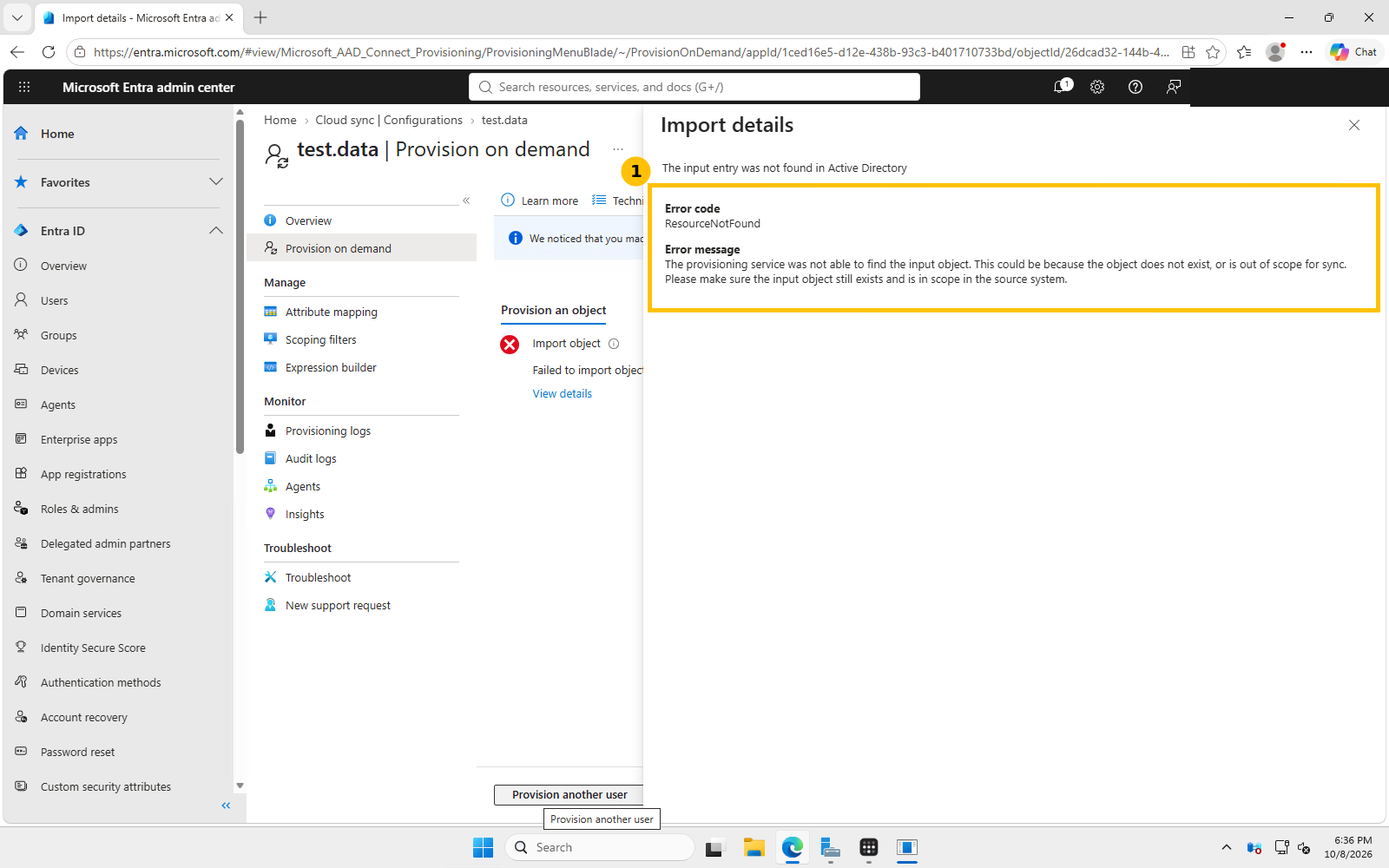
Here’s exactly what we hit: a ResourceNotFound error on a real, existing, in-scope AD user. Microsoft’s own error message suggests two causes, the object doesn’t exist, or it’s out of scope. We’d already confirmed scoping was set to “All objects,” so neither official explanation matched. This is a completely realistic scenario, the error message you get is a starting point, not the full answer.
Step 4: when the dashboard error isn’t enough, go to the agent’s own event log
The on-premises provisioning agent writes its own dedicated Windows Event Log, separate from the generic Application log. This is where the real answer was:
Get-WinEvent -LogName "Microsoft-AzureADConnect-ProvisioningAgent/Admin" -MaxEvents 8 |
  Select TimeCreated, LevelDisplayName, Id, Message | Format-List
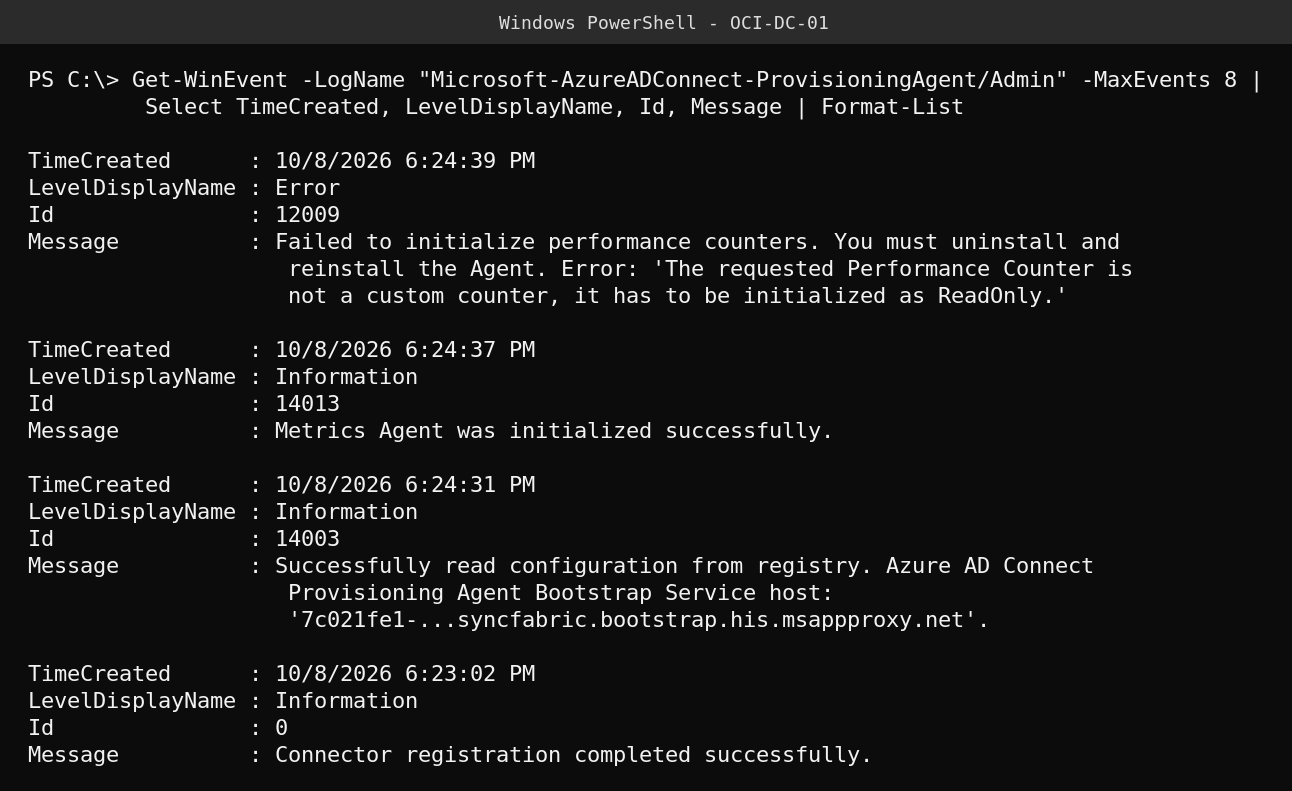
Event ID 12009, Error level: “Failed to initialize performance counters… You must uninstall and reinstall the Agent.” A specific, documented, actionable root cause, something the cloud-side dashboard error never surfaced. The agent’s metrics subsystem failed to initialize cleanly at startup, which left it in a degraded state even though it had successfully registered with Entra ID moments earlier (visible in the same log, Event ID 0, “Connector registration completed successfully”). Registered and healthy are not the same thing.
Quick guide: the real troubleshooting order
- Check the Agents page for an active agent with a real external IP, not just a row that exists.
- Check the specific configuration’s enable/disable state explicitly.
- Use Provision on demand against one known-good object as a real functional test, don’t wait on the schedule.
- If the cloud-side error is vague, check the agent’s own dedicated event log on the server itself:
Get-WinEvent -LogName "Microsoft-AzureADConnect-ProvisioningAgent/Admin". - Match the exact Event ID against Microsoft’s documentation, generic-sounding errors often have a specific, already-documented fix.
Detecting when a synced attribute value changes
For ongoing monitoring rather than one-time troubleshooting, two sources matter most:
- Provisioning logs (Cloud Sync > your configuration > Provisioning logs): every create, update, and delete the sync engine has actually performed, filterable by identity, action, and status. This is your audit trail for “what changed and when,” not just “is it running.”
- Microsoft Entra Connect Health (for Connect Sync) or the Cloud Sync agent’s own event logs (for Cloud Sync): ongoing service health, sync cycle duration, and failure trends over time, rather than a single point-in-time check.
FAQ
Does “Connector registration completed successfully” mean sync is working? No. It only confirms the agent authenticated and registered with the Entra service. Whether it can actually read and push directory objects is a separate question, proven only by a real provisioning attempt.
Where exactly does the agent log live? Windows Event Viewer, under Applications and Services Logs > Microsoft > AzureADConnect > ProvisioningAgent > Admin, or query it directly with Get-WinEvent -LogName "Microsoft-AzureADConnect-ProvisioningAgent/Admin".
Is a ResourceNotFound error always a scoping problem? Not necessarily, as this post shows directly. Check scoping first since it’s the most common cause, but if scoping is already correct, move straight to the agent’s own event log rather than assuming you’ve misconfigured scope.
Sources: Microsoft Learn, Microsoft Entra Cloud Sync documentation; direct output from our own lab tenant and domain controller, 2026-10-08.