Deploying a Win32 App With Microsoft Intune: Packaging, Detection and Exit Codes

Microsoft Intune can deploy far more than store apps, a full Win32 installer, the same .exe or .msi you would run by hand, can be pushed silently to every managed device once it is packaged correctly. The packaging step trips up a lot of first attempts, so this walkthrough covers all five steps end to end, including the detection rule most people get wrong the first time.

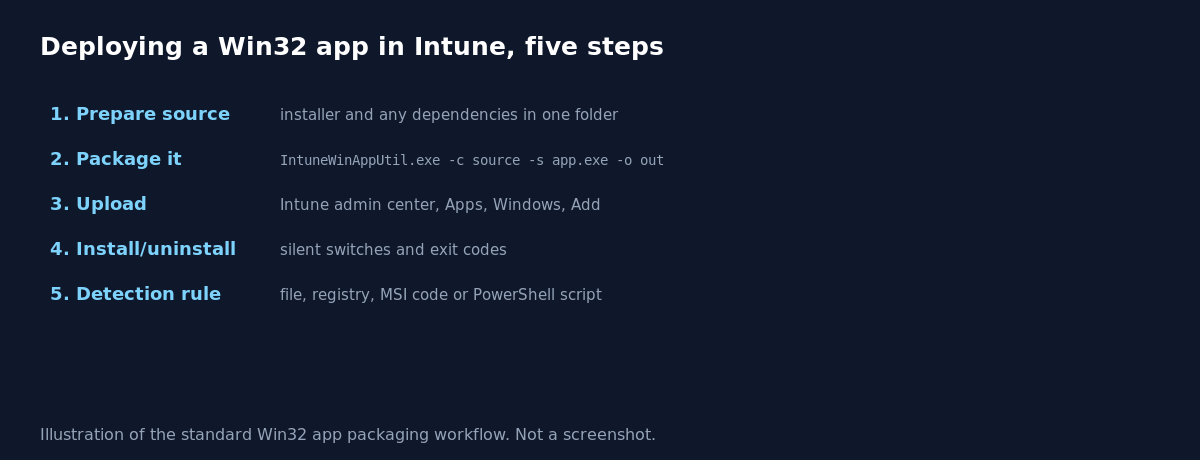
Quick guide
- Put the installer and any files it depends on into one clean folder, with nothing extra in it.
- Download the Microsoft Win32 Content Prep Tool and run
IntuneWinAppUtil.exe -c C:\Source -s installer.exe -o C:\Outputto produce an encrypted.intunewinpackage. - In the Intune admin center, go to Apps, Windows, Add, choose Windows app (Win32), and upload the .intunewin file.
- Fill in the install and uninstall commands, including any silent install switches like
/quietor/S, and note the installer’s expected exit codes. - Configure a detection rule, this tells Intune whether the app is already installed so it does not reinstall it every sync. An MSI product code detection works automatically for MSI installers, otherwise use a registry value, a file path, or a custom PowerShell detection script.
- Assign the app to a device or user group, choosing Required to push it automatically or Available for users to install themselves from Company Portal.
Why the detection rule is the step people get wrong
Detection rules are not optional metadata, they are how Intune decides whether the install even needs to run. A wrong or missing detection rule causes one of two failure modes: the app appears to install successfully on every sync because Intune never recognizes it as already present and keeps reinstalling it, or the opposite, Intune believes the app is already there when it is not, and nothing ever gets pushed. For an MSI package, the product code detection is automatic and reliable. For an EXE installer, you almost always need to point at something the install actually creates, a specific registry key with a version value, or a file at a known path, rather than guessing.
Exit codes matter as much as the install command
Intune reads the process exit code from your install command to decide whether the install succeeded. Most installers return 0 for success, but some return other values for conditions that are actually fine, such as 3010 meaning success but a reboot is required. If your app keeps reporting as failed despite installing correctly by hand, check what exit code the silent install actually returns and configure Intune’s custom return code mapping if it is not 0.
What actually goes wrong
The most common first time failure is an install command that works perfectly when run manually as an administrator but fails silently when Intune runs it, because Intune executes the install in the SYSTEM context by default, not as the logged in user. An installer that expects to run interactively, or one that depends on the current user’s profile or environment variables, needs adjustment or a different install context before it will work reliably through Intune. Test the exact command line, in SYSTEM context if possible, before assuming the package itself is broken.
FAQ
Do I need the Win32 Content Prep Tool for every app?
Yes, for Win32 apps specifically. Store apps and line of business MSI or app packages have their own simpler upload paths in Intune that skip this packaging step.
Can I deploy the same Win32 app to both required and optional groups?
Yes, assign the same app to multiple groups with different intents, Required for one group and Available for another, from the same app object.
How do I troubleshoot a Win32 app that fails to install?
Check the IME (Intune Management Extension) logs on the device, typically under C:\ProgramData\Microsoft\IntuneManagementExtension\Logs, which record the exact install command run and its result.
Sources
Microsoft Learn documentation for Win32 app management in Microsoft Intune.