Setting Up UFW on Ubuntu: Reading a Real Production Firewall Ruleset

UFW, Uncomplicated Firewall, is the default front end for iptables and nftables on Ubuntu, and it is the fastest way to lock a Linux box down to exactly the traffic it needs. This walkthrough installs and reads it the way you would on a real internet facing server, using a genuinely active production ruleset from a lab machine to show what a properly locked down setup actually looks like.
Quick guide
- Check whether UFW is installed and active with
sudo ufw status verbose. Ubuntu ships it by default but it starts disabled. - Before enabling it, always allow SSH first with
sudo ufw allow OpenSSHorsudo ufw allow 22/tcp, otherwise you lock yourself out the moment it turns on. - Enable the firewall with
sudo ufw enable. - Allow only the specific traffic each service needs, for example
sudo ufw allow from 10.0.0.0/24 to any port 22 proto tcpto permit SSH only from a specific internal network instead of the whole internet. - Review the active rules any time with
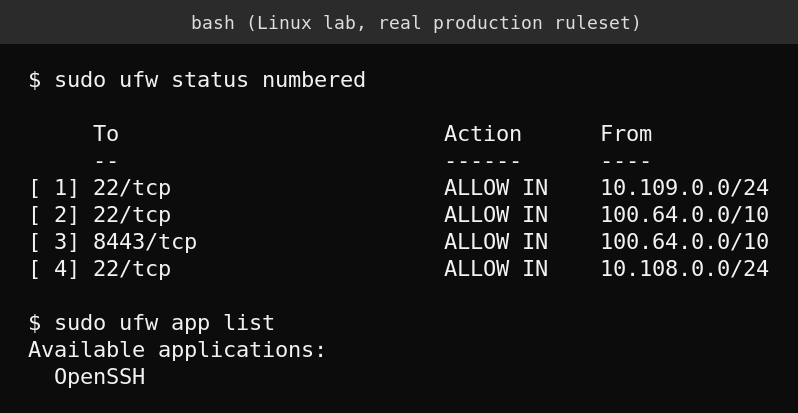
sudo ufw status numbered, which lists each rule with a number you can use to delete it later withsudo ufw delete NUMBER. - Check what applications UFW knows predefined profiles for with
sudo ufw app list, useful for services like OpenSSH that ship a ready made profile.
Reading this ruleset
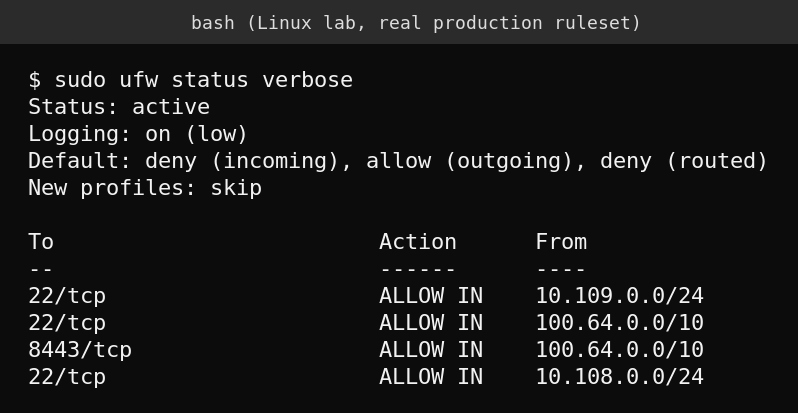
The default policy line, deny (incoming), allow (outgoing), deny (routed), is the most important line in the whole output: nothing gets in unless a rule explicitly allows it, everything can get out, and the machine will not forward traffic between networks. Every allow rule below it then lists a specific port and, critically, a specific source. Port 22 (SSH) is permitted only from three defined internal and VPN ranges, not from anywhere on the internet, and a second port (8443) is allowed only from one of those same trusted ranges. This is exactly what a properly scoped firewall looks like: broad denial by default, narrow permission by exception.
Why source restriction matters more than the port number
Simply allowing port 22 is common advice, but allowing it from anywhere still exposes SSH to every automated brute force scanner on the internet. The ruleset shown above restricts SSH to specific CIDR ranges, an internal lab subnet and a VPN network range, which means a scanner from an unrelated IP address cannot even complete a TCP handshake with the SSH port, regardless of whether they have valid credentials. Combining UFW’s source restriction with key based SSH authentication and fail2ban gives you three independent layers rather than relying on any single one.
What actually goes wrong
The single most common UFW mistake is enabling it over an SSH session without first allowing SSH, instantly locking yourself out of a remote server with no console access. Always allow SSH (or whatever port you are connected through) before running ufw enable, and if you are scripting firewall changes on a remote machine, test the exact allow rule with ufw status immediately after applying it, before closing your current session.
FAQ
Does UFW replace iptables?
No, it is a front end that manages iptables (or nftables on newer systems) rules for you with simpler syntax. The underlying rules it generates can still be inspected with sudo iptables -L.
Can I allow a range of ports at once?
Yes, with a syntax like sudo ufw allow 6000:6007/tcp for a port range, or sudo ufw allow proto tcp from 10.0.0.0/24 to any port 80,443 for specific ports from one source.
How do I temporarily disable UFW without losing my rules?
sudo ufw disable turns the firewall off entirely while keeping every configured rule saved, and sudo ufw enable turns it back on with the same rules active.
Sources
Ubuntu’s official UFW documentation and command reference.