Creating and Managing Scheduled Tasks With PowerShell Instead of the GUI

The Windows Task Scheduler is one of the most overlooked automation tools on any Windows Server, most admins reach straight for a cron-style third-party tool or a monitoring agent before realizing PowerShell’s own scheduled task cmdlets already do the job, with no extra software, no extra license, and a real audit trail. Here’s how to create, verify, and manage a scheduled task entirely from PowerShell, with real output from a live Windows Server.
Why PowerShell’s scheduled task cmdlets over the GUI
The Task Scheduler GUI works fine for a one-off task, but it doesn’t scale and it isn’t repeatable. The ScheduledTasks PowerShell module (built into every current Windows Server) lets you define a task as code, version it, deploy it identically across many servers, and tear it down just as cleanly, exactly the properties you want for real infrastructure automation instead of a one-time GUI click.
Quick guide: create a scheduled task from PowerShell
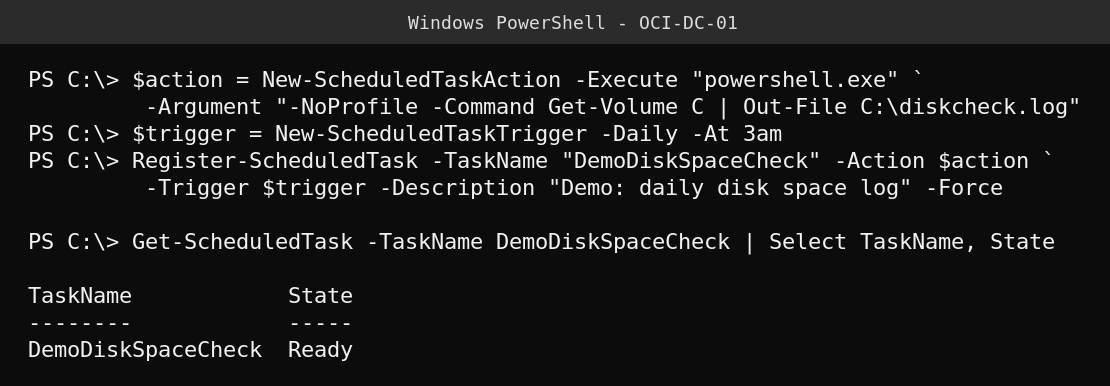
Three cmdlets do the whole job:
New-ScheduledTaskActiondefines what actually runs, here a PowerShell command, but it can be any executable with any arguments.New-ScheduledTaskTriggerdefines when it runs.-Daily -At 3amis used here, but it supports weekly, at-logon, at-startup, and one-time triggers too.Register-ScheduledTaskties the action and trigger together under a task name and actually creates it.-Forceoverwrites an existing task with the same name instead of erroring.
Confirm it registered correctly by checking its state and next scheduled run:

State: Ready means the task is correctly registered and waiting for its trigger. NextRunTime confirms exactly when it will next fire. LastTaskResult is a Win32 exit code, 267011 specifically means the task has been registered but has never actually run yet, that’s expected for a task that was just created, not an error.
Useful follow-up commands
Start-ScheduledTask -TaskName "YourTaskName"          # trigger it manually right now, don't wait for the schedule
Get-ScheduledTask | Where-Object {$_.State -eq "Running"}  # see what's actively running
Disable-ScheduledTask -TaskName "YourTaskName"         # pause it without deleting it
Unregister-ScheduledTask -TaskName "YourTaskName" -Confirm:$false  # remove it entirely
FAQ
What does a LastTaskResult of 0 mean? Success, the task ran and its action exited cleanly. Any non-zero value is worth investigating, a quick way to check is certutil -decodehex or just searching the hex equivalent of the decimal code against Microsoft’s documented Task Scheduler error codes.
Can a scheduled task run as a specific service account instead of the creating user? Yes, pass -User and -Password (or a gMSA) to Register-ScheduledTask, or build a full -Principal object with New-ScheduledTaskPrincipal for more control, including run-with-highest-privileges and run-only-when-logged-in behavior.
Is this a good substitute for a real job scheduler like a CI/CD pipeline? For simple, server-local, time-based automation, yes. For anything that needs dependencies between jobs, retries, or cross-server orchestration, a dedicated automation or orchestration tool is the better fit, Task Scheduler is for “run this thing on this box at this time,” not a workflow engine.