

Step-by-Step Upgrading to Exchange Server Subscription Edition (SE)


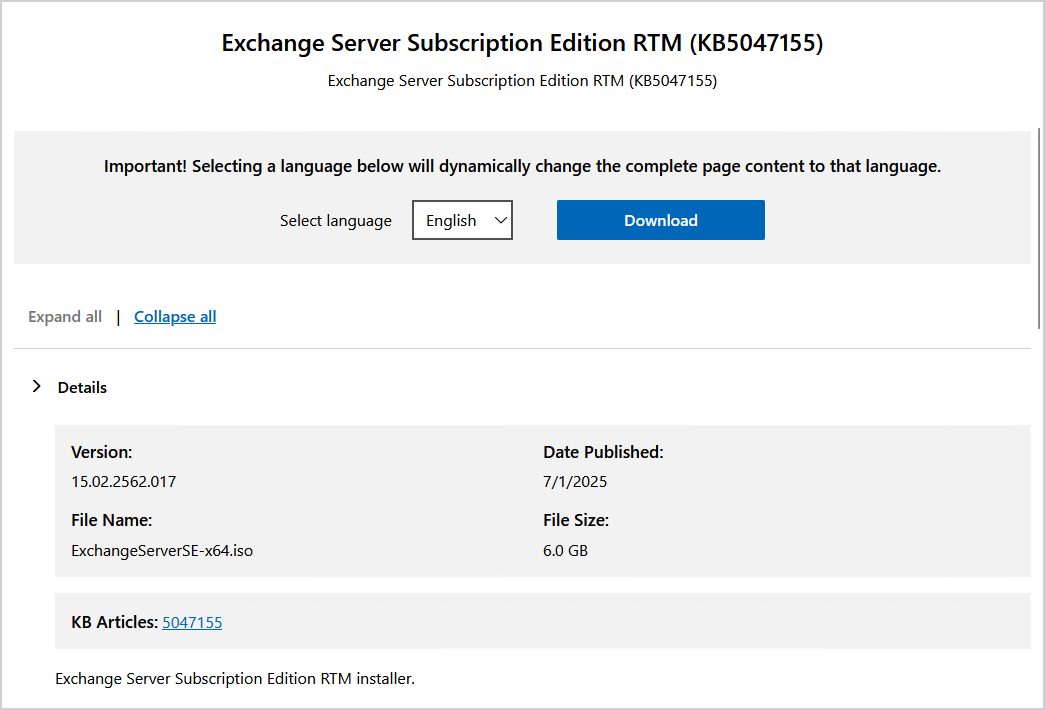
Microsoft officially released the Exchange Server Subscription Edition RTM (KB5047155) on July 1, 2025. Also known as Exchange Server SE, this release reinforces Microsoft’s ongoing commitment to supporting enterprise email services across cloud, on-premises, and hybrid environments.
What is New in Exchange Server SE?
Exchange Server SE fundamentally changes how on-premises Exchange environments are serviced and licensed. Unlike previous versions, Exchange SE is governed by the Modern Lifecycle Policy. This means there is no fixed end-of-support date as long as your system configurations remain current.
The product will be serviced continuously as an evergreen release. Microsoft does not plan to release any further major, year-numbered versions in the future.
Current Build Information and Supported OS
The initial Exchange Server SE RTM was released as build 15.02.2562.017. However, because it is an evergreen product, you should always aim for the latest updates; as of early 2026, the February Security Update brings the latest build to 15.02.2562.037. You can easily verify your current Exchange build number using PowerShell
Exchange Server SE requires a modern infrastructure and is officially supported on the following operating systems:
- Windows Server 2019
- Windows Server 2022
- Windows Server 2025
Exchange Server SE supported Operating Systems
The following Operating Systems are supported for Exchange Server SE:
- Windows Server 2019
- Windows Server 2022
- Windows Server 2025
Step-by-Step Upgrade Guide
The transition to Exchange Server SE depends entirely on the version you currently run. Upgrading from Exchange 2019 is a low-risk, in-place operation because both versions share the same core codebase.
Path 1: In-Place Upgrade from Exchange Server 2019
If you currently run Exchange Server 2019, you can perform a seamless in-place upgrade. This process is functionally identical to installing a standard Cumulative Update (CU).
- Verify that your current environment is running either Exchange Server 2019 CU14 or CU15.
- Download and install Exchange Server 2019 CU15 if you are running an older cumulative update.
- Download the Exchange Server SE installation media.
- Install the Exchange Server SE setup directly over your existing Exchange 2019 environment.
Path 2: Legacy Upgrade from Exchange Server 2016
If your organization still runs Exchange Server 2016, you cannot perform an in-place upgrade and must execute a classic “legacy” hardware migration.
- Download and install Exchange Server 2016 CU23 on your existing infrastructure to prepare for migration.
- Provision new servers running Windows Server 2019, 2022, or 2025.
- Download and install Exchange Server SE on the newly provisioned operating systems.
- Configure the new Exchange Server SE environment by setting up mailbox databases and virtual directories.
- Move all user mailboxes and migrate mail flow from the 2016 servers to the new SE servers.
- Safely decommission and remove the legacy Exchange Server 2016 nodes from your domain.
Installation Media and File Hash
Before running the upgrade, always verify the integrity of your installation media. You can confirm your download using the following file information:
- File name: ExchangeServerSE-x64.iso
- SHA256 hash: CD2B13F2C297187776AF4CFF3541B4BE3C677CF907CCA69D85AB0E2B70377BD1