Migrating Microsoft AD Users Between different Domains with Minimal Data Loss

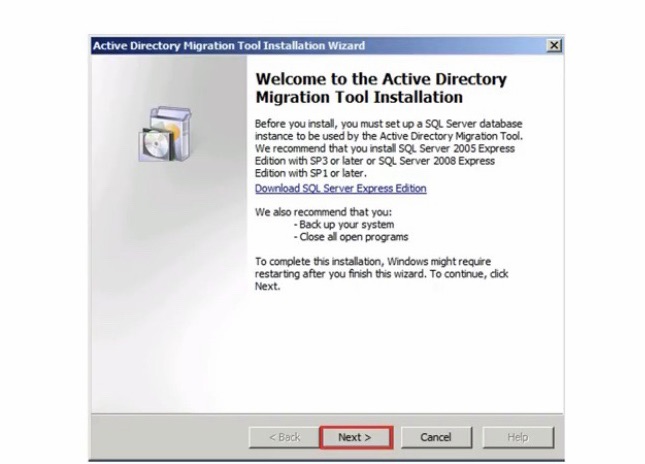
Microsoft’s primary native tool for migrating Active Directory (AD) users between domains remains the Active Directory Migration Tool (ADMT) version 3.2, which supports object migration including users, groups, and SID history while preserving passwords via Password Export Server (PES). ADMT enables minimal data loss by copying attributes, group memberships, and security identifiers, though it requires a trust between source and target domains and lacks official support on Windows Server 2022 or later. For modern environments, PowerShell-based exports and imports from the ActiveDirectory module offer a scriptable alternative, capturing user properties into CSV for recreation in the target domain.
Prerequisites and Planning
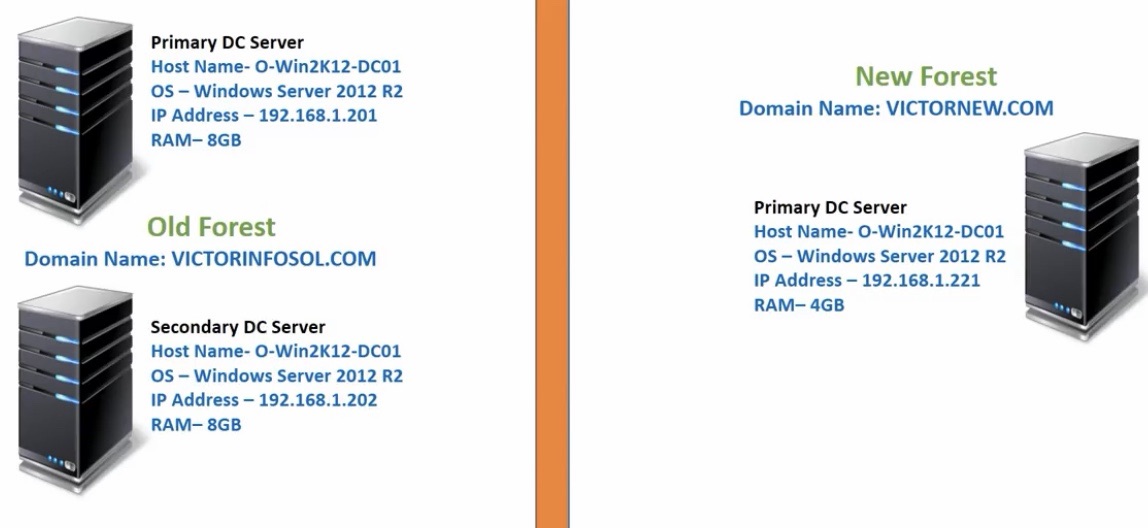
Establish a two-way trust between domains for SID history migration, ensuring network connectivity and firewall rules for ports like 445 (SMB), 389 (LDAP), and 3268 (Global Catalog) [rdr-it +1]. Install ADMT 3.2 on a Windows Server 2008-2012 R2 machine in the target domain with SQL Express, generate an encryption key via admt /key, and deploy PES on the source domain controller [microsoft +1]. Export user data using Get-ADUser -Filter * -Properties * | Select-Object Name,SamAccountName,UserPrincipalName,EmailAddress,Department | Export-Csv "C:\Migration\Users.csv" -NoTypeInformation to audit and minimize discrepancies .

Step-by-Step Migration Process
Launch ADMT console, select User Account Migration Wizard, specify source/target domain controllers, and choose users or an include list for batching to reduce risk. Enable Migrate passwords, Migrate user SID to target domain, and target OU; run in intra-forest or inter-forest mode with conflict resolution set to rename or skip. Post-migration, perform security translation for profiles using User State Migration Tool (USMT) on workstations: scanstate \\target\share /i:migapp.xml /i:miguser.xml /o followed by loadstate to transfer profiles without data loss.
Minimizing Data Loss and Verification
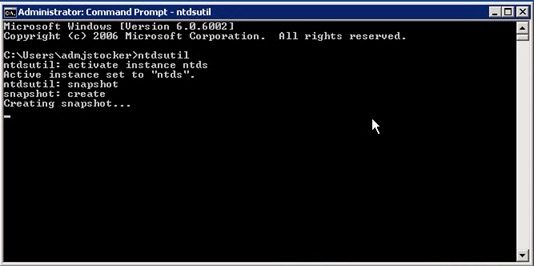
Retain source objects until verification, back up AD via ntdsutil snapshots, and use SID history for seamless access to legacy resources during coexistence. Verify with Get-ADUser -Identity <user> -Properties MemberOf,LastLogonDate in the target domain and test logons/profiles; PowerShell bulk creation scripts from CSV ensure attribute fidelity for large sets. For hybrid setups with Entra ID sync, update Azure AD Connect post-migration to include the target domain’s OU.
Post-Migration Cleanup
Disable source accounts after cutover, remove trusts if unneeded, and monitor replication with repadmin /replsummary.