Windows 11 24H2 Home and Pro Stopped Getting Security Updates on October 13: Check Your Fleet and Move to 25H2

On October 13, 2026 Microsoft shipped the last security update for Windows 11 version 24H2 Home and Pro. Every 24H2 Home or Pro PC that is still on that version stopped receiving security fixes a week ago, and it will not complain about it. Windows Update keeps saying “You’re up to date” because, for that build, there is nothing left to offer.
The next deadline is close too. Windows 11 23H2 Enterprise and Education ends on November 10, 2026, 21 days from today. This post gives you a small script that classifies a PC by build number and edition, a trap I fell into while testing it, and the order I would fix a fleet in.
Quick guide
- Find the build and edition on each PC. The version name is not enough, the edition decides the end date.
- Sort the PCs into ended, ending soon and fine with the script below.
- Move ended PCs to 25H2. Microsoft recommends it, and on a 24H2 device it comes as a small enablement package, not a full reinstall.
- Plan the 23H2 Enterprise and Education PCs before November 10.
- Re-run the check after the next Patch Tuesday to prove nothing is left on an ended build.
The dates that matter
| Version | Home and Pro | Enterprise and Education |
|---|---|---|
| Windows 11 23H2 (build 22631) | Ended November 11, 2025 | Ends November 10, 2026 |
| Windows 11 24H2 (build 26100) | Ended October 13, 2026 | Ends October 12, 2027 |
| Windows 11 25H2 (build 26200) | Current, check the lifecycle page for its date | Current, check the lifecycle page for its date |
Sources for the dates are BleepingComputer’s coverage of the 24H2 deadline and the lifecycle pages for Windows 11 on Microsoft Learn. The same Patch Tuesday also ended Windows 10 Enterprise LTSB 2016, which matters if you still run that edition. I did not verify the 25H2 end dates, so the script marks 25H2 as “check” instead of guessing.
Why this is urgent and not just housekeeping: the October 13 update that was the last one for these PCs also fixed an exploited Windows Shell flaw that lets crafted files get past Mark of the Web. A PC that stays on an ended build keeps that hole. I covered that patch in my October Patch Tuesday post, and the record patch size is in BleepingComputer’s write-up.
Step 1: classify a PC by build and edition
The function below takes a build number and an edition and returns the end date and a state. The edition matters because Home and Pro get the shorter servicing window and Enterprise and Education get the longer one. The state is NO UPDATES when the date has passed, ENDING SOON inside 60 days, OK otherwise and CHECK for a build I did not hard-code.
function Get-Win11Status {
  param(
    [int]$Build,
    [string]$Edition,
    [datetime]$Today = (Get-Date)
  )
  $managed = $Edition -match 'Enterprise|Education'
  $end = switch ($Build) {
    22631 { if ($managed) { '2026-11-10' } else { '2025-11-11' } }
    26100 { if ($managed) { '2027-10-12' } else { '2026-10-13' } }
    default { 'check lifecycle page' }
  }
  $left = if ($end -match '^\d') { [int]([datetime]$end - $Today).TotalDays } else { $null }
  $state = if ($null -eq $left) { 'CHECK' }
           elseif ($left -lt 0) { 'NO UPDATES' }
           elseif ($left -le 60) { 'ENDING SOON' }
           else { 'OK' }
  [pscustomobject]@{
    Build = $Build
    Edition = $Edition
    UpdatesEnd = $end
    DaysLeft = $left
    State = $state
  }
}
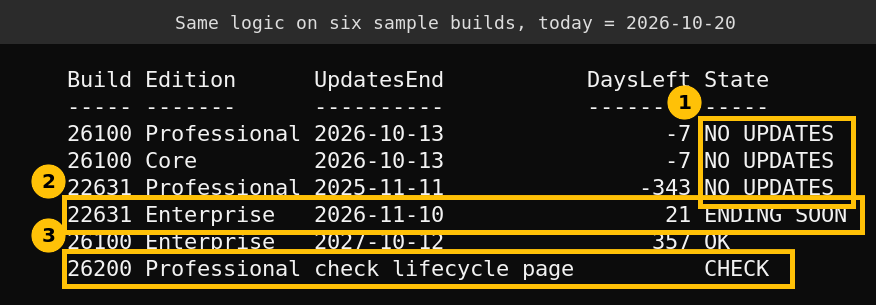
I ran this on my lab server with six sample inputs and today set to 2026-10-20 so the answers do not change with the date you read this. The output is real, the inputs are made up. Callout 1 shows both 24H2 Home-type editions as ended, 2 shows 23H2 Enterprise with 21 days left and 3 shows 25H2 falling through to the CHECK state on purpose.
Step 2: run it on a real PC
On a PC, read the build and edition from the registry and pass them in. CurrentBuildNumber, EditionID and UBR under HKLM:\SOFTWARE\Microsoft\Windows NT\CurrentVersion are the stable values. Do not parse the marketing name.
$cv = Get-ItemProperty 'HKLM:\SOFTWARE\Microsoft\Windows NT\CurrentVersion'
$os = Get-CimInstance Win32_OperatingSystem
if ($os.ProductType -ne 1) {
  "Windows Server detected ($($cv.ProductName)), client lifecycle rules do not apply"
} else {
  Get-Win11Status -Build ([int]$cv.CurrentBuildNumber) -Edition $cv.EditionID
}
To cover a fleet, wrap the same two lines in Invoke-Command over a list of computer names, or export the build and edition columns from Intune or Configuration Manager and feed the rows to the function. I did not run the fleet version, only the single-machine one and the sample table above.
The trap: Windows Server shares the 24H2 build number
My first version looked only at the build number. I ran it on my lab domain controller, which is Windows Server 2025, and it announced 24H2, security updates ended 2026-10-13. That is wrong. Windows Server 2025 and Windows 11 24H2 are built from the same code, so both report build 26100, but Windows Server follows its own lifecycle and is not affected by the client date.
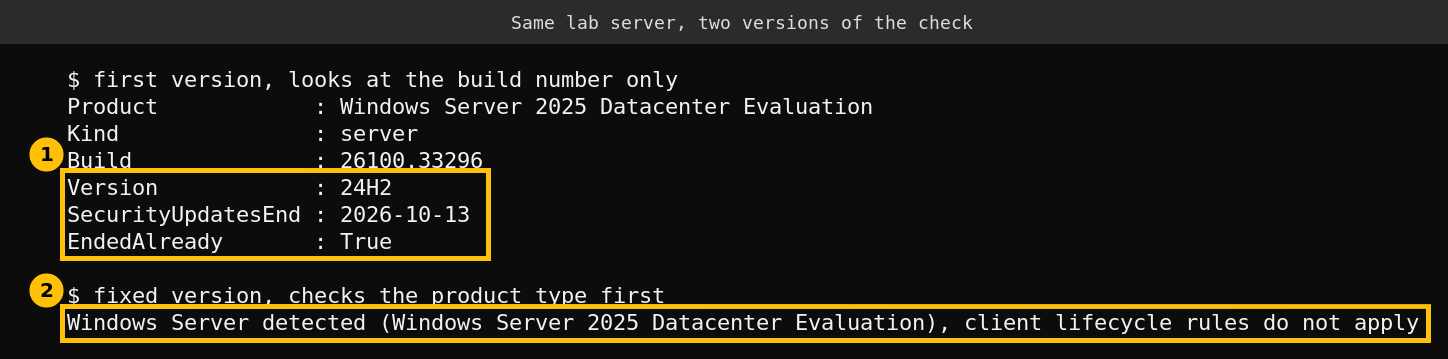
The fix is the first line of the run script: check Win32_OperatingSystem.ProductType. A value of 1 is a client, anything else is a server or domain controller. If you build a report from build numbers alone, your server team will get a false alarm and your client team will ignore it.
Step 3: move ended PCs to 25H2
Microsoft recommends 25H2, and for 24H2 devices it is delivered as an enablement package, which is a small update that switches on features already in the 24H2 files. That makes it quick and low risk compared with a full upgrade. In Intune, a feature update policy with the target version set to Windows 11, version 25H2 does it. In Configuration Manager, use a servicing plan or a task sequence. I did not run the upgrade in this lab because it has no Windows 11 client, so test it on a pilot ring first.
PCs on 23H2 Home and Pro are a bigger jump, since that version has been out of support for almost a year. Treat them as a normal feature update and check hardware compatibility for the oldest ones.
What I could not test
- The lab has no Windows 11 client, so the registry read ran on Windows Server. The client branch ran only with sample inputs.
- I did not run the 25H2 upgrade, the Intune policy or a fleet-wide scan.
- The 25H2 end dates are not in the script on purpose. Read them from the lifecycle page.
FAQ
Do 24H2 Home and Pro PCs still work after October 13?
Yes, they run normally, but they get no more security updates. That is the risk, and nothing on the screen tells the user.
Does this affect Windows Server 2025?
No. Windows Server has its own lifecycle. The shared build number 26100 is the reason a build-only check gives a false alarm.
Is 24H2 Enterprise still supported?
Yes. Microsoft lists Enterprise and Education 24H2 until October 12, 2027.
Is the move to 25H2 a full reinstall?
On a 24H2 PC it is a small enablement package, so no. A PC on 23H2 needs a regular feature update.