Jun 18, 2025
Top 10 Linux Tips for Linux System Optimization
6 min readBeginner

Linux is known for its stability, efficiency, and flexibility, but even the best systems can benefit from a little fine-tuning. Whether you’re a developer, a sysadmin, or a Linux enthusiast, optimizing your Linux system can make it faster, more responsive, and improve your overall productivity. From clearing out unnecessary files to fine-tuning system resources, optimizing your Linux environment can breathe new life into your machine.
In this article, we’ll cover practical tips for boosting Linux performance, cleaning up your system, managing memory and disk usage, and optimizing startup times. By the end, you’ll have a lean, efficient Linux setup that maximizes your machine’s capabilities.
Monitor System Resources with top and htop
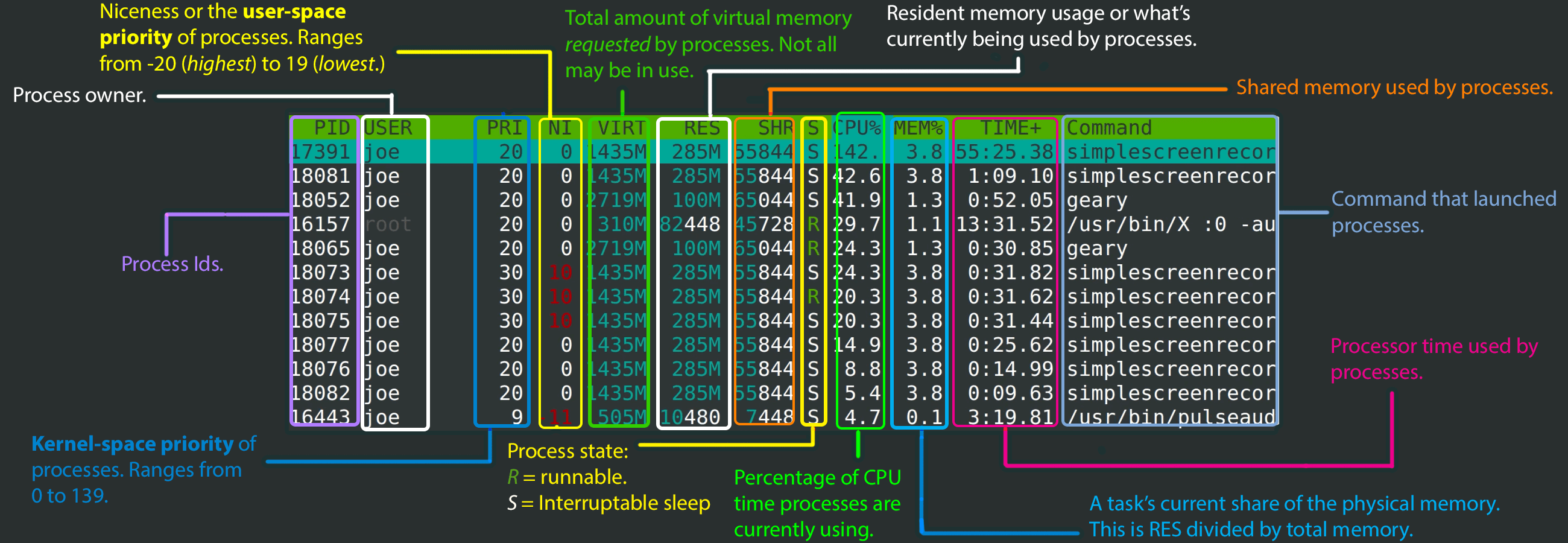
Monitoring system resources is crucial for Linux administrators. The
Best Practices:
– Use
– Install
– Regularly monitor servers to detect performance bottlenecks early.
How to Apply:
1. Open your terminal.
2. Run
3. For
top and htop commands provide real-time views of CPU, memory, and process usage.
Best Practices:
– Use
top for a lightweight, built-in solution.– Install
htop for a more user-friendly, interactive interface.– Regularly monitor servers to detect performance bottlenecks early.
How to Apply:
1. Open your terminal.
2. Run
top for a quick overview.3. For
htop, install it using your package manager and then run htop.
Ubuntu
sudo apt update && sudo apt install htop -y
RHEL
sudo dnf install epel-release -y && sudo dnf install htop -y
Control Services Using
systemctl
The
Best Practices:
– Always check service status before making changes.
– Use
– Use
How to Apply:
1. To check the status of a service:
2. To start, stop, or restart a service, use the appropriate subcommand.
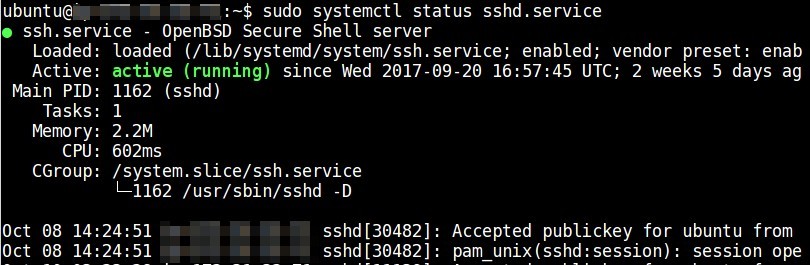
systemctl command is the standard tool for managing services (systemd units) on modern Linux distributions.
Best Practices:
– Always check service status before making changes.
– Use
enable to start services at boot.– Use
restart after configuration changes.
How to Apply:
1. To check the status of a service:
2. To start, stop, or restart a service, use the appropriate subcommand.
Ubuntu/RHEL
sudo systemctl status ssh
sudo systemctl restart ssh
Add Users and Set Permissions
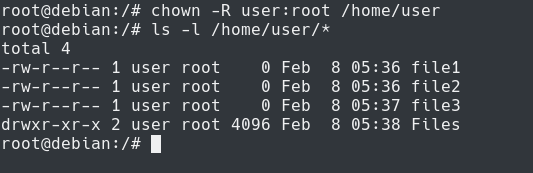
Proper user and permission management is essential for Linux security and multi-user environments.
Best Practices:
– Use
– Assign users to groups for role-based access.
– Use
How to Apply:
1. Add a new user.
2. Change file ownership and permissions as needed.
Best Practices:
– Use
adduser for creating new users.– Assign users to groups for role-based access.
– Use
chmod and chown to manage file permissions and ownership.
How to Apply:
1. Add a new user.
2. Change file ownership and permissions as needed.
sudo adduser newuser
sudo chown newuser:newuser /home/newuser
sudo chmod 700 /home/newuser
Keep Your System Updated
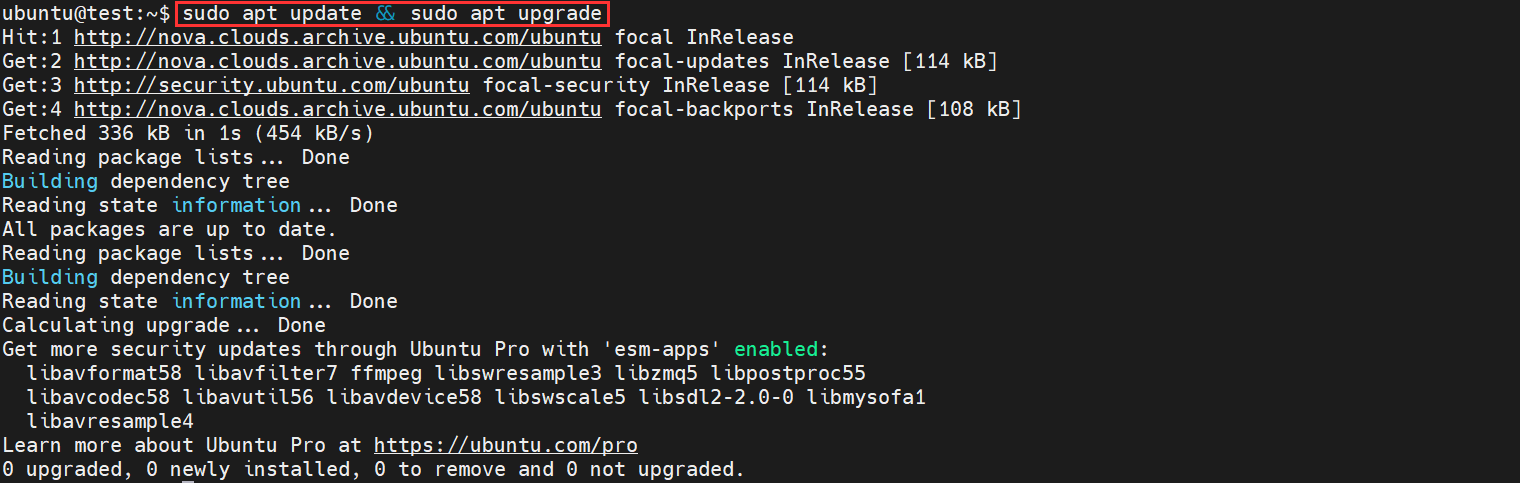
Regular updates are critical for security and stability. Use your distribution’s package manager to update and upgrade your system.
Best Practices:
– Always update package lists before upgrading.
– Review packages to be upgraded.
– Schedule regular updates for production systems.
How to Apply:
1. Update package lists.
2. Upgrade all installed packages.
Best Practices:
– Always update package lists before upgrading.
– Review packages to be upgraded.
– Schedule regular updates for production systems.
How to Apply:
1. Update package lists.
2. Upgrade all installed packages.
Ubuntu
sudo apt update -y && sudo apt upgrade -y
RHEL
sudo yum update -y && sudo yum upgrade -y
View and Analyze Log Files
Log files are vital for troubleshooting and auditing in Linux. Use
Best Practices:
– Use
– Use
– Regularly review logs for security and performance issues.
How to Apply:
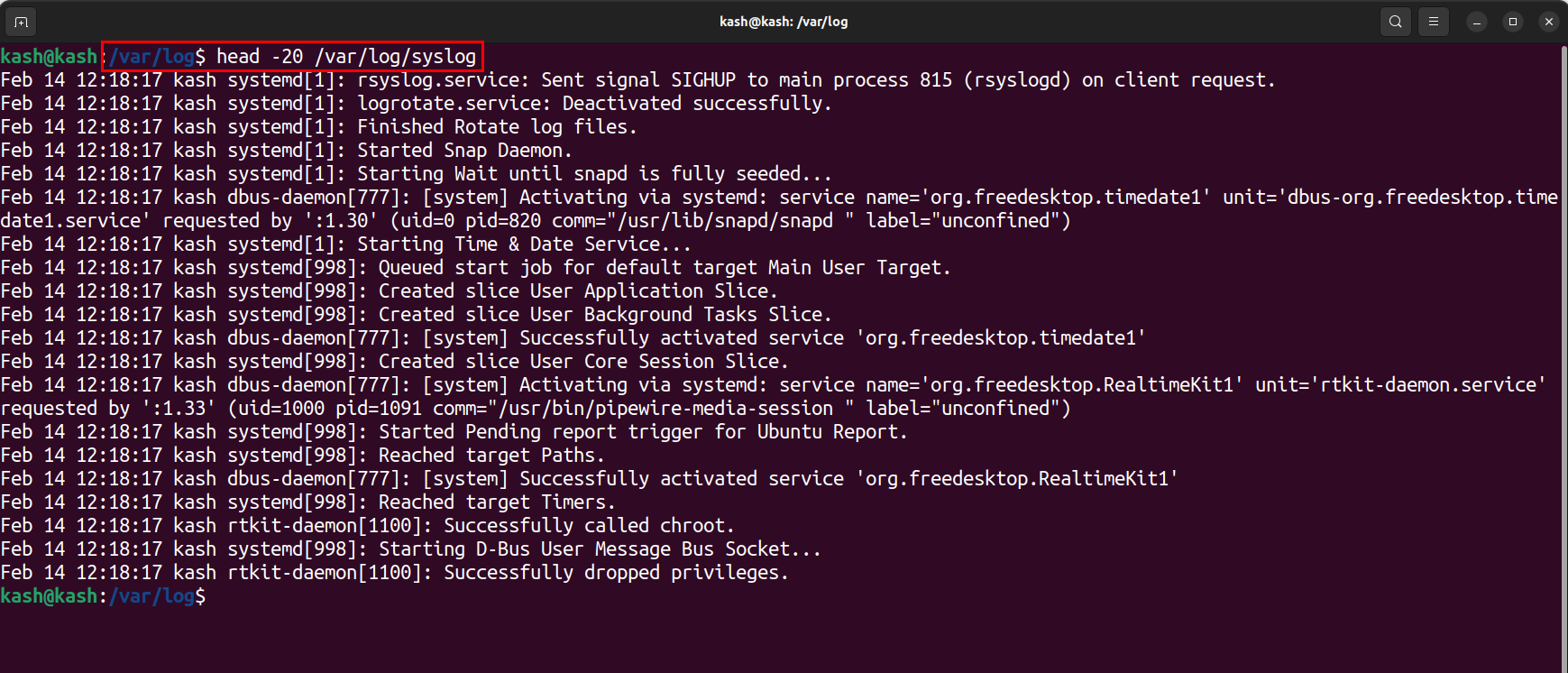
1. View the system journal.
2. Monitor a specific log file in real time.
journalctl for systemd logs and tail for real-time log monitoring.
Best Practices:
– Use
journalctl -xe for recent errors.– Use
tail -f to monitor logs in real time.– Regularly review logs for security and performance issues.
How to Apply:
1. View the system journal.
2. Monitor a specific log file in real time.
journalctl -xe
tail -f /var/log/syslog
Manage Disk Space Usage
Running out of disk space can affect system performance. Use
Best Practices:
– Use
– Identify large files with
– Regularly clean unnecessary files from
How to Apply:
1. Check overall disk usage.
2. Investigate which directories use the most space.
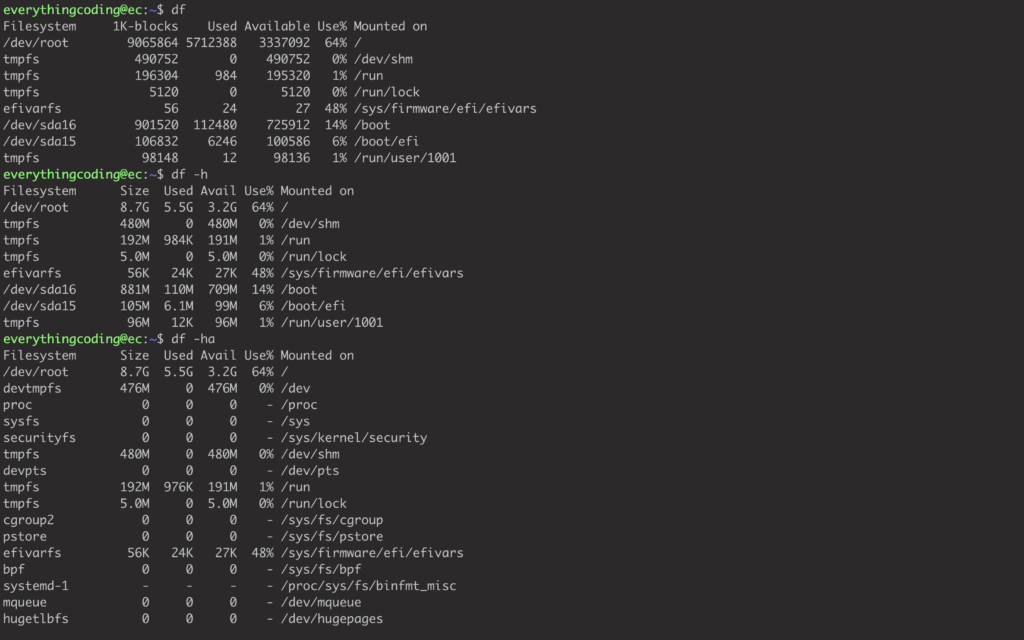
df and du to inspect and manage disk usage.
Best Practices:
– Use
df -h to view usage in a human-readable format.– Identify large files with
du -sh *.– Regularly clean unnecessary files from
/var/log, /tmp, and unused packages.
How to Apply:
1. Check overall disk usage.
2. Investigate which directories use the most space.
df -h
du -sh /*
Install and Remove Software
Managing packages is essential in Linux. Use
Best Practices:
– Always update your package list before installation.
– Use
– Use
How to Apply:
1. Install new software.
2. Remove unused packages safely.
apt or dnf depending on your distro to install or remove applications.
Best Practices:
– Always update your package list before installation.
– Use
apt remove or dnf remove to clean unneeded software.– Use
apt autoremove to clean dependencies.
How to Apply:
1. Install new software.
2. Remove unused packages safely.
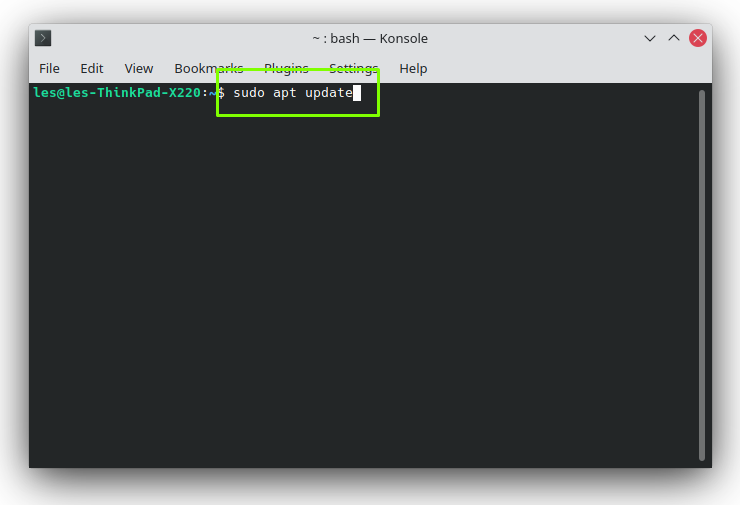
sudo apt update && sudo apt install htop
sudo apt remove apache2
Check System Information
Quickly gather system hardware and kernel information to understand your environment better.
Best Practices:
– Use
–
– Useful before installing software or troubleshooting hardware.
How to Apply:
1. Get OS and kernel details.
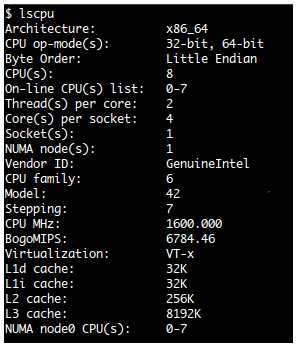
2. View CPU and memory stats.
Best Practices:
– Use
uname -a for kernel info.–
lscpu, lsblk, and free -h reveal CPU, disk, and memory details.– Useful before installing software or troubleshooting hardware.
How to Apply:
1. Get OS and kernel details.
2. View CPU and memory stats.
uname -a
lscpu && free -h
Secure SSH Access
SSH is the main remote access method to Linux systems. Securing it helps prevent unauthorized logins.
Best Practices:
– Disable root SSH login.
– Change the default SSH port from 22.
– Use SSH keys instead of passwords.
How to Apply:
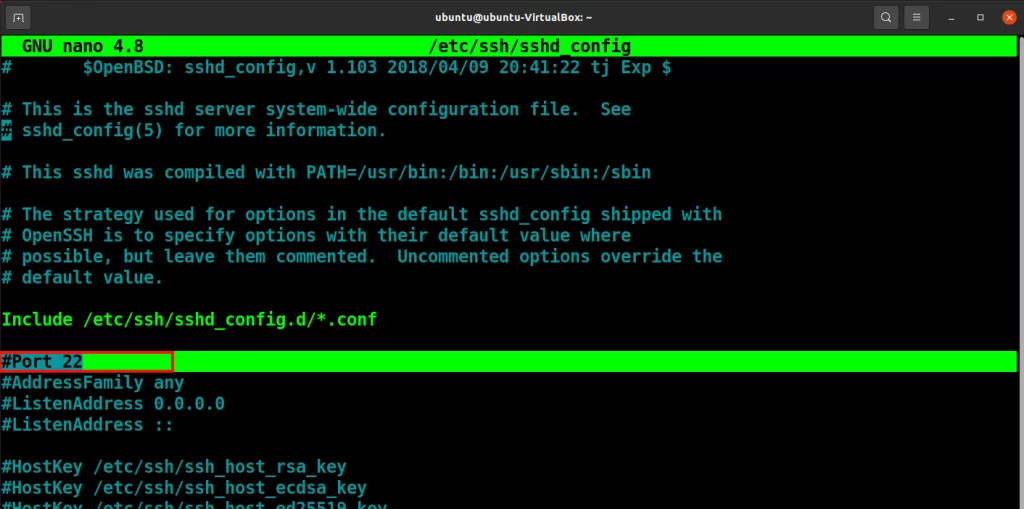
1. Edit SSH config to disable root and set a custom port.
2. Restart SSH and test connection.
Best Practices:
– Disable root SSH login.
– Change the default SSH port from 22.
– Use SSH keys instead of passwords.
How to Apply:
1. Edit SSH config to disable root and set a custom port.
2. Restart SSH and test connection.
sudo nano /etc/ssh/sshd_config
sudo systemctl restart sshd
Use Cron Jobs for Automation
Automate repetitive tasks using cron. Cron jobs can help run backups, updates, or scripts on a schedule.
Best Practices:
– Use
– Use absolute paths in your scripts.
– Monitor
How to Apply:
1. Schedule a daily script execution.
2. Confirm the job is running by checking logs.
Best Practices:
– Use
crontab -e for editing user cron jobs.– Use absolute paths in your scripts.
– Monitor
/var/log/syslog for cron errors.
How to Apply:
1. Schedule a daily script execution.
2. Confirm the job is running by checking logs.
crontab -e
tail -f /var/log/syslog