CMTrace Open: Reading SCCM-Format Logs Without Installing SCCM

Windows writes a huge amount of its own operational logging in a specific format designed for CMTrace, the log viewer that historically shipped with System Center Configuration Manager. DISM, CBS (servicing), Windows Setup, and a long list of other components all use this format, timestamped, structured lines you can filter, search, and jump through by severity, completely independent of whether SCCM is anywhere near the machine. The problem is that Notepad doesn’t understand any of that structure, you just get a wall of raw text. This is a real walkthrough: installing a modern CMTrace-compatible viewer with no SCCM involved, and using it against a real, live, 19,000-line Windows log on an actual domain controller.
You don’t need SCCM installed to get CMTrace
The original CMTrace.exe isn’t offered as a standalone download from Microsoft, it comes bundled with the SCCM client (installed automatically to %WinDir%\CCM\CMTrace.exe since SCCM 1806) or extracted from the Configuration Manager Toolkit’s installer. Standing up SCCM just to get a log viewer is obviously not reasonable for a single server. CMTrace Open is an actively maintained, open-source, Authenticode-signed replacement that reads the same log format (and plain text logs, and Windows Event Logs) with no SCCM dependency at all, a single portable executable.
Step 1: download and verify it before running it
Get the binary directly from the project’s GitHub releases rather than a generic download-site mirror, and check its signature before trusting it, the same way you should treat any admin tool you’re about to run with elevated rights:
Invoke-WebRequest -Uri "https://github.com/adamgell/cmtraceopen/releases/download/v1.6.2/CMTrace-Open-Lite_1.6.2_x64.exe" -OutFile "C:\Tools\CMTraceOpen.exe"
Get-AuthenticodeSignature "C:\Tools\CMTraceOpen.exe" | Select-Object Status, @{N="Signer";E={$_.SignerCertificate.Subject}}
Real result, a valid signature from the project’s maintainer:

It’s the “Lite” build specifically, a portable single-file executable with no installer and no admin rights needed to run it, which matters if you want to drop it on a server temporarily just to read one log without leaving an installed application behind.
Step 2: open a real log and see why this actually matters
Launched it and opened the live DISM log on this domain controller, C:\Windows\Logs\DISM\dism.log, a genuinely large, actively-written file, not a demo sample:
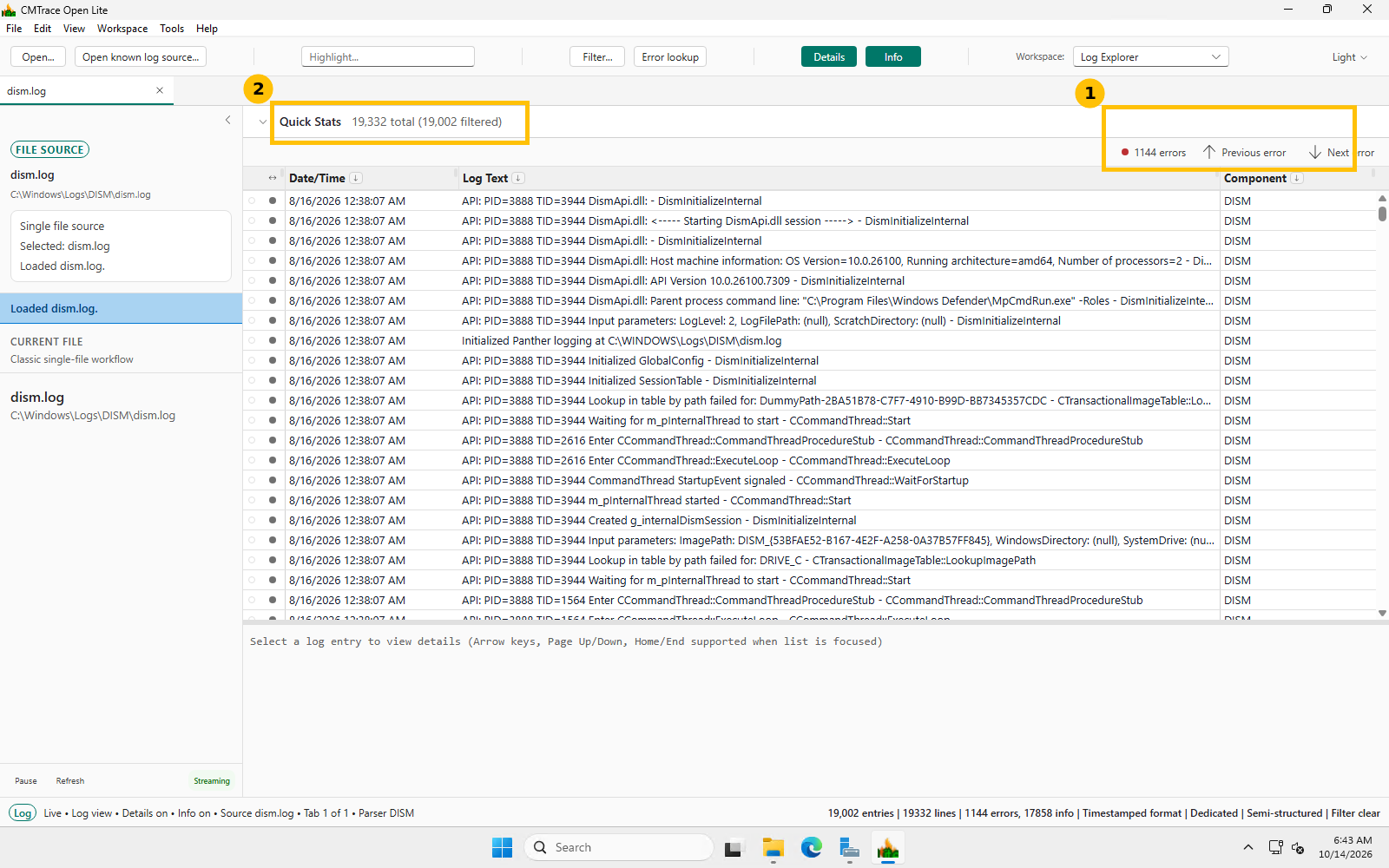
The moment it opens, it has already parsed the format, split it into Date/Time, Log Text, Component, and Thread columns, and counted every error line, 1,144 errors out of 19,332 lines, before you’ve touched anything. That count and the live tail indicator (“Streaming”) in the bottom left are the two things Notepad simply cannot give you.
Step 3: jump straight to a real error, not scroll and hope
Clicking “Next error” jumps the selection directly to the next error-level line, no scrolling, no manual searching through thousands of lines:
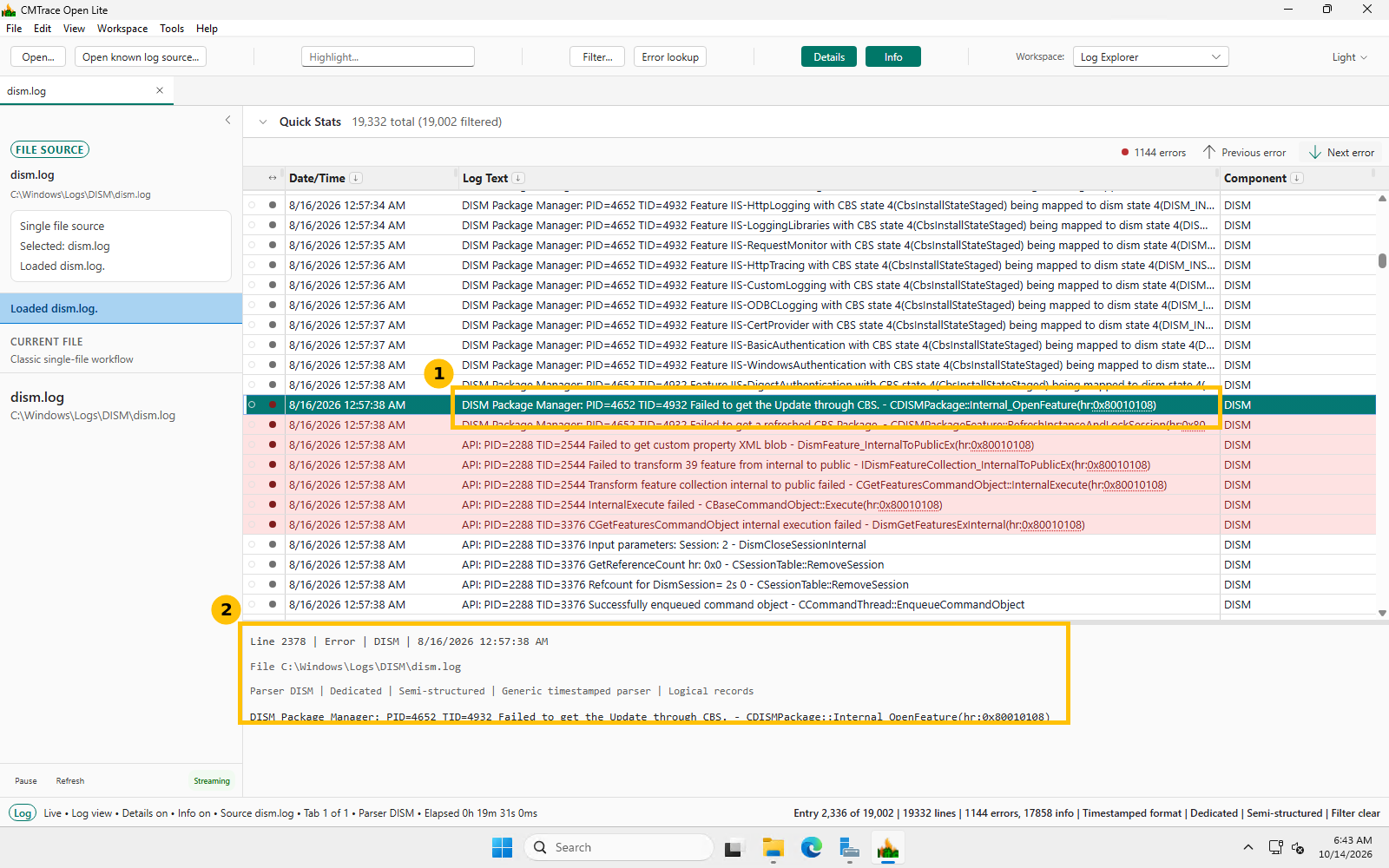
This is a real error from this exact log, line 2378: DISM Package Manager: Failed to get the Update through CBS. - CDISMPackage::Internal_OpenFeature(hr:0x80010108). The detail pane underneath shows the exact line number, timestamp, and full unwrapped text, the kind of context you’d otherwise have to manually scroll sideways in Notepad to see.
Step 4: highlight to see every occurrence of a term at once
Typing into the Highlight box marks every matching occurrence across the visible log, not just the next one:
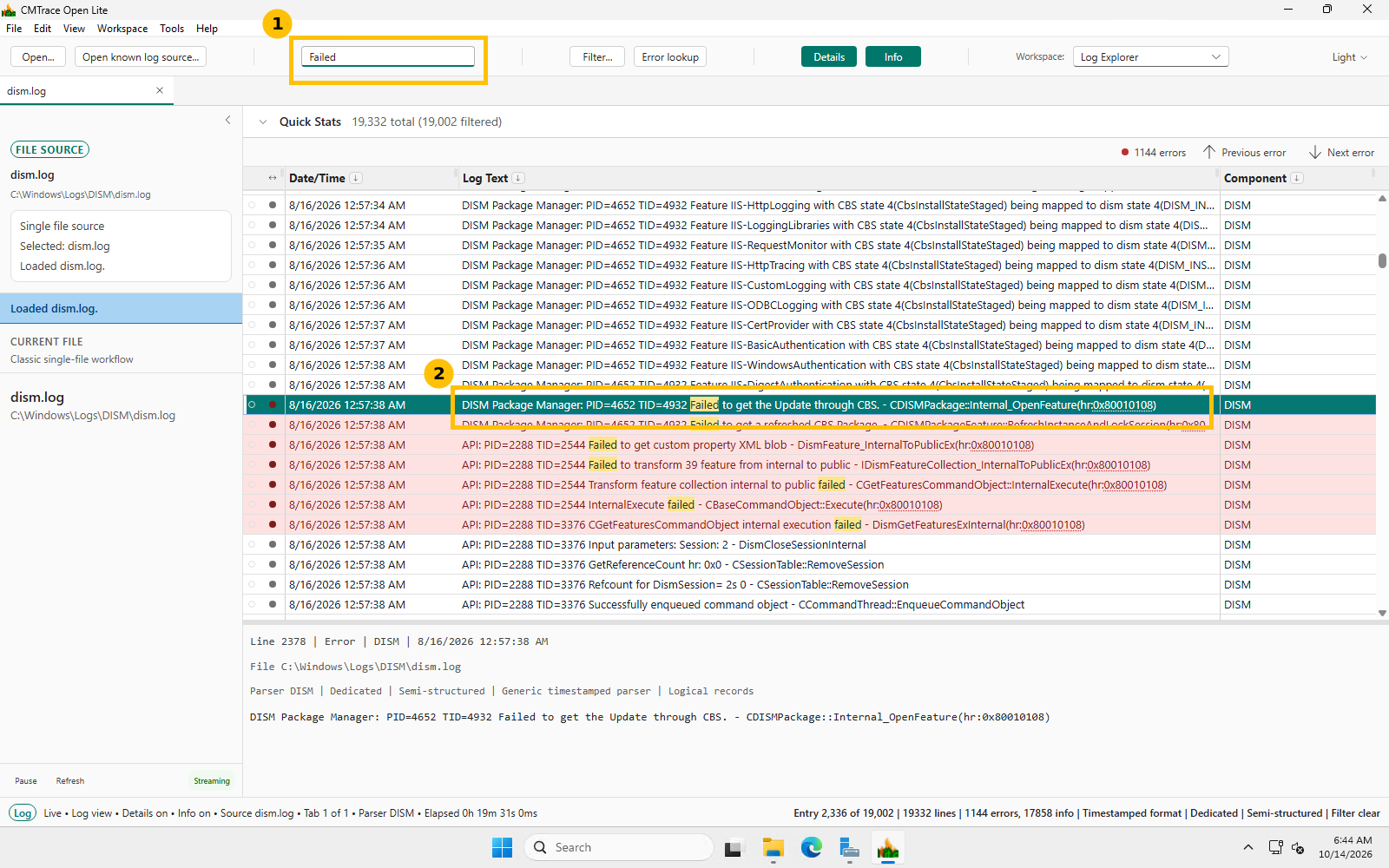
Every instance of “Failed” lights up across the visible rows, including the ones inside longer lines where it’s easy to miss scanning by eye. Combined with the row-level red error highlighting that’s already applied automatically, you get a genuinely fast way to scan a huge log for a specific pattern without writing a single line of PowerShell.
What this is actually useful for beyond DISM
- Windows servicing/update troubleshooting: CBS.log, DISM.log, Windows Setup’s setupact.log all use this format natively.
- Autopilot and Intune diagnostics: CMTrace Open specifically supports Intune and Autopilot-style logs, useful for client-side deployment troubleshooting even in an organization with no SCCM footprint at all.
- Any plain-text application log: it degrades gracefully to a plain text viewer with search and highlight even for logs that aren’t in the structured CMTrace format, still more usable than Notepad for anything large.
Quick guide
- Download the portable Lite build from the project’s GitHub releases, not a generic mirror.
- Verify the Authenticode signature before running it.
- Open any CMTrace-format or plain-text log, Windows auto-generates these constantly under
C:\Windows\Logs. - Use “Next error” to jump directly to problems instead of scrolling.
- Use the Highlight box to spot every occurrence of a specific term across a large file at once.
FAQ
Is this the same CMTrace.exe that ships with SCCM?
No, it’s a separate, independently developed open-source tool built to read the same log format. The original CMTrace.exe is still Microsoft’s own tool and still ships with the SCCM client, this is the option for anyone who wants the same reading experience without an SCCM footprint anywhere on the machine.
Does it need administrator rights to run?
No, the portable Lite build runs without installation or elevation for reading most logs. You’ll need appropriate file permissions to read a given log file, the same as any other tool, some logs under C:\Windows\Logs are restricted to administrators by default.
What happened to cause the real errors shown in this post’s screenshots?
These are routine DISM package-manager errors (hr:0x80010108, an RPC-related failure code) from normal servicing operations on this lab domain controller, not a sign of a serious problem, they’re shown here specifically as real log content to demonstrate the tool, not as something that needed fixing.
Can it tail a log file live, the way CMTrace’s “Follow” mode does?
Yes, the “Streaming” indicator visible in the screenshots confirms it’s watching the file for new lines as they’re written, the same live-tail behavior CMTrace is known for, useful for watching a log update in real time during an active installation or troubleshooting session.