Building an Exchange Database Availability Group: A Real DAG, Start to Finish

A Database Availability Group (DAG) is how on-premises Exchange Server gets database-level high availability, a mailbox database can have copies on multiple Mailbox servers, and Exchange automatically fails over to a healthy copy if the active one goes down. This is a real, start-to-finish build of one: two Exchange Server mailbox servers, joined into a DAG, with database copies replicating between them and a real failover tested at the end. Server, database, and domain names are redacted throughout, replaced here with neutral placeholders (MBX01, MBX02, DAG01), the commands and real output are exactly as they ran.
Before you start: what a DAG actually needs
- Two or more Mailbox servers running the same Exchange version, already installed and functioning independently first.
- A witness server, a separate machine (not a DAG member itself) that Exchange uses to maintain quorum when determining which copy is active, specifically during a failure where the surviving members need to agree on state.
- Databases you intend to replicate already existing on the first server, you add copies to other members after the DAG exists, you don’t create databases simultaneously across members.
Step 1: confirm both servers are actually ready first
Don’t start building a DAG on top of an installation you haven’t verified. Real setup completion status for both members, checked before touching DAG configuration:
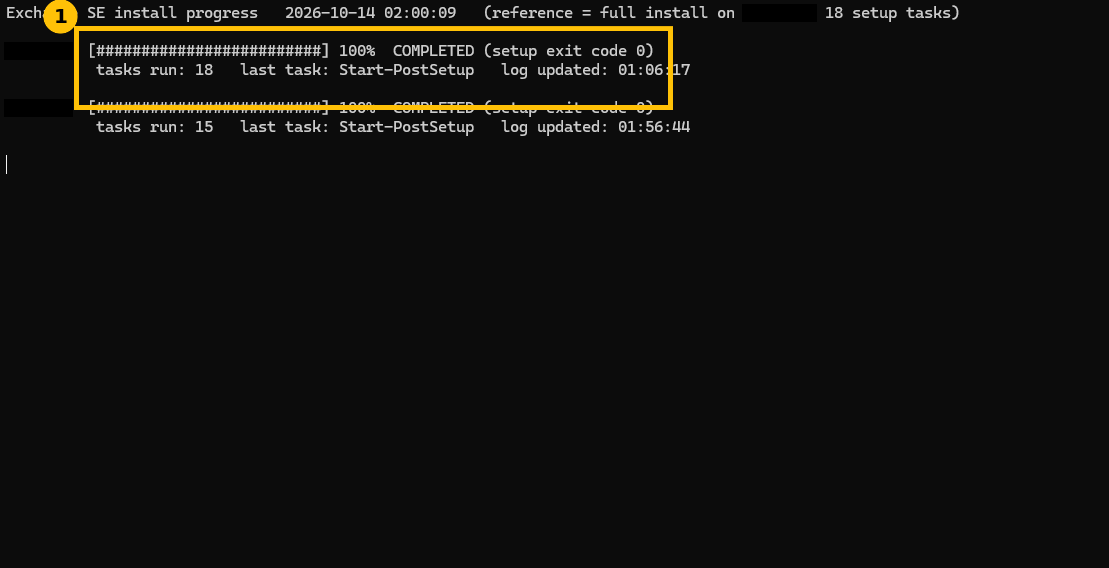
Both servers report 100% COMPLETED with setup exit code 0. Starting DAG work on a server with an incomplete or failed install just compounds the troubleshooting later, confirm this first.
Step 2: baseline, before the DAG exists
Connect to Exchange Management Shell remotely and check the starting state, two mailbox servers, each running its own standalone databases, no DAG membership, no replication:
$s = New-PSSession -ConfigurationName Microsoft.Exchange -ConnectionUri "https://MBX01/powershell" -Authentication Kerberos
Import-PSSession $s -DisableNameChecking | Out-Null

Get-MailboxServer | ft Name,DatabaseAvailabilityGroup,AdminDisplayVersion -a
Get-DatabaseAvailabilityGroup
Get-MailboxDatabase | ft Name,Server,Mounted -a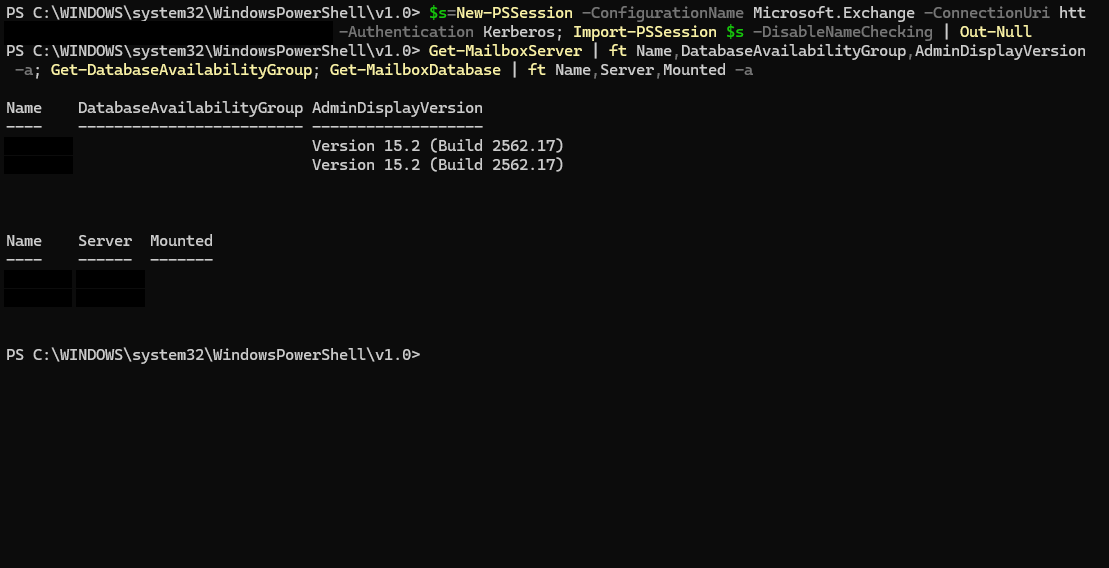
Note the DatabaseAvailabilityGroup column is empty for both servers, that’s the before state. Both are running Exchange Server SE, build 15.2 (Build 2562.17), confirming they’re on matching versions, mismatched Exchange versions across DAG members is a real, avoidable source of problems.
Step 3: create the DAG and add the first member
New-DatabaseAvailabilityGroup -Name DAG01 -WitnessServer WIT01 -WitnessDirectory "C:\DAGFileShareWitnesses\DAG01" `
  -DatabaseAvailabilityGroupIpAddresses ([System.Net.IPAddress]::None) | ft Name,WitnessServer,WitnessDirectory -a

Add-DatabaseAvailabilityGroupServer -Identity DAG01 -MailboxServer MBX01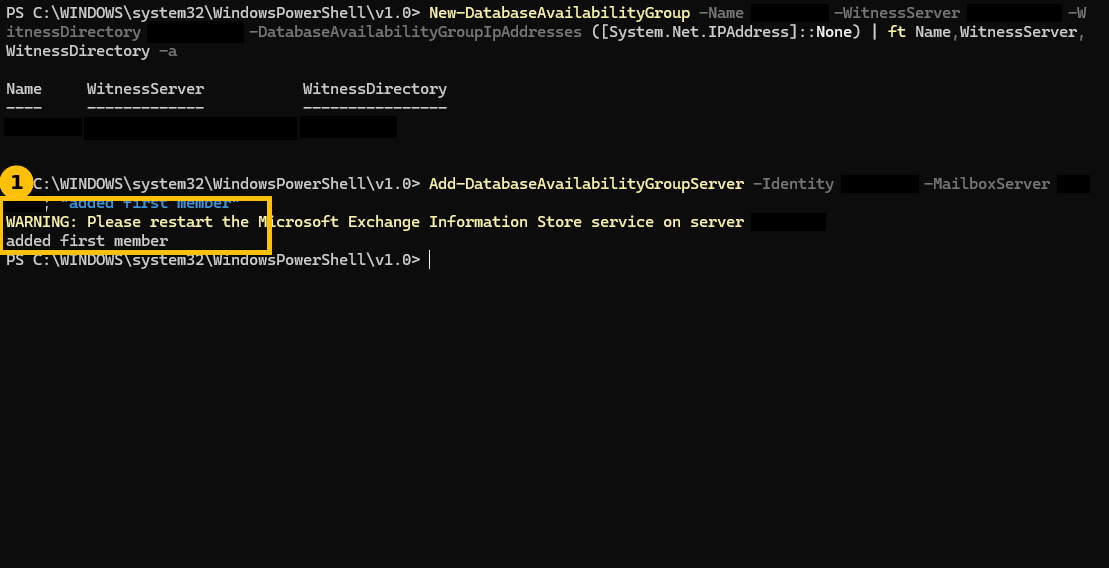
The DatabaseAvailabilityGroupIpAddresses ([System.Net.IPAddress]::None) parameter specifically tells Exchange this DAG uses Windows Failover Clustering without a cluster administrative access point (no dedicated DAG IP), the standard, recommended approach on current Exchange and Windows Server versions rather than the legacy IP-based cluster model. Exchange immediately warns that the Information Store service on the newly added member needs a restart, note that, it matters in step 5.
Step 4: add the second member
Add-DatabaseAvailabilityGroupServer -Identity DAG01 -MailboxServer MBX02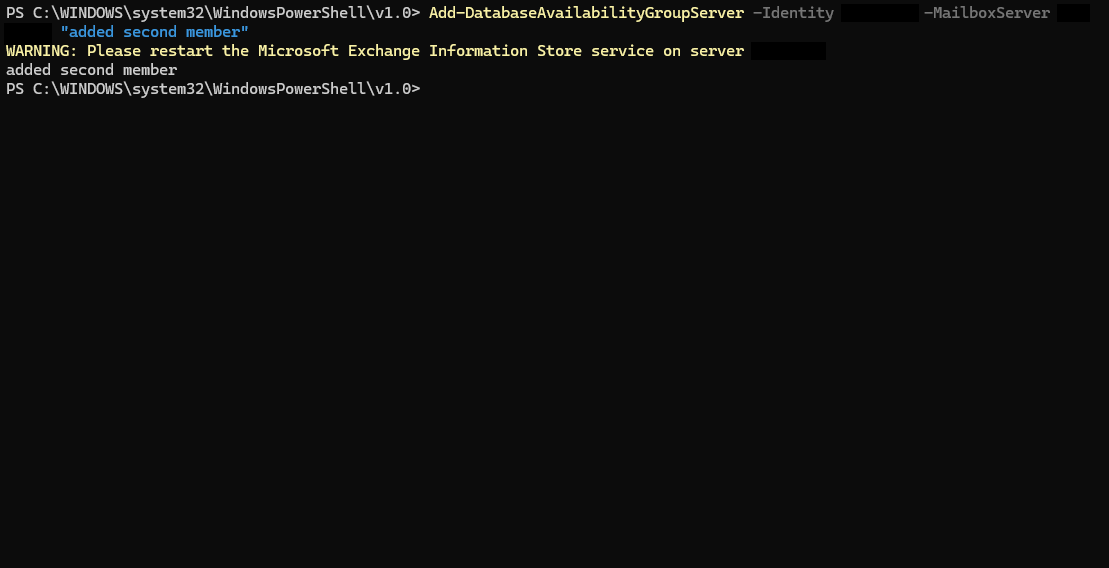
Same pattern, same warning, this time for the second server. Both members now need their Information Store service restarted before continuing, Exchange genuinely wants this done, not just as a formality.
Step 5: confirm both members are actually in the DAG
Get-DatabaseAvailabilityGroup DAG01 -Status | ft Name,Servers,WitnessServer,WitnessShareInUse,OperationalServers -a -Wrap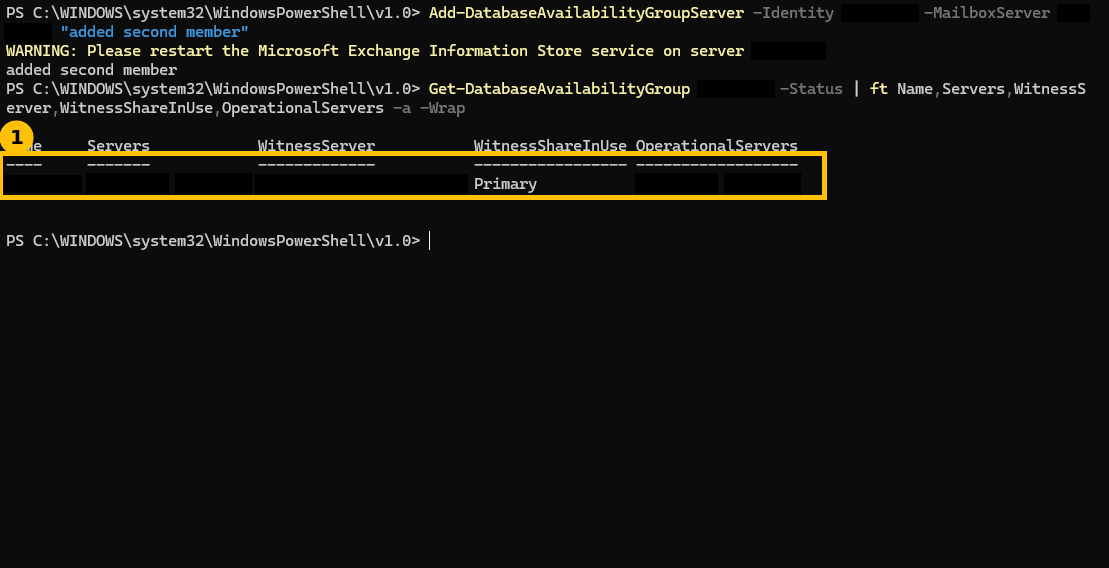
WitnessShareInUse: Primary confirms the witness is reachable and actively being used for quorum, not just configured. Both servers show up under Servers and OperationalServers, the DAG is genuinely functional at this point, not just defined.
Step 6: restart the Information Store, then add database copies
This is the step that actually took real troubleshooting patience, not a clean one-shot command. Restarting MSExchangeIS cycles through a genuine stop/start wait loop, real output, not trimmed:
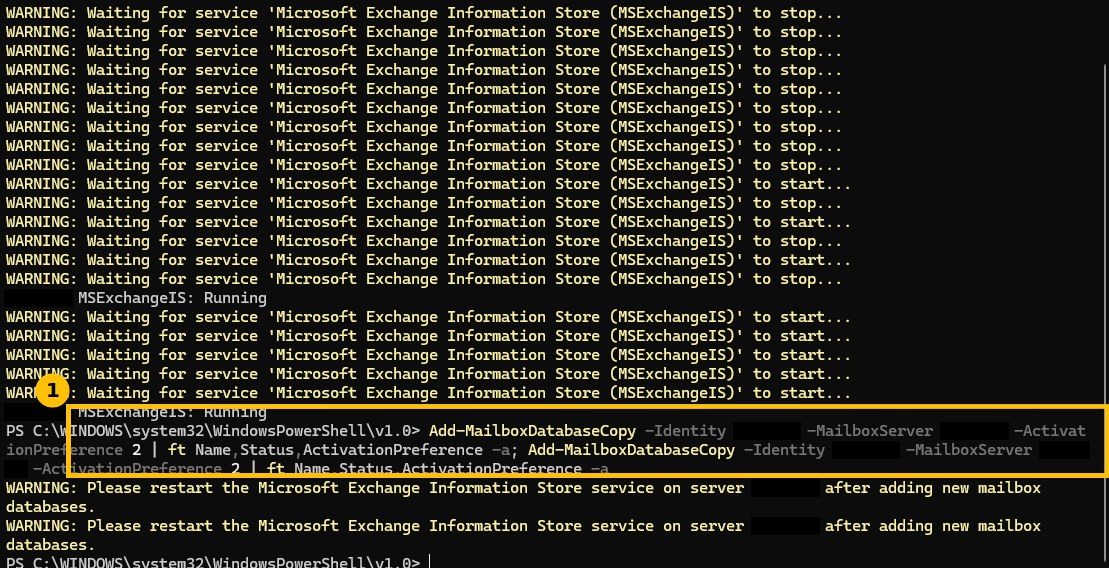
That long run of “Waiting for service… to stop/start” warnings is normal, the Information Store is a heavy service and a clean restart genuinely takes a while on a real server, this isn’t a hang or an error, just real elapsed time. Once both report MSExchangeIS: Running, add the actual database copies:
Add-MailboxDatabaseCopy -Identity "MailDB01" -MailboxServer MBX02 -ActivationPreference 2
Add-MailboxDatabaseCopy -Identity "MailDB02" -MailboxServer MBX01 -ActivationPreference 2
Exchange again warns to restart the Information Store “after adding new mailbox databases,” note the pattern, this service restart requirement shows up repeatedly through a DAG build, it’s not a one-time step.
Step 7: check replication health before trusting it
Get-MailboxDatabaseCopyStatus * | ft Name,Status,CopyQueueLength,ReplayQueueLength,ContentIndexState -a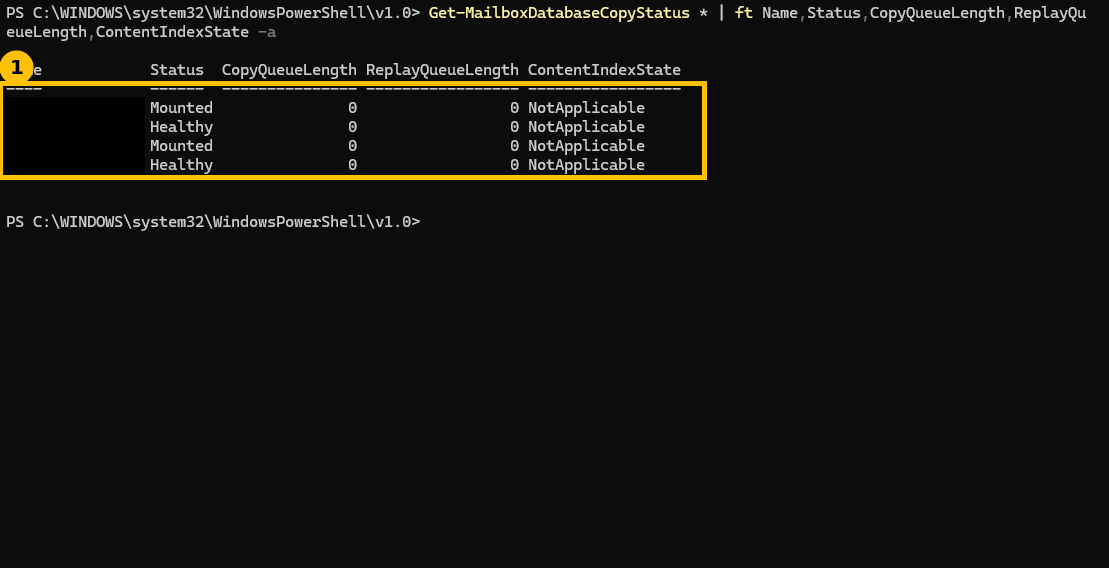
What actually matters here: CopyQueueLength and ReplayQueueLength both at 0. Those two numbers are the real health indicator, they represent transaction logs waiting to copy and waiting to replay respectively. A healthy, caught-up copy sits at 0/0 most of the time, a growing queue length is the real early warning sign of a replication problem, worth knowing before you actually need this DAG to protect you.
Step 8: test a real failover before you need one
A DAG you’ve never actually failed over is a DAG you don’t really know works. Moving the active copy to the other member, deliberately, as a test:
Move-ActiveMailboxDatabase "MailDB01" -ActivateOnServer MBX02 -Confirm:$false | ft Database,ActiveServerAtStart,ActiveServerAtEnd,Status -a
Get-MailboxDatabaseCopyStatus * | ft Name,Status,CopyQueueLength,ReplayQueueLength -a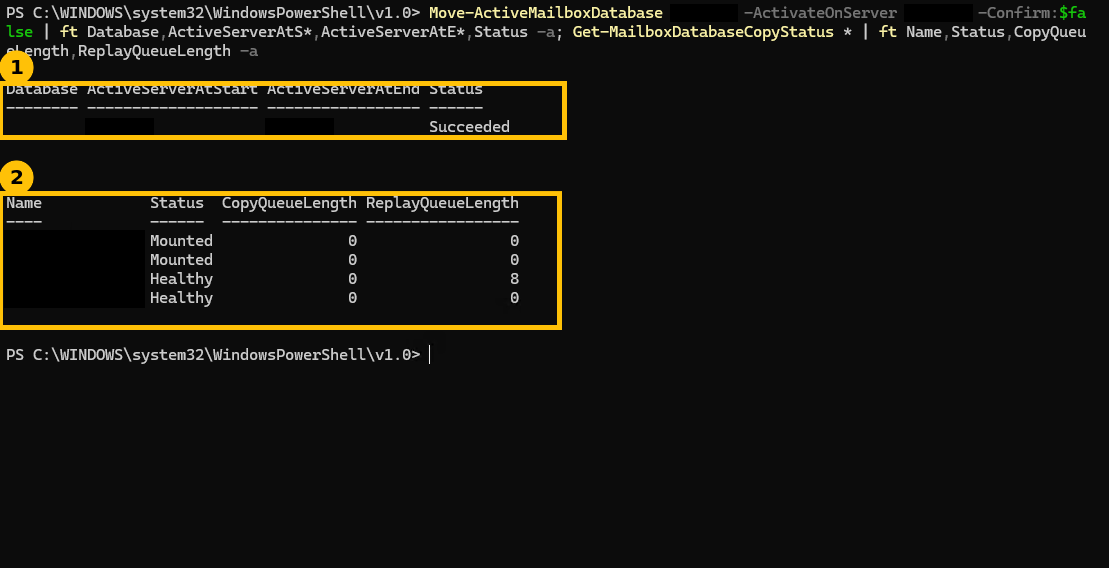
Status: Succeeded, with the active server genuinely different before and after. This is exactly the operation Exchange performs automatically during a real failure, running it manually here confirms the DAG can actually do what it’s built for, before a real outage is the moment you find out it can’t.
Quick guide
- Confirm both Exchange servers show setup exit code 0 before starting DAG work.
- Create the DAG with a witness server and directory, no dedicated IP needed on current versions.
- Add each mailbox server to the DAG, one at a time.
- Restart the Information Store on each member after adding it (and again after adding database copies), this genuinely takes real time, don’t assume it’s hung.
- Add database copies and verify CopyQueueLength/ReplayQueueLength sit at 0 before trusting replication.
- Test a real failover deliberately with Move-ActiveMailboxDatabase, don’t wait for an actual outage to find out if it works.
FAQ
Why does a DAG need a witness server at all?
With an even number of DAG members (two, in this case), the cluster needs a tie-breaking vote to determine quorum during a failure, which member survived and which didn’t. The witness server provides that extra vote. It doesn’t host Exchange data itself, it just needs to be reachable and not be a DAG member.
What does CopyQueueLength actually measure?
It’s the number of transaction log files generated on the active copy that haven’t yet been copied to this passive copy. A healthy, keeping-up copy sits at or near zero. A number that’s growing over time, rather than fluctuating briefly and settling back down, points to a real replication bottleneck, often network throughput or disk I/O on the passive copy’s server.
Is the long wait during the Information Store restart normal?
Yes, as shown in the real output above, a clean stop and restart of MSExchangeIS on a server with active databases genuinely takes real time, repeated “waiting” messages during that window are expected, not a sign of a stuck or failed operation. Let it complete rather than interrupting it.
Does testing a failover with Move-ActiveMailboxDatabase cause mailbox downtime?
A planned, healthy move like this is designed to be as close to seamless as Exchange can make it, clients generally reconnect automatically with minimal disruption, unlike an unplanned failure. It’s still a real production change, test it during a maintenance window the first few times until you’re confident in your specific environment’s behavior.