Windows Server 2016 Reaches End of Support on January 12, 2027: Inventory, ESU and Your Options

Windows Server 2016 reaches the end of extended support on January 12, 2027. After that day Microsoft stops shipping security updates for it unless you pay for Extended Security Updates (ESU). Microsoft’s lifecycle page lists the extended end date as 1/13/2027 06:59:59 UTC, which is 11:59 PM Pacific time on January 12. The October 2026 cumulative update (KB5126868, build 14393.9612) is one of the last routine patch cycles you will get without paying.

Quick guide
- Inventory first. Run the read-only Active Directory script below to list every Windows Server 2016 computer account and whether it is actually still in use.
- Split the list into servers you can retire, servers you can upgrade or migrate, and servers that must stay for now.
- For the last group, plan ESU through Azure Arc. Connect the machine with Azure Arc agent 1.62 or later, then enroll it in the Azure portal.
- Clean up stale accounts so your count reflects reality.
Key dates and facts (from Microsoft)
| Item | Detail |
|---|---|
| Mainstream support ended | January 11, 2022 (lifecycle page: 1/12/2022 06:59:59 UTC) |
| Extended support ends | January 12, 2027 |
| ESU coverage | Critical and Important security updates for up to three years, through 2030. No new features or non-security fixes |
| ESU through Azure Arc | Configurable in the Azure portal from August 3, 2026. Billing begins January 13, 2027 |
| Arc agent requirement | Azure Connected Machine agent 1.62 or higher, Standard and Datacenter editions |
| Latest 2016 build in Microsoft’s release table | 14393.9612, released October 13, 2026 |
I am not quoting an ESU price. Microsoft’s Arc page describes pay-as-you-go monthly billing, but I could not confirm a price from a Microsoft page, and third-party figures vary. Check the Azure pricing page or your licensing partner.
Inventory your Windows Server 2016 machines
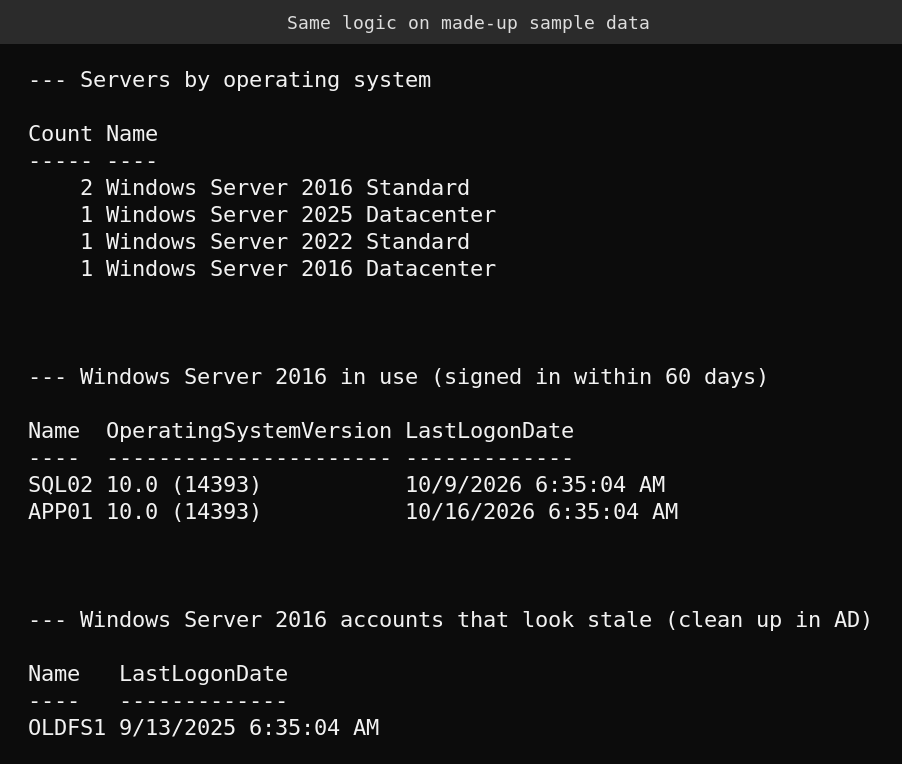
Run this on a domain-joined machine with the ActiveDirectory module. It only reads. It groups every server account by operating system, then splits the 2016 ones into recently active (signed in within 60 days) and probably stale.
Import-Module ActiveDirectory
$cutoff = (Get-Date).AddDays(-60)
$all = Get-ADComputer -Filter 'OperatingSystem -like "Windows Server*"' -Properties OperatingSystem, OperatingSystemVersion, LastLogonDate, Enabled
Write-Output '--- Servers by operating system'
$all | Group-Object OperatingSystem | Sort-Object Count -Descending | Format-Table Count, Name -AutoSize | Out-String
$old = $all | Where-Object { $_.Enabled -and $_.OperatingSystem -like '*2016*' }
$active = $old | Where-Object { $_.LastLogonDate -gt $cutoff }
$stale = $old | Where-Object { -not $_.LastLogonDate -or $_.LastLogonDate -le $cutoff }
Write-Output '--- Windows Server 2016 in use (signed in within 60 days)'
if ($active) { $active | Sort-Object LastLogonDate | Format-Table Name, OperatingSystemVersion, LastLogonDate -AutoSize | Out-String } else { 'none found' }
Write-Output '--- Windows Server 2016 accounts that look stale (clean up in AD)'
if ($stale) { $stale | Format-Table Name, LastLogonDate -AutoSize | Out-String } else { 'none found' }
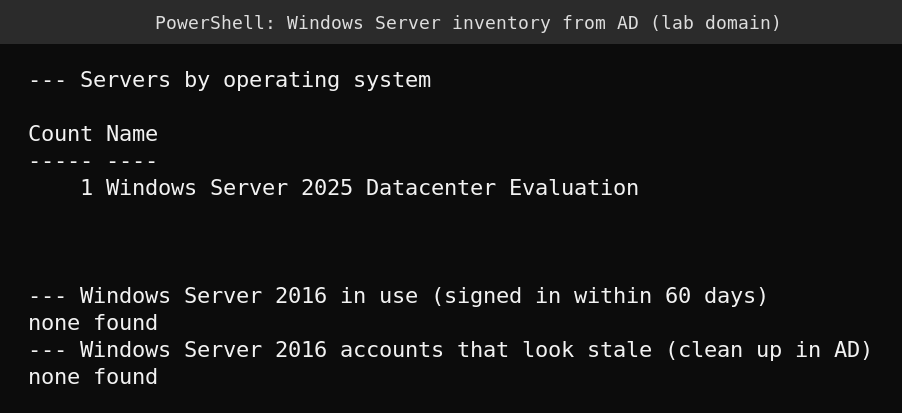
This is what it returned in my lab. The lab domain has a single server, running Windows Server 2025, so the honest result is none found.
To show you what a real finding looks like, I ran the same logic against five made-up computer objects (APP01, SQL02, OLDFS1, WEB05 and DC02). This is sample data, not a real environment. Only the line that fetches the objects was replaced.
What this script will miss
- Servers that are not joined to the domain, such as workgroup machines, DMZ hosts and appliances.
- Computer accounts with a blank or custom OperatingSystem attribute.
- Machines that do not reply to AD often.
LastLogonDateis replicated and can lag by roughly 9 to 14 days, so the 60-day staleness check is approximate. Do not delete accounts based on it alone. - Windows Server 2016 containers. Microsoft says container images released with Windows Server 2016 follow the same lifecycle dates.
Your options
| Option | When it fits |
|---|---|
| Retire the server | The stale-account list often hides machines nobody uses |
| In-place upgrade or migrate to a newer Windows Server | The application vendor supports the newer version. Check the upgrade path and vendor support before you start |
| Rebuild on Azure or Azure Local | The workload can move. Check current ESU and licensing terms for your platform before assuming anything is free |
| Pay for ESU through Azure Arc | You need time. It is a bridge of up to three years, not a destination |
What I could not verify
- My lab has no Windows Server 2016 machine, so the inventory result with 2016 servers is sample data and I say so above.
- I did not enroll a machine in ESU or test Arc billing.
- I have no Microsoft-published ESU price to quote.
FAQ
When exactly does Windows Server 2016 support end?
January 12, 2027 for extended support, according to Microsoft. The lifecycle page shows the date in UTC as January 13 at 06:59, which is the end of the day on January 12 in Pacific time.
Will Windows Server 2016 stop working after that date?
No. It keeps running. It just stops receiving routine security updates unless the machine is enrolled in ESU.
How long can I buy ESU for?
Microsoft says up to three years, through 2030, for Critical and Important security updates.
Do I need Azure Arc for ESU?
Microsoft documents ESU for Windows Server 2016 enabled by Azure Arc. The machine must run Connected Machine agent 1.62 or later. I did not find a Microsoft statement of another delivery path in the pages I checked.
Sources
- Microsoft Lifecycle: Windows Server 2016
- Microsoft Learn: Prepare to deliver Extended Security Updates for Windows Server through Azure Arc
- Microsoft Learn: Windows Server release information
Related on this site: Windows Server 2022 end of mainstream support, Windows Server 2012 final update and the path from WSUS to Azure Update Manager.