Configuration Manager 2509: Boundaries, Discovery and Your First Clients

A freshly installed Configuration Manager (SCCM) primary site does nothing useful until three things exist: boundaries that say which networks are yours, a boundary group that links them to a site and its site systems, and a discovery method that finds the computers. Skip one and you get the classic empty console, or clients that install but never get a site. This post walks through all three on Configuration Manager current branch 2509 with annotated screenshots, then installs the client on two domain controllers and covers the failure I hit on the second one, which was two network problems and had nothing to do with Configuration Manager itself.
This is a lab built for testing, not a production environment. Names are neutral on purpose: site server CM01, domain contoso.com, domain controllers DC01 and DC02, site code ABC, and the subnet 10.20.30.0/24 is a demo value. Server names in the screenshots are pixelated. The build itself, including the seven setup errors, is in the setup post.
Quick guide: the order that works
- Boundary. Administration, Hierarchy Configuration, Boundaries, Create Boundary. Pick the type and enter the network.
- Boundary group. Create Boundary Group, add the boundary on the General tab, then on the References tab tick site assignment and add your management point and distribution point server.
- Discovery. Enable Active Directory System Discovery, add the domain container, keep delta discovery on.
- Client. Run
ccmsetup.exe /mp:cm01.contoso.com SMSSITECODE=ABCelevated on the target, then watch Assets and Compliance, Devices. - If the client never appears, test TCP 80, 443 and 445 from the target to the site server, and check the site server has a route back.
Part 1: create a boundary
In the console go to Administration, Hierarchy Configuration, Boundaries. The list already held two Active Directory site boundaries, one per site. AD site boundaries are my preference when your AD sites are well maintained. For the demo I created an IP subnet boundary. Create Boundary offers four types: IP subnet, Active Directory site, IPv6 prefix and IP address range.
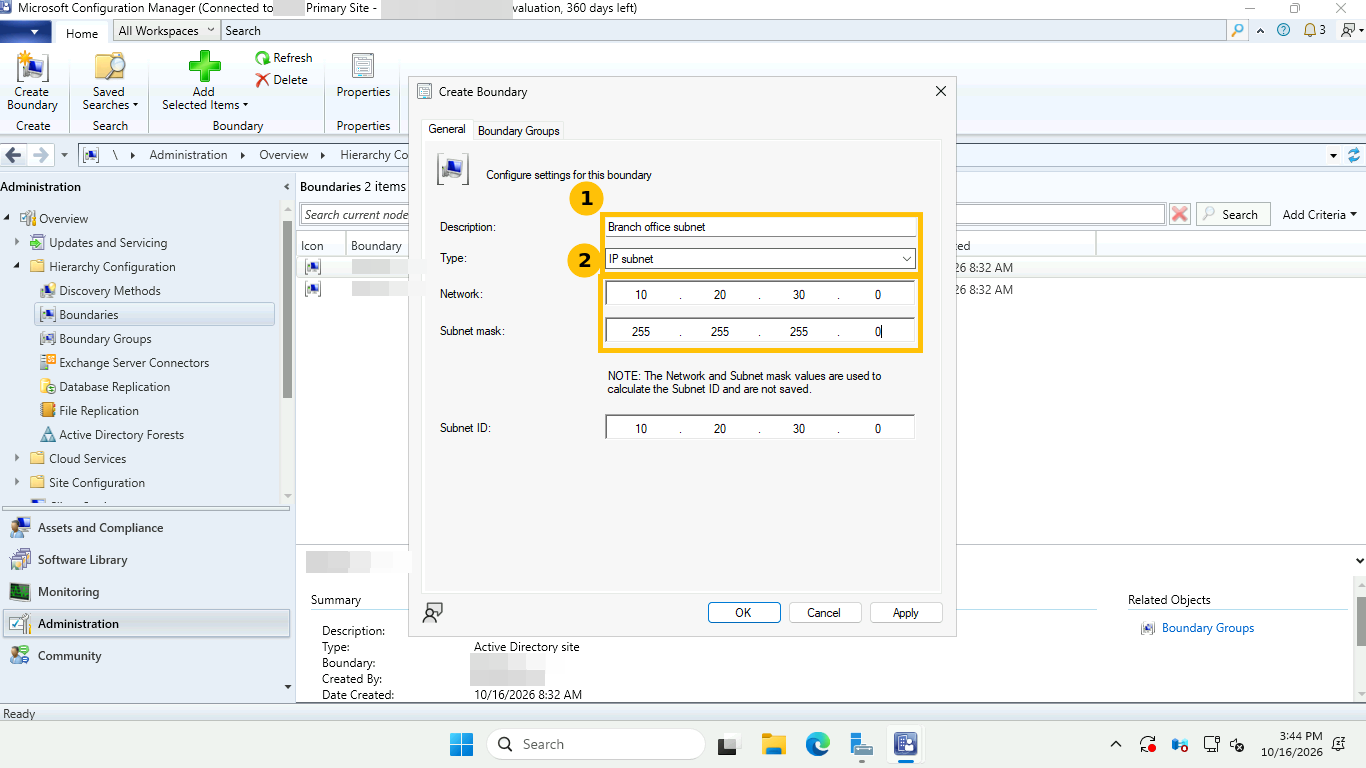
The values: description Branch office subnet (1), type IP subnet (1), network 10.20.30.0 and subnet mask 255.255.255.0 (2). The dialog computes the Subnet ID for you, and its own note says the network and mask are only used for that calculation and are not saved.
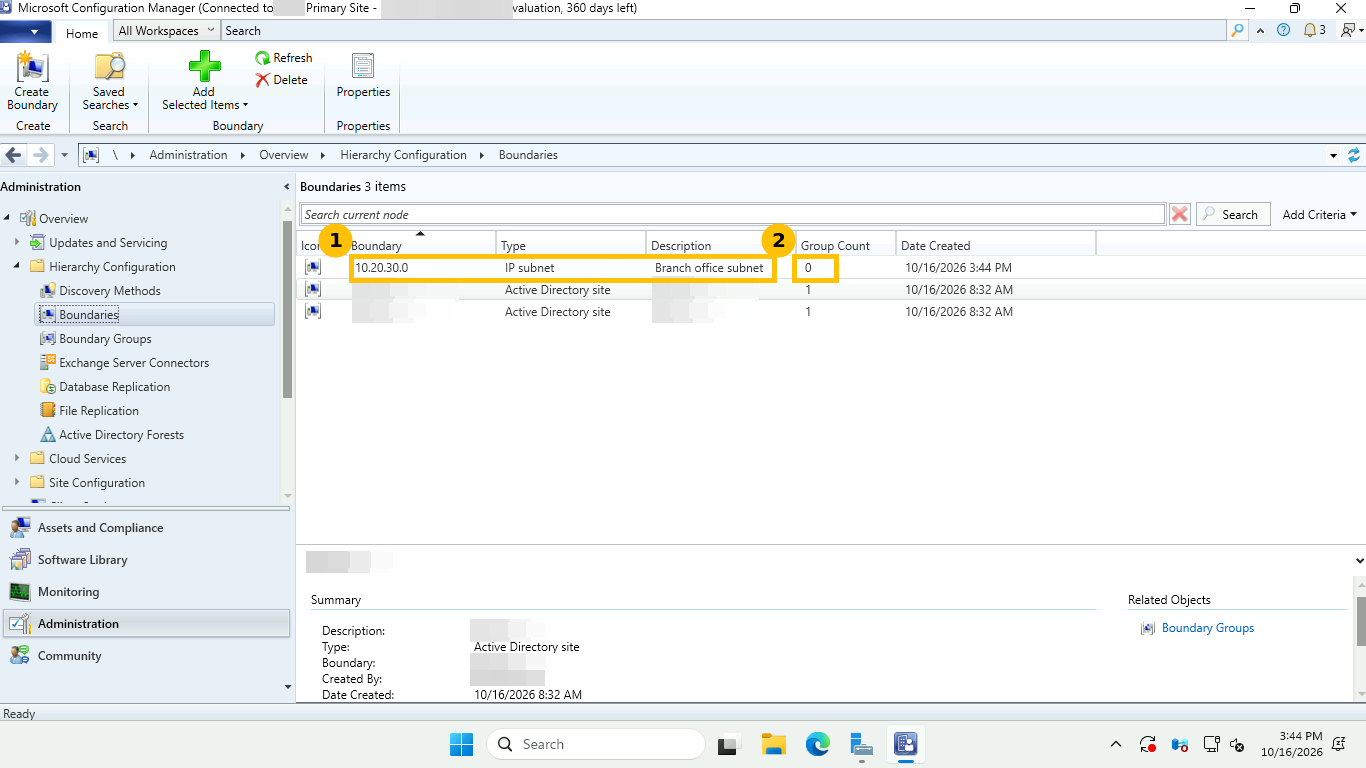
After OK the boundary appears (1) with Group Count 0 (2). That zero is the detail to remember. A boundary that belongs to no boundary group does nothing, so you are not finished yet.
Part 2: boundary group, site assignment and site system references
Go to Boundary Groups and choose Create Boundary Group. On the General tab give it a name (I used Branch office), then Add and tick the boundary from Part 1. Then open the References tab.
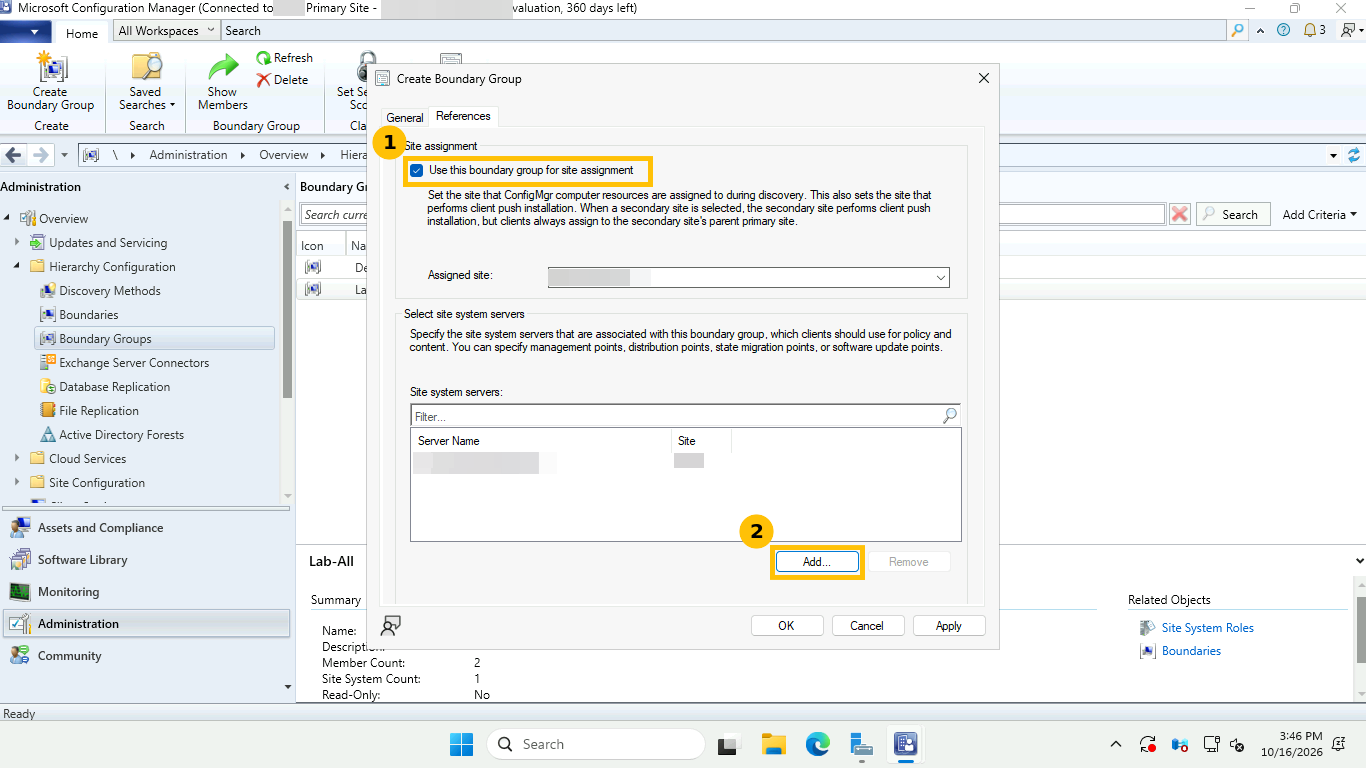
- Tick Use this boundary group for site assignment and pick your site. This is what lets a client find its site automatically.
- Under site system servers click Add and tick the server that holds your management point and distribution point. This tells clients where to fetch policy and content while they are inside this group.
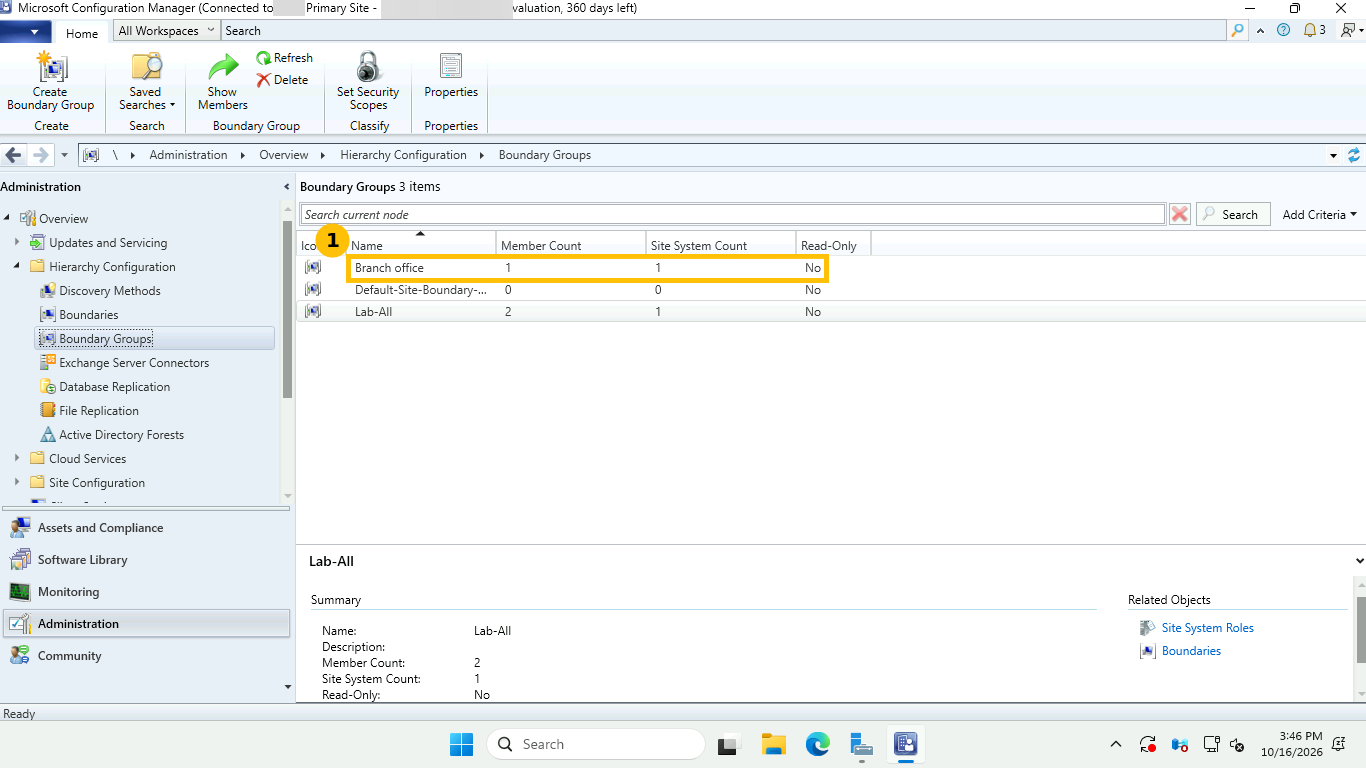
The new group shows Member Count 1 and Site System Count 1. Read those two numbers as a checklist. A group with a member but no site system lets clients assign to the site but gives them nowhere to get content. The list also shows an existing group with 2 members that was already there, and the built-in default site boundary group with 0 and 0. I deleted my demo boundary and group afterwards so they do not stay in the site.
Part 3: Active Directory System Discovery
Under Administration, Hierarchy Configuration, Discovery Methods the console lists six methods. Two matter on day one.
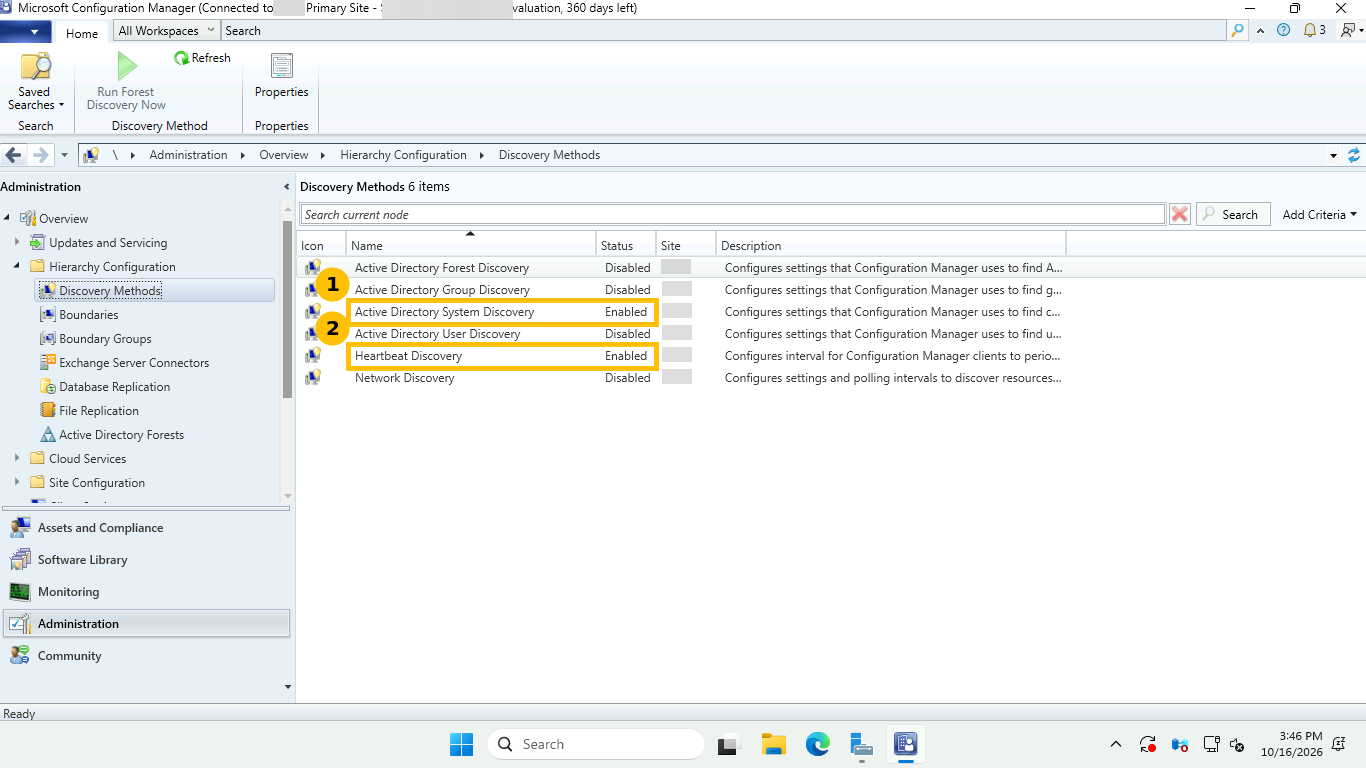
- Active Directory System Discovery (1) finds computer accounts. It was disabled by default in this build, so I enabled it.
- Heartbeat Discovery (2) is enabled by default and keeps the records of installed clients fresh.
Double-click Active Directory System Discovery to open its properties.
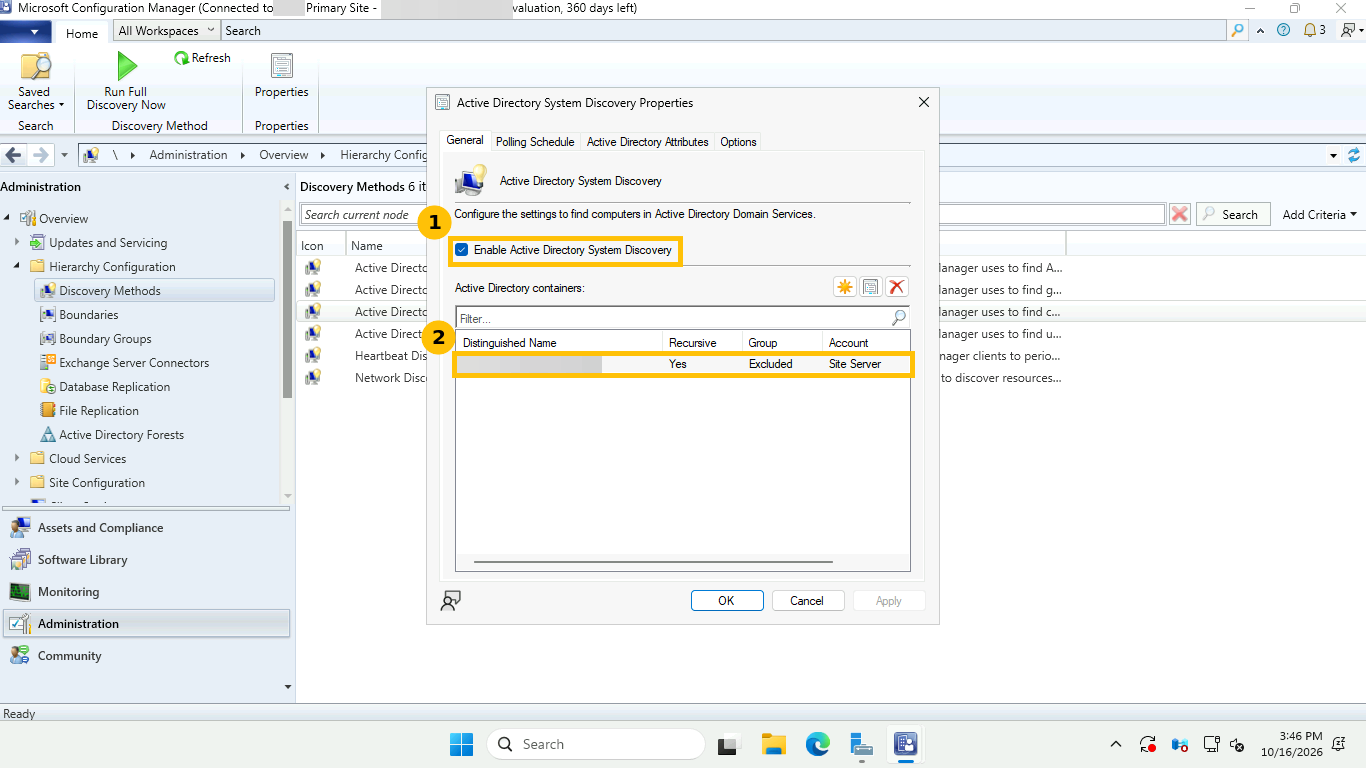
On the General tab tick Enable Active Directory System Discovery (1) and add a container (2). I added the whole domain. The row shows Recursive Yes, Group Excluded and Account Site Server, and the distinguished name is pixelated.
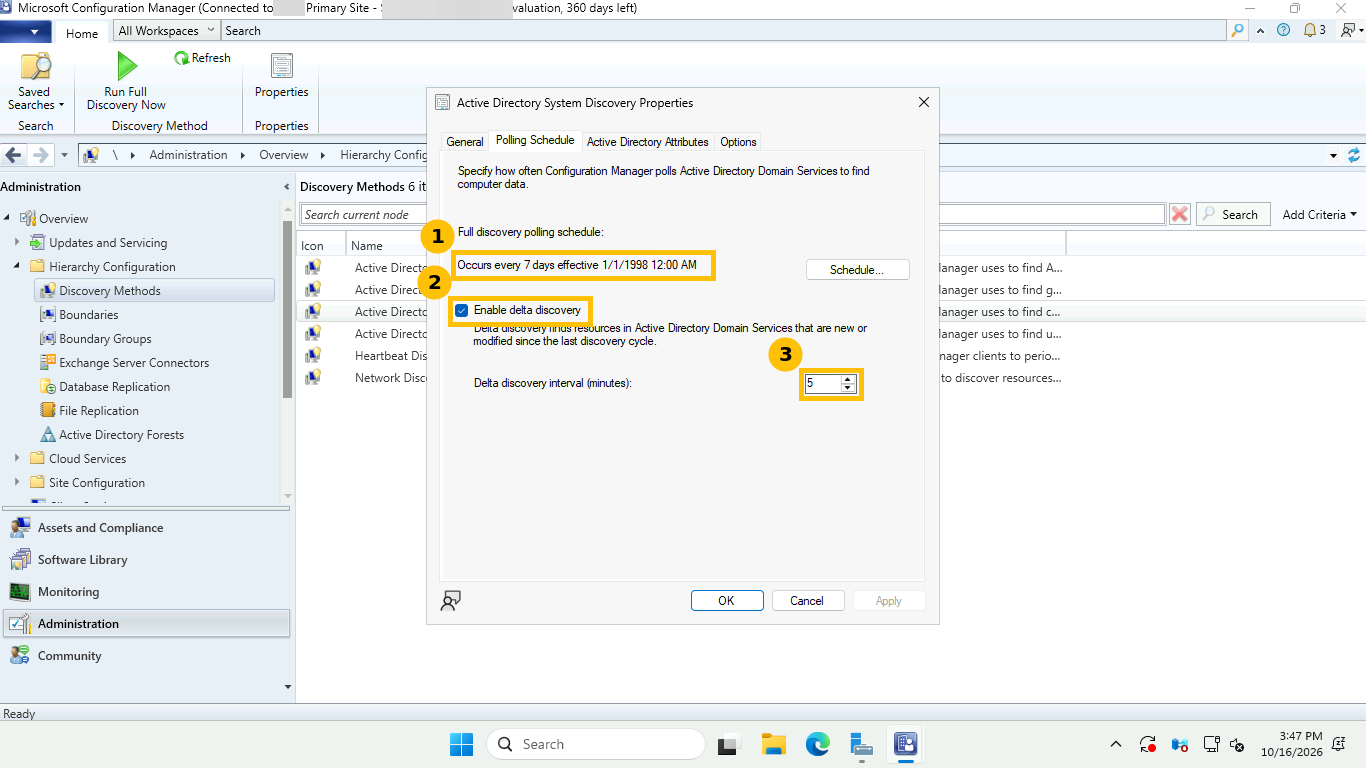
On the Polling Schedule tab, full discovery occurs every 7 days (1) and delta discovery is enabled (2) with an interval of 5 minutes (3). Delta discovery catches new and changed computer accounts quickly, which is why a freshly joined machine shows up in minutes rather than a week. The Active Directory Attributes and Options tabs sit next to these two.
Discovery only creates database records. Discovered computers appear under Assets and Compliance, Devices, and nothing is installed on them.
Part 4: install the client and watch it appear
The command that worked on the domain controllers:
ccmsetup.exe /mp:cm01.contoso.com SMSSITECODE=ABCccmsetup.exe lives in the Client folder of the site share on the site server. Copy it to the target and run it elevated. Here is what the log shows, with lines taken from two different servers:
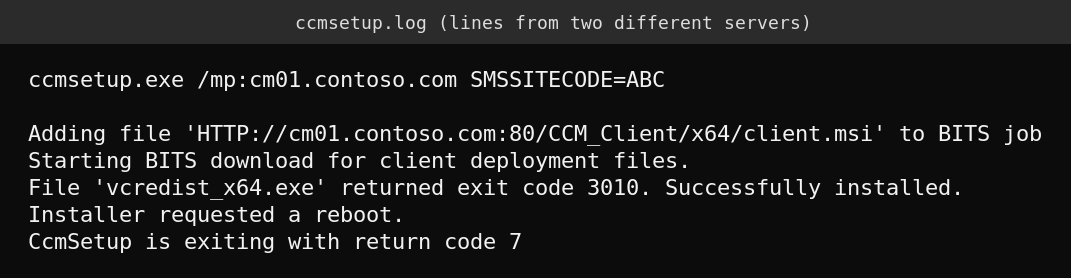
- ccmsetup downloads
client.msiover BITS from the management point. The log shows an HTTP URL on port 80, so the target must reach the management point on port 80, and on 443 if you use HTTPS. - On one server the log ended with return code 7, and on the other it showed the Visual C++ runtime returning 3010 with the message that the installer requested a reboot. Both mean a reboot was requested. Neither means the install failed.
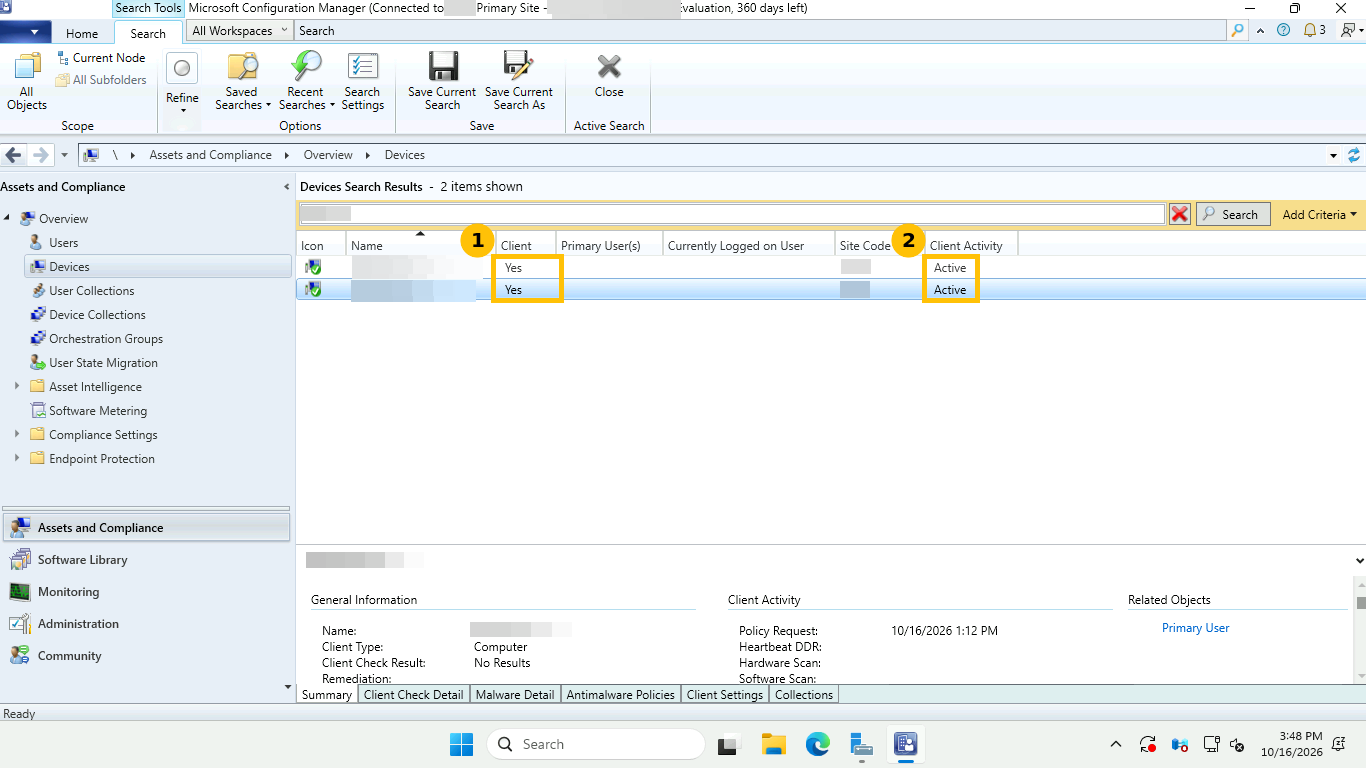
In Assets and Compliance, Devices, the computers change from Client No to Client Yes (1) with Client Activity Active (2). The two domain controllers ended in that state, running client version 5.00.9141.1011. The list is filtered by typing a name prefix into the search box.
What went wrong for the second-site domain controller
The client install did not start on the domain controller in the second site. There were two causes, both network, and neither was in Configuration Manager.
- The firewall between the sites blocked the ports. A port test from the second-site server to CM01 showed TCP 80, 443 and 445 all closed.
- The ports stayed closed after I added the firewall rules. CM01 had no route back to the second site’s subnet, so it sent its replies to its default gateway, which dropped them. The fix on CM01 was a persistent route through the firewall that sits between the sites.
route -p add 10.0.1.0 mask 255.255.255.0 10.0.0.2Those addresses are placeholders. Use your own remote subnet and the next hop that can reach it. The test results before and after:
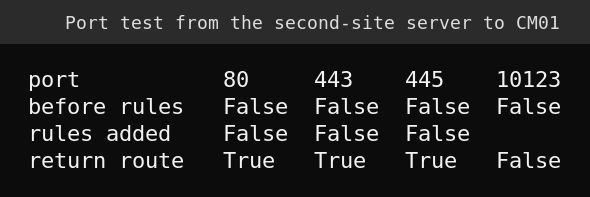
The rows are reformatted from my test output into a table. After both fixes ports 80, 443 and 445 tested open and BITS started the download, shown in the ccmsetup log as Starting BITS download for client deployment files. Port 10123 stayed closed. Microsoft’s ports page lists 10123 for client notification, so it only matters for that feature. I did not chase it.
The general lesson is to check the path in both directions. A firewall rule fixes the request and does nothing for a reply that has no route home.
Commands used
The console steps above are the main route. The PowerShell equivalents I used for the boundaries that already existed and for cleanup, with neutral names:
# Enable AD System Discovery
Set-CMDiscoveryMethod -ActiveDirectorySystemDiscovery -SiteCode ABC -Enabled $true `
  -AddActiveDirectoryContainer 'LDAP://DC=contoso,DC=com'

# Boundary and group (AD site boundary type)
New-CMBoundary -Name 'Site-A' -Type ADSite -Value 'Site-A'
New-CMBoundaryGroup -Name 'Main-Group'
Add-CMBoundaryToGroup -BoundaryGroupName 'Main-Group' -BoundaryName 'Site-A'
Set-CMBoundaryGroup -Name 'Main-Group' -DefaultSiteCode ABC -AddSiteSystemServerName 'cm01.contoso.com'

# Clean up the demo objects
Remove-CMBoundaryGroup -Name 'Branch office' -Force
Get-CMBoundary | Where-Object Value -like '10.20.30.*' | Remove-CMBoundary -Force
The demo IP subnet boundary itself was created in the console, as shown above. For a script, use -Type IPSubnet with the subnet as the value.
FAQ
What is the difference between a boundary and a boundary group?
A boundary is a single network location, such as an IP subnet or an Active Directory site. A boundary group is a set of boundaries that you link to a site for assignment and to site system servers for content and policy. Microsoft’s documentation describes boundary groups as the thing that lets clients find a primary site and nearby site systems.
Why does my boundary show Group Count 0?
It belongs to no boundary group yet. Add it to a group on the General tab of the group’s properties. The count then moves to 1 and the boundary starts working.
Is Active Directory System Discovery enabled by default?
In this 2509 build it was disabled until I enabled it. Heartbeat Discovery was already enabled. Enable AD System Discovery, add a container, and keep delta discovery on, which runs every 5 minutes by default according to Microsoft’s discovery documentation and matches what I saw.
What does ccmsetup return code 7 mean?
In my logs it appeared together with a reboot request, so it meant the installer wanted a restart and not that the install failed. Reboot the target and check the Client column in the console.
Which ports must a Configuration Manager client reach?
Client to management point traffic uses HTTP on port 80 by default or HTTPS on 443, and client notification uses 10123. I tested TCP 445 as well in this lab, but I did not isolate whether the client install strictly needs it. Check Microsoft’s ports page for your own design.