SCOM 2025 Alert Tuning: From 28 Open Alerts to 4 (and the 3 You Must Not Hide)

A freshly built System Center Operations Manager (SCOM) 2025 management group looks broken on day one. Mine showed 28 open alerts, 20 errors and 8 warnings, after about a day with two agents and the stock management packs. Roughly an hour of work took that to 4. This post shows how I sorted the 28 into noise, real configuration gaps and real faults, the exact clicks and PowerShell for each fix, and the part that matters most: the 3 errors that did not go away, because tuning cannot fix them and an override must not hide them.
This is a lab built for testing, not a production environment. Names are neutral on purpose: management server SRV01, domain controllers DC01 and DC02 (one at a second site), domain contoso.com. Times are the server clock on the same day. If you have not built the environment yet, the earlier posts cover the install and first-run agent approval.
Step 0: count and group before you click anything
The console list is hard to read as a wall of red icons. Group the open alerts by name first, so you can see that 28 alerts are really about 19 different problems. Run this in the Operations Manager Shell on the management server:
Import-Module OperationsManager
New-SCOMManagementGroupConnection -ComputerName localhost
$a = Get-SCOMAlert -ResolutionState 0
$a.Count
$a | Group-Object Name | Sort-Object Count -Descending |
  ForEach-Object { "{0,3}  {1,-8} {2}" -f $_.Count, $_.Group[0].Severity, $_.Name }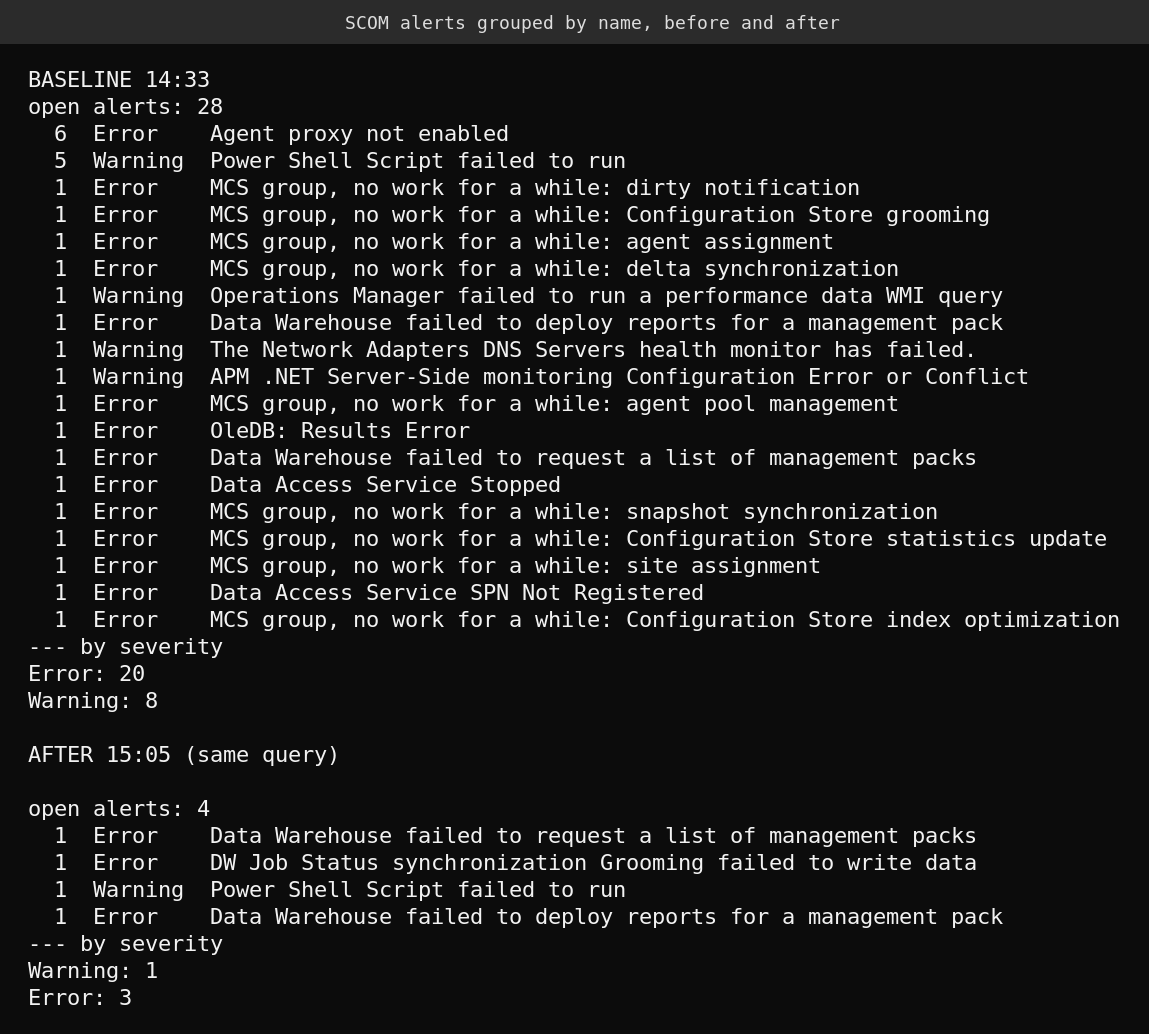
Real output from the lab, with two edits for width: the long Management Configuration Service alert names are shortened to “MCS group, no work for a while” plus the work item name, and two Data Warehouse names are trimmed. The top half is the baseline at 14:33, the bottom half is the same query at 15:05.
Three buckets fall out of the list.
- Startup noise. Nine Management Configuration Service work item alerts (dirty notification, grooming, agent assignment, delta synchronization, agent pool, snapshot synchronization, statistics, site assignment, index optimization) plus “Data Access Service Stopped”. They most likely fired while the management server was still waiting for its SQL back end. I did not prove that, but none of them were still open when I took the first console screenshot four minutes later, and none came back afterwards.
- Real configuration gaps you can fix in minutes. Agent proxy not enabled (6 alerts) and the Data Access Service SPN.
- Things this box does not need. APM .NET monitoring with no .NET applications, a WMI performance query that fails on a role that is not installed, and the DNS monitor on a domain controller.
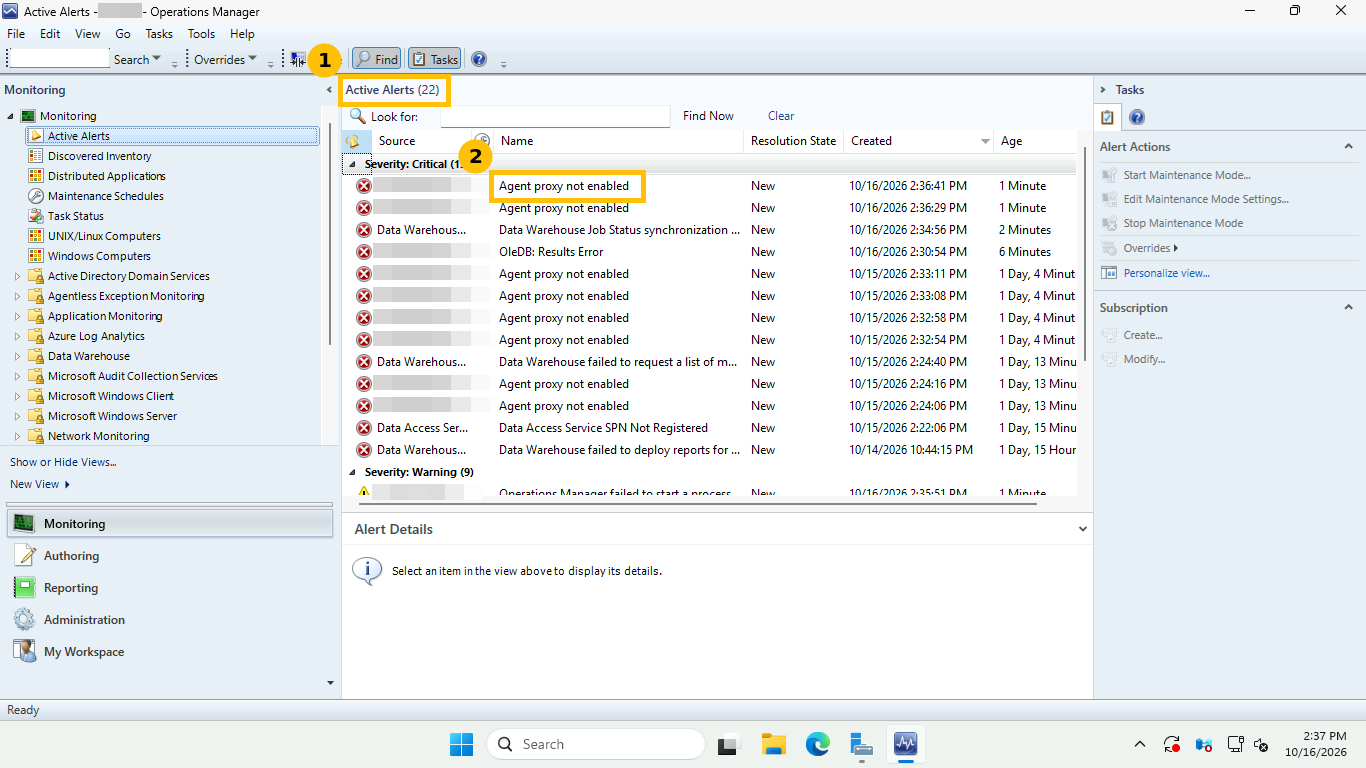
Server names are pixelated in all screenshots on this page. Two things in this capture are worth explaining honestly. First, it shows 22 alerts while my PowerShell count said 28. The difference is arithmetic, not a bug: the console view was taken at 14:37, four minutes after the count. The 9 work item alerts and “Data Access Service Stopped” had gone by then (10 fewer errors), while 2 new “Agent proxy not enabled” alerts and 1 new Data Warehouse Job Status alert had been raised (3 more), so 20 errors became 13. I worked that out from the numbers rather than from a log, so treat it as the likely explanation. Second, the console shows 8 proxy alerts where PowerShell showed 6, for the same reason, and it is the first sign that this alert keeps re-firing until you fix the cause.
Step 1: fix the real gap, agent proxy
The alert text tells you exactly what is wrong:
The agent was not able to submit data on behalf of another computer because agent proxy is not enabled. Details: Health service ( DC01.contoso.com ) should not generate data about this managed object ( Microsoft.Windows.Computer ).
Domain controllers run Active Directory discovery, which creates objects that belong to other computers, so their agents need proxy rights. In the console go to Administration, then Device Management, then Agent Managed. Open the agent’s Properties, choose the Security tab, tick “Allow this agent to act as a proxy and discover managed objects on other computers” and click OK.
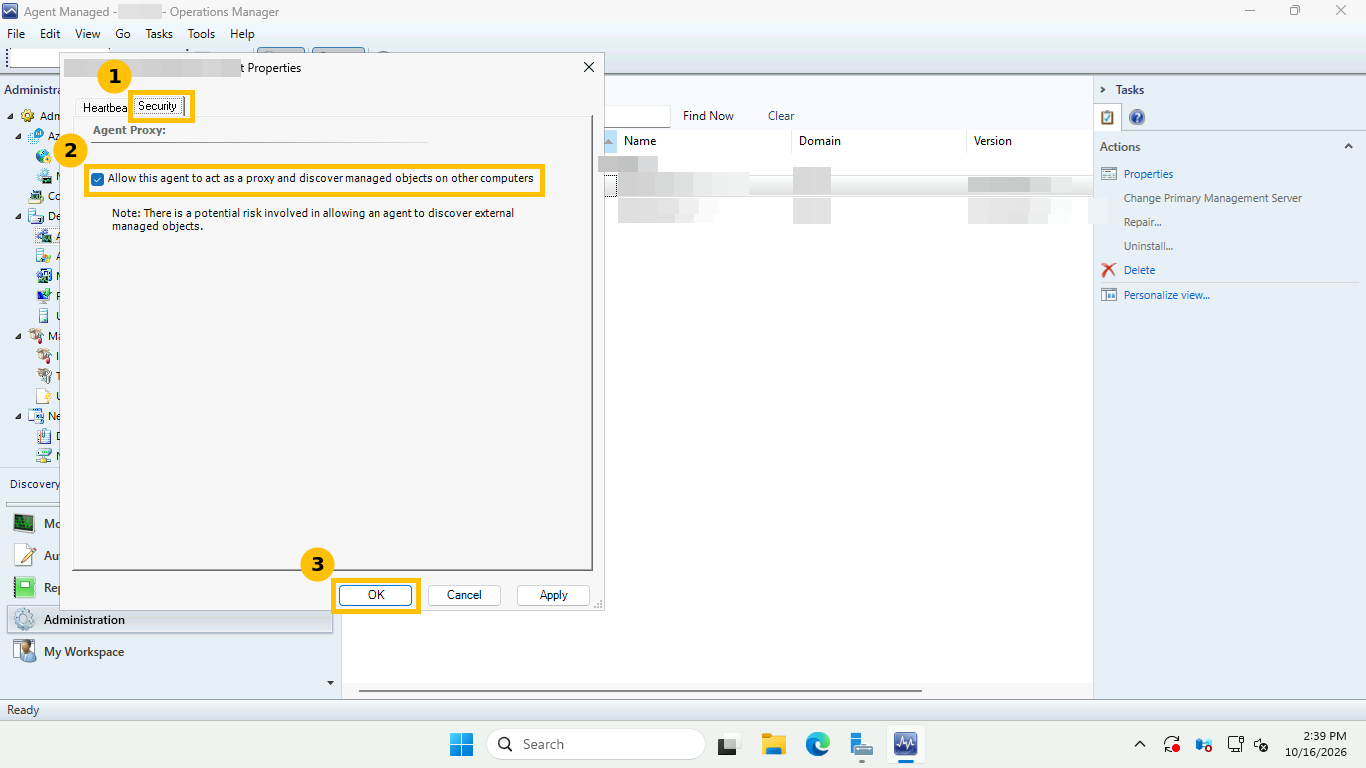
I did the second agent in PowerShell, and both agents reported proxy enabled at 14:40:24:
$a = Get-SCOMAgent -Name 'DC02.contoso.com'
$a.ProxyingEnabled = $true
$a.ApplyChanges()
Get-SCOMAgent | ForEach-Object { "$($_.DisplayName) proxy=$($_.ProxyingEnabled.Value)" }
Microsoft Learn also documents an Enable-SCOMAgentProxy cmdlet for the same job, which I did not use here. Only enable proxy on agents whose management pack needs it, because the console itself warns about the risk. The Data Access Service SPN was a separate fix with setspn on the domain controller for the SDK service account, covered in the install post.
Step 2: create a dedicated place for overrides
Never save overrides in the Default Management Pack. Create an unsealed pack just for tuning so you can see, export or delete your changes later. Go to Administration, then Management Packs, right-click and choose Create Management Pack. I used the ID Contoso.Lab.Overrides and the display name “Contoso Lab Overrides”.
Gotcha that cost me a minute: the Create button stays greyed out on the first page of the wizard. Click Next to reach the Knowledge page and Create becomes available.
One design note. Microsoft’s guidance is to keep one override pack per sealed management pack, named after it with an Override suffix, so that deleting or upgrading a pack does not tangle your overrides. A single shared pack is fine for a two-agent lab, but in a real environment follow the per-pack pattern.
Step 3: override each noisy rule on the narrowest scope
Select the alert in Monitoring, then Active Alerts. In the Tasks pane open Overrides and choose Disable the Rule. SCOM offers five scopes.
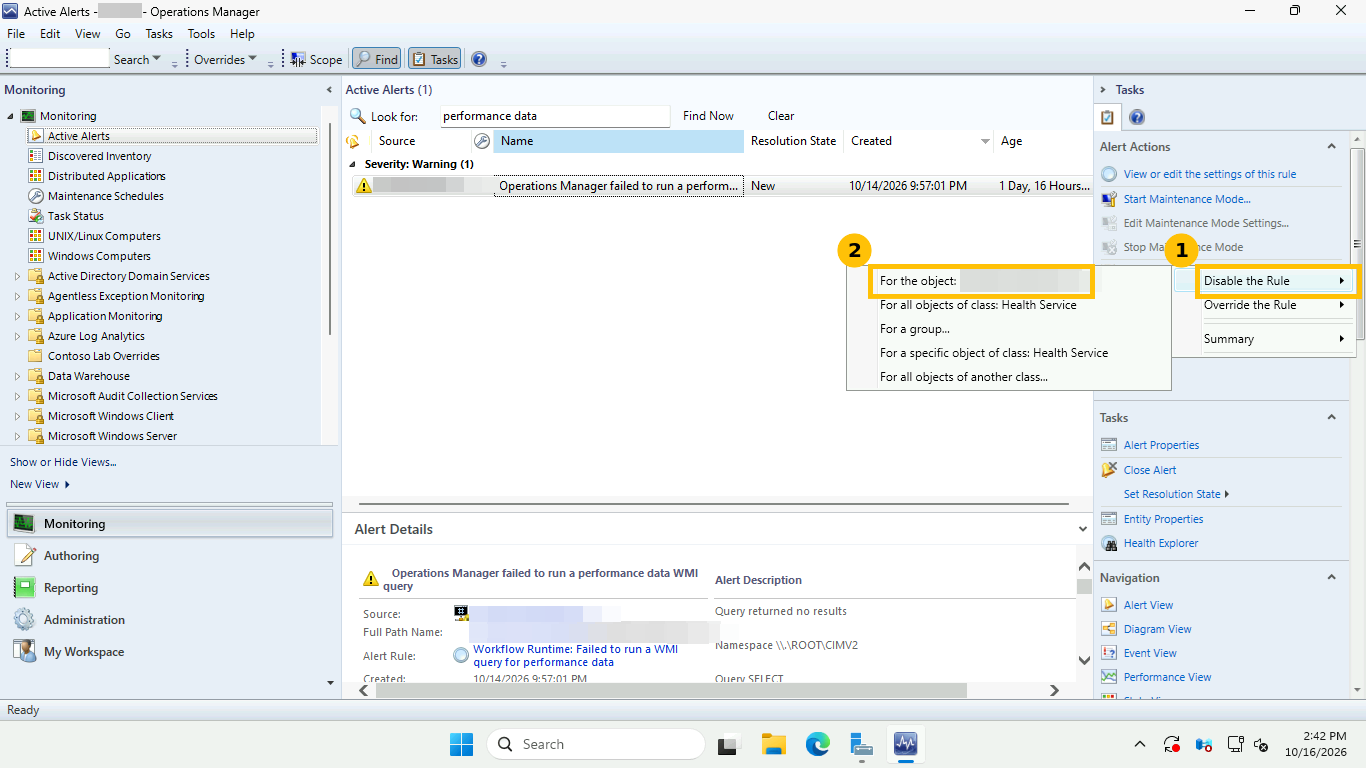
- For the object (one server)
- For all objects of class: Health Service
- For a group
- For a specific object of class
- For all objects of another class
I chose “For the object”, the narrowest scope, so the same problem on any other server still alerts. In the dialog the Enabled parameter is already ticked with an override value of False. Pick the pack in “Select destination management pack” and click OK.
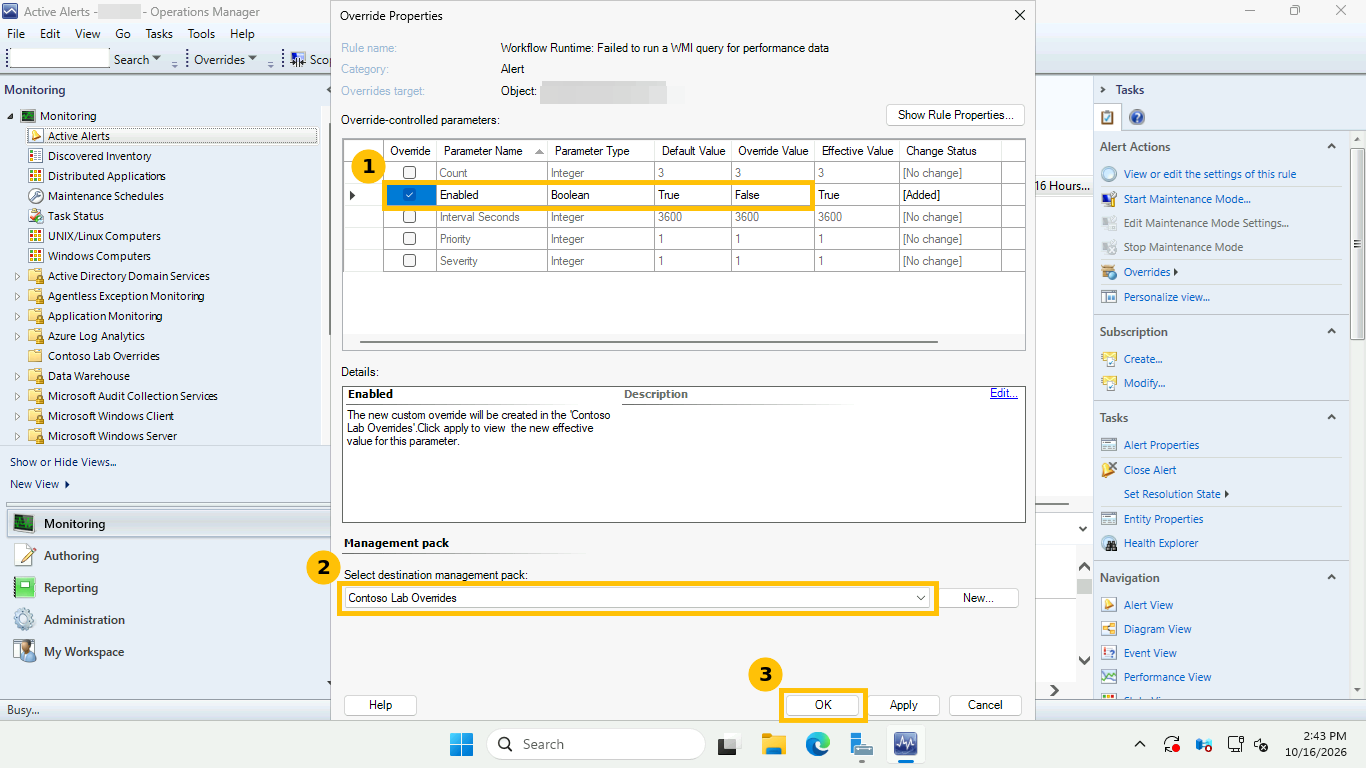
That rule, “Workflow Runtime: Failed to run a WMI query for performance data”, had fired 44 times. The alert details in the first screenshot of this step show why it was safe to silence on that server: the query returned no results against the root\CIMV2 namespace, which fits a role that is simply not installed. Overriding is a judgment call each time, so ask what the alert would have told you before you turn it off.
The other two overrides went through PowerShell. They are monitors, so the cmdlet is Disable-SCOMMonitor, which creates and saves an override in the pack you give it:
$mp   = Get-SCOMManagementPack -Name Contoso.Lab.Overrides
$mon  = Get-SCOMMonitor -Id $alert.MonitoringRuleId
$inst = Get-SCOMClassInstance -Id $alert.MonitoringObjectId
Disable-SCOMMonitor -Monitor $mon -Instance $inst -ManagementPack $mp -Confirm:$false
Here $alert is the open alert you are silencing. I applied it at 14:44:48 to “APM .NET Server-Side Monitoring Configuration” on SRV01 (no .NET applications to profile) and to “Network Adapters DNS Servers Monitor” on DC01 (a domain controller whose DNS client points at itself).
Step 4: close the stale alerts and notice what refuses to close
Fixing the cause stops new alerts but leaves the old ones open. Close them in bulk:
Get-SCOMAlert -ResolutionState 0 | Resolve-SCOMAlert -Comment 'Closed after proxy fix and overrides'Most closed. One refused, with this message:
The alert … “Data Warehouse Job Status synchronization Grooming process failed to write data” cannot be closed in SCOM as the monitor which generated this alert is still unhealthy.
This refusal is useful information. An alert raised by a monitor cannot be closed while that monitor is unhealthy, so when a bulk close leaves something behind you are looking at a real fault, not noise.
Step 5: wait, then count again
I waited about 20 minutes, a few rule cycles, and ran the same grouping query at 15:05. 28 open alerts became 4, three errors and one warning.
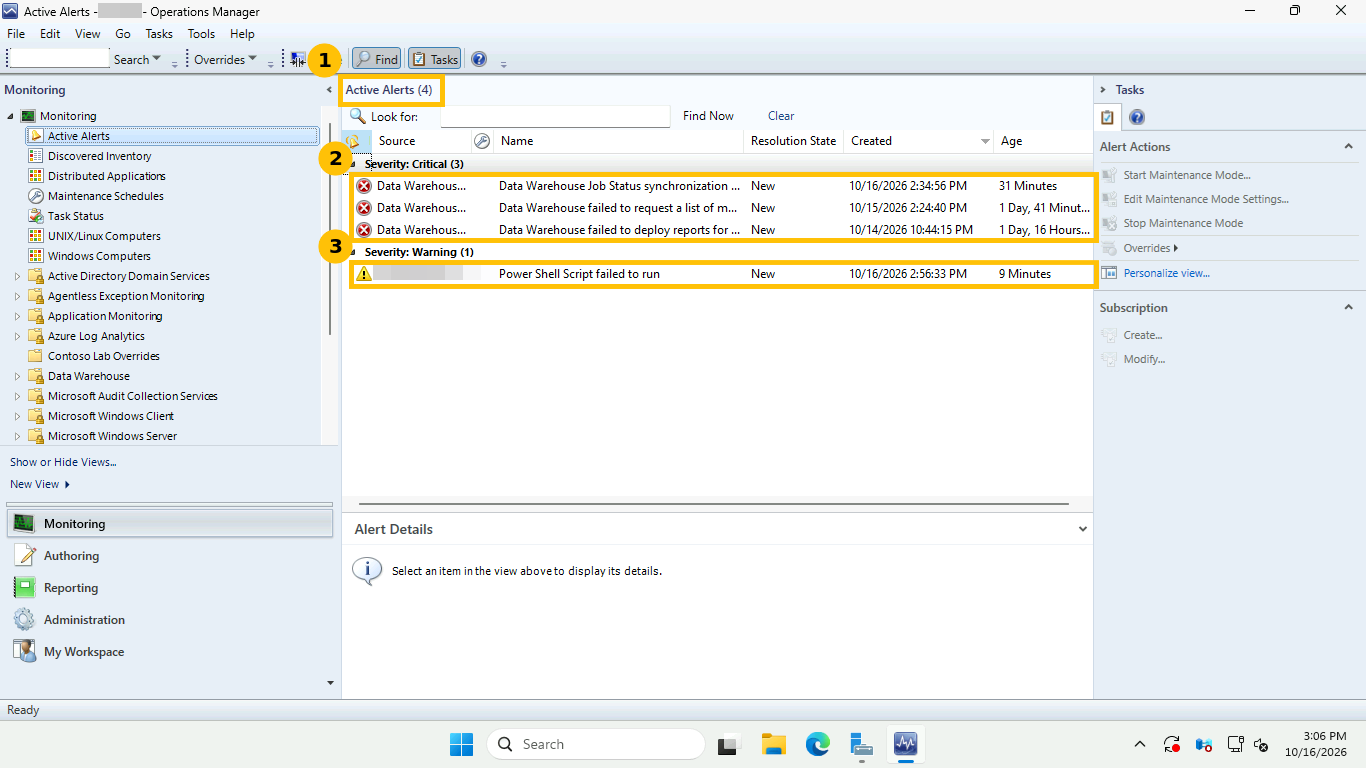
| Severity | Alert | Verdict |
|---|---|---|
| Error | Data Warehouse failed to request a list of management packs from SQL Reporting Services | Real fault, SSRS integration |
| Error | Data Warehouse failed to deploy reports for a management pack | Real fault, looks like the same SSRS problem |
| Error | Data Warehouse Job Status synchronization Grooming process failed to write data | Real fault, the monitor is still unhealthy |
| Warning | Power Shell Script failed to run | Something is still failing, not yet traced |
The three errors are what tuning cannot touch, and I deliberately did not override them. I have not diagnosed them in this post, so I will not claim a root cause. The two reporting errors point at the SQL Reporting Services integration and are the next thing to fix.
The remaining warning deserves a careful read. In the screenshot it was created at 2:56 PM, after my cleanup, so it is a new alert, not one of the original five “Power Shell Script failed to run” alerts, which did close. The rule is still firing on some server, and silencing it before I find the failing script would be exactly the mistake this post warns against.
What went wrong along the way
- The Create button on the new management pack wizard stays disabled until you click Next to the last page.
- Console group headers such as “Severity: Critical (13)” kept the old counts after the list shrank. Switch to another node and back to refresh them.
- Fixing proxy stops new “Agent proxy not enabled” alerts, but the old ones stay open until you close them.
- The second-site agent showed health Uninitialized in the 14:33 baseline and Success at 15:05. I did not isolate which change caused it, so do not read that as proof that the proxy setting did.
- The 28 to 4 result comes from two PowerShell counts, 14:33 and 15:05, on a single lab. It shows the method, not a guaranteed ratio for your environment.
Quick guide
- Count and group the open alerts by name with
Group-Objectbefore touching anything. - Wait for startup noise to settle, then recount, because work item alerts raised while SQL was still starting usually clear on their own.
- Fix real configuration gaps first: enable agent proxy where the pack needs it and register the Data Access Service SPN.
- Create one unsealed override pack and click Next to reach Create.
- Override each remaining noisy rule or monitor for the object, not the whole class, and write down why.
- Bulk close the stale alerts and treat any alert that refuses to close as a real fault.
- Wait about 20 minutes, count again, and investigate whatever is left instead of overriding it.
FAQ
Why does a new SCOM install show so many alerts?
Three things stack up. Services start before the SQL back end is ready and raise work item alerts that clear later, agents lack settings that management packs expect, such as proxy, and stock packs monitor roles you did not install. Sorting the alerts into those buckets is faster than clearing them one by one.
Is it safe to enable agent proxy?
Enable it only on agents whose management pack needs to discover objects on other computers, which includes Active Directory domain controllers. The console warns that there is a potential risk in letting an agent discover external managed objects, so do not enable it everywhere by default.
Where should SCOM overrides be saved?
In an unsealed management pack you created for the purpose, never the Default Management Pack. Microsoft’s guidance is one override pack per sealed pack, named after it with an Override suffix. That keeps tuning visible, exportable and easy to remove.
Why will SCOM not let me close an alert?
If a monitor generated the alert and the monitor is still unhealthy, SCOM refuses to close it. Fix the underlying fault and the monitor returns to healthy, which closes the alert.
Should I disable a noisy rule or just close its alerts?
Closing alerts only clears the list and the rule will raise them again. Disable it with an override only when the alert can never be useful for that object, and scope the override to the single object where possible.