Installing SCOM 2025: The Setup Wizard Rolled Back 4 Times

This is a real evaluation install of System Center Operations Manager 2025, SQL Server 2022, and SQL Server Reporting Services, all on one Windows Server 2025 VM. It is not a clean, one-pass success story. The setup wizard rolled back four times at the same step with a genuinely obscure error, and the fix that finally worked was never fully proven, it is reported here as “what worked,” not “the fix,” exactly as it happened. Names, domain, and server names are redacted and replaced with neutral placeholders (SRV01, DC01, CONTOSO) throughout.
What you are building
One all-in-one server: SQL Server 2022 (Database Engine plus Full-Text), SQL Server Reporting Services 2022, the SCOM management server, the Operations console, the Web console, and Reporting. Windows Server 2025 Desktop Experience, 4 vCPU, 8 GB RAM, 120 GB disk, domain joined, static IP, SQL Server memory capped at 3 GB so it does not starve everything else running on the same box.
Honest timings on slow, spinning-disk-backed storage: Windows install about 50 minutes, IIS and .NET feature install about 45 minutes (see the first rough edge below), SQL Server setup about 15 minutes, and the SCOM setup wizard itself about 90 minutes from clicking Install to “Setup is complete,” with the database configuration step alone taking 25 to 30 minutes. Budget real time for this, it is not a 20 minute install.
Step 1: prerequisites, mostly scriptable
Before touching the SCOM setup wizard, everything else needs to be in place:
- Create two domain user accounts, passwords set to never expire: a management server action account and an SDK/data access account. Add the SDK account to the local Administrators group on the SCOM server, setup checks this directly, and if you forget, the wizard’s Accounts page will say the account is not a local admin.
- Install IIS with a specific feature set (Static Content, Default Document, Directory Browsing, HTTP Errors, HTTP Logging, Request Monitor, Request Filtering, Static Content Compression, IIS Management Console, IIS 6 Metabase compatibility, ASP.NET 3.5 and 4.8, Windows Authentication) plus WCF HTTP Activation 4.5.
- Install the Report Viewer 2015 runtime, SQL CLR Types 2014 (x64), and ODBC Driver 18 for SQL Server, all listed on the SCOM system requirements page.
- Install SQL Server 2022: Database Engine plus Full-Text, default instance, collation SQL_Latin1_General_CP1_CI_AS, TCP enabled. One genuine gotcha here, do not pass
/SECURITYMODE=Windowsto the SQL installer, SQL 2022 setup rejects it outright with “The only supported value for Authentication Mode is SQL.” Just omit the flag. - Cap SQL Server memory:
sp_configure 'max server memory (MB)', 3072. - Start the SQL Server Agent service and set it to Automatic. SCOM setup’s reporting prerequisite check needs it running, and it is not started by default after a silent SQL install (more on this below).
- Install SSRS 2022 silently, then configure it through the GUI.
Step 2: configure Reporting Services in the GUI
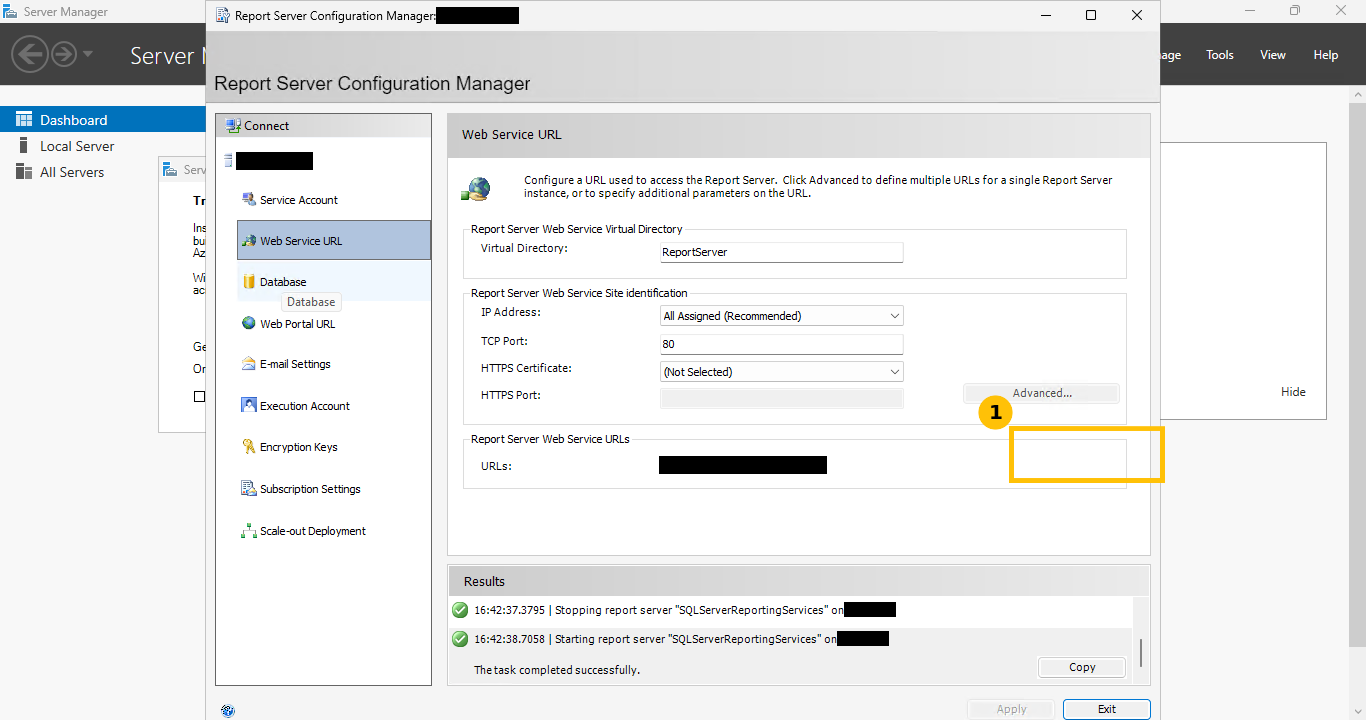
Report Server Configuration Manager, connected to the local instance. Apply the Web Service URL with the defaults, virtual directory ReportServer, port 80:
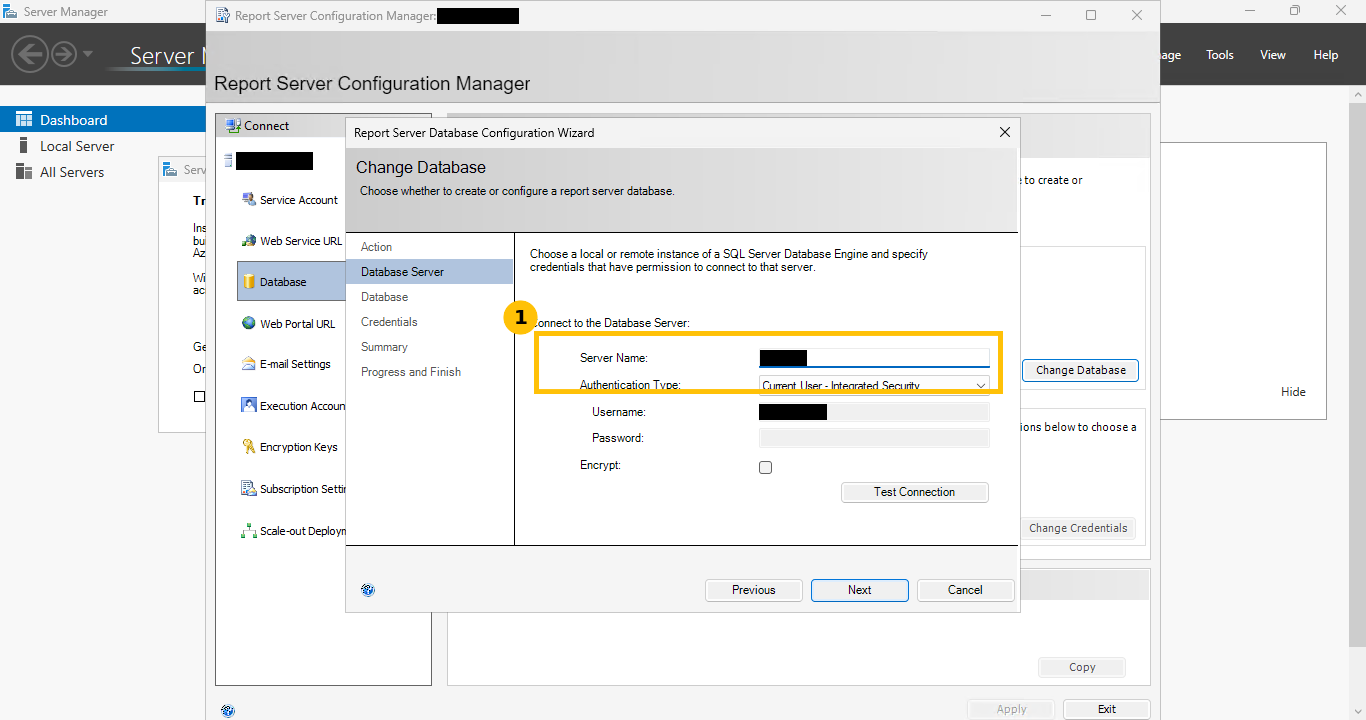
Database > Change Database > Create a new report server database, local SQL Server instance, current user integrated security, default database names:
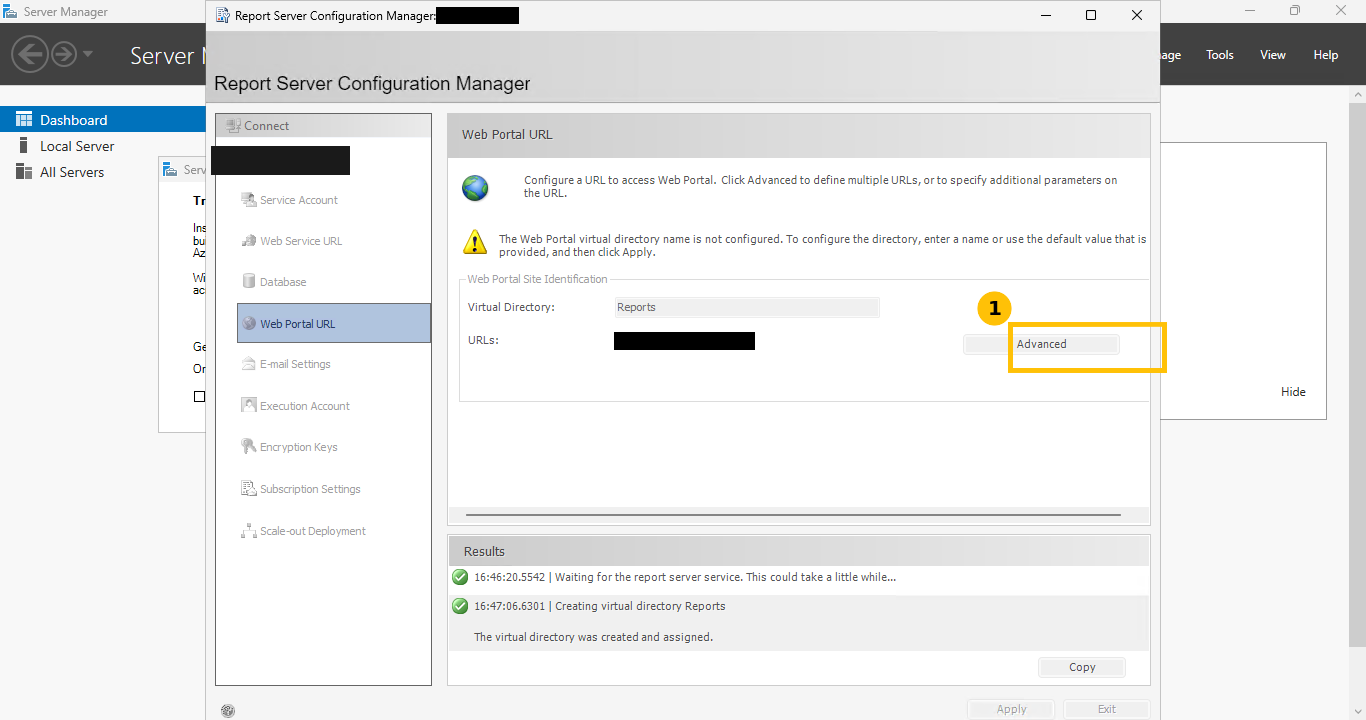
Then Web Portal URL, Apply. SCOM wants the SSRS instance reachable over plain HTTP with Windows authentication, no certificate or email setup is needed for a lab:
Gotcha worth knowing before you hit it: SSRS needs two to three minutes after any configuration change before its URL actually returns a 200. The SCOM wizard’s own reporting check times out before that if you move straight from clicking Apply here into the SCOM setup wizard. Give it the couple of minutes first.
Step 3: the SCOM setup wizard
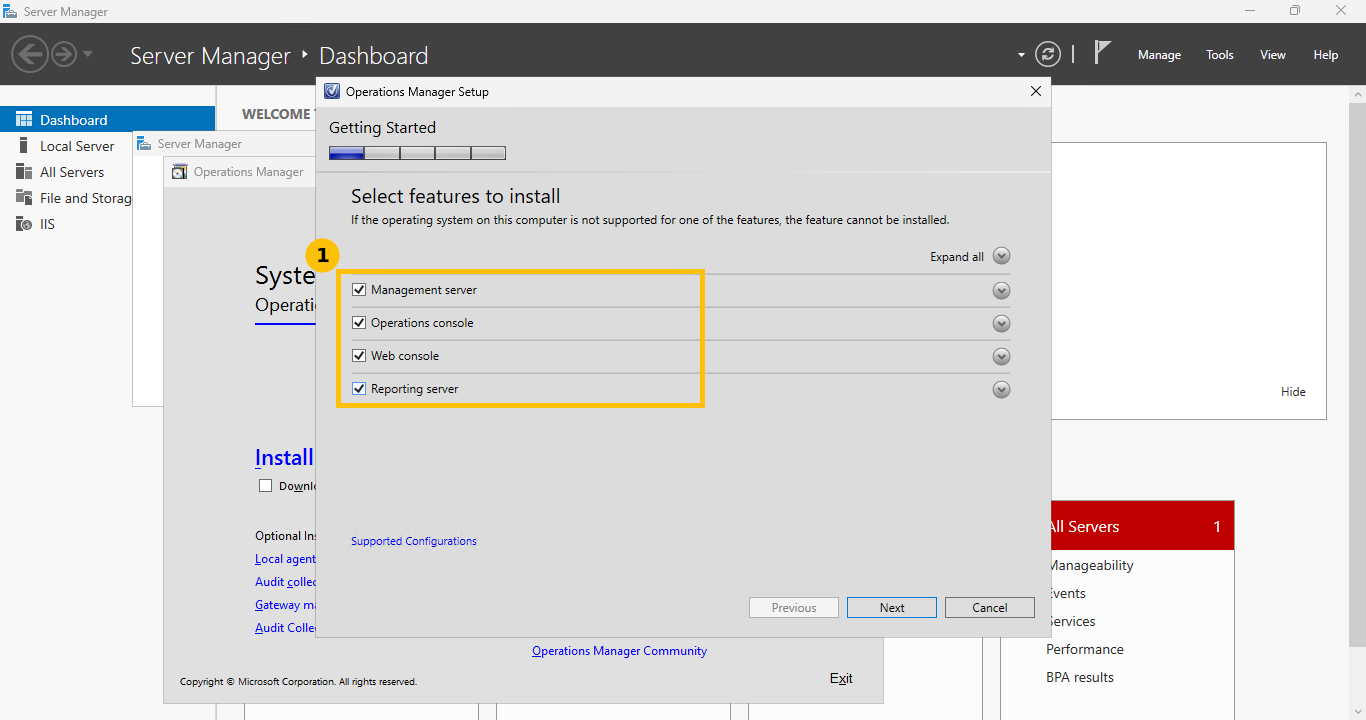
Run Setup.exe from the extracted evaluation media, click Install. Select features, Management server, Operations console, Web console, and Reporting server all ticked:
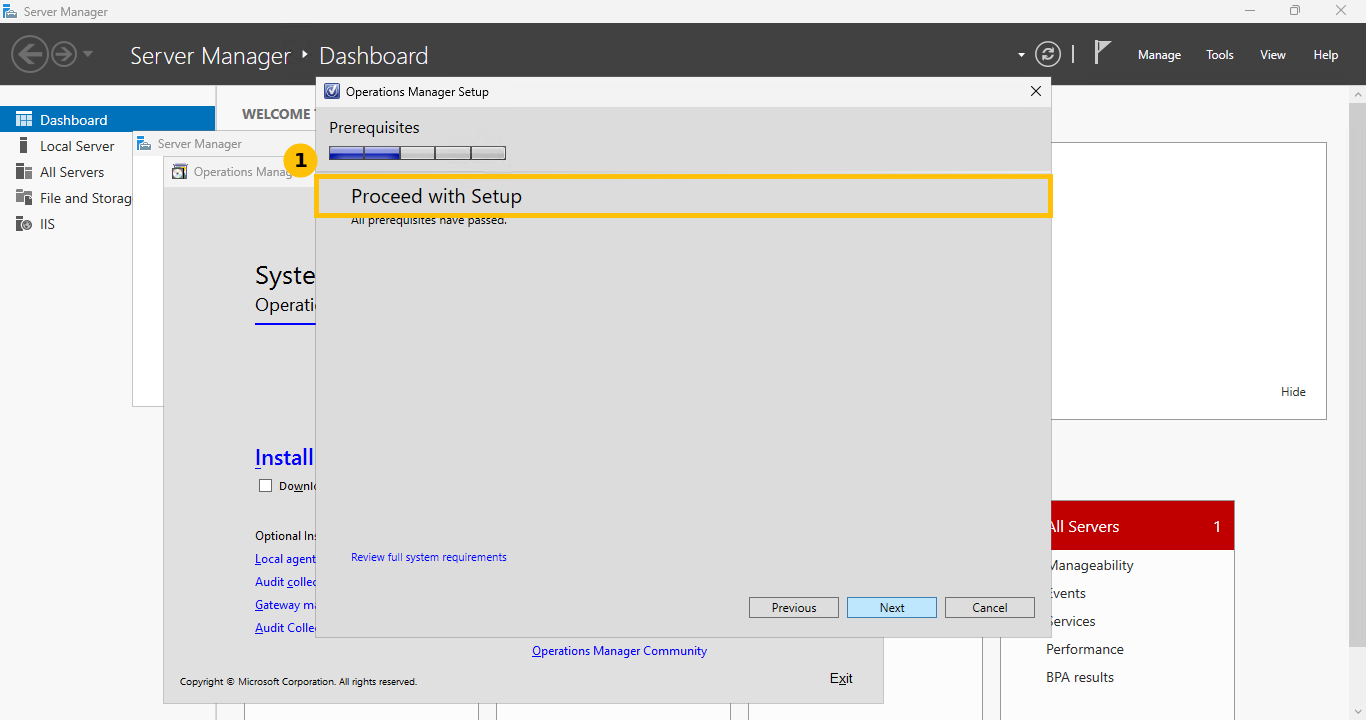
The prerequisite check runs next. All green here means proceed, a pending-reboot warning is common at this stage, reboot first if you see one rather than fighting it:
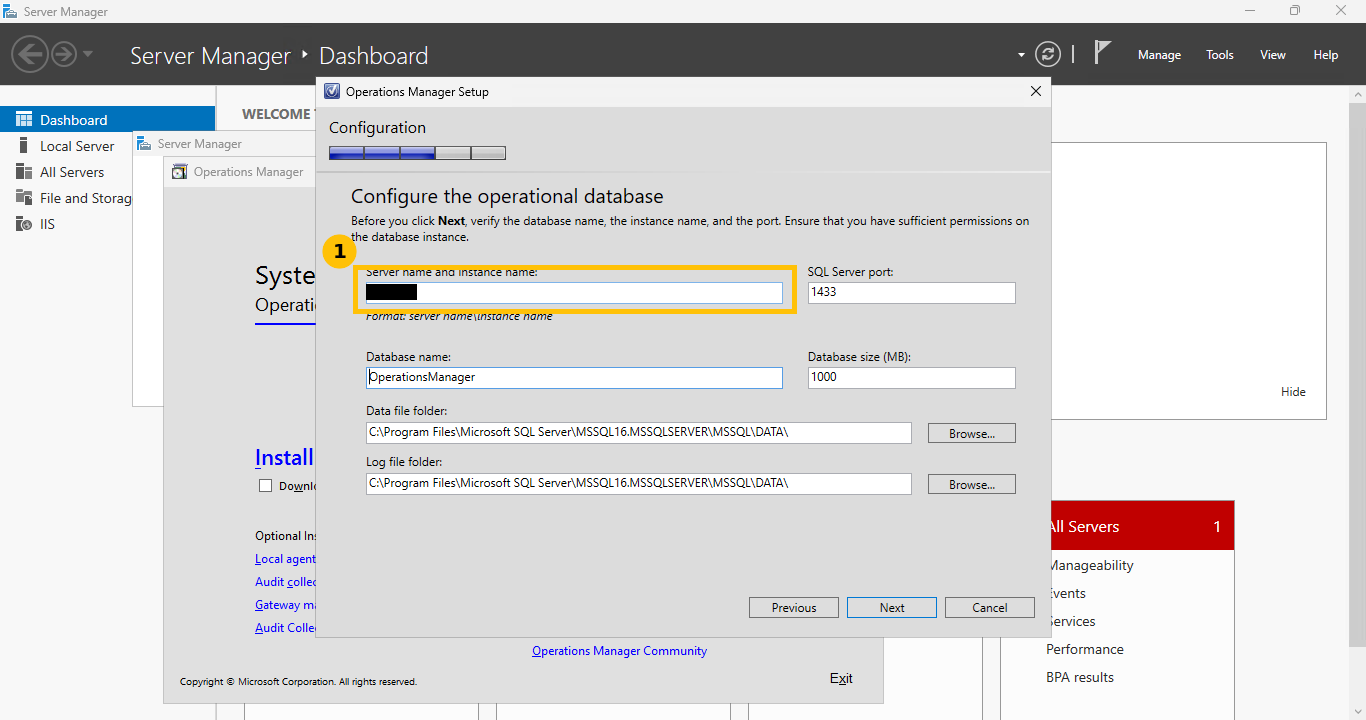
The rest of the wizard, in order: create the first management server in a new management group, accept the license terms, point the operational database at the local SQL instance with defaults:
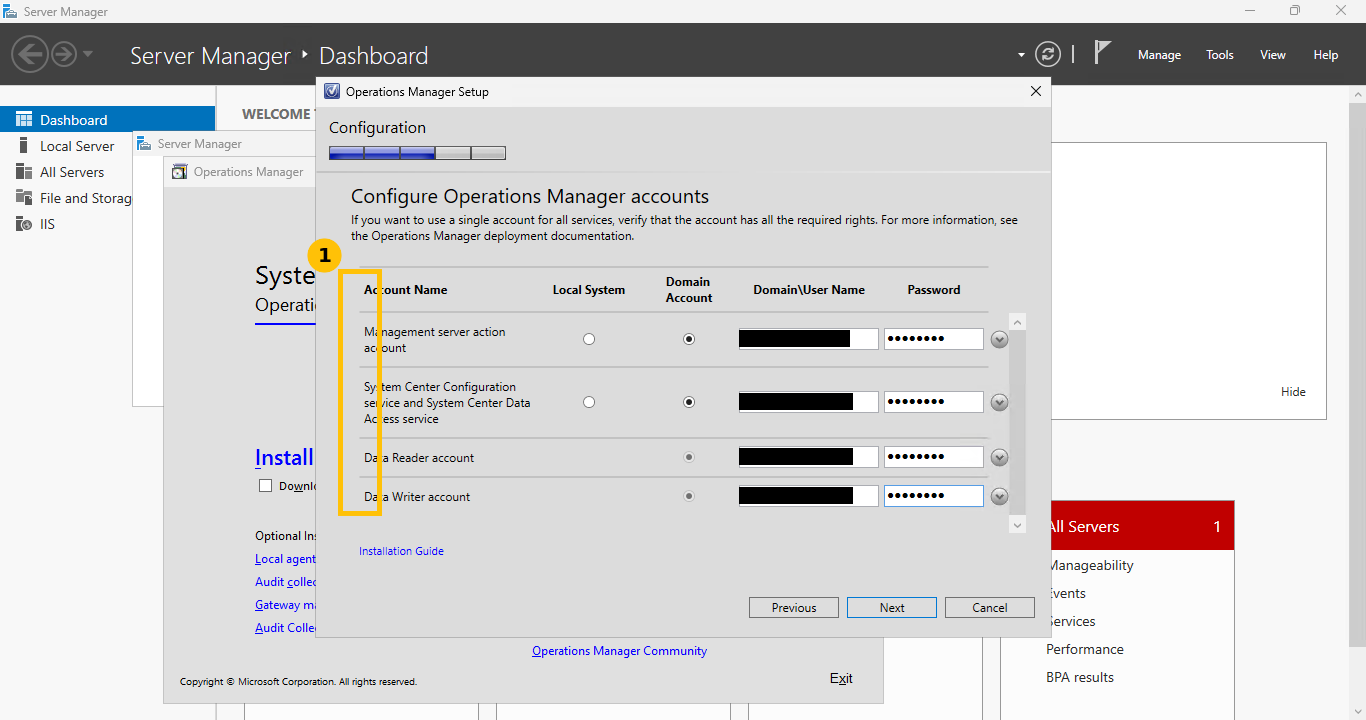
Then the data warehouse database with the same server, the SSRS instance for reporting, the web console site (Default Web Site, SSL off for a lab), web console authentication (Mixed authentication), and the accounts page, where the two domain accounts created in step 1 go in as the management server action account and the data reader/writer accounts, with SDK/config service left on its default “Local System”:
Diagnostic and usage data (leave on default or off, your call), Microsoft Update (Off is reasonable for a lab), installation summary, then Install.
The real failure: rolled back four times at the same step
This is the part worth being honest about rather than smoothing over. Four separate attempts failed at the exact same point, “Operational database configuration,” with this error buried in the setup log:
PopulateUserRoles failed: Value does not fall within the expected range
(from AzAuthorizationStore.Initialize)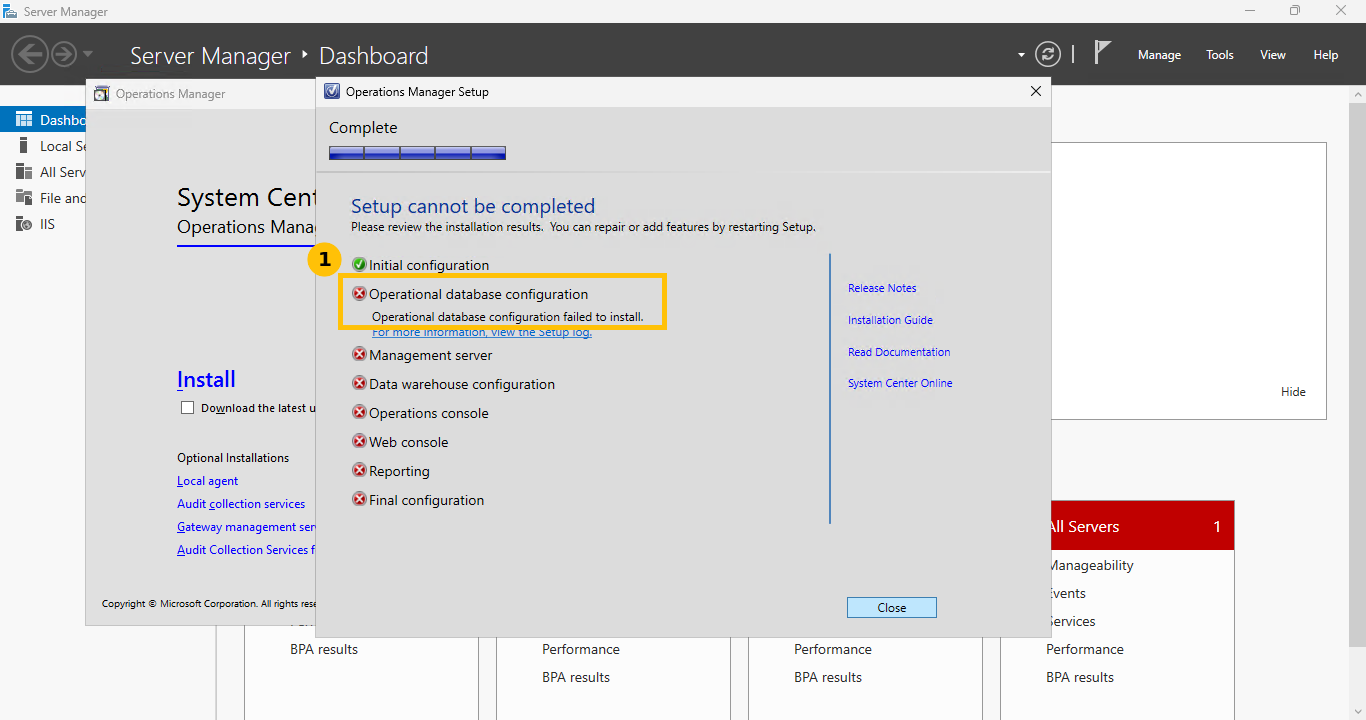
Each failed attempt costs roughly 25 minutes plus the time for the automatic rollback, so this alone burned close to two hours. Things that genuinely did not fix it, tried in order: installing SQL Server Native Client 11, installing the OLE DB driver 18, and a full reboot. Reproducing the underlying Authorization Manager store call by hand (the thing AzAuthorizationStore.Initialize is wrapping) worked fine on its own, which pointed away from Authorization Manager itself being broken.
What finally made the fifth attempt succeed: giving SQL Server a TLS certificate. Specifically, a self-signed server-authentication certificate installed into the machine certificate store, trusted in Trusted Root, with private key read access granted to NT SERVICE\MSSQLSERVER, its thumbprint set in the SQL Server Configuration Manager’s “Certificate” box, and the SQL Server service restarted. The working theory, never proven, is that ODBC Driver 18 defaults to Encrypt=yes when connecting to SQL Server, and was failing silently against SQL’s own auto-generated, untrusted certificate during that specific operation. A forum thread reports the identical error with a different System Center product against SQL Server 2022 cumulative updates, which suggests either an RTM-level SQL build or a properly trusted certificate are the two things worth trying first if you hit this. Treat the explanation here as a theory and the fix as only observed, not confirmed.
The fifth attempt completed cleanly:
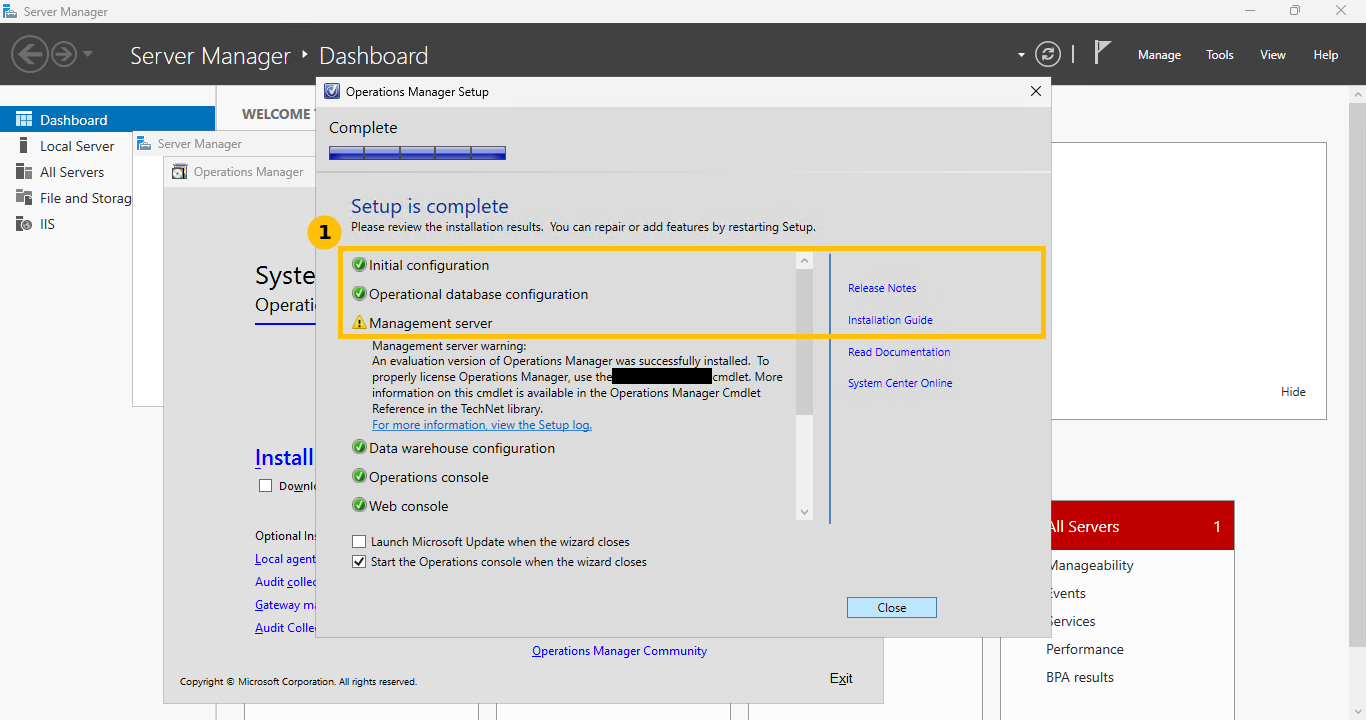
The “An evaluation version of Operations Manager was successfully installed” warning on the completion page is expected and normal for an evaluation install, not a sign something went wrong, licensing it properly later is a separate Set-SCOMLicense step.
Other rough edges worth knowing before you start
- Very slow Windows feature install. Defender’s real-time scanning of the installation media and TiWorker pegged the CPU for about 45 minutes during the IIS/.NET feature install. Excluding the media, work, and SQL paths from Defender, or disabling real-time protection entirely for the duration of the build, fixed it.
- Reporting prerequisite check fails, twice, for two different reasons. First, “CheckHttpAddressResponse… operation timed out / 503,” which is just SSRS needing a couple of minutes after a config change, covered above. Second, “The SQL Agent service is not running,” because the silent SQL install does not start SQL Server Agent or set it to Automatic by default, you have to do that yourself.
- Management pack import and catalog search worked directly from the console because this VM had internet access. Offline, you need the .mpb files downloaded separately and “Add from disk” instead.
This post covers the install itself. A second post covers the first console run, automatic agent approval, importing management packs, and a real agent discovery failure that got worked around with a manual install.
Quick guide
- Prerequisites first: domain accounts, IIS feature set, ODBC/CLR/Report Viewer runtimes, SQL Server with the authentication mode flag omitted, SQL Agent running, SSRS configured and given a couple of minutes to warm up.
- Run the SCOM setup wizard, features, prerequisites, management group, databases, SSRS instance, web console, accounts, then Install.
- If it rolls back at “Operational database configuration” with a PopulateUserRoles error, try giving SQL Server a trusted TLS certificate before anything else, it is unproven but it is the one thing that worked here.
- Expect roughly 90 minutes for the wizard alone on spinning disk, budget real time, do not assume a stall is a hang.
- The “evaluation version successfully installed” warning on completion is normal, not an error.
FAQ
Is a TLS certificate on SQL Server actually required for SCOM 2025 setup?
Not according to Microsoft’s documented requirements, no. It is reported here only because it is what changed between four failed attempts and one that succeeded in this specific environment. The underlying cause was never confirmed, so treat it as a reasonable first thing to try if you hit the same PopulateUserRoles error, not as an official fix.
Why does the wizard take 90 minutes?
Most of that time is the database configuration step, which creates the operational database, data warehouse database, and their schemas. On faster storage this is noticeably quicker, the 25 to 30 minute figure here reflects spinning-disk-backed lab storage specifically, not a hard SCOM requirement.
Can SQL Server, SSRS, and SCOM really run on 8 GB of RAM?
They can, with SQL Server memory explicitly capped at 3 GB as shown here, but it is not fast. Expect the console and reporting to work correctly while feeling sluggish, clicks taking a couple of seconds rather than being instant. For anything beyond a lab or small evaluation, more memory is the first thing to add.