Linux Disk Full: Finding What Is Actually Using Your Space With df, du, and lsof

“No space left on device” is one of the most common Linux outages, and it’s also one of the fastest to fix once you know where to look. Here’s the real workflow, with real output from a live Ubuntu server, for finding exactly what’s eating your disk and reclaiming it safely.

Step 1: confirm you’re actually low, and on which filesystem
df -h shows usage per mounted filesystem. Check this first, a full /var or /tmp on its own partition behaves very differently from a full root filesystem.
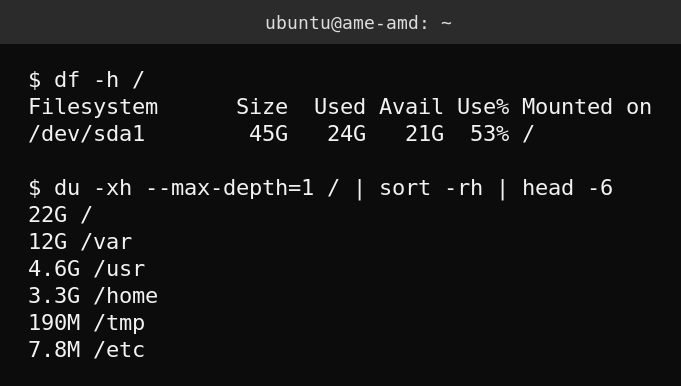
Here root is at 53% used with 21G free, not an emergency on this box, but the same two commands are exactly what you’d run at 95%+.
Step 2: find the biggest directories
du -xh --max-depth=1 / walks one level at a time so you’re not waiting on a full recursive scan of the whole disk. The -x flag is important, it stops du from crossing into other mounted filesystems (like a separately mounted /boot or a network share) and reporting their size as part of root.
Once you’ve found the biggest top-level directory, repeat the same command one level deeper inside it, and keep drilling down until you find the actual large files or directories, not just “it’s somewhere in /var.”
Step 3: the trap almost everyone hits, deleted but still-open files
Deleting a huge log file with rm doesn’t always free the space immediately. If a running process still has that file open for writing, the disk blocks stay allocated until the process closes the file handle, even though the file no longer appears when you ls the directory. This is the single most common reason “I deleted a 10GB log file and df still shows no space freed.”
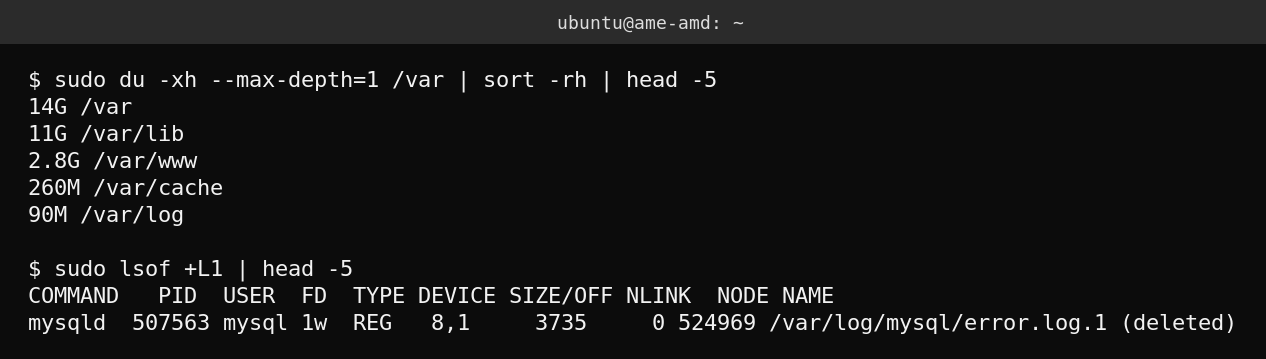
lsof +L1 lists exactly this: files with a link count under 1, meaning they’ve been unlinked (deleted) from the filesystem but are still held open by a process. The fix is to restart or signal that process to reopen its log file (for example systemctl reload on the affected service, or a log rotation tool’s postrotate hook), not to try to delete the file again.
Step 4: safe cleanup targets
- systemd journal: check size with
journalctl --disk-usage, trim it withjournalctl --vacuum-size=200M(or--vacuum-time=7d) rather than deleting journal files by hand. - Package manager caches: on Debian/Ubuntu,
apt-get cleanclears downloaded .deb files that are safe to remove once installed. - Old kernels:
apt autoremoveclears out superseded kernel packages that pile up after updates, usually one of the bigger easy wins on a server that’s been patched for a while. - Application-specific caches: for a web server, check the actual cache directory (for example WordPress’s object/page cache folders) rather than guessing, a cache that fails to self-prune is a common silent disk-filler.
FAQ
Why does df show less free space than du says is used? That gap is almost always deleted-but-open files (step 3), reserved filesystem blocks (ext4 reserves a percentage for root by default), or a filesystem that isn’t fully understood by du because it spans a different mount du skipped.
Is it safe to run du on a production server under load? Yes, du is read-only and just stats files, but a full recursive du across millions of small files can be I/O-heavy, prefer the step-by-step –max-depth=1 drill-down over one giant recursive scan on a busy server.
What’s the fastest emergency fix if I’m at 100% right now? Find your biggest log files with du -xh --max-depth=1 drilling into /var/log, truncate (not delete) an actively-written log with truncate -s 0 /path/to/file.log to free space instantly without breaking the process’s open file handle, then investigate the root cause once you’re not in crisis mode.