How to Set Up a Passkey (FIDO2) for a Microsoft Entra Account and Sign In Without a Password

Every test sign in to a lab Azure account means opening Authenticator and approving a number. A passkey removes that step. This guide shows how to enable Passkey (FIDO2) in Microsoft Entra, register one for a test account, and sign in without typing a password.

Quick guide
- As an admin, open Entra admin center, Authentication methods, Policies, and turn on Passkey (FIDO2) for your users.
- Sign in as the test user and open Security info, then Add sign-in method and choose Passkey.
- Follow the prompts, name the passkey, and finish.
- Next time, choose Sign-in options on the sign in page and pick the passkey.
What you need: a Microsoft Entra tenant, an account with the Global Administrator or Authentication Policy Administrator role for step 1, and a test account to register the passkey on. Being Owner of an Azure subscription is not enough for step 1, because Entra roles are separate from Azure roles.
Step 1: Enable Passkey (FIDO2) in Entra
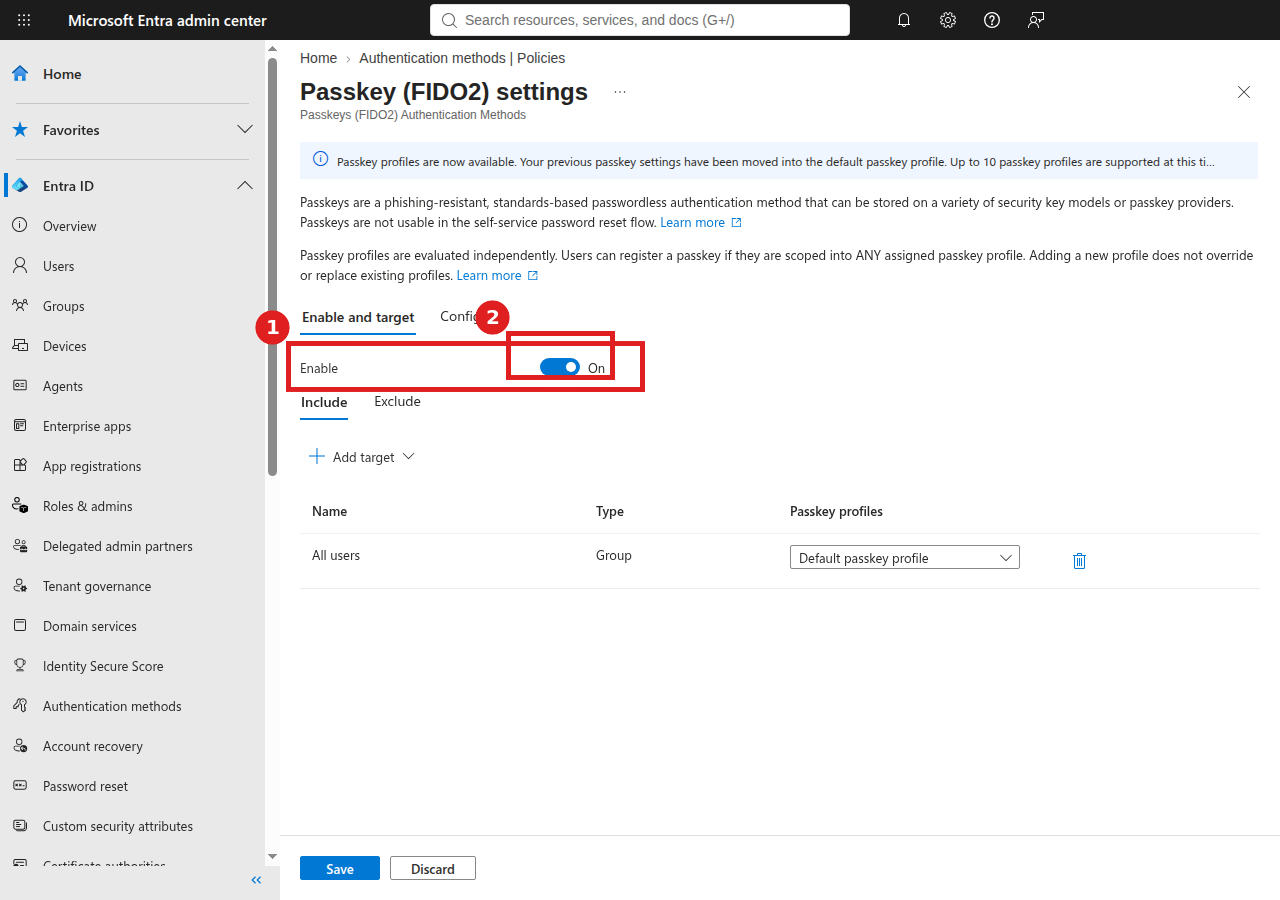
Sign in to the Entra admin center as an admin, open Authentication methods then Policies, and select Passkey (FIDO2). Switch Enable to On, keep the target as All users, and click Save. A green message confirms the policy was saved.
Step 2: Add a sign in method
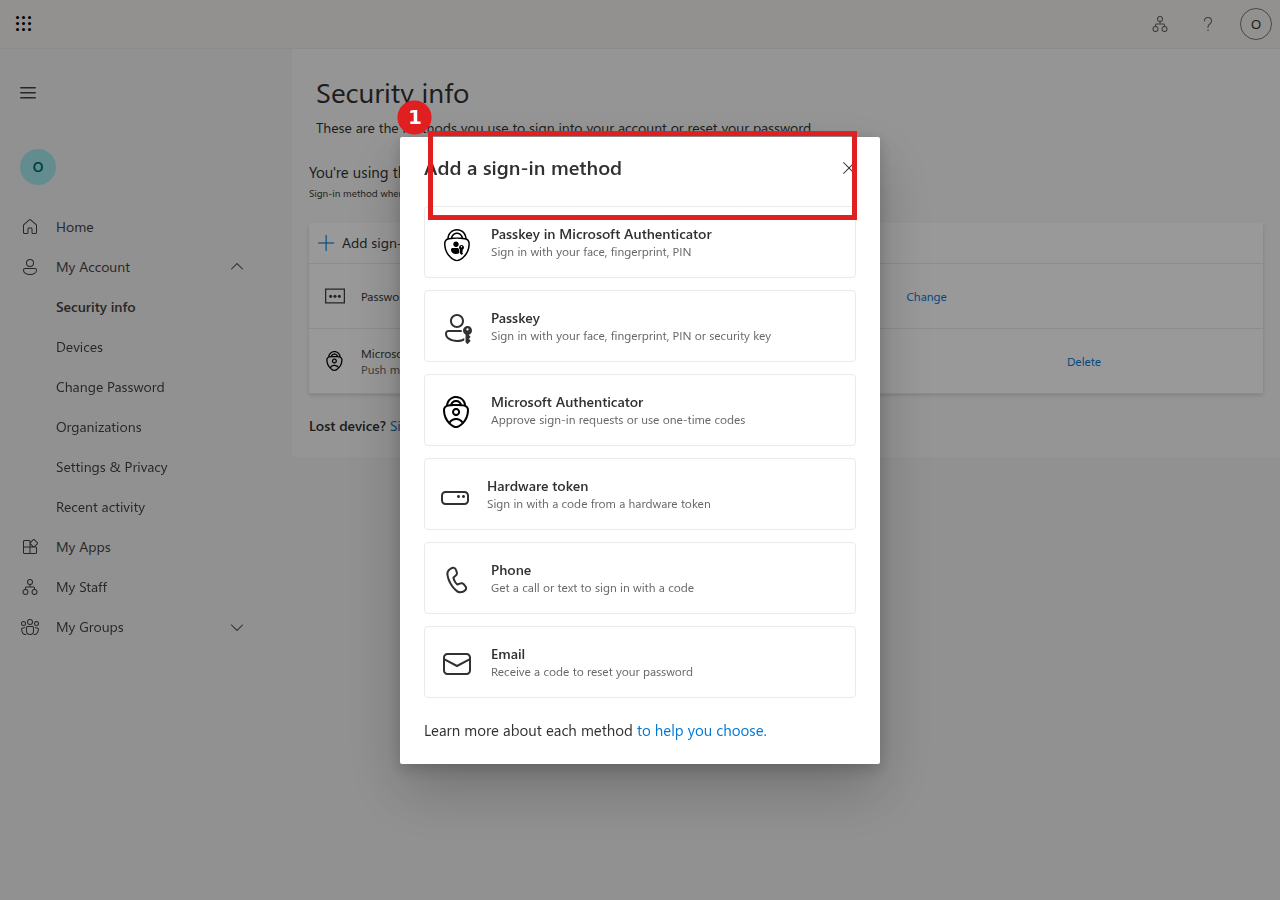
Sign in as the test user and open Security info at mysignins.microsoft.com. Click Add sign-in method and pick Passkey from the list. Microsoft may ask you to approve a fresh Authenticator prompt first, because adding a method is a sensitive change.
Step 3: Create the passkey
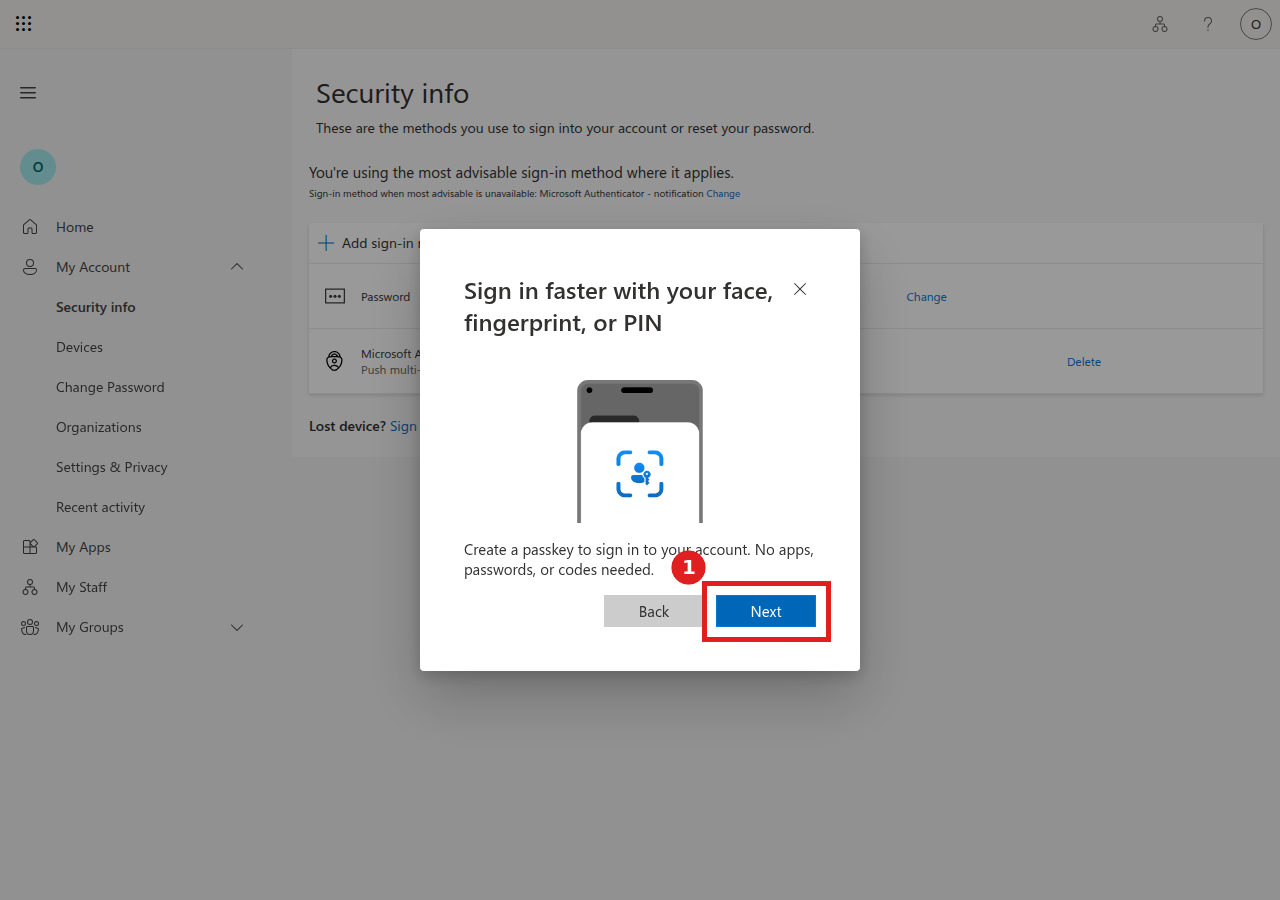
Read the intro screen and click Next. Your browser or device then asks you to confirm with a fingerprint, face, PIN or security key.
Step 4: Name it and finish
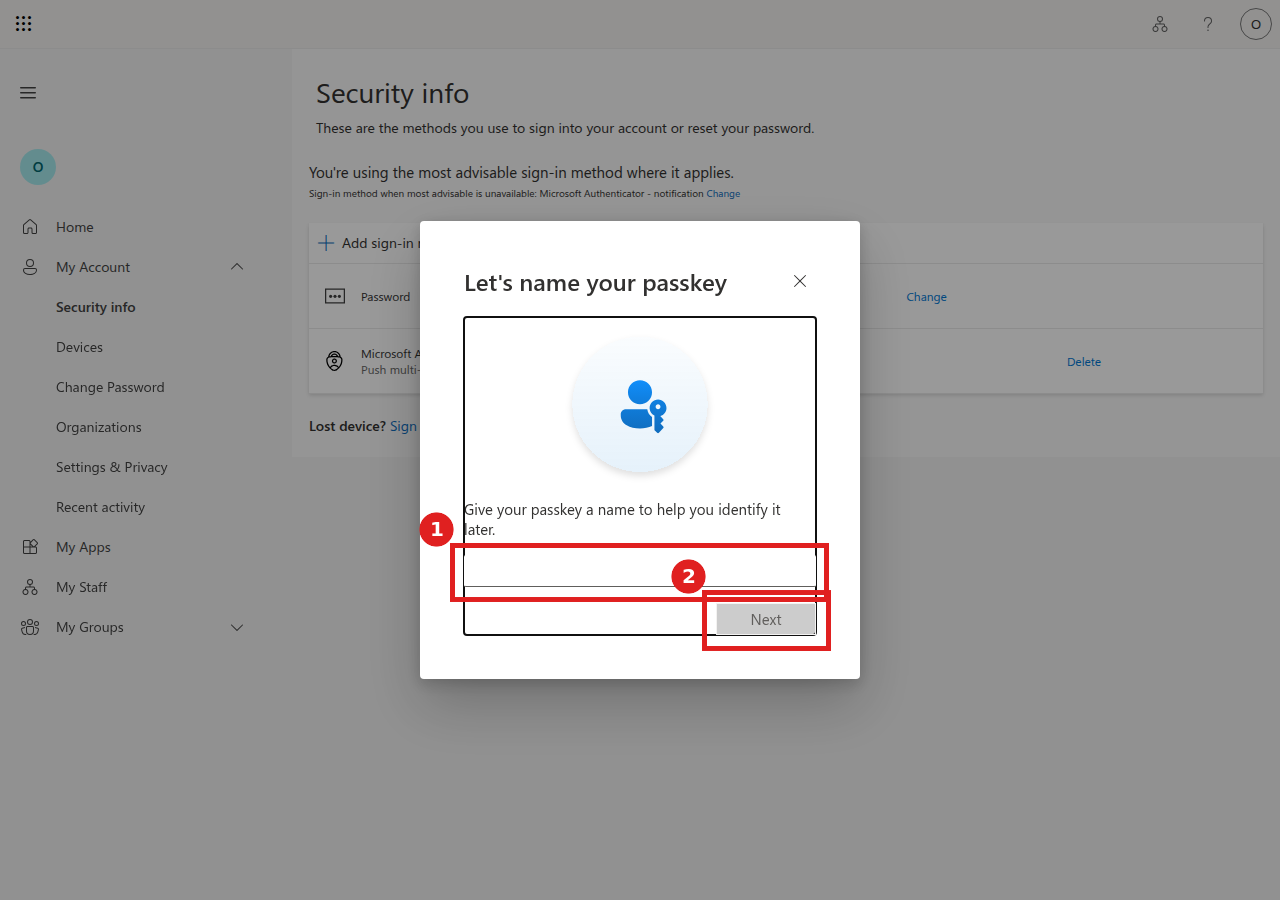
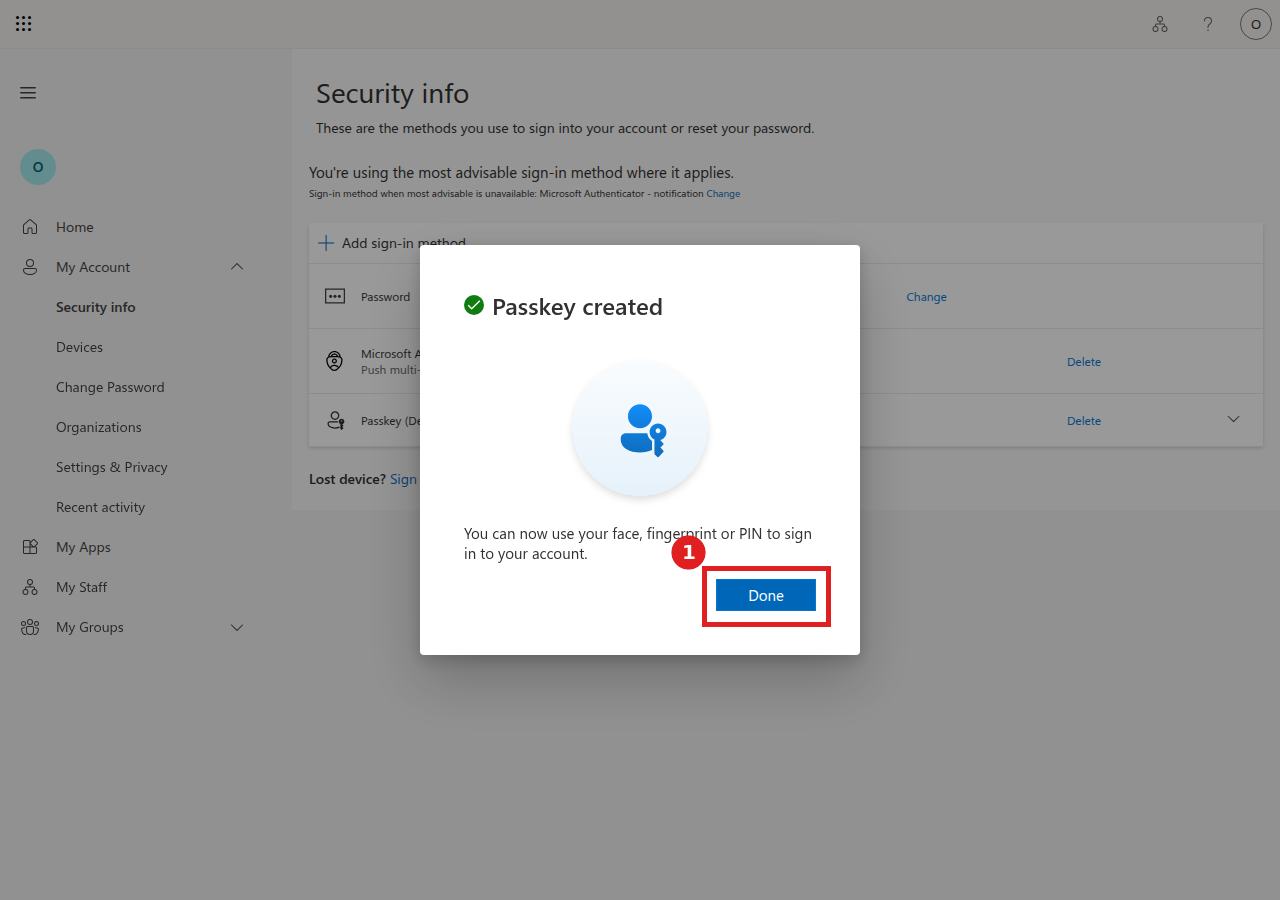
Give the passkey a name that tells you where it lives, then click Next. When you see Passkey created, click Done.
Step 5: Sign in with the passkey
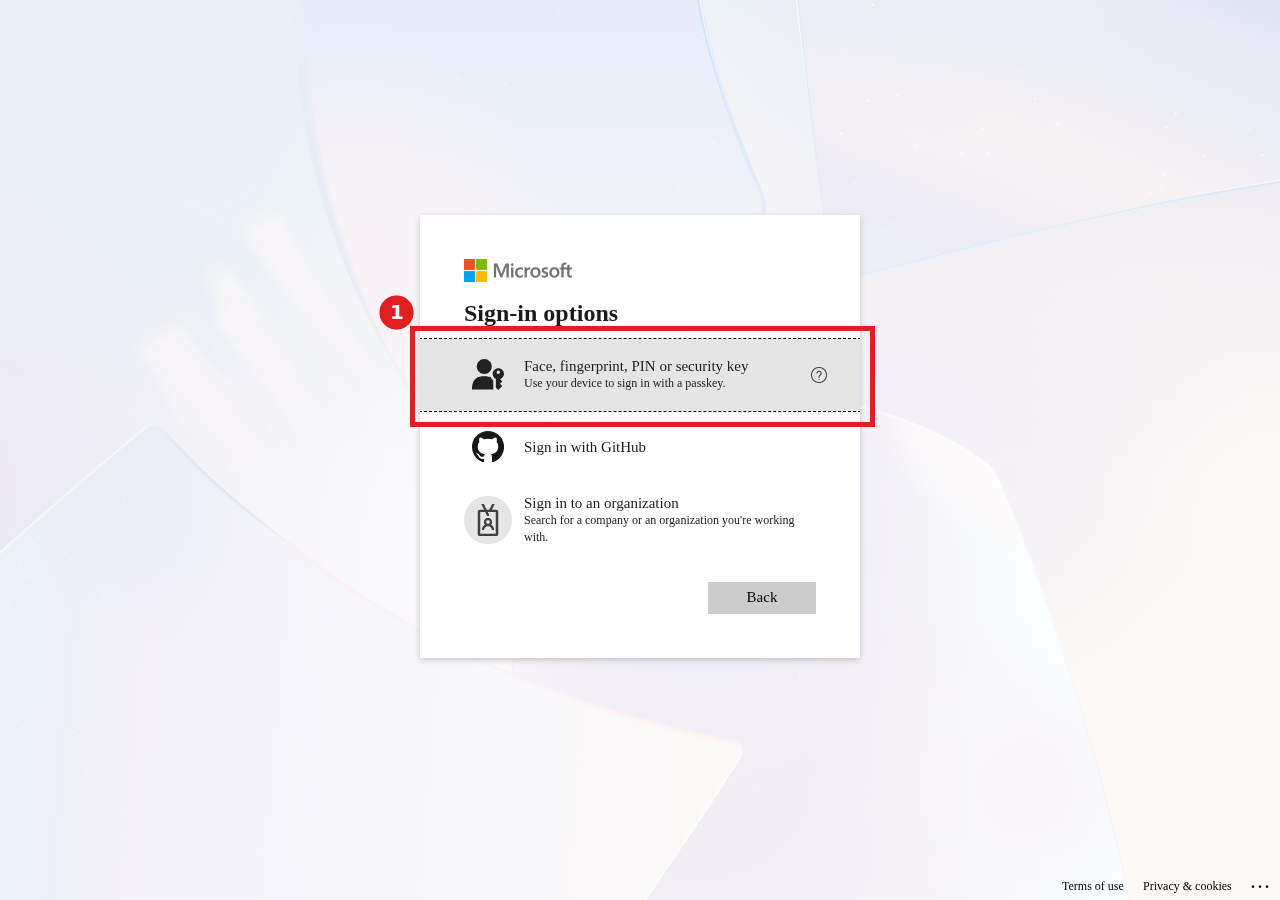
On the Microsoft sign in page, click Sign-in options and choose Face, fingerprint, PIN or security key. Approve on your device and you are signed in with no password and no Authenticator number.
For automation and lab use
Test labs and headless browsers have no fingerprint reader. Chrome and Edge include a virtual authenticator in the DevTools Protocol, exposed through the WebAuthn commands. A test script can create a virtual authenticator, register the passkey, export it and load it again in a later session. Treat the exported file as a private key. Keep it readable only by your user, never commit it to a repository, and use this approach only on test accounts you own. Do not use it on production or admin accounts.
FAQ
Why can’t I see Passkey when I add a sign in method?
The method is probably not enabled in the tenant. A user with the Authentication Policy Administrator or Global Administrator role must turn it on under Authentication methods, Policies.
Is an Azure subscription Owner allowed to enable it?
No. Azure roles cover resources and Entra roles cover the directory. You need an Entra role for this setting.
Does a passkey replace my password?
It gives you a passwordless way to sign in. Your password and other methods still exist unless an admin removes them, and adding new methods can still ask for extra verification.
Is a virtual passkey safe?
It is fine for a lab account you control as long as you protect the exported file like a password. It is not a good fit for real user or admin accounts, where a hardware key or a device passkey is the better choice.