Deploying Windows LAPS with Group Policy: A Real Walkthrough (Including the Domain Controller Gotcha)

Windows Server 2025 ships Windows LAPS natively, built directly into Active Directory rather than requiring the old downloadable Microsoft LAPS tool most existing guides still cover. This walkthrough deploys it end to end: extending the AD schema, delegating the right permissions, configuring the policy through a real Group Policy Object, and linking it, using an actual domain (built specifically for this walkthrough) rather than a screenshot pulled from documentation. It also covers a genuine, verified gotcha that catches people deploying LAPS to domain controllers specifically, discovered by actually hitting it during this walkthrough, not copied from a forum post.
Step 1: Extend the AD schema
Windows LAPS needs new attributes added to your AD schema before anything else works. This is a one-time, forest-wide operation:
# Run from a domain controller or a machine with RSAT-AD-PowerShell,
# using an account with Schema Admins rights
Update-LapsADSchema -Confirm:$false

# Confirm the new attributes landed
Get-ADObject -SearchBase (Get-ADRootDSE).schemaNamingContext -Filter "Name -like 'ms-LAPS*'" | Select-Object Name
You should see seven new schema attributes: ms-LAPS-Password, ms-LAPS-EncryptedPassword, ms-LAPS-PasswordExpirationTime, and related history/DSRM attributes.
Step 2: Delegate the right permissions
Three separate permissions need delegating, and it’s worth understanding why each exists rather than just running commands. Computers need permission to write their own password back to AD, and administrators need permission to read and reset it:
# Let computers in this OU write their own LAPS password back to AD
Set-LapsADComputerSelfPermission -Identity "Domain Controllers"

# Let a specific group read the stored passwords
Set-LapsADReadPasswordPermission -Identity "Domain Controllers" -AllowedPrincipals "Domain Admins"

# Let a specific group force a password reset
Set-LapsADResetPasswordPermission -Identity "Domain Controllers" -AllowedPrincipals "Domain Admins"
Scope these deliberately, not broadly. The read permission specifically is worth treating carefully, it’s a direct line to plaintext local admin credentials, and every group with read access is a group whose compromise means those credentials are compromised too.
Step 3: Configure the policy via Group Policy
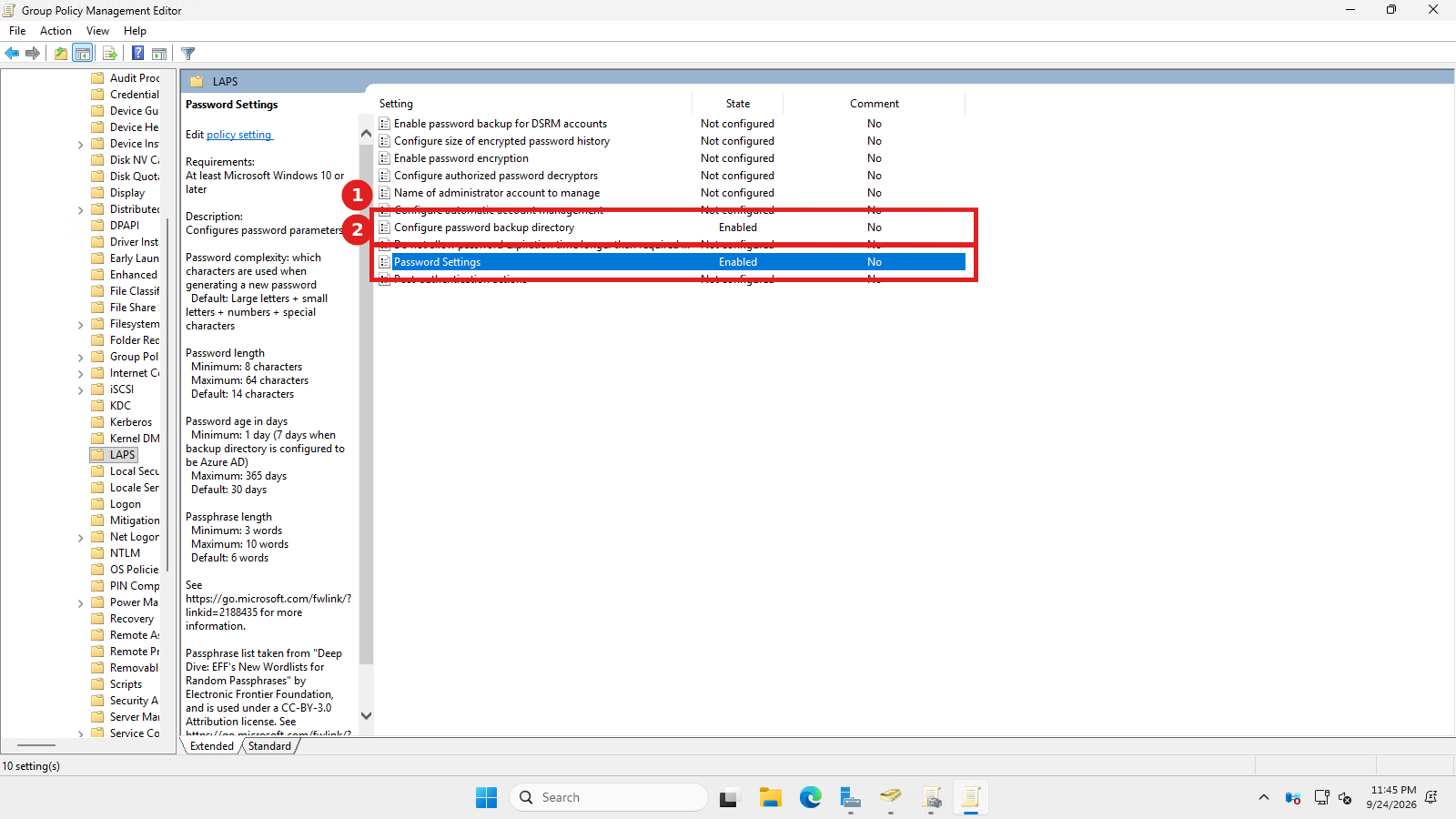
Create a new GPO and open it for editing, then navigate to Computer Configuration > Policies > Administrative Templates > System > LAPS. Ten settings live here:
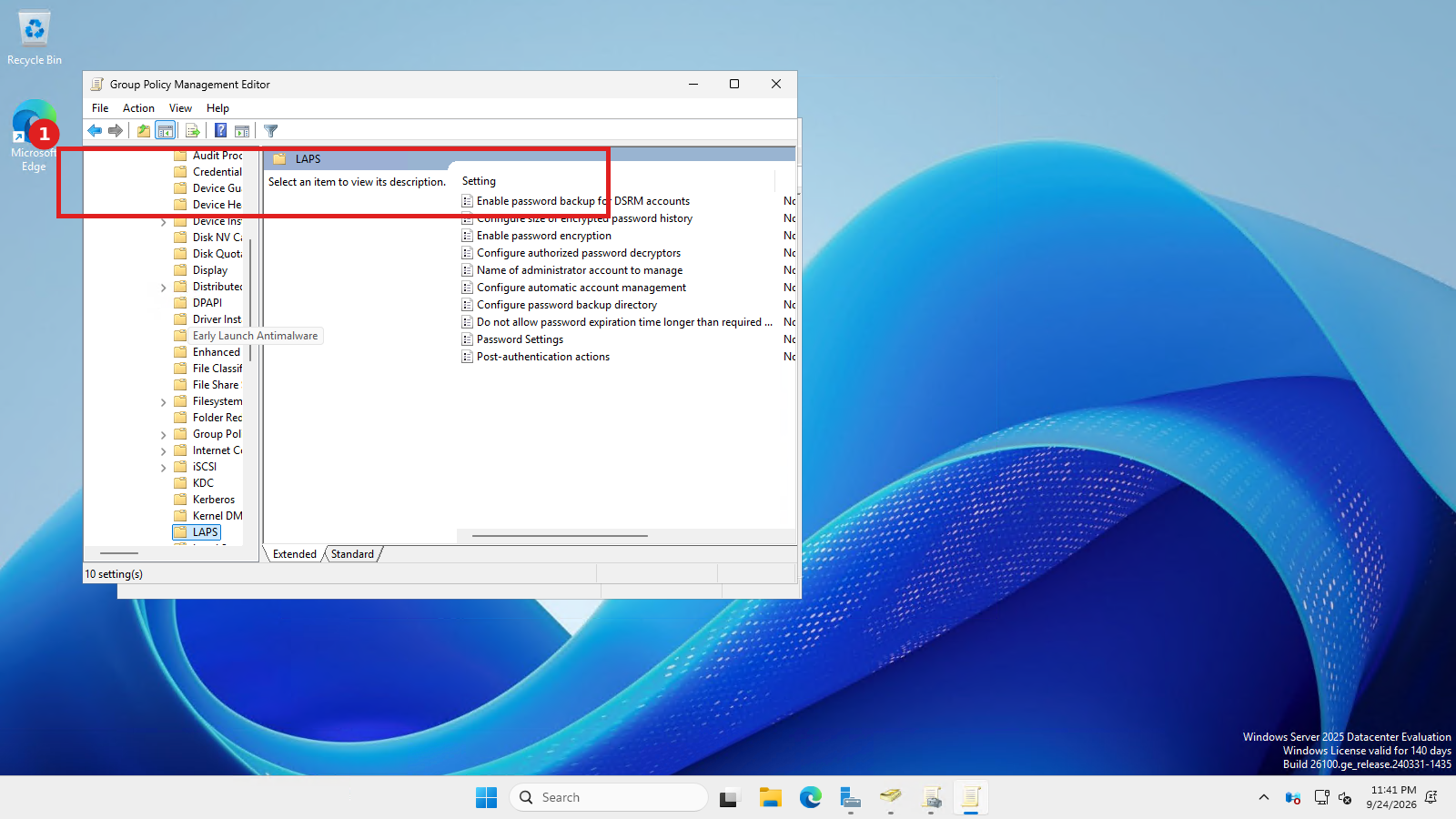
The one that actually turns LAPS on is Configure password backup directory. Double-click it:
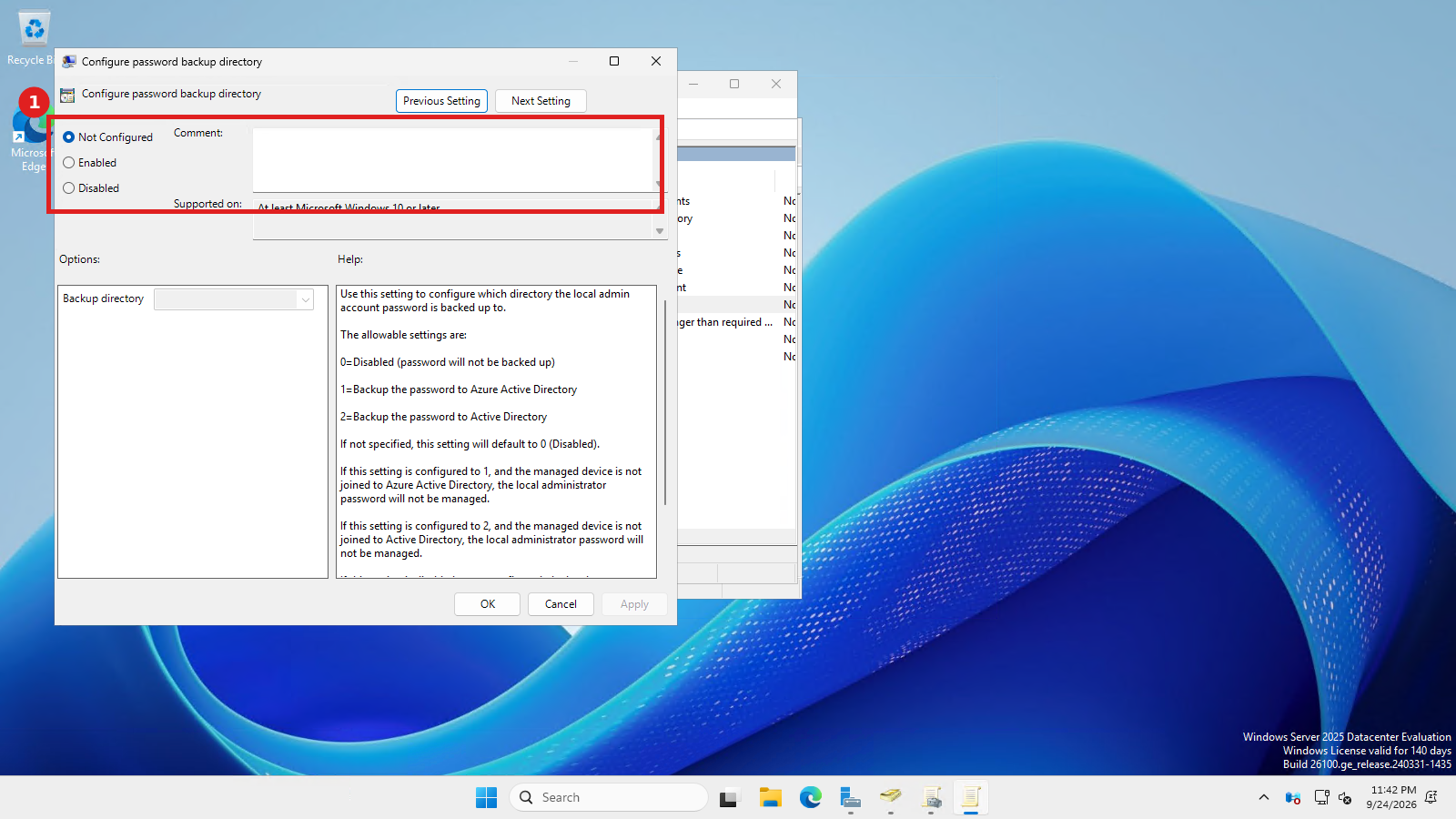
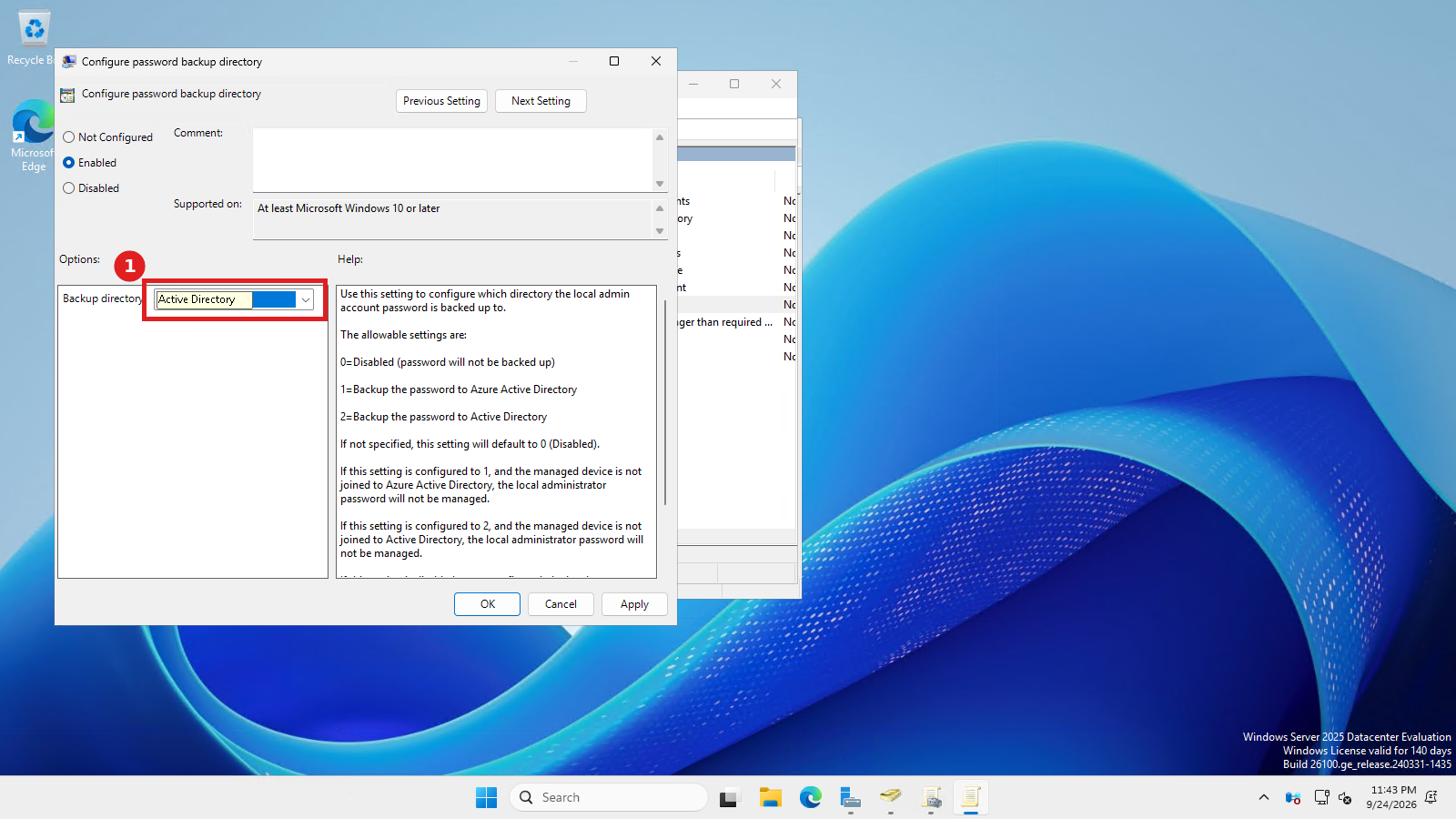
The built-in help text is worth reading closely, it explains the three valid values directly: 0 disables password backup entirely, 1 backs up to Azure AD, 2 backs up to on-premises Active Directory. Set it to Enabled, then choose Active Directory from the dropdown, not Azure Active Directory:
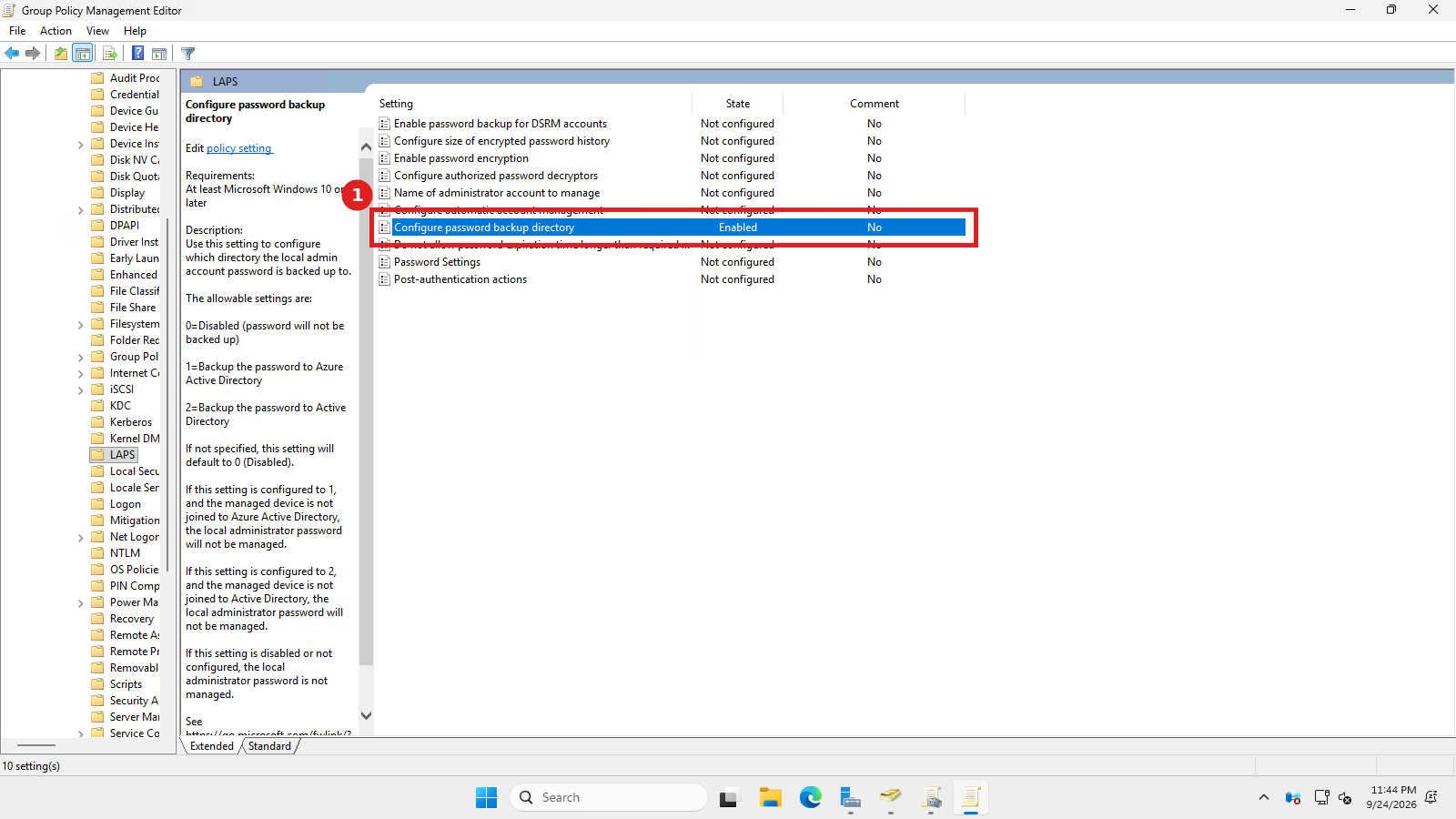
Click OK, and the setting shows as Enabled in the policy list:
Next, configure Password Settings to set real password complexity, length, and rotation age rather than relying on defaults:
# Reasonable production values, not the defaults
Password Complexity: Large letters + small letters + numbers + specials
Password Length: 16
Password Age (Days): 30
Both settings now show Enabled:
Step 4: Link the GPO
A configured GPO does nothing until it’s linked to an OU containing the computers you want managed. Right-click the target OU in Group Policy Management, choose Link an Existing GPO, and select it:
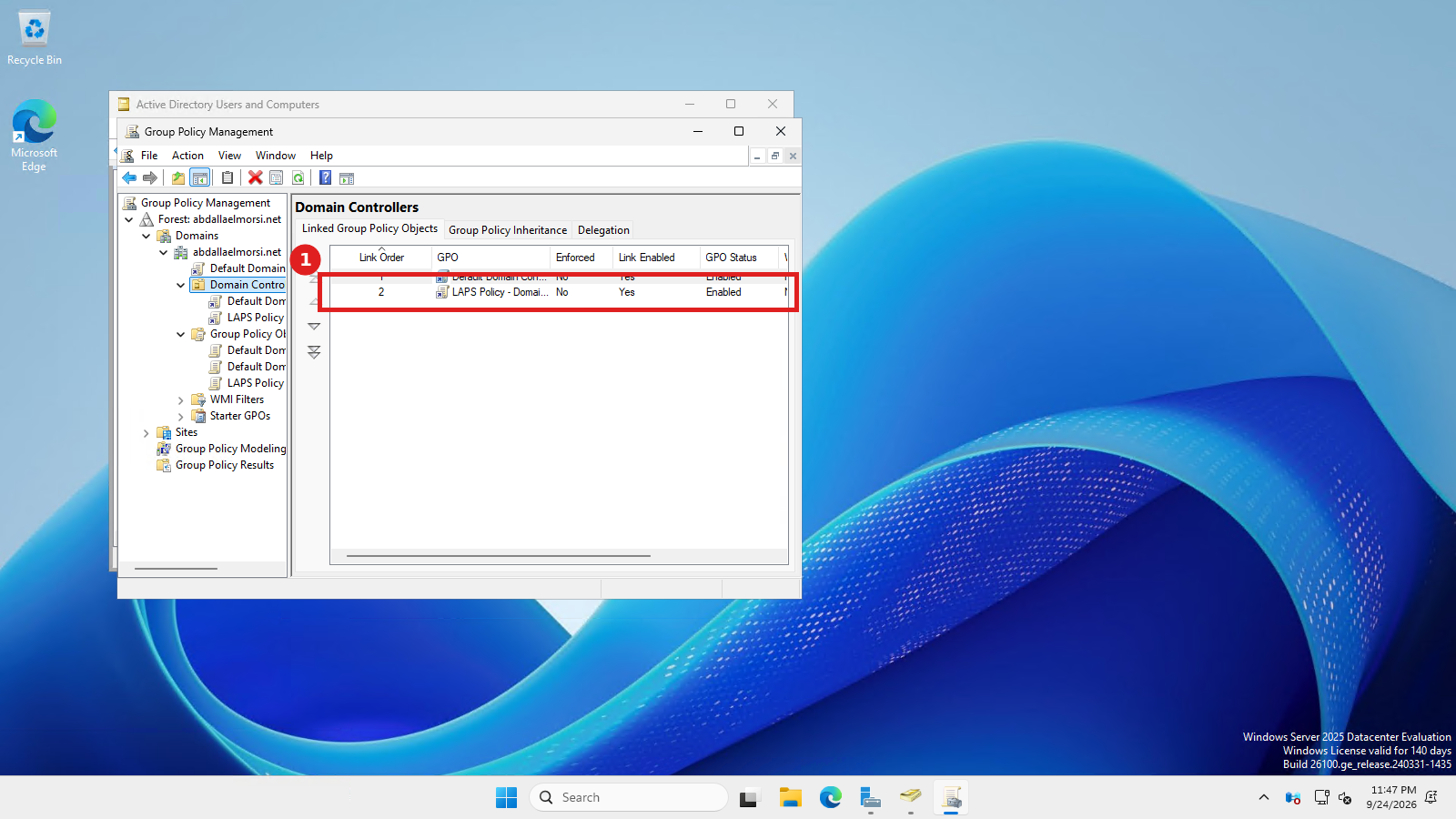
Confirm the link shows Link Enabled: Yes and GPO Status: Enabled, a GPO can exist and even appear linked while actually disabled, this is a real, easy-to-miss state worth explicitly checking rather than assuming from the link existing.
The gotcha: domain controllers are a special case
This is the part most LAPS tutorials skip entirely, because most real LAPS deployments target member servers and workstations, not domain controllers. Deploying it to a DC specifically (as this walkthrough did, since it’s what was available to test against) surfaces a real limitation.
After confirming the GPO applied correctly and permissions were delegated exactly as documented, forcing a password reset still failed:
PS> Reset-LapsPassword
Reset-LapsPassword: The request failed because the machine is not
configured to backup the managed account password to either Active
Directory or Azure Active Directory.
The Windows LAPS event log (Microsoft-Windows-LAPS/Operational) confirmed the policy itself was applying correctly, backup directory set to Active Directory, password length 16, age 30 days, exactly as configured, yet the reset still failed with error code 0x80070549 (E_INVALIDOMAINSTATE). Checking the actual AD permissions confirmed the delegation from Step 2 had applied correctly too, NT AUTHORITY\SELF had write access to the right attributes on the OU.
The real reason: domain controllers don’t have a standard local Administrator account in the same sense member servers and workstations do. A DC’s local accounts are effectively absorbed into the domain once promoted, there’s a Directory Services Restore Mode (DSRM) account instead, managed through a separate LAPS mechanism entirely (the “Enable password backup for DSRM accounts” policy, a distinct setting from the standard password backup directory setting used above), not through the regular Reset-LapsPassword path this walkthrough used.
The practical takeaway: everything in Steps 1 through 4 above is the correct, complete process for deploying Windows LAPS to member servers and workstations, which is what the overwhelming majority of real deployments actually target. If you specifically need DSRM password management on domain controllers, that’s a distinct configuration path, not an extension of the standard one, and conflating the two is exactly the kind of mistake that looks correctly configured while quietly not working.
Retrieving a managed password
Once deployed against a standard member computer, retrieving the current password is a single cmdlet for anyone holding the read permission delegated in Step 2:
Get-LapsADPassword -Identity "COMPUTERNAME" -AsPlainTextWithout -AsPlainText, the cmdlet returns metadata (expiration time, source, last update time) without exposing the actual credential, useful for auditing whether rotation is happening on schedule without needing read access to the secret itself.
Frequently asked questions
Do I need the old downloadable Microsoft LAPS if I’m running Windows Server 2025?
No. Windows Server 2025 and current Windows 11 builds include Windows LAPS natively, no separate download or MSI install required. The legacy Microsoft LAPS tool is a distinct, older product, don’t mix the two in the same environment.
Why did my policy show as applied correctly in the event log but Reset-LapsPassword still failed?
If the target is a domain controller, this is expected, see the gotcha section above. On a standard member server or workstation, a policy showing as correctly applied with a failed reset usually points to a permissions delegation gap specifically, re-verify Step 2’s three permission grants against the exact OU containing the target computer.
Is Azure AD or on-premises Active Directory the right backup directory choice?
It depends entirely on whether the target machine is Azure AD-joined or traditionally domain-joined. A hybrid-joined machine may support either depending on configuration, but a purely on-premises domain-joined machine (like the domain controller in this walkthrough) needs Active Directory specifically, selecting Azure AD on a machine that isn’t Azure AD-joined leaves the password unmanaged silently.