

Installing and Configuring the DHCP Server Role on Windows Server With PowerShell

DHCP hands out IP addresses automatically so nobody sets one by hand and creates a conflict, and installing it on Windows Server takes minutes with PowerShell once you know the four commands that matter: install the role, create a scope, set its options, and authorize it in Active Directory.
Quick guide
- Install the role with
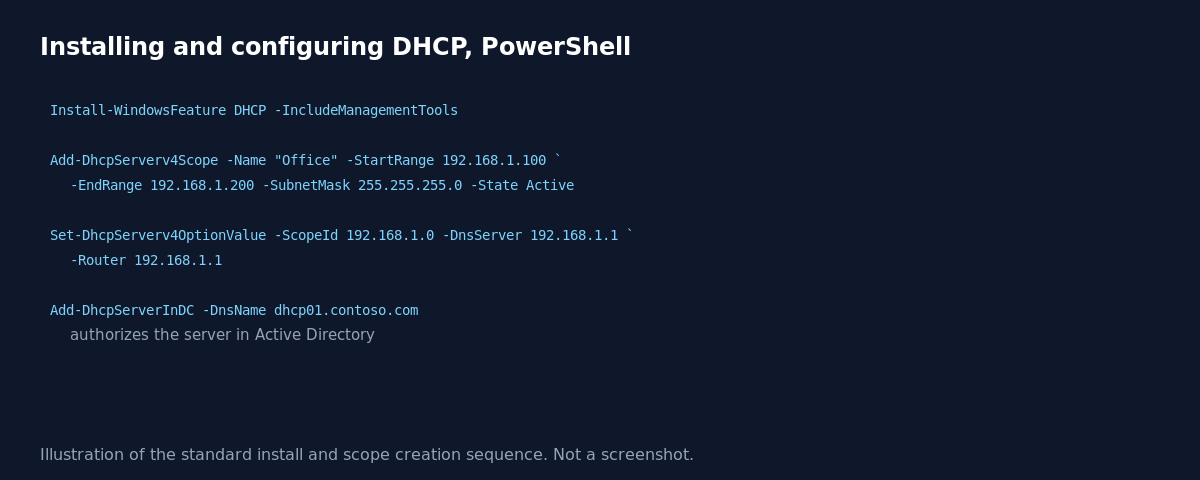
Install-WindowsFeature DHCP -IncludeManagementTools. - Create a scope, the address range DHCP will hand out, with
Add-DhcpServerv4Scope -Name "Office" -StartRange 192.168.1.100 -EndRange 192.168.1.200 -SubnetMask 255.255.255.0 -State Active. - Set the default gateway and DNS servers clients should receive with
Set-DhcpServerv4OptionValue -ScopeId 192.168.1.0 -Router 192.168.1.1 -DnsServer 192.168.1.1. - If this is a domain joined server, authorize it in Active Directory with
Add-DhcpServerInDC -DnsName dhcp01.yourdomain.com -IPAddress 192.168.1.10. An unauthorized DHCP server on a domain either refuses to serve addresses or gets shut down by AD’s own detection. - Verify the scope is active and has addresses available with
Get-DhcpServerv4ScopeandGet-DhcpServerv4ScopeStatistics. - Watch leases get handed out in real time with
Get-DhcpServerv4Lease -ScopeId 192.168.1.0once a client requests an address.
Why authorization in Active Directory matters
A DHCP server that is not authorized in Active Directory will not start serving IPv4 leases on a domain network at all, this is a deliberate safety mechanism. It exists specifically to prevent a rogue or accidentally misconfigured DHCP server from handing out bad addresses and breaking network connectivity for everyone on the segment, something that has happened at more than one organization when someone brought up a test DHCP server without realizing the consequences. Only a server that is a domain member, and whose account has the right permissions, can complete authorization, which is why this step is easy to forget when following instructions written for a workgroup lab.
Scope options versus server options
DHCP options like the default gateway and DNS servers can be set at the server level, applying to every scope, or at the scope level, applying only to that specific address range. In a single subnet environment the difference rarely matters, but once you have multiple scopes for multiple VLANs or sites, scope level options let each one hand out its own correct gateway and any location specific settings, while server level options act as a fallback default.
What actually goes wrong
The most common real world DHCP problem is not a broken scope, it is scope exhaustion, every address in the range is leased out and new devices cannot get an address at all. Get-DhcpServerv4ScopeStatistics shows the percentage in use at a glance, and it is worth checking before assuming a connectivity issue is something more complicated. The fix is either shortening lease durations so stale leases free up faster, or simply widening the scope’s address range if the network genuinely has more devices than addresses available.
FAQ
Can I run DHCP on the same server as a domain controller?
Yes, this is common in smaller environments. Larger environments often separate the roles for load and fault isolation reasons, but there is no technical requirement to do so.
What happens if two DHCP servers serve the same subnet without coordination?
They will hand out conflicting or duplicate addresses unless configured together deliberately, such as with DHCP failover, which splits or mirrors a scope between two authorized servers safely.
How do I reserve a specific IP address for one device permanently?
Use Add-DhcpServerv4Reservation with the device’s MAC address and the IP you want it to always receive, which keeps it inside the managed DHCP range instead of using a static IP outside it.
Sources
Microsoft Learn documentation for the DHCP Server role and the Add-DhcpServerv4Scope, Set-DhcpServerv4OptionValue and Add-DhcpServerInDC PowerShell cmdlets.