Installing and Configuring Active Directory Certificate Services

Active Directory Certificate Services (AD CS) is the role that lets you issue your own X.509 certificates internally, for internal web servers, 802.1X network authentication, Wi-Fi/VPN clients, code signing, S/MIME email, smart card logon, anything that would otherwise mean buying certificates from a public CA or running without TLS at all on internal-only services. This is a real, full walkthrough, installing the role and standing up a working Enterprise Root CA on an actual domain controller, not a staged example.
If you’ve read our earlier coverage of Certighost (CVE-2026-54121), the AD CS domain controller impersonation flaw, this is the setup-side counterpart, how the CA actually gets built in the first place, which is worth understanding either way.
Enterprise CA versus Standalone CA, pick before you install
This decision has to be made correctly up front, changing it later means tearing down and rebuilding the CA from scratch.
- Enterprise CA integrates directly with Active Directory. It publishes its certificate and CRL to AD automatically, supports certificate templates (reusable, policy-driven configurations for different certificate types), and can auto-enroll domain-joined machines and users without manual requests. It requires AD DS and domain membership. This is the right choice for the overwhelming majority of internal PKI deployments.
- Standalone CA doesn’t integrate with AD, every request is submitted manually and approved by an administrator, no templates, no auto-enrollment. It’s used for specific scenarios like an offline root CA kept disconnected from the network for security, not for a working day-to-day issuing CA.
This walkthrough builds an Enterprise Root CA, since the domain controller is already AD DS-integrated and this is the configuration almost everyone actually needs.
Step 1: install the role
Install-WindowsFeature ADCS-Cert-Authority -IncludeManagementToolsStep 2: configure the CA
A few real decisions you have to make here, and get right the first time:
- Key length: 2048-bit RSA is the current practical baseline. 4096-bit is more conservative but meaningfully slower for every operation that uses the CA’s own key, 2048 is what most environments actually run.
- Hash algorithm: SHA256, SHA1-based CAs are deprecated and will cause compatibility and trust problems with modern clients.
- Validity period: this is the root CA’s own certificate lifetime, commonly set long (10-20 years) since reissuing a root CA certificate later is disruptive, every certificate it issued needs to be considered against the new root’s trust chain.
Install-AdcsCertificationAuthority `
  -CAType EnterpriseRootCA `
  -CryptoProviderName "RSA#Microsoft Software Key Storage Provider" `
  -KeyLength 2048 `
  -HashAlgorithmName SHA256 `
  -ValidityPeriod Years `
  -ValidityPeriodUnits 10
Real result, installed and configured against a live domain controller:
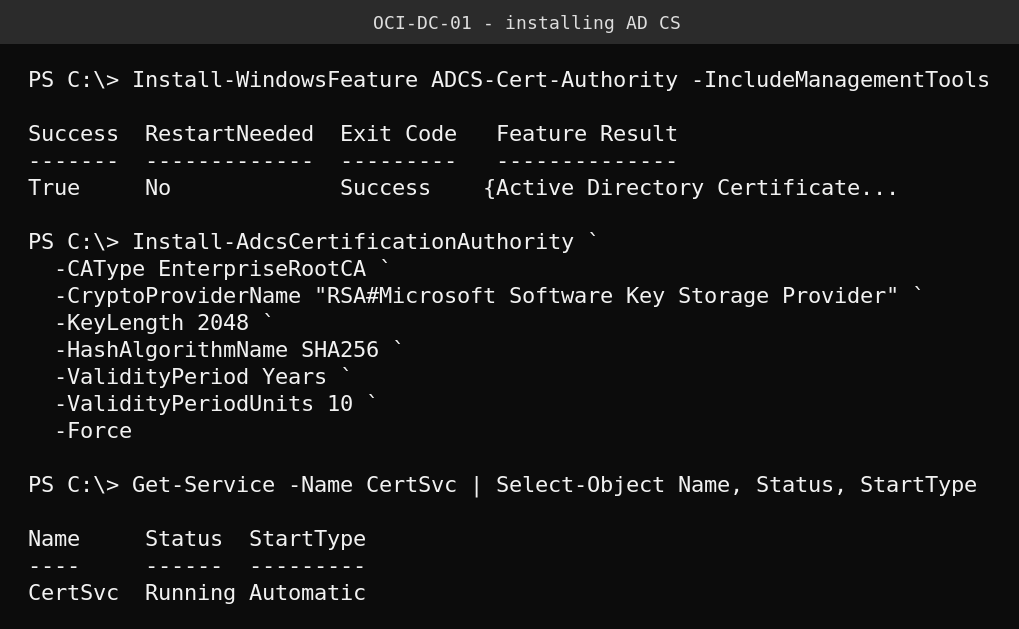
Step 3: verify the CA is actually healthy
A service showing “Running” isn’t the same as a CA that’s actually functional, confirm with certutil:
certutil -cainfo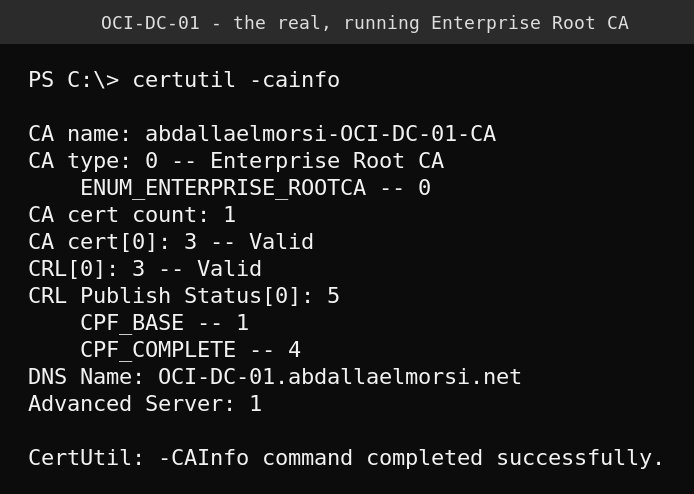
Confirm CA cert[0] and CRL[0] both report Valid. A CA with an invalid or missing CRL will issue certificates that clients subsequently fail to validate, worth catching here rather than discovering it later when something downstream breaks.
Step 4: enable a certificate template so it can actually be requested
A fresh Enterprise CA ships with a default set of templates already enabled, Administrator, EFS, DomainController, Machine, User, and a handful of others, but not every template you’ll want, Web Server being the common one that’s missing by default and needs to be added explicitly.
Add-CATemplate -Name WebServer -Force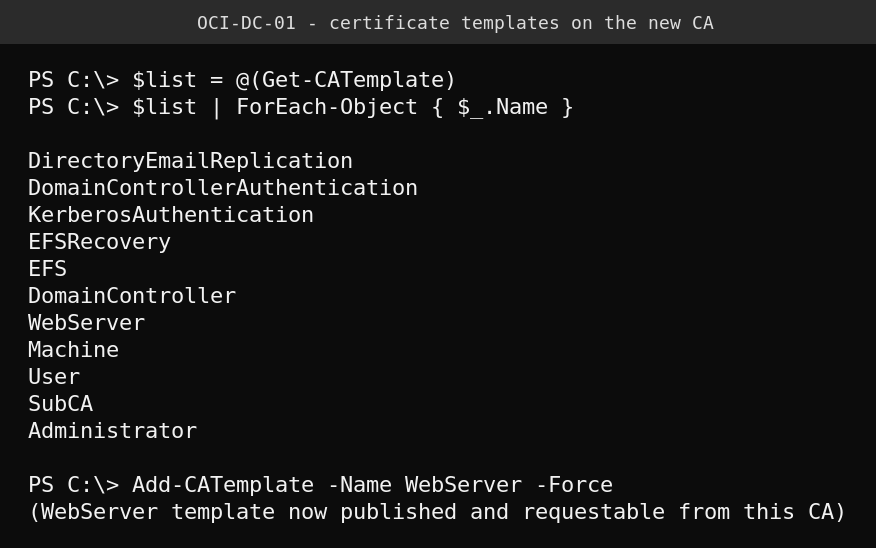
A gotcha worth knowing: Get-CATemplate behaves differently depending on how you capture its output. Piping it directly into another cmdlet unrolls it into individual template objects rather than passing a single collection, which breaks anything expecting a .Templates property on the piped object. Capture it to a variable with explicit array casting first, $list = @(Get-CATemplate), then work with $list, rather than chaining cmdlets directly off the first call.
Step 5: request a certificate from a domain-joined client
Once a template is enabled, any domain-joined machine with appropriate permissions on that template can request a certificate, either through the MMC Certificates snap-in (Personal > Certificates > right-click > All Tasks > Request New Certificate) or from PowerShell:
Get-Certificate -Template WebServer -CertStoreLocation Cert:\LocalMachine\MyQuick guide
- Decide Enterprise versus Standalone before installing, Enterprise for AD-integrated day-to-day use.
- Install the role with
Install-WindowsFeature ADCS-Cert-Authority. - Configure the CA with
Install-AdcsCertificationAuthority, SHA256, 2048-bit RSA, a deliberately long validity period. - Verify health with
certutil -cainfo, confirm both the CA cert and CRL show Valid. - Enable any additional templates you need (Web Server is the common one) with
Add-CATemplate. - Test an actual certificate request from a domain-joined client before considering the CA production-ready.
FAQ
Should I install AD CS on a domain controller?
Microsoft’s general guidance is to avoid co-locating CA and domain controller roles in production, a compromised CA server with that much integration into AD is a serious risk, and this is part of why the Certighost-class vulnerabilities (AD CS flaws that enable domain controller impersonation) are taken so seriously. This walkthrough runs on a DC because it’s our lab environment, in a production deployment, run AD CS on a dedicated, appropriately hardened member server.
What happens if I need to change the CA’s key length or hash algorithm later?
Changing the root CA’s own key or algorithm means generating a new CA certificate, which every certificate it ever issued chains up to, this is disruptive and generally means a CA rebuild or a carefully planned renewal, not a quick setting change. Get the initial configuration right rather than planning to adjust it later.
Do client machines automatically trust certificates from this new CA?
Domain-joined Windows machines automatically trust an Enterprise CA’s root certificate via Group Policy, it’s published to AD and distributed to the domain’s trusted root store automatically. Non-domain-joined devices and non-Windows clients need the root certificate installed into their trust store manually or via other management tooling.
What’s the difference between a Root CA and a Subordinate (Issuing) CA?
A Root CA is the trust anchor, typically kept offline or minimally used in larger deployments specifically to protect its key. A Subordinate CA is issued its own certificate by the Root CA and handles day-to-day certificate issuance. For a single-tier lab or small environment, running the Root CA as the active issuing CA (as in this walkthrough) is a reasonable simplification, larger environments typically build a two-tier hierarchy for better key protection.