Configuration Manager 2509 Setup on Windows Server 2025: 7 Errors and the Fixes

Installing Configuration Manager (SCCM) current branch 2509 on Windows Server 2025 with a local SQL Server 2022 looks simple on paper. In my lab it failed seven different ways before the site came up. Each failure left a precise error string in a log, and each had a short fix. This post lists all seven in the order I met them, with the real log text, the cause and the exact command that fixed it, so you can search for your error and skip the hour I lost.
This is a lab built for testing, not a production environment. Names are neutral on purpose: site server CM01, domain contoso.com, SQL service account svc-sql. The setup was a standalone primary site on Windows Server 2025, SQL Server 2022 evaluation on the same server, and the 2509 evaluation baseline. The VM’s disk sits on a slow external drive, which matters for the timings near the end.
Quick guide: the seven errors at a glance
| # | Symptom | Cause | Fix |
|---|---|---|---|
| 1 | MCM_Configmgr_2509.exe runs forever at about 0.1 CPU and extracts nothing | The self-extractor waits on a dialog nobody can click in a headless or scheduled-task session | Extract with 7-Zip: 7z x MCM_Configmgr_2509.exe -oC:\Src\mcm (4,102 files in 693 folders, 2.2 GB) |
| 2 | SQL setup: Value cannot be null. Parameter name: userName | The account NT Service\MSSQLSERVER contains a space and was passed unquoted, so setup received an empty account | Quote it: /SQLSVCACCOUNT="NT Service\MSSQLSERVER" and do the same for the agent account |
| 3 | SQL setup: The only supported value for Authentication Mode is "SQL" | I passed /SECURITYMODE=Windows | Remove the parameter. Windows authentication is already the default and /SECURITYMODE only accepts SQL |
| 4 | setupdl.exe (the prerequisite downloader) hangs and downloads nothing | Its log stopped at “Checking MSODBC version” because ODBC Driver 18 was missing | Install ODBC Driver 18 first, then run setupdl.exe /NoUI C:\Prereq. It then downloaded 2,597 files |
| 5 | Prerequisite check error: the logon account for the SQL Server service cannot be a local user account, NT SERVICE or LOCAL SERVICE | Configuration Manager rejects the default SQL virtual service account | Create a domain account and change the SQL service account to it with the SQL WMI provider |
| 6 | Prerequisite check error: SQL client prerequisite missing for Configuration Manager setup | Setup wants ODBC Driver 18 and OLE DB Driver 19 on the site server | Install both (I ended on ODBC 18.4.1.1) |
| 7 | OLE DB Driver 19 installer exits with code 1603 | Missing Visual C++ 2022 redistributable, version 14.34 at minimum | Install the VC++ redistributable x64 and x86, reboot, run the OLE DB installer again |
Errors 2 and 3: SQL Server setup parameters
Both failed fast and the setup log pointed straight at the cause. For error 2 the validation action ValidateFeatureSettingsAction threw while checking the engine service account, which is where the empty value shows up.
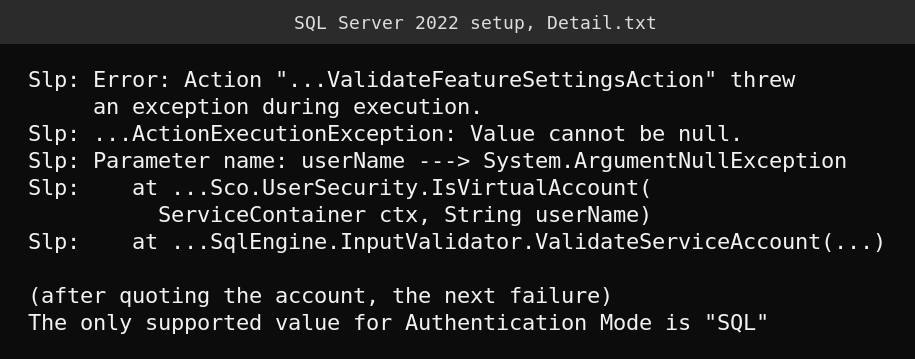
Real log text, with some namespace prefixes shortened to three dots for width. If you pass accounts with spaces in a PowerShell Start-Process -ArgumentList array, the quotes have to be inside the string:
$a = '/Q','/ACTION=Install','/IACCEPTSQLSERVERLICENSETERMS','/FEATURES=SQLENGINE',
     '/INSTANCENAME=MSSQLSERVER',
     '/SQLSVCACCOUNT="NT Service\MSSQLSERVER"','/AGTSVCACCOUNT="NT Service\SQLSERVERAGENT"',
     '/SQLSYSADMINACCOUNTS=CONTOSO\admin','BUILTIN\Administrators',
     '/SQLCOLLATION=SQL_Latin1_General_CP1_CI_AS','/TCPENABLED=1','/UPDATEENABLED=0'
I hit the userName error twice, first running as SYSTEM and then as a domain admin. That ruled out the identity running setup, so the quoting was the problem. After the fix the third run finished with exit code 3010 (reboot required), collation SQL_Latin1_General_CP1_CI_AS, version 16.0.1000.6, and max server memory capped at 3072 MB on an 8 GB VM.
Errors 4 to 7: the SQL client drivers and the service account
These four are one family. Configuration Manager 2509 setup checks the SQL side of the server before it installs anything, and it is stricter than SQL Server itself. The prerequisite log shows two blocking errors:
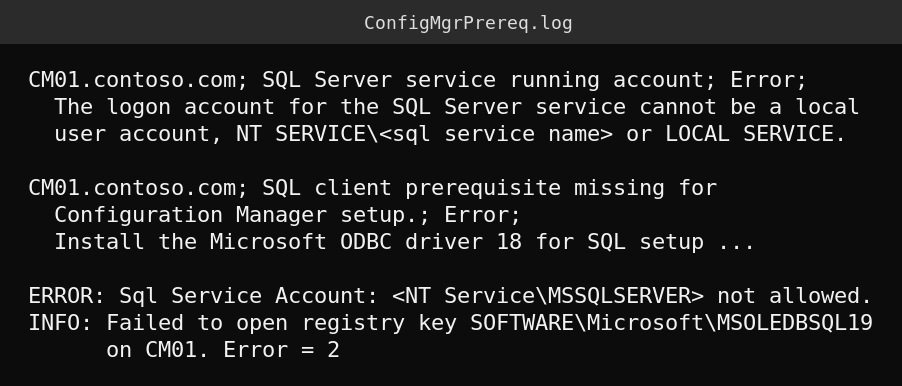
Real text from ConfigMgrPrereq.log, wrapped for width with the long lines shortened where the log itself was truncated. Two things to take from it. The ODBC message and the failed MSOLEDBSQL19 registry key tell you the drivers are the issue, and the service account message tells you the default NT Service\MSSQLSERVER account is not accepted.
Install the drivers in this order
- ODBC Driver 18 for SQL Server first. It fixes error 6 and it also unblocks
setupdl.exe(error 4), because the downloader checks the ODBC version before it fetches anything. I ended on 18.4.1.1. Microsoft’s Learn documentation says versions 2503 through 2603 need 18.4.1.1 or later. - Visual C++ 2022 redistributable, x64 and x86. The x64 package exits with 3010 and asks for a reboot, so reboot before the next step.
- OLE DB Driver 19 for SQL Server. Without step 2 it fails with exit code 1603.
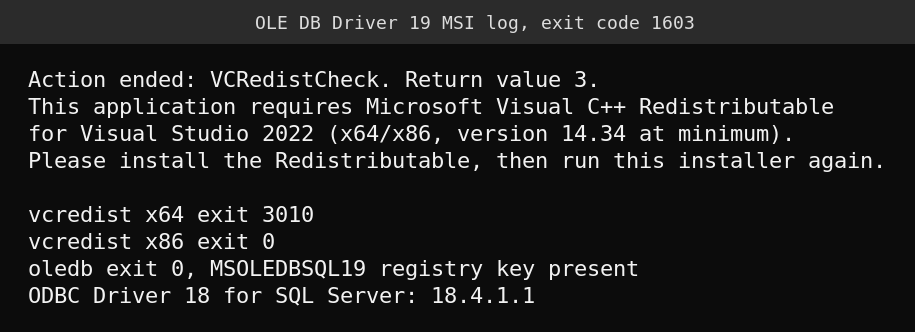
The top three lines are the MSI log from the failed run. The bottom four are the results after installing the redistributables. The error message names the exact minimum version, which is the part worth searching for. Microsoft’s documentation for version 2609 says setup installs the OLE DB driver for you, so this step should disappear in newer builds, but on 2509 you do it yourself.
Change the SQL service account the supported way
Do not use sc config for this. It changes the logon but it does not fix the file and registry permissions that SQL Server needs. Use the SQL WMI provider, which is what SQL Server Configuration Manager uses underneath:
$s = Get-CimInstance -Namespace 'root\Microsoft\SqlServer\ComputerManagement16' `
       -ClassName SqlService -Filter "ServiceName='MSSQLSERVER'"
Invoke-CimMethod -InputObject $s -MethodName SetServiceAccount `
  -Arguments @{
    ServiceStartName     = 'CONTOSO\svc-sql'
    ServiceStartPassword = '<password>'
  }
Restart-Service MSSQLSERVER -Force
The argument names must be exactly ServiceStartName and ServiceStartPassword. My first attempt used AccountName and Password, the script ran, wrote an empty log and changed nothing, because the wrong names are silently ignored. The call returns ReturnValue 0 on success, and the real proof is the service itself:
(Get-CimInstance Win32_Service -Filter "Name='MSSQLSERVER'").StartName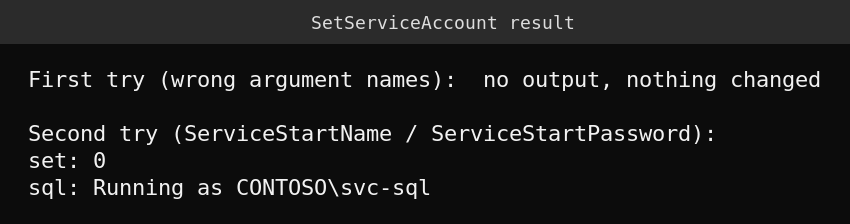
The first line is my note about the failed attempt, not log output. The last two lines are the real result of the working run. Microsoft’s SQL Server configuration page says the service sign-in can be a domain account, NETWORK SERVICE or LOCAL SYSTEM, and describes a low-rights domain account as the best practice. I used the domain account and did not test the other two.
Error 1 and error 4: two hangs with no error message
The two hangs cost more time than the five errors, because nothing tells you something is wrong. The self-extractor sat at about 0.1 CPU for a long time and produced no files. It needs a dialog it can never show in a session nobody is looking at. 7-Zip opens the same file without any dialog and lists 4,102 files in 693 folders, 2,230,549,840 bytes unpacked from a 1,254,017,320 byte download.
The prerequisite downloader hung the same way. Its log stopped at “Checking MSODBC version”. I had also added /NoUI for the headless session and it hung with that switch too, so I concluded the missing driver was the blocker. It finished only after ODBC Driver 18 was installed, and the prerequisite folder then held 2,597 files. The general lesson is to open the tool’s own log before you wait on a silent process.
Warnings you can accept in a lab
The prerequisite check also printed three warnings that did not block setup: WSUS not installed, SQL Server memory below the recommended reservation, and a note about SQL authentication mode. Errors block setup and warnings do not. Read each warning once and decide, because the memory one is a real production concern and the WSUS one only matters if you plan software updates.
The unattended setup command and timings
setup.exe /script C:\Src\sccm.ini /nouserinputThe ini file sets Action=InstallPrimarySite, ProductID=EVAL, a site code, SDKServer, PrerequisiteComp=1, PrerequisitePath=C:\Prereq, and the [SQLConfigOptions] section with SQLServerName, DatabaseName and SQLSSBPort=4022. Run it as an account that is sysadmin on the SQL instance.
On this slow-disk VM, installing the 55 Windows features took far longer than it would on normal storage, and one attempt was killed by a reboot. I reran it as a system scheduled task and polled for a done flag instead of holding a remote session open. The unattended site install itself logged the database tables being created at 07:33, Configuration Manager console installation completed successfully at 08:29:24, and Completed Configuration Manager Server Setup at 08:29:28 (server clock). Defender was the busiest process on that server, at about 1,300 CPU seconds, while the extractor hung, so I turned real-time scanning off on that one lab server. I did not measure the effect separately, and that is a lab shortcut, not production advice.
One more trap: remote sessions and background installers
While deploying the client later, my script started ccmsetup.exe from a remote PowerShell session with a plain Start-Process and the client never appeared on the target, with no ccmsetup process and no log. The same install worked from a scheduled task with -Wait. I believe the process was killed when the remote session ended, but I did not prove that, and I have not re-verified the -Wait route end to end. Treat it as a lead to test, not a rule.
FAQ
Why does Configuration Manager reject the default SQL service account?
The prerequisite check refuses a local user account, an NT SERVICE virtual account and LOCAL SERVICE. Microsoft documents a domain account, NETWORK SERVICE or LOCAL SYSTEM as the accepted choices, and recommends a low-rights domain account. In my lab the check failed with the default virtual account and passed after I switched to a domain account.
Which SQL Server versions work with Configuration Manager 2509?
Microsoft’s supported versions page lists SQL Server 2017 (cumulative update 2 or later), 2019 (cumulative update 5 or later), 2022 and 2025, all 64-bit. This lab used SQL Server 2022 and it worked once the account and driver problems were fixed.
What does exit code 3010 mean during setup?
It means the installer finished and wants a reboot. It is not a failure. The VC++ x64 redistributable and the SQL Server setup both returned it, so reboot before the next step.
Why does the Configuration Manager prerequisite download hang?
In my case the downloader’s log stopped at “Checking MSODBC version” because ODBC Driver 18 was not installed. Installing the driver let it finish. Open the downloader’s log and see where it stops before you assume a network problem.
Can I install Configuration Manager and SQL Server on the same server?
This lab ran that way and setup completed. It is a convenient shape for a lab. Check Microsoft’s supported configurations page before copying it to anything larger, and plan the memory and disk split first, because both products compete for RAM.