First Run: Configuring SCOM 2025, Approving Agents, a Real Discovery Failure

This picks up right after SCOM 2025 setup finishes installing. The first console run has four required configuration tasks, two of which matter immediately: configuring automatic agent approval and importing management packs. Along the way, the built-in Discovery Wizard genuinely failed with “no computers were discovered,” the cause was never found in the time available, and a manual silent agent install was used as the working alternative instead. Names, domain, and server names are redacted and replaced with neutral placeholders (SRV01, DC01, CONTOSO) throughout.
Step 1: the first console run
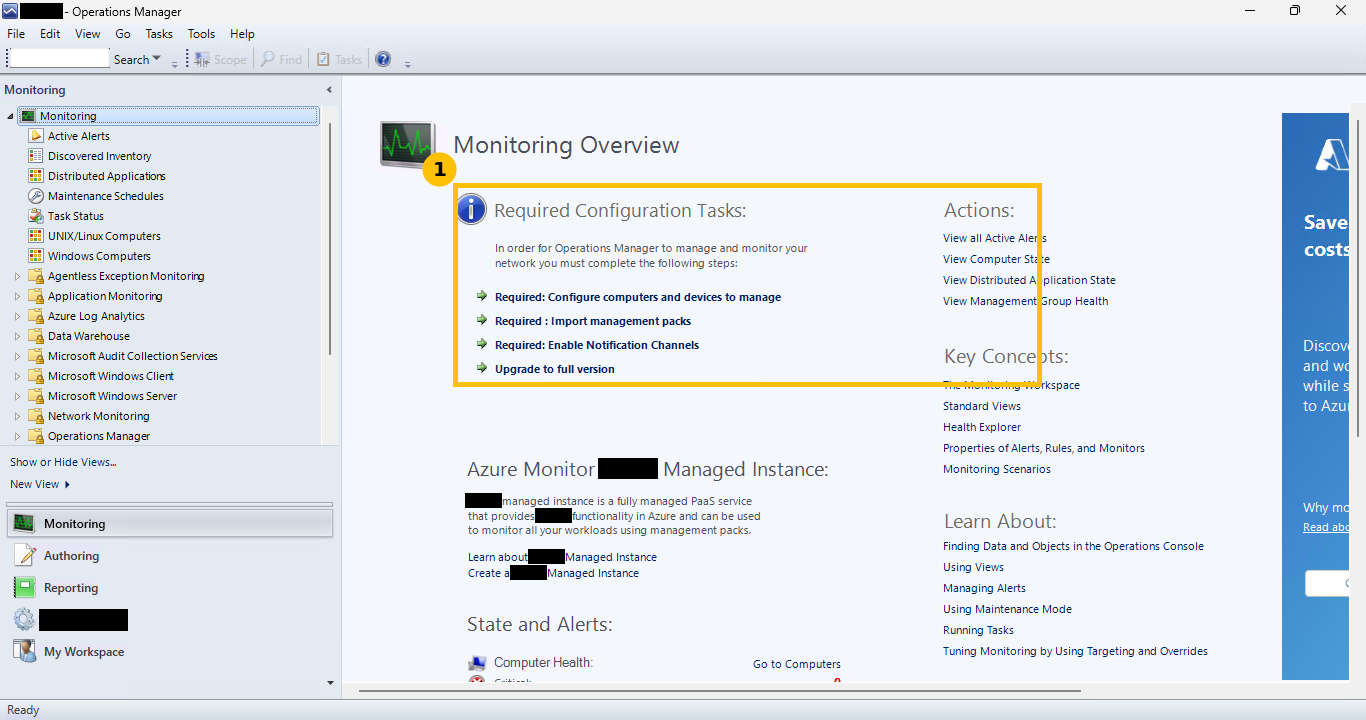
The Operations console opens straight to Monitoring Overview, with four required configuration tasks listed up front: configure computers and devices to manage, import management packs, enable notification channels, and upgrade to the full (licensed) version:
Step 2: turn on automatic agent approval first
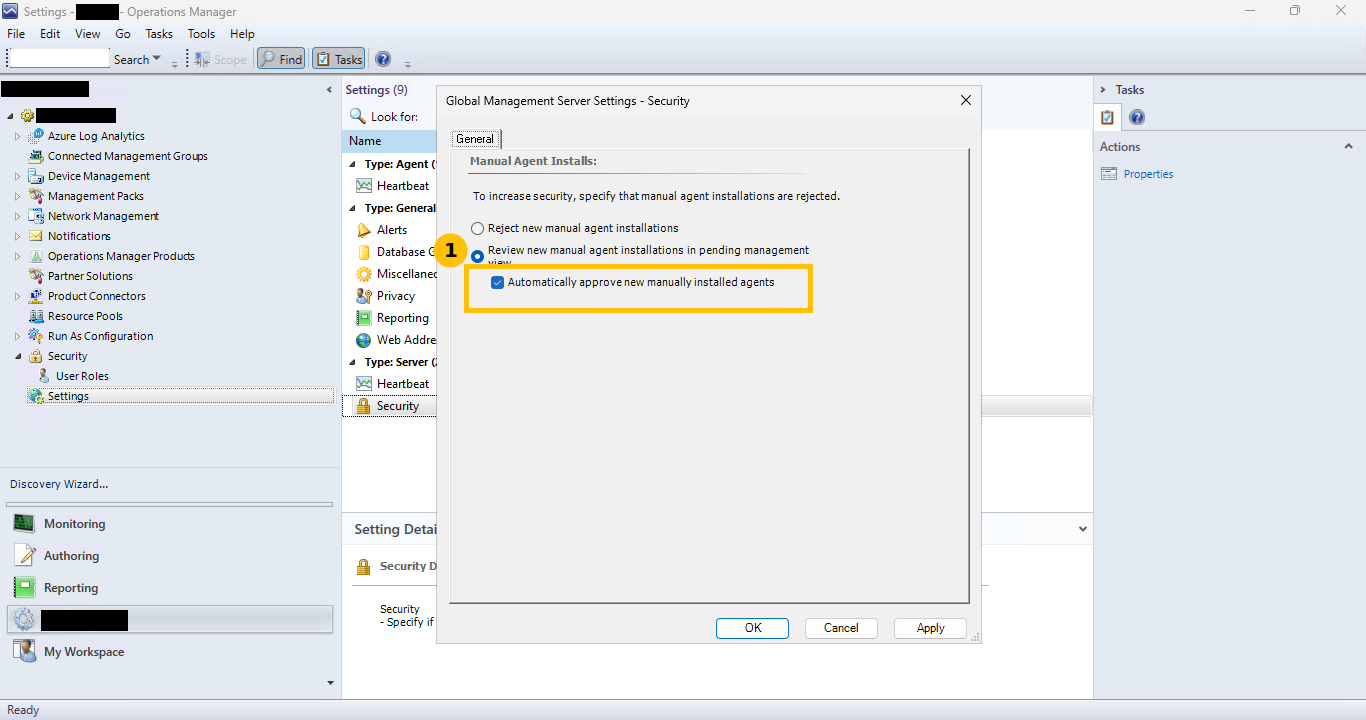
Do this before installing any agents, it saves having to manually approve each one later. Administration > Settings > (Type: Server) > Security > Properties, then tick “Automatically approve new manually installed agents”:
Step 3: import management packs
Administration > Management Packs > Import Management Packs > Add > Add from catalog. Search “Windows Server Operating System,” expand Microsoft Corporation > Windows Server > Core OS 2016 and above, and select both the Library and Reports packs:
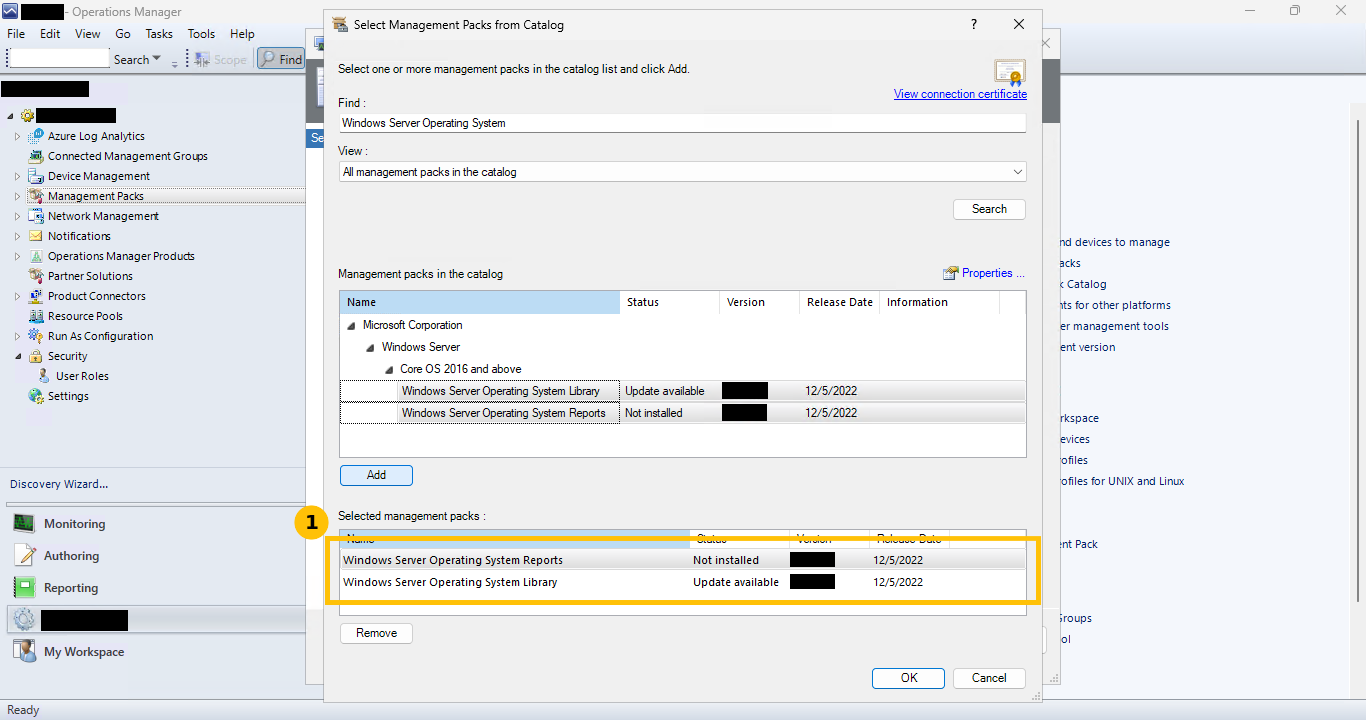
Dependencies resolve automatically on OK > Install. Importing those two packs took about 7 minutes in this environment. The four Active Directory Domain Services management packs were imported the same way, through the catalog, right after. This step needs real internet access from the server, the catalog search is a live lookup. Offline, you would need the .mpb files downloaded separately and “Add from disk” instead.
Step 4: discover and manage a computer, the attempt that failed
Computer and Device Management Wizard, Windows computers, Advanced discovery, typed in the target domain controller’s FQDN directly rather than scanning Active Directory, and supplied a domain admin account under “Other user account”:
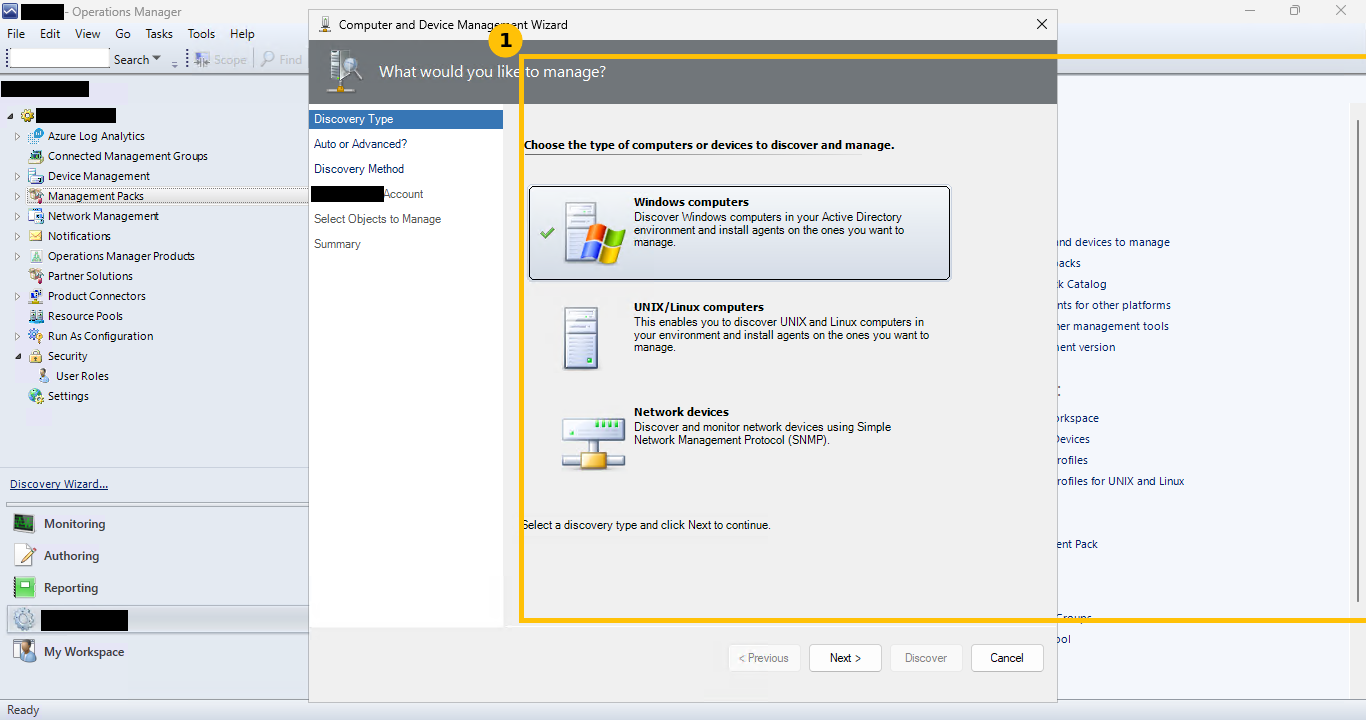
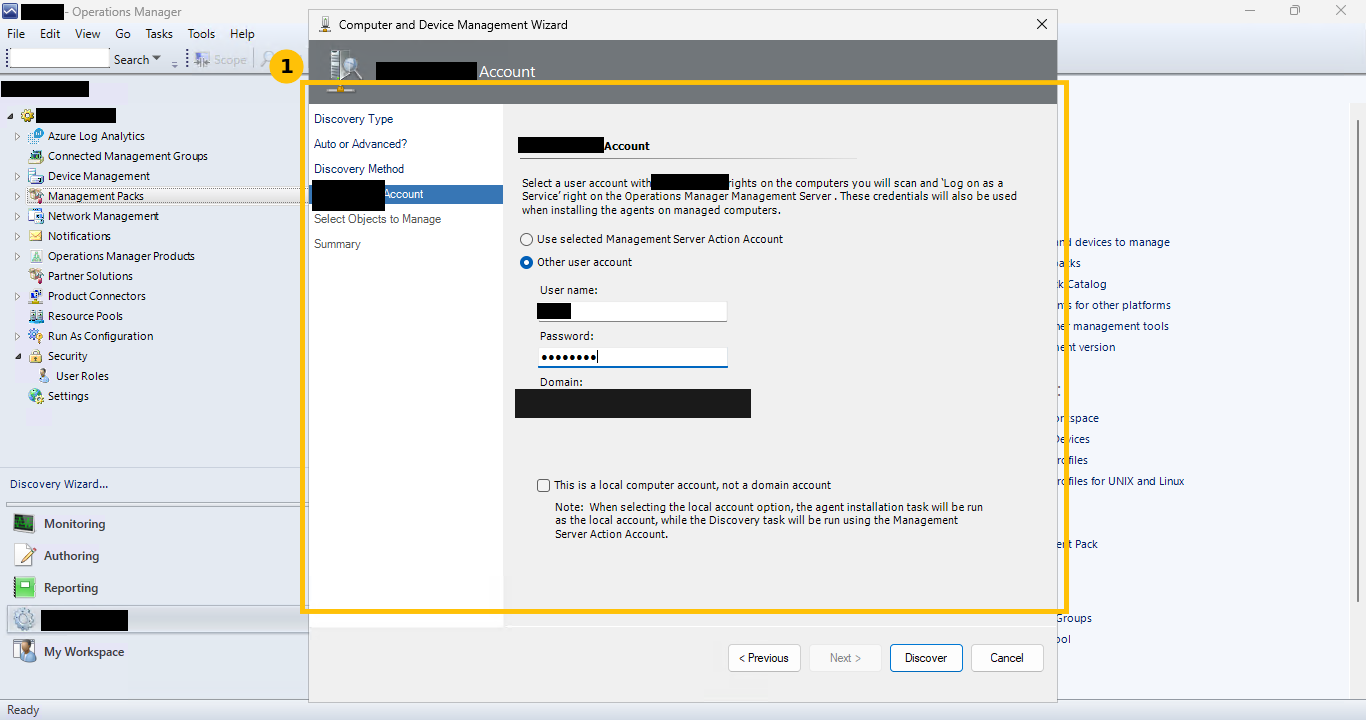
The result, honestly: discovery failed, no computers were discovered that met the criteria.
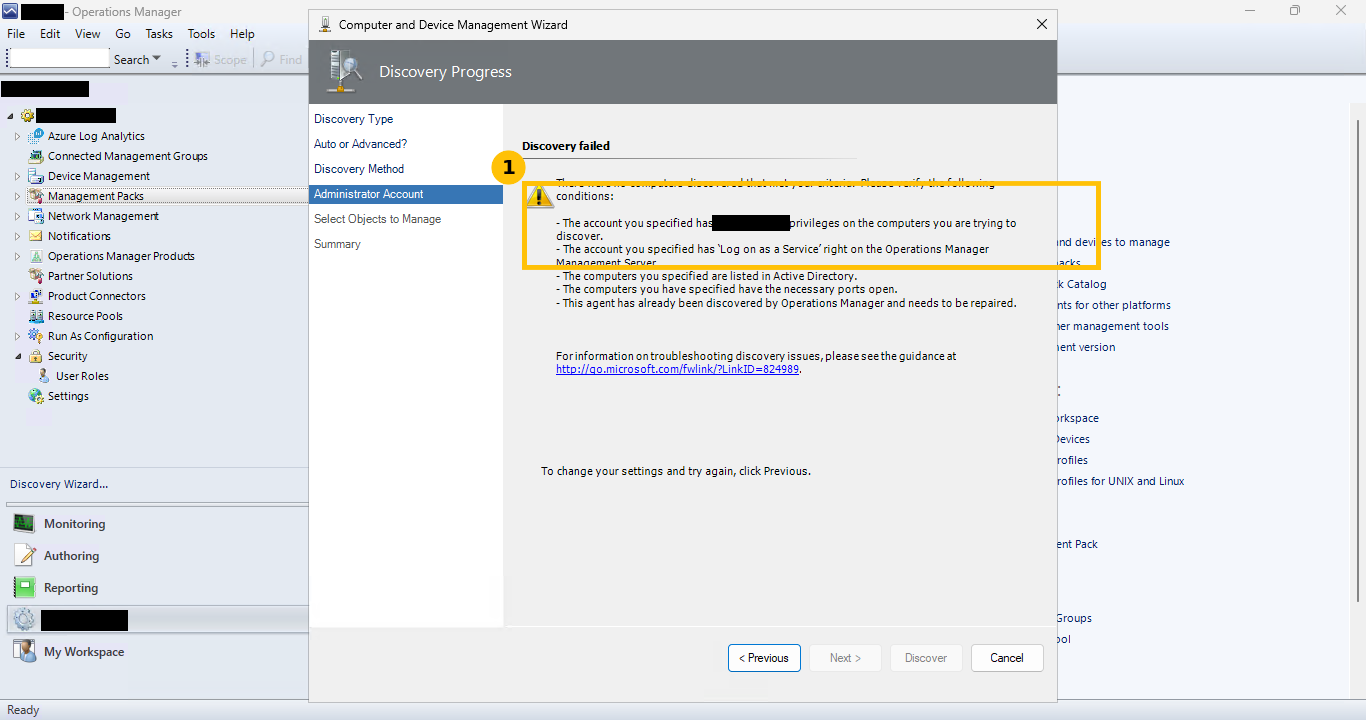
The wizard’s own checklist for this error covers account privileges, the “Log on as a Service” right, AD listing, open ports, and whether the agent is already discovered and needs repairing. None of those explained it cleanly in the time available for this build. RPC or DCOM connectivity from the management server to the target is the usual suspect for this specific failure, but it was not confirmed here, worth saying plainly rather than inventing a root cause that was not actually verified.
Step 5: the manual silent install, the thing that actually worked
Rather than keep chasing the Discovery Wizard failure, the agent was installed directly on the target, elevated, using the MSI that ships in the installation media under agent\amd64:
msiexec /i MOMAgent.msi /qn USE_SETTINGS_FROM_AD=0 USE_MANUALLY_SPECIFIED_SETTINGS=1 `
  MANAGEMENT_GROUP=ContosoMG MANAGEMENT_SERVER_DNS=srv01.contoso.com `
  MANAGEMENT_SERVER_AD_NAME=srv01.contoso.com SECURE_PORT=5723 `
  ACTIONS_USE_COMPUTER_ACCOUNT=1 AcceptEndUserLicenseAgreement=1
With automatic approval already turned on in step 2, the agent showed up under Administration > Device Management > Agent Managed within a minute or two, healthy, no manual approval step needed:
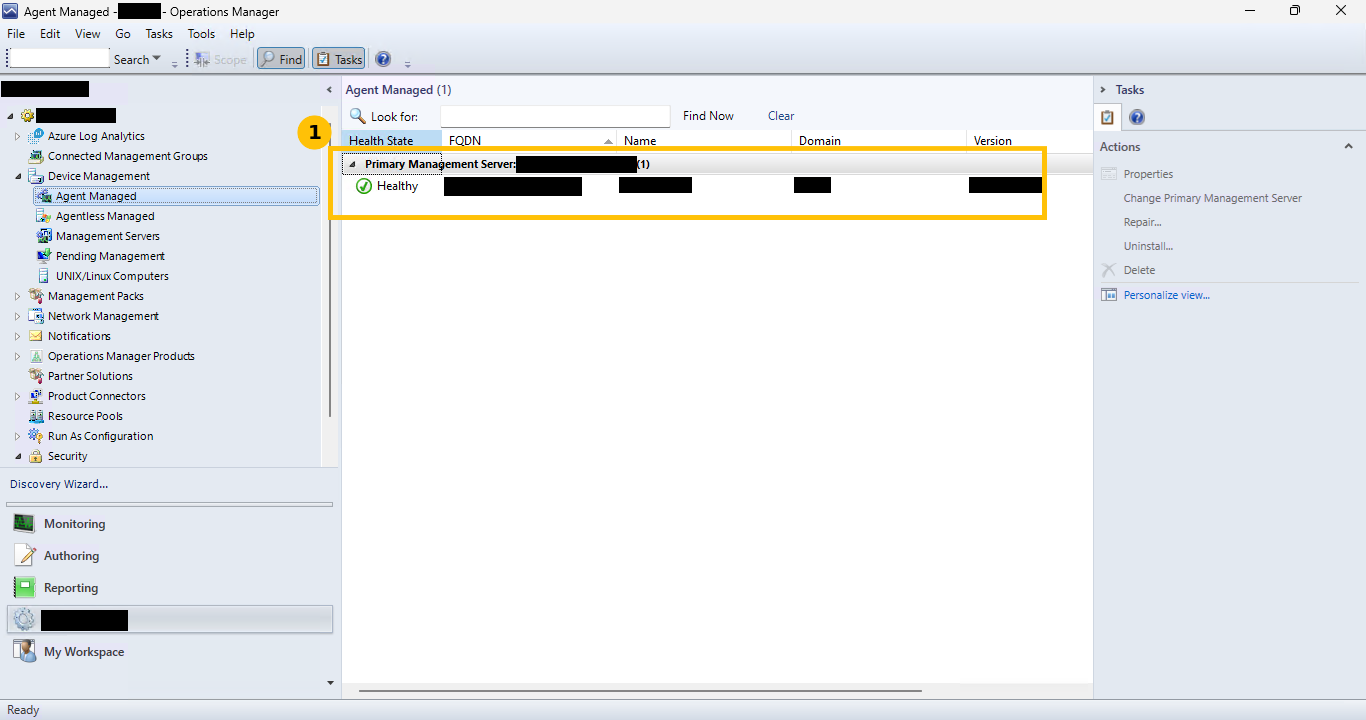
A second, separate firewall gotcha worth flagging here: a server in a second site, intended for disaster recovery, installed the agent fine with this same command but never showed up as healthy. Its own event log showed 21006/21016, “could not connect to …:5723, error 10060.” The agent needs outbound TCP 5723 to the management server specifically, and that port was blocked on the inter-site firewall. It stays invisible to SCOM until that port is opened, the agent install itself succeeding is not proof the connection actually works end to end.
Step 6: what it actually looks like once it’s healthy
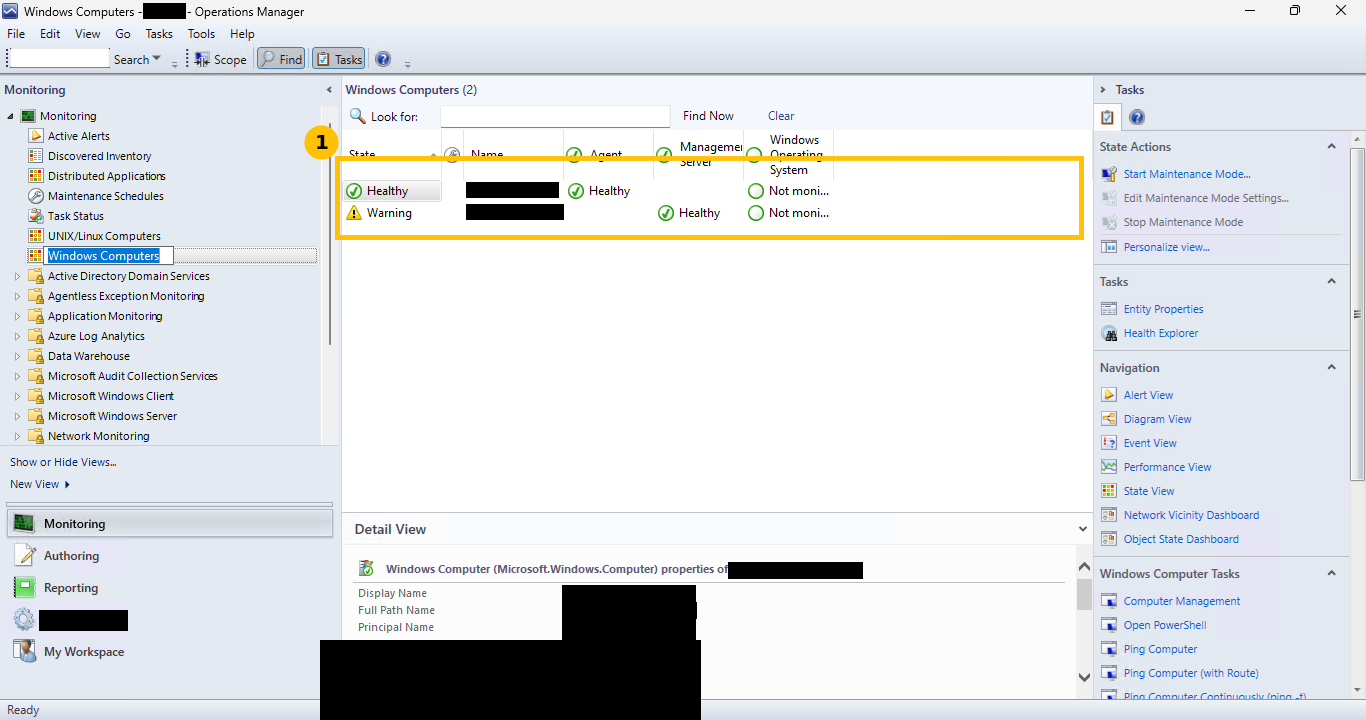
Monitoring > Windows Computers shows the agent and management server health:
And Monitoring > Active Alerts shows what came in during the first minutes after setup, left in honestly rather than cleaned up for the screenshot:
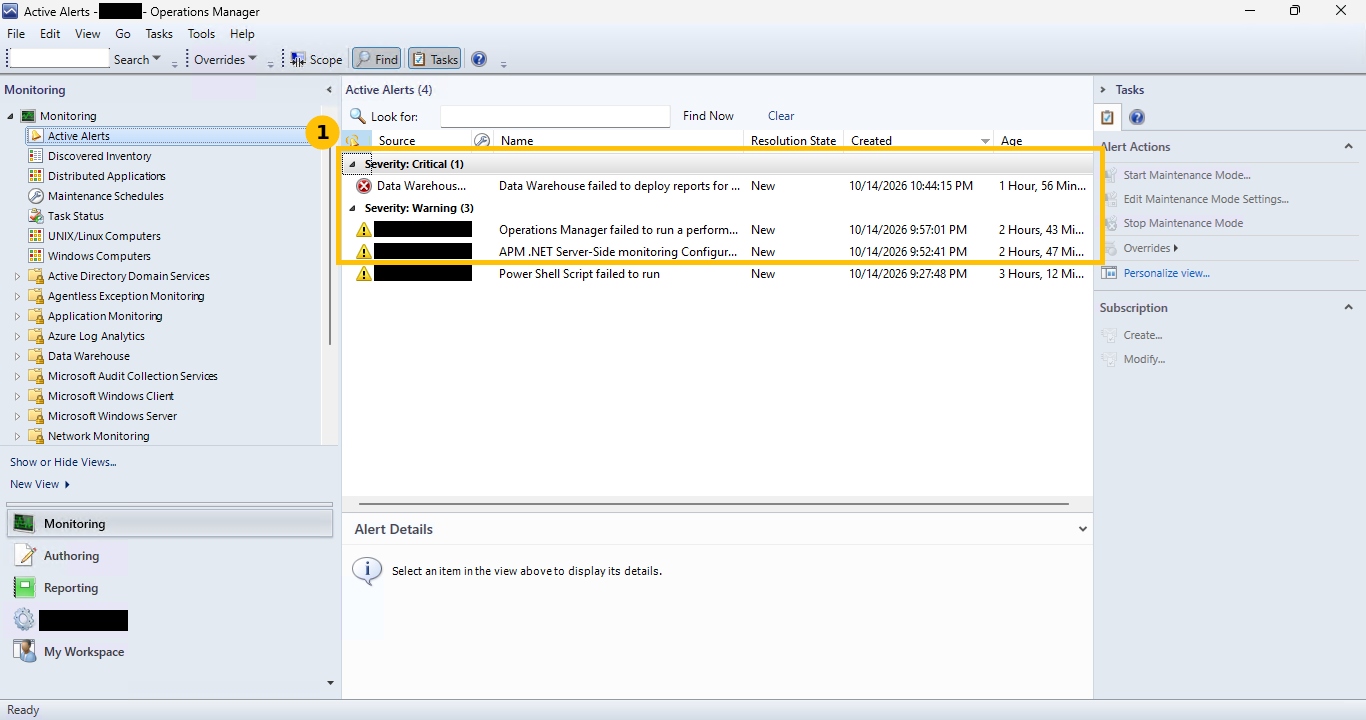
That critical “Data Warehouse failed to deploy reports for management pack” alert, plus a couple of “Operations Manager failed to run a performance/PowerShell script” warnings, showed up right after the first management packs were imported. This is genuinely normal noise in the first hours of a fresh install, not a sign the install is broken, and it was not chased further here. If it is still present days later, that is a different, more concerning situation worth actually investigating.
Quick guide
- Turn on automatic agent approval (Administration > Settings > Security) before installing any agents.
- Import the Windows Server Operating System management pack (Library and Reports) from the catalog, requires internet access from the server itself.
- If the Discovery Wizard fails with “no computers were discovered,” do not assume it is unfixable, but do not burn unlimited time on it either, a manual silent MSI install with explicit management group and server settings is a legitimate working alternative.
- A successful agent install is not the same as a healthy agent, check Agent Managed in the console and watch for connectivity issues like a blocked TCP 5723 on a cross-site firewall.
- Expect a critical Data Warehouse alert and a few script-failure warnings right after the first management pack import, that is normal first-hours noise, not a fresh problem to chase immediately.
FAQ
Why turn on automatic agent approval instead of approving each agent manually?
Manual approval is the more cautious default, and SCOM supports rejecting manual installs outright for tighter environments. For a lab or a small, trusted environment where you are the one running every install, automatic approval just removes a repetitive manual step without meaningfully changing your actual security posture, since you already control what gets installed where.
What actually causes a Discovery Wizard “no computers discovered” failure?
The wizard’s own error lists several real possibilities, insufficient account privileges, a missing “Log on as a Service” right, the target not being listed in Active Directory, required ports not open, or an already-discovered agent needing repair. RPC or DCOM connectivity between the management server and the target is the most common root cause in practice, but in this specific build it was not confirmed, which is exactly why the honest answer here is “switched to manual install” rather than a tidy made-up diagnosis.
Does the manual MSI install skip something important the wizard would have configured?
No, functionally it installs and configures the same agent, pointed at the same management group and management server, the MSI parameters used here specify that explicitly rather than relying on Active Directory to supply it. The Discovery Wizard is mainly a convenience for discovering and pushing to many computers at once, for a single target or a small number, manual install is a completely normal path, not a workaround that leaves something half-configured.