Installing and Configuring the DNS Server Role With PowerShell

DNS is the service that fails quietly until it fails loudly, name resolution breaks and suddenly nothing can find a domain controller, a file share, or an internal web app, even though every other part of the network is fine. This is a real, complete walkthrough of installing and configuring the Windows Server DNS role, verified end to end on a live domain controller rather than written from memory.
Step 1: install the role
Install-WindowsFeature -Name DNS -IncludeManagementToolsIf you’re installing DNS on a machine that’s also being promoted to a domain controller, Install-ADDSForest or Install-ADDSDomainController installs and configures DNS automatically as part of promotion, you don’t need this separate step first, that’s exactly how the real zones below ended up on this box.
Step 2: understand what you’re actually looking at
Real output from a live, AD-integrated DNS server:
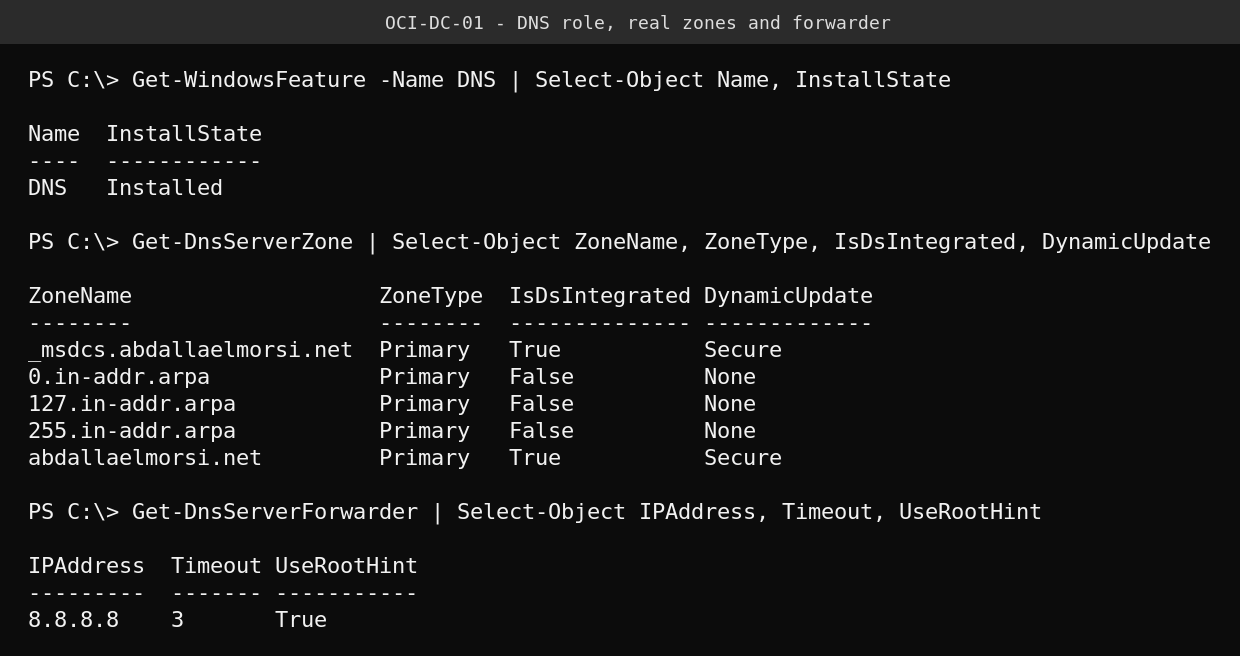
A few things worth understanding about what’s actually shown here:
_msdcs.<domain>is a special zone holding the SRV records clients use to locate domain controllers and other AD services, this is not optional infrastructure, a broken or missing_msdcszone is a classic root cause behind “clients can’t find a domain controller” tickets.IsDsIntegrated = Truemeans the zone data lives in Active Directory itself rather than a flat file on one server, replicating automatically to every DNS server in the domain through normal AD replication, rather than needing separate zone transfer configuration.DynamicUpdate = Securemeans only authenticated domain members can register or update their own DNS records automatically, this is the setting that lets a renamed or re-IP’d domain-joined machine update its own record without an admin manually editing DNS.- Reverse lookup zones (the
in-addr.arpaentries) handle IP-to-hostname lookups, the reverse direction of normal name resolution, used by some logging, auditing, and troubleshooting tools. - The forwarder is where this server sends queries it can’t answer itself (anything outside its own authoritative zones), rather than going directly to the internet’s root servers for every external lookup.
Step 3: confirm records exist and resolution actually works
Configuration existing isn’t the same as DNS actually working, confirm both, real records present and a real query resolving:
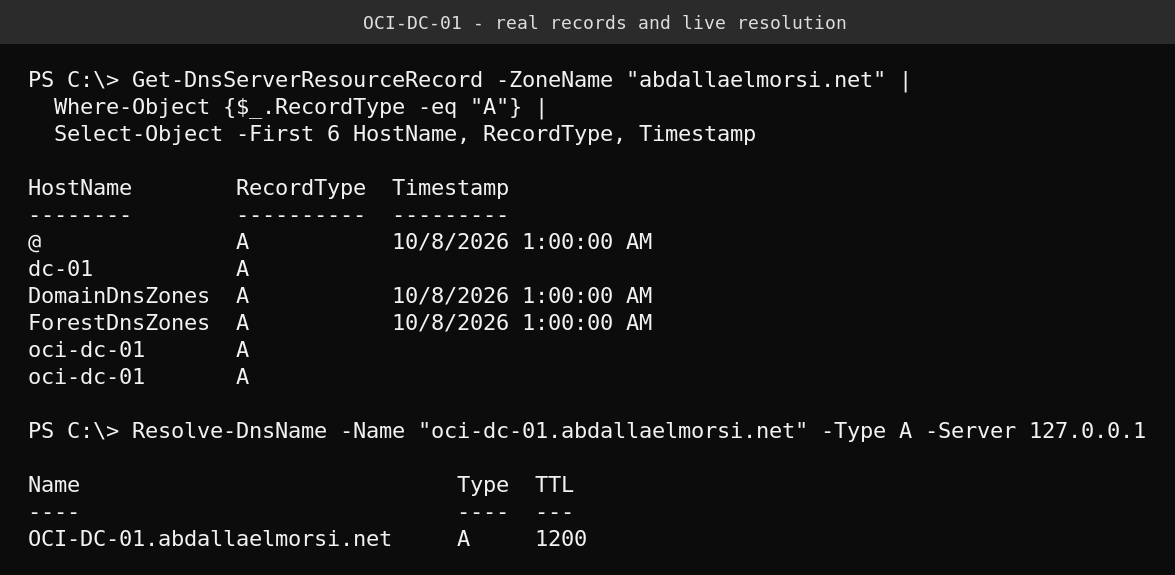
Note the @ hostname and the DomainDnsZones/ForestDnsZones entries, these are standard AD DNS infrastructure records, not something to delete if you spot them and don’t immediately recognize what they’re for.
Step 4: enable scavenging to clean up stale records
Over time, decommissioned machines, old DHCP leases, and renamed devices leave behind stale DNS records nobody ever cleans up manually. Aging and scavenging lets the DNS server automatically age out and remove records that haven’t been refreshed within a configured window, rather than accumulating dead entries indefinitely.
# Enable aging on a zone, with a 7-day no-refresh and 7-day refresh interval (common defaults)
Set-DnsServerZoneAging -ZoneName "yourdomain.com" -Aging $true -RefreshInterval 7.00:00:00 -NoRefreshInterval 7.00:00:00

# Enable server-level scavenging
Set-DnsServerScavenging -ScavengingState $true -ScavengingInterval 7.00:00:00
Enable this deliberately, with scavenging intervals that match your actual environment, rather than leaving it off indefinitely because it feels risky to touch. An accumulation of years of stale records is a bigger operational problem than a correctly configured scavenging policy.
Quick guide
- Install the role with
Install-WindowsFeature -Name DNS -IncludeManagementTools(automatic if promoting to a domain controller). - Review your zones with
Get-DnsServerZone, confirm_msdcsexists and is healthy for an AD environment. - Set a forwarder for queries outside your authoritative zones with
Set-DnsServerForwarder. - Confirm real resolution works with
Resolve-DnsName, not just that the service is running. - Enable aging and scavenging deliberately, with intervals matched to your environment, rather than leaving stale records to accumulate indefinitely.
FAQ
What’s the difference between a primary zone and an AD-integrated zone?
A standard primary zone stores its data in a flat file on one specific server, requiring explicit zone transfer configuration to replicate to other DNS servers. An AD-integrated zone stores its data inside Active Directory itself, replicating automatically through normal AD replication to every domain controller running DNS, which is why it’s the standard choice in an AD environment.
Should DynamicUpdate be set to Secure, Nonsecure, or None?
Secure, for essentially any AD-integrated zone. Nonsecure allows any client, authenticated or not, to register or overwrite records, which is a real spoofing risk. None requires every record to be created manually, which doesn’t scale and defeats the purpose of dynamic DNS in an AD environment.
Why would I need reverse lookup zones if forward resolution already works?
Some security tools, certain authentication mechanisms, logging systems, and troubleshooting workflows specifically perform reverse (IP-to-name) lookups. Without a reverse zone, those lookups fail even though forward name resolution works fine, which can cause confusing, hard-to-diagnose issues in tools that assume reverse DNS is configured.
Is it safe to enable scavenging on an existing, long-running zone with years of records?
Enable it, but review what’s actually in the zone first and set a conservative refresh/no-refresh interval initially, rather than aggressive settings on day one. Records that are genuinely still in use get refreshed automatically by their owning machines and won’t be touched, scavenging only removes entries that have gone stale past your configured window.