

Installing Proxmox VE: From ISO to Your First Virtual Machine

Proxmox VE is a free, open source type 1 hypervisor built on Debian, and it has become the default choice for home labs and small business virtualization since it needs no license to run a full production environment. This walkthrough covers the whole path from downloading the installer to creating your first virtual machine.
Quick guide
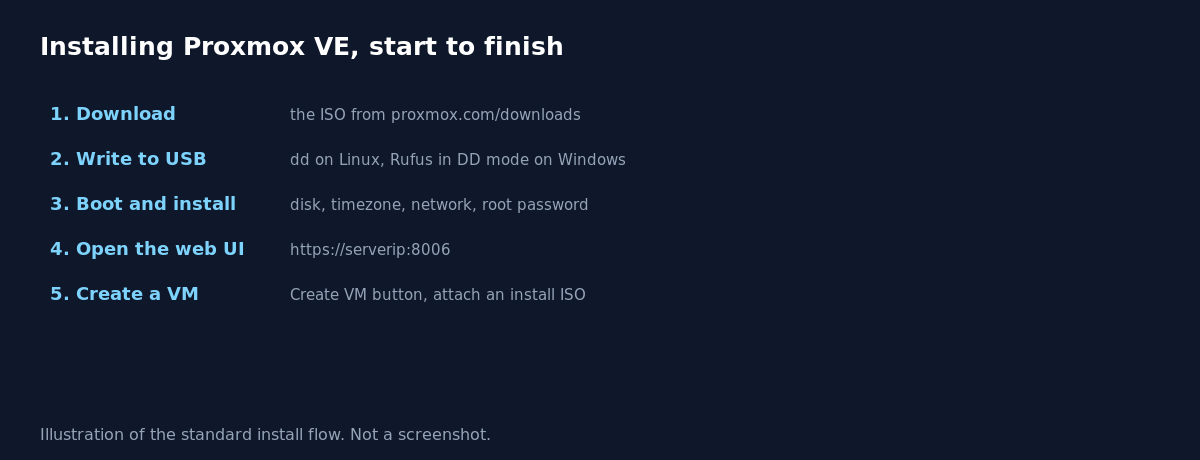
- Download the Proxmox VE ISO from the official downloads page at proxmox.com. The current release is the 9.x series.
- Write the ISO to a USB drive. On Linux use
dd bs=1M conv=fdatasync if=proxmox-ve.iso of=/dev/sdX(replace with your actual device), on Windows use Rufus in DD mode, not ISO mode. - Boot the target machine from the USB drive and follow the installer through disk selection, country and timezone, network configuration, and setting the root password.
- Once installed, the console shows the web interface address. Open it from another machine at
https://the-servers-ip:8006and accept the self signed certificate warning. - Log in with the root account and the password set during install.
- Click Create VM, walk through the wizard (OS, system, disk, CPU, memory, network), attach an installer ISO you have uploaded, and start it to install a guest operating system.
What you get without a license
Proxmox VE’s core hypervisor, clustering, VM and container management, and the web interface are all fully functional with no license and no feature gate. A paid subscription buys access to the more heavily tested enterprise repository and official support, but the no cost repository still receives the same updates on a short delay, which is why so many home labs and small deployments run entirely unlicensed without missing core functionality.
VMs versus containers, and when to use each
Proxmox supports two virtualization types side by side. A full VM emulates complete hardware and runs any guest operating system with full isolation from the host, at the cost of more overhead. An LXC container shares the host’s Linux kernel, starts almost instantly, and uses a fraction of the resources, but it can only run Linux, and it has less isolation from the host than a full VM. Use containers for lightweight Linux services where speed and density matter, and VMs for anything needing a different OS, strong isolation, or GPU passthrough and similar hardware level features.
What actually goes wrong
The most common first install trip up is forgetting that Proxmox itself needs a network configured during setup, and if the wrong network interface or a typo in the IP address is entered, the web interface becomes unreachable from another machine even though the install technically succeeded. The fix is either correcting it from the local console with ip addr and editing /etc/network/interfaces, or simply accessing the local console directly rather than assuming remote access will work on the first try. The second common issue is enabling the enterprise repository without a subscription key, which causes update failures, switching to the no cost repository in Proxmox’s package sources resolves it immediately.
FAQ
Can I run Proxmox VE on a single machine, or does it need a cluster?
A single node is a completely normal and fully supported deployment. Clustering multiple nodes together is optional and adds features like live migration and shared storage, but is not required to use Proxmox at all.
Is Proxmox VE free forever, or is there a trial period?
The hypervisor itself has no time limit or feature restriction without a subscription. Subscriptions are an optional purchase for enterprise support and the more conservatively tested update repository.
Can I import an existing VM from VMware or Hyper-V into Proxmox?
Yes, Proxmox includes import tooling for migrating virtual disks from other hypervisor formats, though the exact steps depend on the source format and are worth testing on a non production copy first.
Sources
Official Proxmox VE documentation and downloads at proxmox.com and pve.proxmox.com.