

Hardening SSH: Switching to Key Based Authentication and Proving It Works

Password based SSH login is one of the most consistently attacked services on the internet, every internet facing Linux server sees automated brute force attempts within hours of going online. Switching to key based authentication and disabling passwords entirely removes that entire attack category. This walkthrough proves the process actually works, using a real throwaway account on a real Linux box, not a hypothetical example.
Quick guide
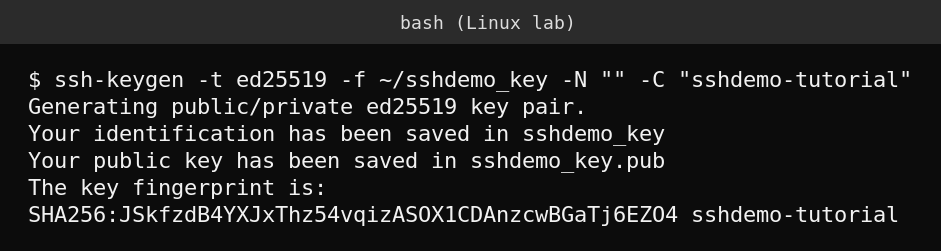
- On your local machine, generate a key pair with
ssh-keygen -t ed25519 -C "your-email-or-label". Ed25519 is the current recommended algorithm for its speed and security. - Copy the public key to the server, the easiest way is
ssh-copy-id user@server, or manually append the contents of the .pub file to~/.ssh/authorized_keyson the server. - Make sure the permissions are correct: the .ssh folder needs mode 700, and authorized_keys needs mode 600, or SSH will refuse to use it.
- Test logging in with the key from a new terminal session before changing anything else, so you are never locked out mid change.
- Only after confirming key login works, edit
/etc/ssh/sshd_config(or a file in/etc/ssh/sshd_config.d/) and setPasswordAuthentication no. - Validate the config syntax with
sudo sshd -tbefore restarting, then apply it withsudo systemctl restart sshd. If sshd -t reports an error, fix it first, do not restart with a broken config.
Proving key based login actually works
Generating a key and copying it to the server is not proof anything works, the actual test is a fresh SSH connection using only that key. A throwaway test account was created for this walkthrough, its public key installed, and the login tested directly.

What a properly hardened sshd_config looks like
The Linux lab machine used for this site’s tutorials happens to already be hardened this way, which makes a good real example of what the settings actually look like in production rather than a textbook snippet.

Notice the setting appears in multiple files, cloud-init and cloud image defaults already disabled it, and an explicit hardening config file reinforces the same setting. SSH reads config files in order and the first match for a directive wins, so redundant, explicit settings in a dedicated hardening file are good practice, they make the intended configuration obvious to the next admin rather than relying on defaults nobody remembers setting.
What actually goes wrong
The single most damaging mistake in this process is disabling password authentication before confirming key login actually works, permanently locking yourself out of a remote server with no console access. Always test the key login from a completely fresh terminal session, not a session you are already logged into, before touching PasswordAuthentication. If you have any doubt, keep a second terminal already logged in as a working fallback open while you make the change, and only close it once the new session confirms working key access.
FAQ
Is Ed25519 better than RSA for SSH keys?
For new keys, yes. Ed25519 keys are shorter, generate and verify faster, and are considered at least as secure as a much longer RSA key, and are the generally recommended default today.
Should I disable root login too?
Yes, in almost every case. Requiring administrators to log in as a normal user and use sudo, rather than logging in directly as root, adds accountability and removes one more direct attack target, as shown in the hardened config above with PermitRootLogin no.
What if I get locked out anyway?
If the server has an out of band console (a cloud provider’s serial or VNC console, or physical access), you can fix sshd_config directly without needing SSH at all. This is another good reason to confirm console access exists before making any SSH hardening change on a remote server.
Sources
OpenSSH’s own documentation for sshd_config, and standard SSH hardening guidance for key based authentication.