

Creating and Managing Shared Mailboxes in Exchange Online With PowerShell

A shared mailbox lets a team read and send from one address, like [email protected], without sharing a password. Creating one takes one command, but getting the permissions right the first time saves a second round of tickets from people who can see the mailbox in Outlook but cannot send from it, or the reverse.
Quick guide
- Connect to Exchange Online PowerShell with
Connect-ExchangeOnline. - Create the mailbox with
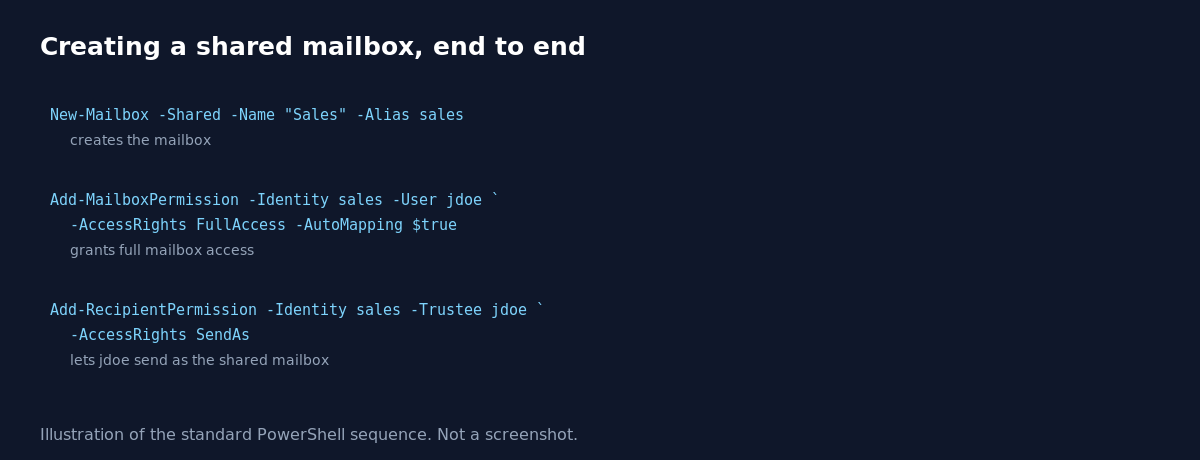
New-Mailbox -Shared -Name "Sales" -DisplayName "Sales" -Alias sales. - Grant a user full access to open and read the mailbox with
Add-MailboxPermission -Identity sales -User jdoe -AccessRights FullAccess -AutoMapping $true. - Separately grant permission to send email as that mailbox with
Add-RecipientPermission -Identity sales -Trustee jdoe -AccessRights SendAs. Full access does not include this on its own. - Confirm what is granted with
Get-MailboxPermission -Identity salesandGet-RecipientPermission -Identity sales. - Shared mailboxes do not need a license for basic mail and calendar functionality, only if you want features like Litigation Hold or an archive larger than the free default limit.
FullAccess versus Send As, and why both exist
Add-MailboxPermission with FullAccess lets a user open the mailbox, read its contents and send email from it, but there is a distinction worth knowing: FullAccess technically allows sending using the “Send on Behalf” style through Outlook’s mailbox switching, while the separate SendAs right controlled by Add-RecipientPermission governs whether outgoing mail shows the shared mailbox as the sender with no “on behalf of” text. In practice, most organizations grant both together so the mailbox behaves exactly like a normal shared inbox, since granting only one leads to a support ticket asking why sending does not work as expected.
AutoMapping, and when to turn it off
By default, granting FullAccess automatically adds the shared mailbox to the user’s Outlook profile the next time it syncs, called AutoMapping. This is convenient for a handful of shared mailboxes, but with many users each holding access to several shared mailboxes, Outlook profiles can become slow to load everything at startup. Setting -AutoMapping $false grants the same access without automatically loading it in Outlook, and the user can add it manually instead.
What actually goes wrong
The most common support ticket after creating a shared mailbox is “I can see it but cannot send as it,” which almost always means FullAccess was granted without the separate SendAs permission, or vice versa. The second most common issue is Outlook not showing the mailbox at all after permissions were correctly granted, which is usually just an Outlook cache that has not refreshed yet, closing and reopening Outlook, or waiting for the next automatic profile sync, resolves it without touching permissions again.
FAQ
Do shared mailboxes need a Microsoft 365 license?
No, not for standard use. A license is only needed if the mailbox needs Litigation Hold, In-Place Archive beyond the free size limit, or other features that specifically require one.
Can more than one person send as the shared mailbox at the same time?
Yes. Grant FullAccess and SendAs to every user or security group that should be able to use the mailbox, there is no limit tied to simultaneous use.
How do I remove someone’s access later?
Use Remove-MailboxPermission and Remove-RecipientPermission with the same parameters used to grant access, swapping Add for Remove.
Sources
Microsoft Learn documentation for shared mailboxes in Exchange Online, and the New-Mailbox, Add-MailboxPermission and Add-RecipientPermission PowerShell cmdlets.