Troubleshooting Windows Update Failures: A Practical Approach

Windows Update is critical for security and performance, and a failing update should be treated as something to fix promptly, not ignored. This guide walks through the actual troubleshooting steps that resolve most Windows Update failures, from checking the specific error code to clearing a corrupted update cache.
What causes the Windows Update failing error?
The Windows Update failing error may be caused by basic problems, like not having enough storage space, or something deeper like outdated drives or missing Windows program files. Windows Update is one of the operating system’s highest priorities, so it’s essential that you troubleshoot as soon as you can.
If Windows Update is not downloading, one of the following issues is likely the cause:
- Corrupted update files
- A lack of free space
- A hardware conflict
- Issues with the update service
- A slow or broken internet connection
Windows updates contain all of the latest security updates, patches, and system fixes for Windows. Logging on to the internet without an updated OS can leave you vulnerable to security exploits, malware infections, or complications resulting from a Windows black screen.
Best Practices:
– Record the error code before taking action.
– Use the Microsoft Error Reference to look up code meanings.
– Correlate the error code with Event Viewer logs for deeper insights.
How to Apply:
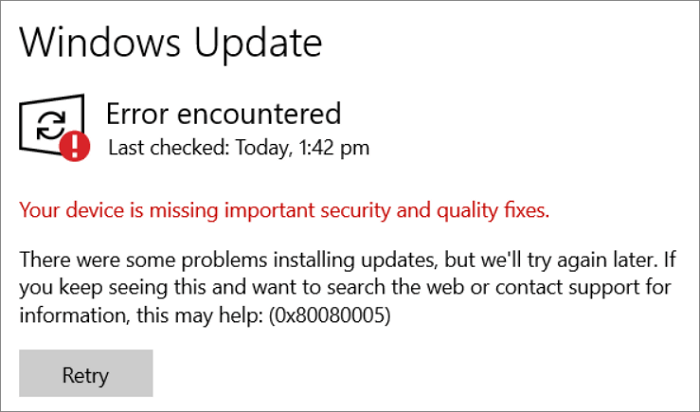
1. Open Settings > Update & Security > Windows Update.
2. View the most recent update error and note the code.
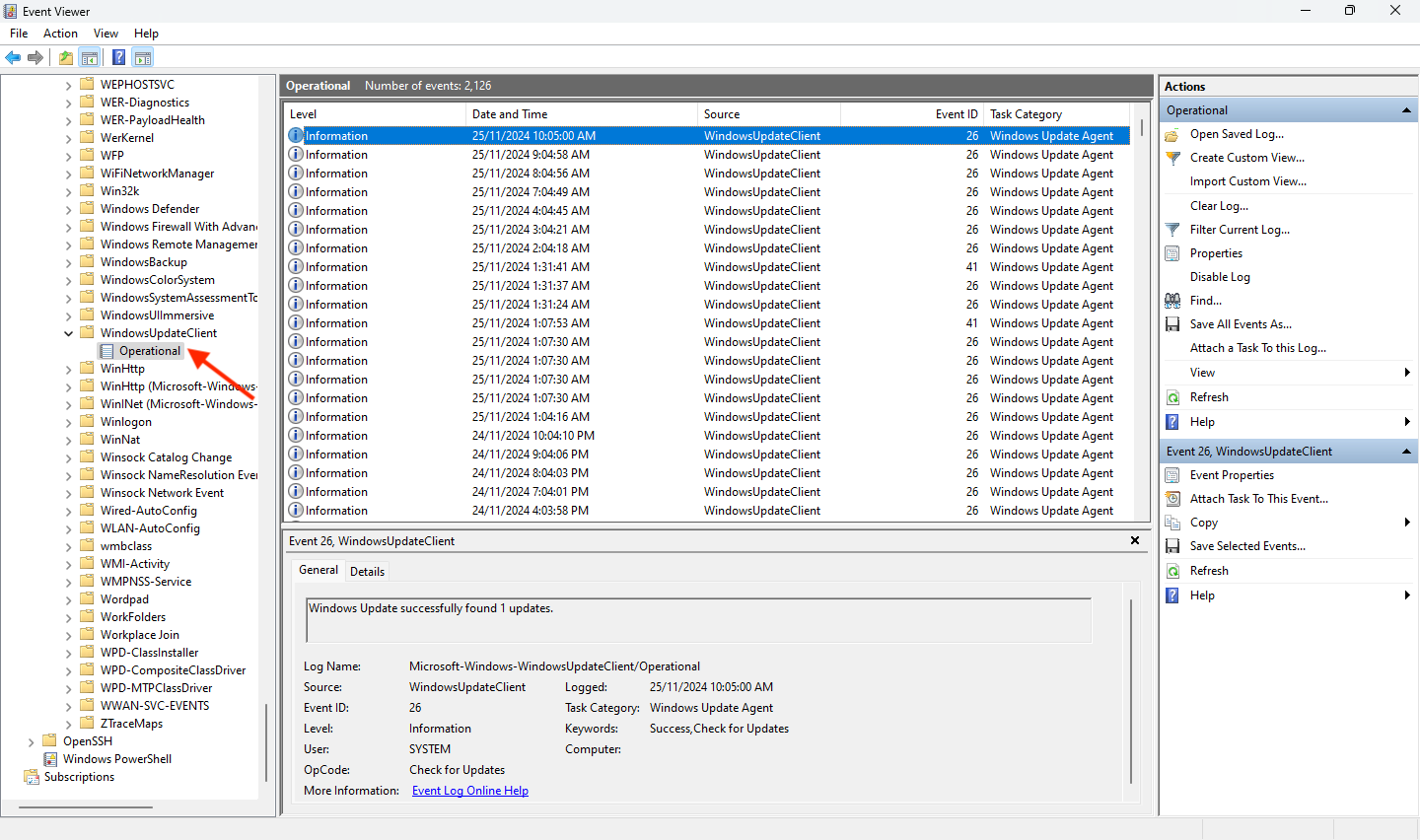
3. Alternatively, open Event Viewer and navigate to:
Applications and Services Logs > Microsoft > Windows > WindowsUpdateClient > Operational.
4. Search for Event ID 20, 25, or 31 for update errors.
Best Practices:
– Always run the troubleshooter before performing manual changes.
– Reboot the system after the troubleshooter completes.
– Run as Administrator to ensure full diagnostics.
How to Apply:
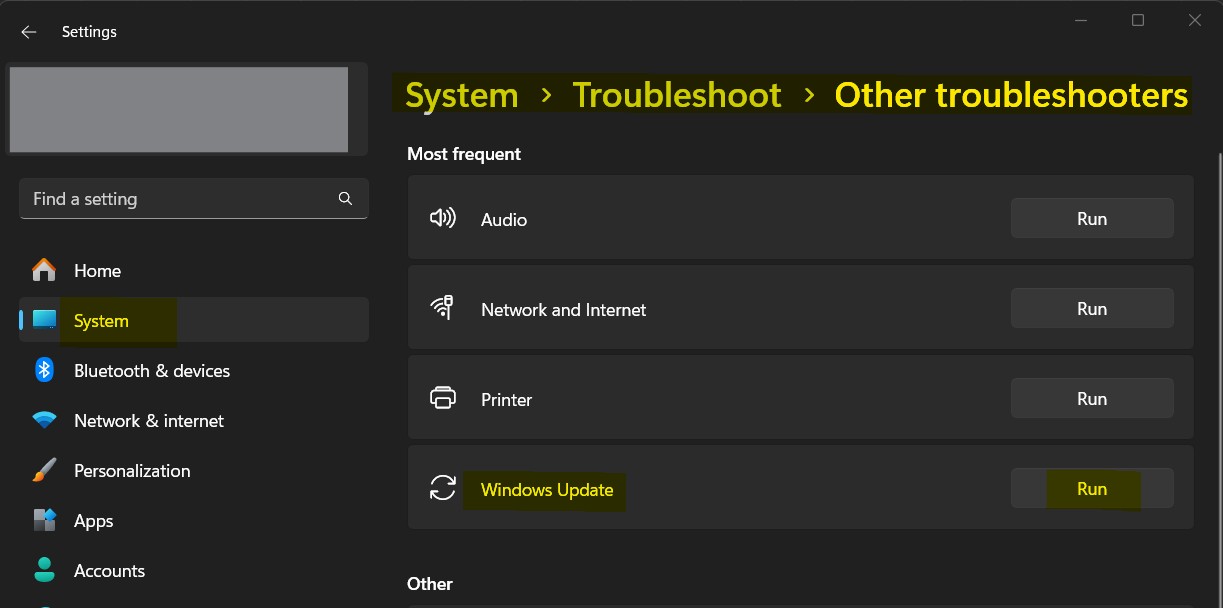
1. Go to Settings > Update & Security > Troubleshoot.
2. Click Additional troubleshooters.
3. Select Windows Update and click Run the troubleshooter.
4. Follow the on-screen instructions and review the output.
Best Practices:
– Verify DNS and gateway settings.
– Use a wired connection when possible.
– Ensure firewalls or proxies are not blocking update URLs.
How to Apply:
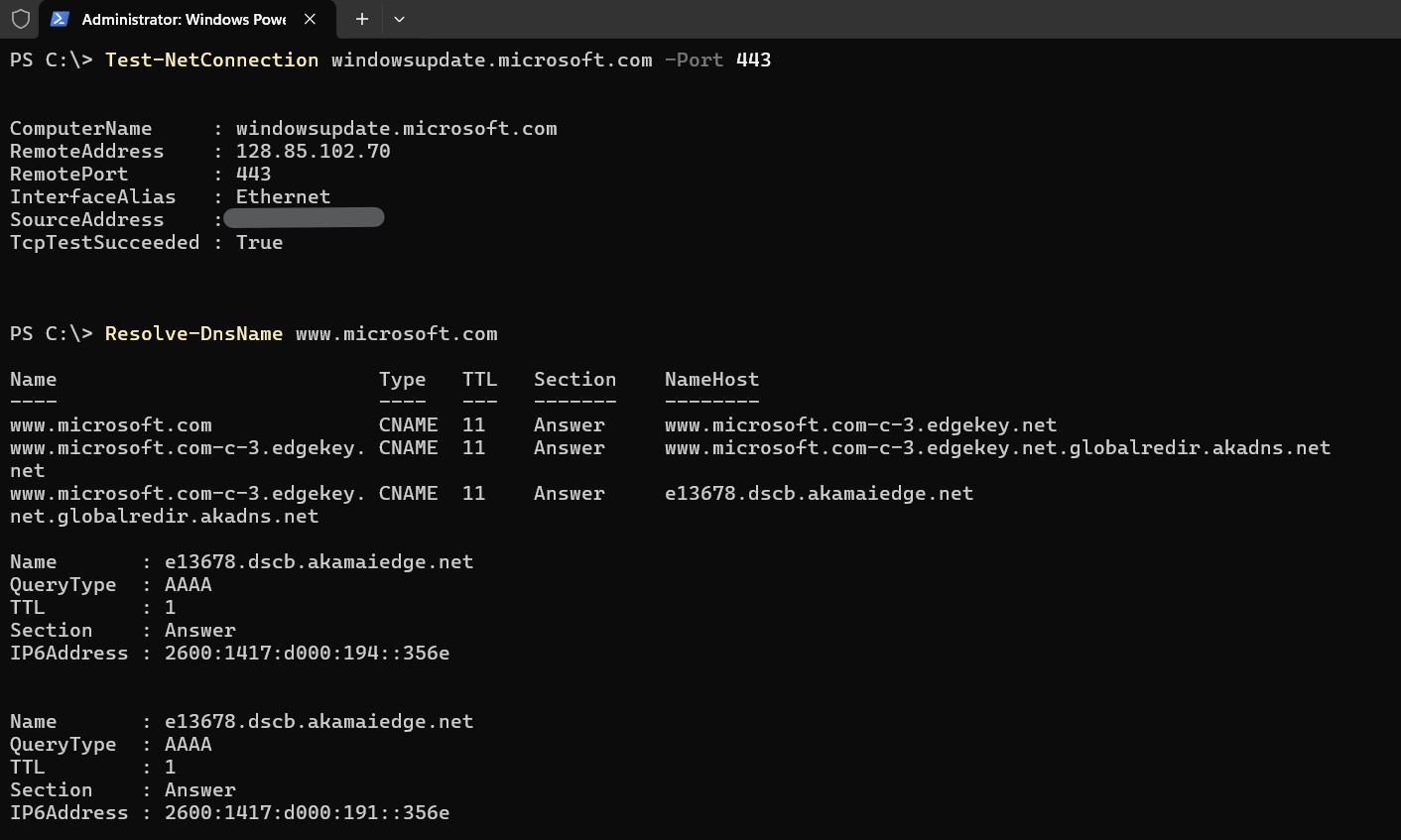
1. Use
Test-Connection to check connectivity.2. Use
Resolve-DnsName to verify DNS resolution.3. Test access to www.microsoft.com or Windows Update URLs.
4. Restart the network adapter if needed.
Best Practices:
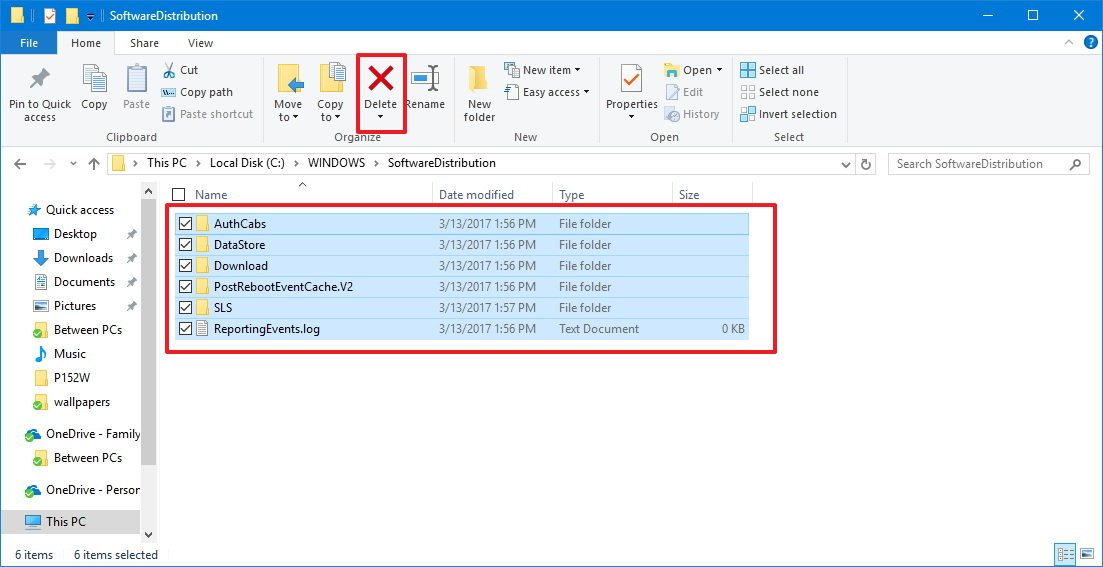
– Always stop the Windows Update service before clearing the cache.
– Do not delete the
SoftwareDistribution folder itself, only its contents.– Restart the service afterward and check for updates again.
How to Apply:
1. Open PowerShell or Command Prompt as Administrator.
2. Stop the update service:
net stop wuauserv3. Navigate to:
C:\Windows\SoftwareDistribution\Download4. Delete all contents in the
Download folder.5. Restart the service:
net start wuauserv6. Re-check for updates via Settings or
Get-WindowsUpdate.
Best Practices:
– Always run the log generation as Administrator.
– Review logs after each major update failure.
– Search for keywords like
ERROR, WARNING, or specific KB numbers.
How to Apply:
1. Open PowerShell as Administrator.
2. Run
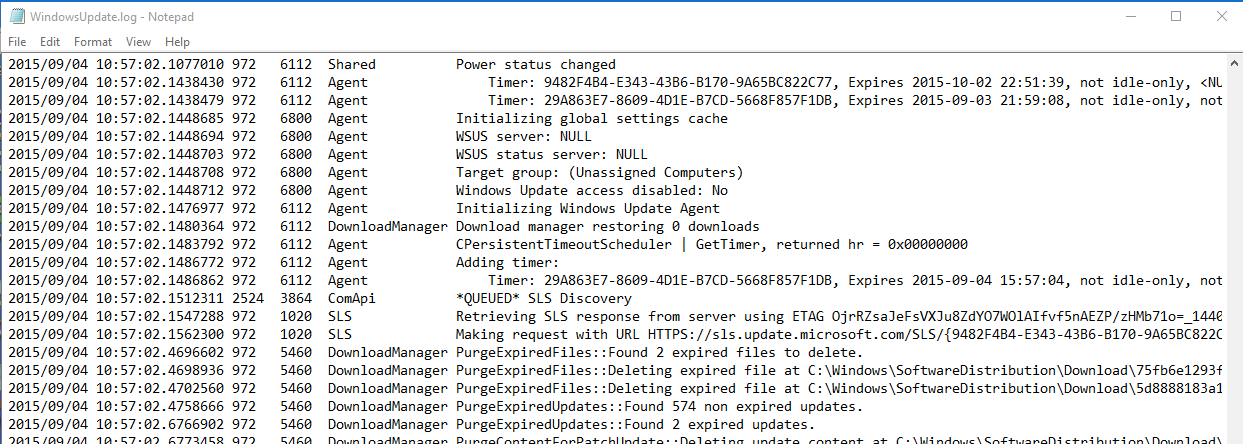
Get-WindowsUpdateLog to generate a readable log.3. The output file will be saved to the Desktop.
4. Open the file and use Ctrl+F to search for failures or timestamps.
Conclusion
By following these steps, you can resolve most Windows Update issues efficiently. Always document your process for future reference.