Creating Active Directory Users and Troubleshooting Logon Failures

Creating an Active Directory user is a five second task until the wizard throws an error you have not seen before, or a brand new hire calls the help desk because they cannot log on. This guide covers both sides: the two standard ways to create a user, the errors that actually stop you, and how to read a logon failure well enough to fix it on the first try.
Quick guide
- To create a user with the GUI, open Active Directory Users and Computers, right click the target OU, choose New, User, and complete the wizard including a password that meets your domain’s complexity policy.
- To create a user with PowerShell, run
New-ADUser -Name "Jane Doe" -SamAccountName jdoe -UserPrincipalName [email protected] -AccountPassword (ConvertTo-SecureString 'P@ssword1!' -AsPlainText -Force) -Enabled $true -ChangePasswordAtLogon $true. - If creation fails with a password error, the password does not meet the domain’s length, complexity or history policy, try a longer password with upper, lower, number and symbol characters.
- If creation fails saying an object with that sAMAccountName already exists, someone (possibly a disabled or deleted account) already has that logon name, pick a different one or check the Recycle Bin.
- If a user reports they cannot log on, check
Get-ADUser username -Properties Enabled,LockedOut,AccountExpirationDatefirst, this single command shows the three most common causes at once. - Fix disabled with
Enable-ADAccount, fix locked withUnlock-ADAccount, and fix an expired account by clearing or extending the expiration date withClear-ADAccountExpirationorSet-ADAccountExpiration.

Creating a user, both ways
Active Directory Users and Computers (GUI)
Open ADUC (dsa.msc), expand your domain, right click the organizational unit you want the account in, choose New, User, and step through the wizard: first name, last name, logon name (this becomes the SamAccountName and part of the UPN), then a password screen where you set the initial password and choose whether the user must change it at next logon, whether the password never expires, and whether the account is disabled from creation.
PowerShell (New-ADUser)
The New-ADUser cmdlet does the same thing scriptably, which matters the moment you need to create more than one or two accounts. According to Microsoft’s own reference documentation, SamAccountName is required, and property values with no dedicated parameter can be set through -OtherAttributes. A minimal working example:
New-ADUser -Name "Jane Doe" -SamAccountName jdoe -UserPrincipalName [email protected] -GivenName Jane -Surname Doe -AccountPassword (ConvertTo-SecureString "P@ssword1!" -AsPlainText -Force) -Enabled $true -ChangePasswordAtLogon $true -Path "OU=Users,DC=yourdomain,DC=com"Errors you will actually hit creating users
Password does not meet requirements
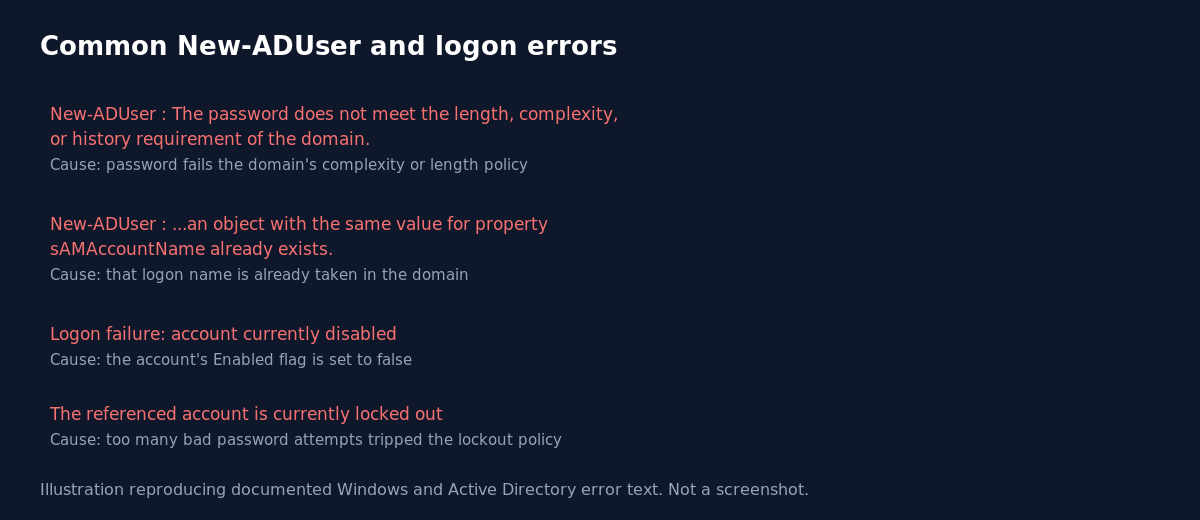
The exact error text is New-ADUser : The password does not meet the length, complexity, or history requirement of the domain. This means the password you supplied fails the domain’s password policy or a fine grained password policy applied to that OU. Increase length and mix character types, or check Get-ADDefaultDomainPasswordPolicy to see the actual requirement.
Duplicate SamAccountName
Attempting to reuse a logon name that already exists in the domain throws an exception (of type ADIdentityAlreadyExistsException) stating an object with that sAMAccountName value already exists. Check both active and disabled accounts, and the AD Recycle Bin if it is enabled, since a recently deleted account can still be holding the name.
Logon failures, and what each one actually means
When a user cannot log on, Windows Security event 4625 logs a specific sub-status code that tells you exactly why, and these map directly to plain English causes:
- 0xC0000064: the username does not exist. Check for a typo or the wrong domain.
- 0xC000006A: the username is correct but the password is wrong.
- 0xC0000234: the account is currently locked out.
- 0xC0000072: the account is currently disabled.
- 0xC0000193: the account has expired, its
AccountExpirationDatehas passed. - 0xC0000071: the password itself has expired.
- 0xC0000070: a workstation restriction is blocking logon from this machine.
- 0xC000006F: the user is trying to log on outside their allowed logon hours.
One command checks the three most common of these at once:
Get-ADUser username -Properties Enabled,LockedOut,AccountExpirationDate,PasswordExpired | Select-Object Name,Enabled,LockedOut,AccountExpirationDate,PasswordExpiredWhat actually goes wrong
The most common real world lockout culprit is not a user mistyping their password at the login screen, it is an old cached credential somewhere else, a mapped drive, a scheduled task, a phone mail profile, retrying automatically and silently racking up bad attempts. A user calling in “locked out again five minutes after being unlocked” is the classic symptom, and the fix is finding that stale credential, not repeatedly unlocking the account.
FAQ
Does Enable-ADAccount reset a user’s password?
No. It only clears the disabled flag. If the user also forgot their password, you need a separate Set-ADAccountPassword or a GUI reset.
Why does a new user still get a duplicate name error after I deleted the old account?
If the AD Recycle Bin is enabled, a deleted object can remain recoverable and still reserve identifying attributes for a retention period. Check the Recycle Bin, or simply pick a different SamAccountName.
Can I create many users at once instead of one at a time?
Yes, loop New-ADUser over a CSV of names with Import-Csv, which is the standard approach for bulk onboarding and avoids repeating the GUI wizard by hand.
Sources
Microsoft Learn documentation for the New-ADUser, Get-ADUser, Enable-ADAccount and Unlock-ADAccount PowerShell cmdlets, and Windows Security event 4625 sub-status code reference.