Find and Fix Active Directory Account Lockouts With Event 4740 and PowerShell

A locked out user is one of the most common help desk tickets, and one of the fastest to fix once you know which domain controller to check and which event to look for. This walkthrough reproduces a real lockout in a lab domain, finds it with PowerShell, and unlocks it, so you can run the exact same commands during a real incident.

Quick guide
- Open PowerShell on any domain controller or a machine with the Active Directory module.
- Run
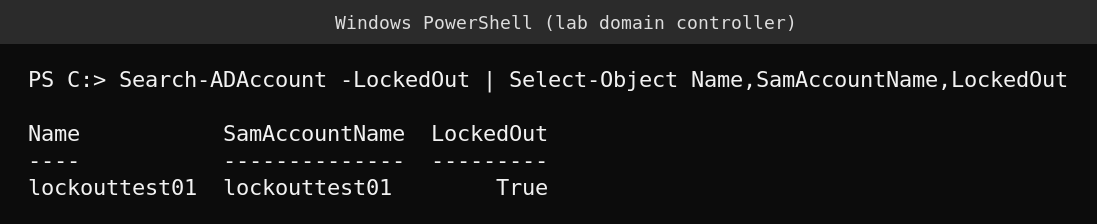
Search-ADAccount -LockedOutto list every currently locked out account in the domain. - Find the PDC emulator with
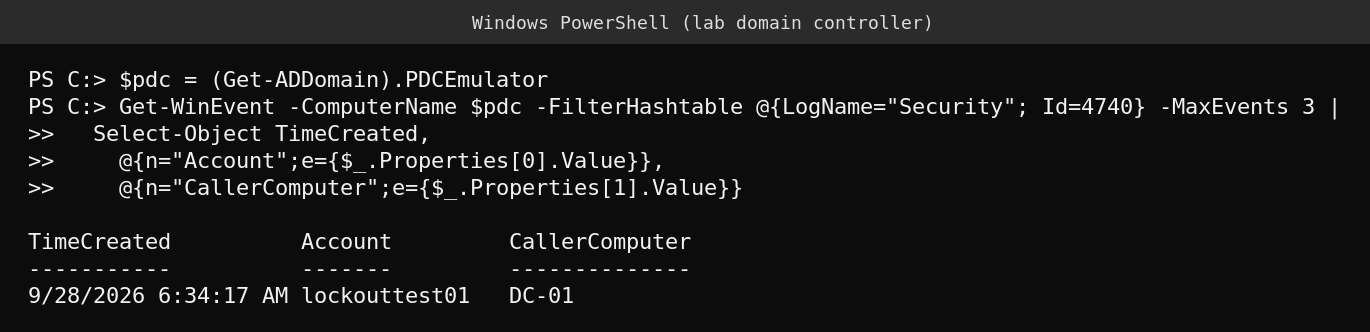
(Get-ADDomain).PDCEmulator. Lockouts are always logged there first, since it tracks the authoritative bad password count. - Run
Get-WinEvent -ComputerName -FilterHashtable @{LogName="Security";Id=4740}to see who locked the account out and from which computer. - Once you know the cause, unlock the account with
Unlock-ADAccount -Identity username. - Confirm the fix by running
Search-ADAccount -LockedOutagain, the account should no longer appear.
Why check the PDC emulator specifically
Every domain controller tracks bad password attempts locally, but only the PDC emulator holds the authoritative, real time bad password count that decides when an account actually locks. A DC other than the PDC emulator may show a stale or lower count. If you query event 4740 on a random DC and see nothing, that does not mean the account was not locked, it likely means you checked the wrong DC. Always point Get-WinEvent at the PDC emulator specifically when investigating a lockout, as shown above.
Reading event 4740
Event 4740, “A user account was locked out”, is logged in the Security log on the PDC emulator the moment an account crosses the lockout threshold. Its most useful fields are the account name that got locked and the caller computer name, the machine where the bad password attempts actually came from. That caller computer is the real lead in most investigations, since it points at the workstation, service or script still using an old cached password, not necessarily the user’s own machine.
Unlocking the account
Unlock-ADAccount -Identity username clears the lockout immediately, no reboot or replication wait required. Running Search-ADAccount -LockedOut again is worth doing every time, both to confirm the fix worked and to check whether other accounts are also currently locked, which can be a sign of a wider problem such as a shared service account with a stale password hitting many machines at once.

What actually goes wrong
The account that keeps re-locking a few minutes after every unlock is the classic sign of a bad password cached somewhere other than the user’s interactive logon, a mapped drive, a scheduled task, a phone’s mail profile, or an old RDP session still trying the previous password every few minutes. Event 4740’s caller computer field is exactly the clue that ends the guessing, since it names the machine responsible, not just the account.
FAQ
Why does Search-ADAccount -LockedOut show nothing even though a user says they are locked out?
Confirm you ran the command against a DC that has replicated the lockout status, or better, query the PDC emulator directly, since it is authoritative for lockout state.
Does unlocking an account reset its password?
Unlock-ADAccount only clears the lockout flag. The password stays exactly the same, so if the user forgot their password, unlocking alone will not fix their ability to log on.
Why does the account keep locking again right after I unlock it?
Something is still retrying the old password automatically. Check the caller computer field in event 4740 for the source, common culprits are cached credentials, scheduled tasks and mobile mail profiles.
Sources
Microsoft Learn documentation for the Search-ADAccount, Get-WinEvent and Unlock-ADAccount PowerShell cmdlets, and Windows Security event 4740.